
1. Introdución
The ASUS USB-N10 Wireless-N USB Adapter provides a convenient solution for adding or upgrading wireless connectivity to your computer. This compact adapter supports IEEE 802.11b/g/n standards, offering wireless data rates of up to 150Mbps for both transmit and receive functions. It features a fast USB 2.0 interface and includes software-based WPS (Wi-Fi Protected Setup) button support for easy and secure network connections.
2. Características clave
- Excellent Connection: Strong and convenient USB connection for fast downloads, rapid file transfers, and low-latency media streaming.
- PSP Xlink Kai Support: Play system games with PSP users worldwide via the internet.
- EZ WPS: Improve Wi-Fi security with easy WPS Wizard.
- Soporte do sistema operativo: Compatible with Windows 7 and Mac 10.6 Operating Systems (and newer versions).
- Estándares: IEEE 802.11b, IEEE 802.11g, IEEE 802.11n.
- Interfaz de host: USB 2.0.
- Frecuencia de funcionamento: 2.4 - 2.5 GHz.
- Antena: 2x Internal Antenna (MIFA antenna on USB connector).
- Modos de funcionamento: 11 for N. America, 14 Japan, 13 Europe (ETSI).
- Modulación: OFDM - BPSK, QPSK, 16-QAM, 64-QAM, DBPSK, DQPSK, CCK.
- Rango: Ata 150 m.
- Taxa de datos: 802.11n: Tx - 150Mbps (Max); Rx - 150Mbps (Max), 802.11g: 6, 9, 12, 18, 24, 36, 48, 54Mbps, 802.11b: 1, 2, 5.5, 11Mbps.
- Wireless Setting: Diagnose and configure your wireless network settings with on-line troubleshooting feature.
- WPS Wizard: High-speed wireless network is just a few clicks away.
- Sensibilidade do receptor: -84 dBm @11 Mbps, -70 dBm @54 Mbps, -67 dBm @64-QAM, 20MHz channel spacing, -64 dBm @64-QAM, 40MHz channel spacing.
3. Contido do paquete
The ASUS USB-N10 Wireless-N USB Adapter package typically includes:
- ASUS USB-N10 Wireless-N USB Adapter
- Guía de inicio rápido / Manual de instrucións
- Driver CD or USB Drive (containing necessary software)
4. Configuración e instalación
Follow these steps to install your ASUS USB-N10 Wireless-N USB Adapter:
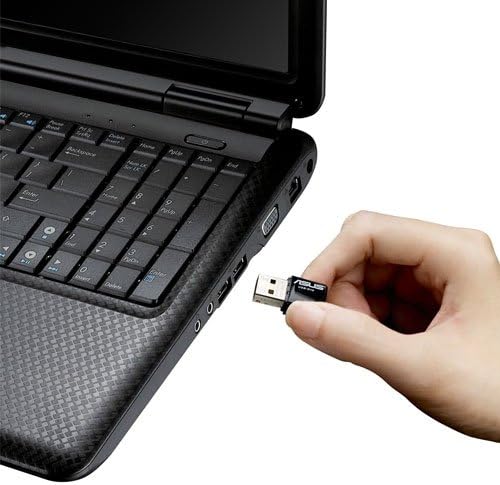
- Insira o adaptador: Carefully plug the ASUS USB-N10 adapter into an available USB 2.0 port on your computer. For optimal performance, especially if your computer has USB 3.0 ports, consider using one of those, though the adapter itself is USB 2.0.
- Instalar controladores:
- Insert the provided driver CD or USB drive into your computer.
- Locate and double-click the 'Setup.exe' file.
- Follow the on-screen instructions to complete the Wi-Fi driver installation. It is recommended to use the manufacturer's drivers for best compatibility and performance.
- Conectar a unha rede Wi-Fi:
- Once the drivers are installed, click on the network icon in your system tray (usually in the bottom-right corner of your screen on Windows, or top-right on Mac).
- Selecciona a rede Wi-Fi desexada da lista de redes dispoñibles.
- Introduza a clave de seguridade da rede (contrasinal) se se lle solicita.
- Click 'Connect'. Your computer should now be connected to the Wi-Fi network.

5. Funcionamento do adaptador
Once installed and connected, the ASUS USB-N10 adapter operates seamlessly in the background, providing wireless internet access. You can manage your wireless connection through your operating system's network settings.
5.1. Uso de WPS (configuración protexida por Wi-Fi)
The adapter supports WPS for quick and secure connection to compatible routers. If your router has a WPS button:
- Preme o botón WPS do teu enrutador sen fíos.
- Within two minutes, activate the WPS function on your computer. This is typically done through the ASUS utility software installed with the drivers, or via your operating system's network settings.
- The adapter will automatically connect to the router securely.
6. Mantemento e coidados
- Manter limpo: Gently wipe the adapter with a soft, dry cloth to remove dust. Avoid using liquid cleaners.
- Evitar danos físicos: Handle the adapter with care. Avoid dropping it or exposing it to excessive force, which could damage the USB connector or internal components.
- Colocación óptima: For best signal strength, ensure the adapter is not obstructed by other objects or placed in an area with high electromagnetic interference.
- Actualizacións de controladores: Consulta periodicamente o soporte técnico de ASUS websitio para obter controladores actualizados para garantir un rendemento óptimo e compatibilidade coas versións máis recentes do sistema operativo.
7 Solución de problemas
7.1. No Wireless Connection
- Comprobar a conexión física: Ensure the USB-N10 adapter is securely plugged into a functioning USB port.
- Instalación de controladores: Verify that the drivers were installed correctly. You can check this in your computer's Device Manager (Windows) or System Information (Mac). Reinstall drivers if necessary.
- Activar wifi: Make sure your computer's Wi-Fi is enabled.
- Estado do enrutador: Confirm that your wireless router is powered on and broadcasting a Wi-Fi signal.
7.2. Velocidade de conexión lenta
- Potencia do sinal: Check the signal strength of your Wi-Fi network. Move closer to your wireless router or access point if the signal is weak.
- Interferencia: Other electronic devices (microwaves, cordless phones) can cause interference. Try to minimize these or move the adapter away from them.
- Porto USB: Ensure the adapter is connected to a USB 2.0 port. While compatible with USB 1.1, performance will be significantly reduced.
- Configuración do enrutador: Ensure your router is configured for 802.11n mode for maximum speed.
7.3. Adaptador non recoñecido
- Proba outro porto USB: Proba o adaptador nun porto USB diferente do teu ordenador.
- Reiniciar o ordenador: Un simple reinicio pode resolver a miúdo os problemas de recoñecemento.
- Reinstalar controladores: Uninstall any existing drivers for the adapter, restart your computer, and then perform a clean installation of the drivers.
8. Especificacións
| Atributo | Valor |
|---|---|
| Dimensións do produto | 0.67 x 1.18 x 0.35 polgadas |
| Peso do elemento | 2.4 onzas |
| Número de modelo do artigo | USB-N10 |
| Data de primeira dispoñibilidade | 26 de marzo de 2010 |
| Fabricante | Asus |


9. Garantía e soporte
9.1. Exención de responsabilidade legal
Actual data throughput and Wi-Fi coverage will vary from network conditions and environmental factors, including the volume of network traffic, building material and construction, and network overhead, resulting in lower actual data throughput and wireless coverage.
9.2. Atención ao cliente
For technical support, warranty claims, or further assistance, please visit the official ASUS support website or contact their customer service. Refer to the product packaging or the ASUS websitio web para obter a información de contacto e os detalles da garantía máis actuais.