
1. Introdución
The ASUS P6X58D-E is an ATX form factor motherboard designed for Intel LGA 1366 processors, including the Intel Core i7 series and future 32nm 6-core processors. It features the Intel X58 chipset and supports DDR3 triple-channel memory. This motherboard incorporates advanced technologies such as USB 3.0 and SATA 6 Gb/s for high-speed data transfer, and ASUS exclusive innovations like Xtreme Phase power design and Stack Cool 3+ for enhanced performance and stability. This manual provides essential information for setting up, operating, and maintaining your motherboard.
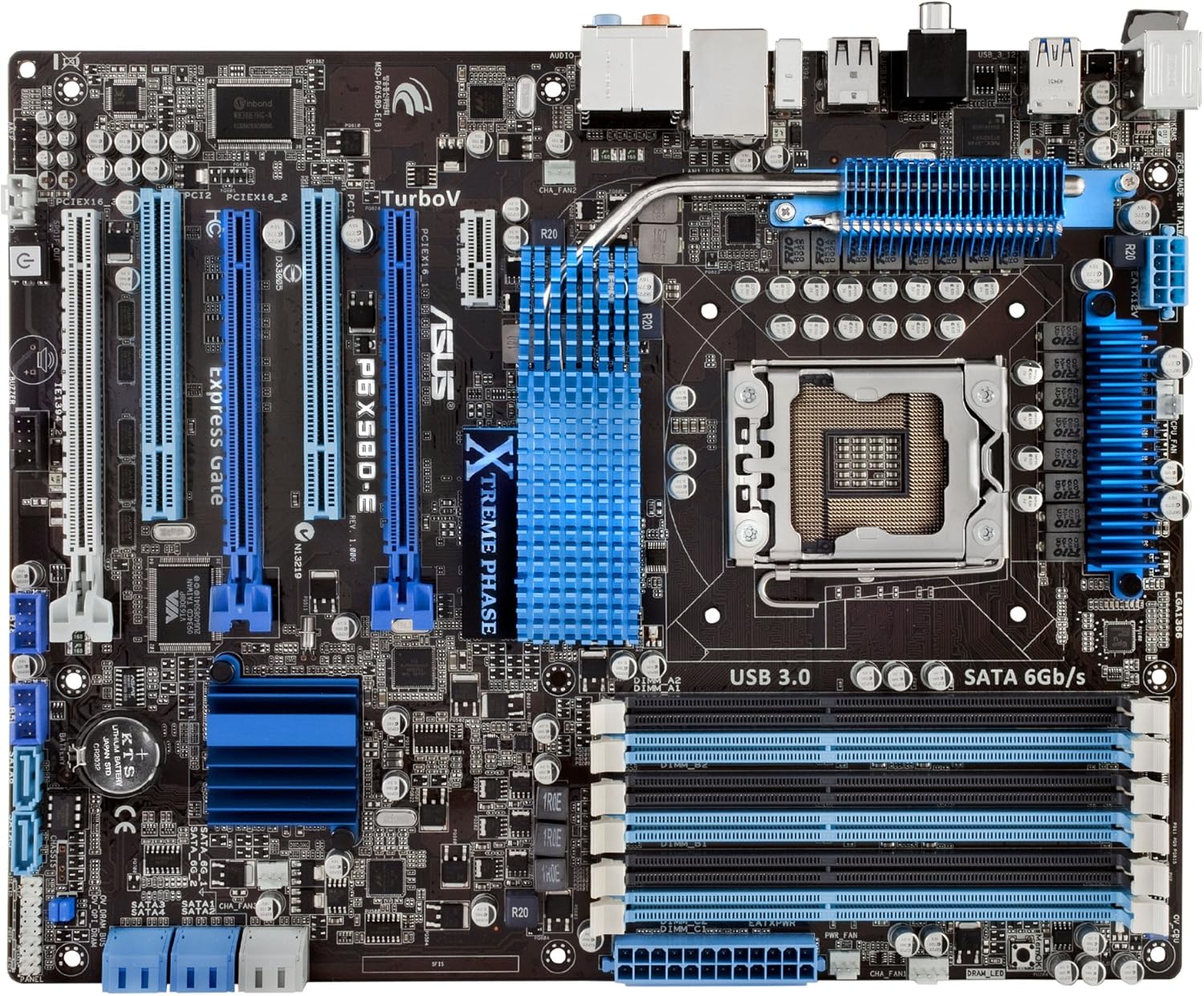
Figura 1.1: Arriba abaixo view of the ASUS P6X58D-E motherboard, highlighting key components like the CPU socket, RAM slots, and PCIe slots.
2. Características clave
- Socket Intel LGA 1366: Supports Intel Core i7 series processors and is ready for next-generation 32nm 6-core Intel LGA 1366 processors.
- Intel X58 Chipset: Provides robust performance and compatibility.
- Triple Channel DDR3 Memory: Six DIMM slots support up to 24GB of DDR3 2000 (O.C.)/1600/1333/1066 MHz non-ECC, un-buffered memory.
- TRUE USB 3.0 Support: Offers data transfer rates up to 4.8Gbps, 10 times faster than USB 2.0, and is backward compatible.
- TRUE SATA 6 Gb/s Support: Delivers data transfer rates up to 6.0Gb/s, doubling the bandwidth of previous SATA standards.
- Soporte multi-GPU: Features three PCIe 2.0 x16 slots for NVIDIA 3-Way SLI or ATI Quad-GPU CrossFireX configurations.
- ASUS Xtreme Phase Power Design (16+2 Phase): Provides efficient power delivery to the CPU and memory controller, enhancing overclocking capability and component longevity.
- Stack Cool 3+: A fanless cooling solution with embedded copper layers in the PCB to effectively dissipate heat, reducing temperatures by up to 20°C (36°F).
- TurboV Tool: Allows real-time, precise voltage and frequency adjustments for optimized overclocking with micro-interval (0.02v) tuning.
- Express Gate SSD: Provides a quick-booting operating system for instant internet access and basic tasks.
3. Contido do paquete
Verify that all items are present in your ASUS P6X58D-E motherboard package:
- ASUS P6X58D-E Motherboard
- Manual de usuario
- 4 x Serial ATA 3.0Gb/s Cables
- 2 x Serial ATA 6.0Gb/s Cables
- ASUS Q-Shield (I/O backplate)
- 2-in-1 Q-Connector (for front panel headers)
- 1 x ASUS 3-Way SLI Bridge Connector
- 1 x ASUS SLI Bridge Connector
- Support Disc (Drivers, Anti-virus software, ASUS Update, ASUS Utilities)
4. Configuración e instalación
Antes de comezar a instalación, asegúrate de que o sistema estea apagado e desconectado da toma de corrente. Usa unha pulseira antiestática para evitar danos por descarga electrostática (ESD) nos compoñentes.
4.1. Motherboard Preparation
- Instalar CPU: Carefully open the CPU socket lever. Align the triangular mark on the Intel LGA 1366 processor with the mark on the socket. Gently place the CPU into the socket without forcing it. Close the lever to secure the CPU.
- Instalar o refrixerador da CPU: Apply thermal paste to the CPU if not pre-applied on the cooler. Mount the CPU cooler according to its manufacturer's instructions, ensuring it is securely fastened and makes proper contact with the CPU.
- Memoria de instalación (RAM): Open the clips on the DDR3 DIMM slots. Align the memory module's notch with the key in the slot. Press down firmly on both ends of the module until the clips snap into place. For triple-channel operation, refer to your manual for recommended slot population (typically slots A1, B1, C1 or similar).
- Instalar o protector de E/S: Install the ASUS Q-Shield into the rear opening of your computer case.

Figura 4.1: En ángulo view of the motherboard, showing the CPU socket (LGA 1366) and six DDR3 memory slots.
4.2. Motherboard Installation into Case
- Montar a placa base: Coloca con coidado a placa base na carcasa do ordenador, aliñando os orificios dos parafusos cos separadores. Fixa a placa base cos parafusos.
- Conectar fonte de alimentación: Conecta o conector de alimentación principal ATX de 24 pines e o conector de alimentación da CPU de 8 pines da fonte de alimentación aos portos correspondentes da placa base.
- Instalar tarxetas de expansión: Insert graphics cards into the PCIe 2.0 x16 slots. Ensure they are seated firmly and secured with the case's retention mechanism. Install any other expansion cards (e.g., sound cards, network cards) into available PCIe x1 or PCI slots.
- Conectar dispositivos de almacenamento: Connect SATA data cables from your hard drives, solid-state drives, and optical drives to the SATA 6 Gb/s (Marvell) or SATA 3 Gb/s (Intel ICH10R) ports on the motherboard. Connect SATA power cables from your power supply to these devices.
- Conectar os cables do panel frontal: Use the 2-in-1 Q-Connector to simplify connecting the front panel headers (power button, reset button, HDD LED, power LED) to the motherboard. Connect front panel USB and audio cables.
- Conectar os ventiladores da caixa: Conecta os ventiladores da caixa aos conectores de ventiladores dispoñibles na placa base.
4.3. Panel de E/S traseiroview

Figura 4.2: Rear I/O panel connections. From left to right: PS/2 keyboard/mouse, USB 2.0, USB 3.0, Coaxial S/PDIF Out, Optical S/PDIF Out, LAN (RJ45), and 8-channel audio jacks.
- Portos PS/2: For connecting legacy keyboard and mouse.
- Portos USB 2.0: Para conectar dispositivos USB 2.0.
- Portos USB 3.0: Para conectar dispositivos USB 3.0 de alta velocidade.
- Porto LAN (RJ45): Para conexión de rede.
- Conectores de son: 8-channel audio output and input.
- S/PDIF Out (Coaxial & Optical): Para saída de son dixital.
5. Instrucións de funcionamento
5.1. Primeiro arranque e configuración da BIOS
- Despois de montar o sistema, conecte un monitor, un teclado e un rato.
- Power on your system. During the Power-On Self-Test (POST), press the DEL tecla repetidamente para entrar na Utilidade de configuración do BIOS.
- Na BIOS, comproba que todos os compoñentes instalados (CPU, RAM, unidades de almacenamento) se detectaron correctamente.
- Configura a orde de arranque para instalar o sistema operativo desde unha unidade USB ou un disco óptico.
- Garda os cambios e sae da BIOS. O sistema reiniciarase.
5.2. Instalación de controladores
After installing your operating system, install the necessary drivers from the provided support disc or download the latest versions from the ASUS official websitio. Os factores clave inclúen:
- Controladores de chipsets
- Controladores de audio
- Controladores LAN
- USB 3.0 Drivers
- SATA 6 Gb/s Drivers
- Graphics Card Drivers (from GPU manufacturer)
5.3. Overclocking with TurboV
The ASUS P6X58D-E features the TurboV tool for real-time system performance tuning. This utility allows for precise adjustments of CPU PPL, NB, NB-PCIe, and DRAM voltages in 0.02v intervals. Refer to the software manual on the support disc or ASUS website for detailed instructions on using TurboV for overclocking.
6. Mantemento
- Manter limpo: Limpa regularmente o po do interior da carcasa do teu ordenador con aire comprimido. A acumulación de po pode provocar sobrequecemento e avarías nos compoñentes.
- Asegurar o fluxo de aire: Ensure proper airflow within your case by managing cables and ensuring fans are unobstructed.
- Actualizacións da BIOS: Consulta periodicamente o soporte técnico de ASUS website for BIOS updates. BIOS updates can improve stability, compatibility, and performance. Follow update instructions carefully.
- Actualizacións de controladores: Manteña os seus controladores actualizados para garantir un rendemento óptimo e compatibilidade co novo software e hardware.
7 Solución de problemas
Esta sección ofrece solucións a problemas comúns cos que podes atoparte.
- O sistema non se acende:
- Check all power connections: 24-pin ATX, 8-pin CPU, and power cables to components.
- Asegúrese de que o interruptor da fonte de alimentación estea na posición de acendido.
- Verifique a conexión do botón de acendido do panel frontal á placa base.
- Sen saída de visualización:
- Ensure the monitor is connected to the graphics card (not the motherboard I/O if a dedicated GPU is installed).
- Volva colocar a tarxeta gráfica e os módulos de memoria.
- Test with a different monitor or graphics card if available.
- O sistema conxélase ou falla:
- Comproba as temperaturas da CPU e da GPU. O sobrequecemento pode causar inestabilidade.
- Executa ferramentas de diagnóstico de memoria para comprobar se hai erros na RAM.
- Asegúrate de que todos os controladores estean instalados correctamente e actualizados.
- Comprobe se hai conexións soltas ou compoñentes mal asentados.
- Storage Devices Not Detected:
- Verify SATA data and power cable connections.
- Comprobe a configuración da BIOS para asegurarse de que os portos SATA estean activados e configurados correctamente (por exemplo, o modo AHCI).
- Ensure drivers for SATA 6Gb/s controller are installed.
8. Especificacións
| Compoñente | Especificación |
|---|---|
| Socket CPU | LGA 1366 for Intel Core i7 Processor Extreme Edition/Core i7 Processor |
| Chipset | Intel X58 / ICH10R |
| Memoria | 6 x DIMM, Max. 24GB, DDR3 2000 (O.C.)/1600/1333/1066 MHz Non-ECC, Un-buffered Memory, Triple channel memory architecture |
| Power Phase | 16+2 Xtreme Phase |
| PCIe 2.0 x16 Slots | 3 (at x16/x8/x8 or x16/x16/x1 mode) |
| Soporte multi-GPU | ATI Quad-GPU CrossFireX / NVIDIA 3-Way SLI |
| LAN | Marvell 88E8056 Gigabit LAN controller featuring AI NET2 |
| Audio | Realtek ALC889 8-Channel High Definition Audio CODEC, DTS support |
| Almacenamento | 2x SATA 6 Gb/s (Marvell), 6x SATA 3Gb/s (Intel ICH10R, RAID 0,1,5,10 Support), 1x eSATA |
| Portos USB | 8 USB 2.0 (4 traseiros, 4 por conectores), 2 USB 3.0 (traseiros) |
| Firewire (1394a) | 2 ports (1 rear, 1 at mid-board) |
| Factor de forma | ATX (12 inch x 9.6 inch / 30.5 cm x 24.4 cm) |
| Dimensións | 13.5 x 11 x 3.1 polgadas |
| Peso do elemento | 3.8 libras |
9. Información da garantía
The ASUS P6X58D-E motherboard carries a 3 ano de garantía limitada do produto. The warranty is based on the serial number printed on the product box. For detailed terms and conditions, please refer to the warranty card included in your package or visit the official ASUS support websitio.
10. Apoio
For further assistance, technical support, driver downloads, or BIOS updates, please visit the official ASUS support websitio:
You can also refer to the comprehensive user manual provided on the support disc for more in-depth information.