
Introdución
Welcome to your V7 Deluxe USB Stereo Headset. This manual provides detailed instructions for setting up, operating, and maintaining your headset to ensure optimal performance for music streaming, hands-free VOIP, Skype calls, and video conferencing on tablets, PCs, and notebooks.
Produto rematadoview
Características clave
- USB headset with omnidirectional noise-canceling microphone.
- Digital studio sound quality from 40 mm drivers with a frequency response of 20Hz - 20KHz.
- Soft foam ear-pads and an ergonomic, adjustable headband for comfort.
- In-line volume control and microphone mute function.
- Extra-long 6-foot USB cable.
- Compatible with laptops and PCs running Windows 2000/XP/Vista/7, Mac OS X, and Linux operating systems.
Contido do paquete
- V7 Deluxe USB Stereo Headset (Model HU511-2NP)
Configuración
Conectando o teu auricular
The V7 Deluxe USB Stereo Headset is designed for plug-and-play functionality, requiring no additional software installation for basic use.
- Locate an available USB port on your computer (PC, laptop, or notebook).
- Insert the USB connector of the headset firmly into the USB port.
- Your operating system (Windows, Mac OS X, Linux) should automatically detect and install the necessary drivers. This process may take a few moments.
- Once installed, the headset will be ready for use. You may need to select it as the default audio input/output device in your system's sound settings or within your communication application (e.g., Skype, VOIP software).
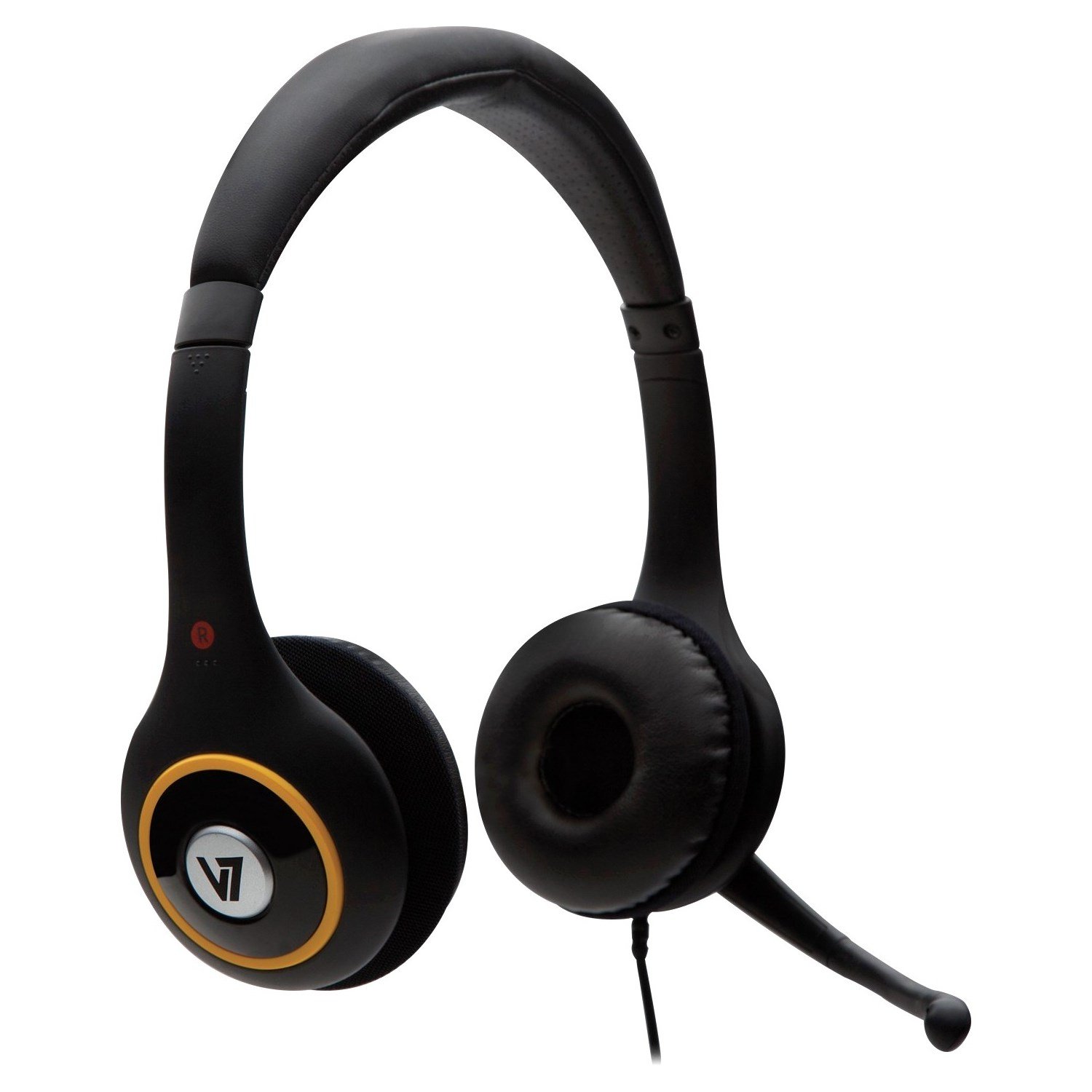
Image: V7 Deluxe USB Stereo Headset connected via USB.
Produto rematadoview Vídeo
Vídeo: Un overview of the V7 Deluxe USB Headset, demonstrating its features and use. This video highlights the plug-and-play USB connectivity, noise-canceling microphone, and comfortable design.
Instrucións de funcionamento
Axuste dos auriculares
The headset features an adjustable headband and soft foam ear-pads for a comfortable fit during extended use.
- Adjust the headband by sliding the earcups up or down until the headset rests comfortably on your head.
- Position the soft foam ear-pads over your ears.
- The omnidirectional microphone is flexible and can be folded away when not in use. For voice communication, gently bend the microphone boom to position the microphone near your mouth for optimal voice pickup.

Image: Adjustable headband and microphone positioning on the V7 Deluxe USB Stereo Headset.
Using In-Line Controls
The extra-long 6-foot USB cable includes convenient in-line controls for easy management of audio and microphone functions.
- Subir/Baixar o volume: Usa o '+' e '-' buttons on the in-line control unit to adjust the listening volume of the headset.
- Silenciar micrófono: Press the dedicated mute button on the in-line control unit to quickly mute or unmute your microphone. An indicator light on the control unit may show the microphone's active or muted status.
Image: Close-up of the in-line volume and mute controls on the headset cable.
Mantemento
- Manteña os auriculares limpos cun pano suave e seco. Evite o uso de produtos químicos agresivos ou materiais abrasivos.
- Avoid exposing the headset to extreme temperatures, direct sunlight, or high humidity.
- Non intentes desmontar nin modificar os auriculares, xa que isto anulará a garantía e podería causar danos.
- Store the headset in a safe place when not in use to prevent damage to the cable, microphone, or earcups.
Resolución de problemas
No Sound or Microphone Not Working
- Ensure the USB connector is fully and securely inserted into the USB port on your computer.
- Check your computer's sound settings (e.g., Windows Sound Control Panel, macOS Sound Preferences) to confirm that the V7 headset is selected as the default playback (output) and recording (input) device.
- Verify that the volume is not muted on the in-line controls or in your computer's system volume settings. Increase the volume if it is too low.
- Try connecting the headset to a different USB port on your computer or to another computer to rule out a faulty USB port.
- Restart your computer. Sometimes a simple restart can resolve driver or software conflicts.
Mala calidade de son
- Ensure the ear-pads are properly positioned over your ears to create a good seal for optimal sound.
- Check for any software conflicts or background applications that might be consuming system resources and affecting audio performance.
- Adjust the volume levels to an appropriate setting. Excessive volume can sometimes lead to distortion.
Headset is Uncomfortable
- Adjust the headband for a looser or tighter fit. The headband is designed to be flexible.
- While the ear-pads are designed for comfort, extended use may require short breaks to alleviate pressure.
Especificacións
| Característica | Detalle |
|---|---|
| Marca | V7 |
| Número de modelo | HU511-2NP |
| Tecnoloxía de conectividade | Con cable (USB) |
| Factor de forma | Sobre orella |
| Control de ruído | Illamento acústico |
| Resposta en frecuencia | 20Hz - 20KHz |
| Tipo de micrófono | Noise-canceling, Omnidirectional |
| Lonxitude do cable | 6 pés (aproximadamente 1.8 metros) |
| Controis | In-line volume control, microphone mute |
| Compatibilidade | Windows 2000/XP/Vista/7, Mac OS X, Linux |
| Peso do elemento | 0.37 libras (aprox. 0.17 kg) |
Garantía e Soporte
This V7 product comes with a 2-year warranty. For technical support, warranty claims, or additional product information, please visit the official V7 websitio ou póñase en contacto co seu departamento de atención ao cliente.
Official V7 Websitio: www.v7world.com