
1. Introdución
The SteelSeries Kana Optical Gaming Mouse is engineered for precision and versatility, designed to accommodate all three primary grip styles: palm, claw, and fingertip. This ambidextrous mouse features an ergonomic button layout and size, developed in collaboration with professional gaming teams to ensure consistent performance and accuracy in competitive environments. This manual provides comprehensive instructions for setup, operation, maintenance, and troubleshooting to help you maximize your gaming experience.
2. Contido do paquete
- SteelSeries Kana Optical Gaming Mouse (White)
- Quick Start Guide (integrated into this manual)
3. Produto rematadoview
Familiarize yourself with the key components of your SteelSeries Kana mouse:
- Botón esquerdo para premer: Botón de acción principal.
- Botón dereito do rato: Botón de acción secundaria.
- Roda de desprazamento: For scrolling and a clickable middle button. The scroll wheel is illuminated.
- CPI Toggle Button: Located centrally, allows quick switching between sensitivity settings.
- Side Buttons (x2): One on each side, large and easily accessible for rapid-fire actions. These can be customized or disabled via software.
- Sensor óptico: Located on the underside, provides precise tracking.
- Conector USB: For connecting the mouse to your computer.
- Braided Cable: Durable, tangle-free nylon cord.
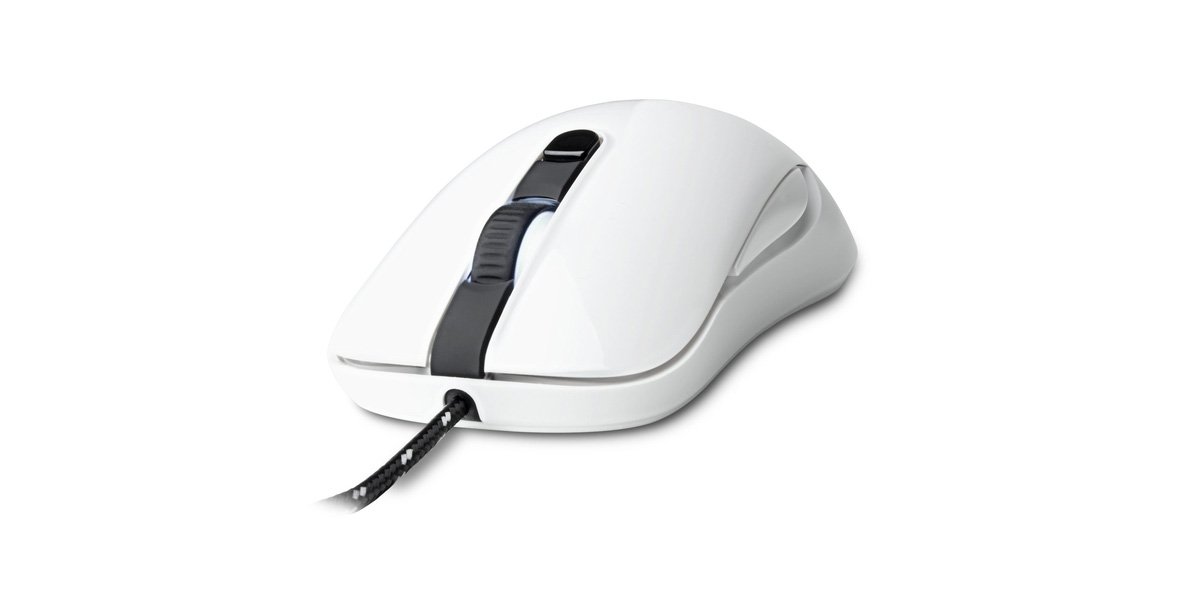
Image of the SteelSeries Kana Optical Gaming Mouse in white, showcasing its ambidextrous design, illuminated scroll wheel, and side buttons.
4. Configuración
4.1 Conexión de hardware
- Localiza un porto USB dispoñible no teu ordenador.
- Plug the USB connector of the SteelSeries Kana mouse into the USB port.
- Your operating system should automatically detect and install basic drivers for the mouse.
4.2 Software Installation (SteelSeries Engine)
To unlock the full customization potential of your SteelSeries Kana mouse, including CPI settings, button programming, macros, and LED intensity, install the SteelSeries Engine software.
- Visita a páxina oficial de SteelSeries websitio: steelseries.com/engine
- Download the SteelSeries Engine software compatible with your operating system (Windows or macOS).
- Siga as instrucións en pantalla para completar a instalación.
- Once installed, launch the SteelSeries Engine to configure your mouse settings.
Nota para usuarios de Mac: Compatibility with macOS versions 10.9 and later for SteelSeries Engine 2.0 (required for Kana) has historically been inconsistent. Please check the official SteelSeries website for the latest software updates and compatibility information before installation.
5. Instrucións de funcionamento
5.1 Funcionalidade básica
- Movemento: Move o rato por unha superficie para controlar o cursor na pantalla.
- Premendo: Use the left and right buttons for primary and secondary actions.
- Desprazamento: Rotate the scroll wheel to navigate documents and web pages. Press the scroll wheel for its assigned middle-click function.
5.2 Adjusting CPI (Counts Per Inch)
The centrally located CPI toggle button allows you to switch between two pre-defined sensitivity settings instantly. The default CPI settings are optimized for gaming, but can be customized using the SteelSeries Engine software. The maximum CPI supported is 3200.
- Press the CPI toggle button once to switch to the alternate CPI setting.
- Press it again to revert to the previous setting.
5.3 Customizing with SteelSeries Engine
The SteelSeries Engine software provides extensive customization options:
- CPI Settings: Fine-tune or set custom CPI values beyond the pre-defined options.
- Programación de botones: Assign custom functions, keyboard shortcuts, or macros to any of the 6 programmable buttons (including side buttons and scroll wheel click).
- Macros: Create and assign complex sequences of commands with precise timing control.
- LED Intensity: Adjust the brightness of the illuminated scroll wheel.
- Profiles: Crear e gardar varios profesionaisfiles for different games or applications, with automatic switching based on game triggers.
6. Mantemento
6.1 Limpeza do rato
To ensure optimal performance and longevity, keep your mouse clean.
- Exterior: Use un pano suave e sen pelusa lixeiramente dampEnxágüe con auga ou unha solución de limpeza suave para limpar a superficie do rato. Evite produtos químicos agresivos ou materiais abrasivos.
- Sensor óptico: Gently clean the optical sensor lens on the underside of the mouse with a dry cotton swab or compressed air to remove dust or debris.
- Pés do rato: Ensure the mouse feet are clean and free of obstructions for smooth gliding.
Atención: Do not immerse the mouse in water or any cleaning solution. Avoid spraying liquids directly onto the mouse.
7 Solución de problemas
| Problema | Posible Solución |
|---|---|
| Mouse not detected / Not responding |
|
| Inaccurate or erratic tracking |
|
| Buttons not responding or performing incorrectly |
|
| SteelSeries Engine software not recognizing mouse (Mac OS) |
|
8. Especificacións
| Marca | SteelSeries |
| Número de modelo | 62029 |
| Cor | Branco |
| Tecnoloxía de detección de movemento | Óptica |
| Número de botóns | 6 (programable) |
| Orientación das mans | Ambidextrous (Left, Right) |
| Plataforma de hardware | PC |
| Tipo de cable | Nylon trenzado |
| Peso do elemento | 0.16 quilogramos |
| Característica especial | Ergonomic Design, Illuminated Scroll Wheel |
9. Garantía e soporte
9.1 Información da garantía
The SteelSeries Kana Optical Gaming Mouse comes with a 1 ano de garantía limitada desde a data de compra. Esta garantía cobre os defectos de fabricación e a man de obra en condicións de uso normal. Non cobre os danos causados por mal uso, accidentes, modificacións non autorizadas ou desgaste normal. Conserve o comprobante de compra para reclamacións de garantía.
9.2 Atención ao cliente
For technical assistance, warranty claims, or further information, please visit the official SteelSeries support websitio:
You can find FAQs, driver downloads, and contact information for customer service on their websitio.