
1. Introdución
The D-Link GO-SW-5G is a 5-Port Unmanaged Gigabit Desktop Switch designed for home and small office environments. This device provides a simple and cost-effective solution to expand your network connectivity, offering high-speed Gigabit Ethernet ports for reliable data transfer. It incorporates D-Link's Green Technology for energy efficiency, reduced heat generation, and extended product lifespan.
This switch is a plug-and-play device, requiring no complex configuration or software installation, making it easy to integrate into an existing network.
2. Contido do paquete
Verifique que todos os elementos que se indican a continuación estean incluídos no seu paquete:
- D-Link GO-SW-5G 5-Port Gigabit Desktop Switch
- Adaptador de alimentación
- Guía de instalación rápida
Se falta algún artigo ou está danado, póñase en contacto co seu vendedor para obter axuda.
3. Instrucións de configuración
The D-Link GO-SW-5G switch is designed for easy plug-and-play installation. Follow these steps to set up your device:
3.1. Conecte o adaptador de alimentación
- Locate the power input port on the side of the D-Link GO-SW-5G switch.
- Connect the provided power adapter to this port.
- Conecta o outro extremo do adaptador de corrente a unha toma de corrente estándar.
- The power LED on the front of the switch will illuminate, indicating that the device is receiving power.

Figura 1: Lado view of the D-Link GO-SW-5G switch with the power input port.
3.2. Conéctate á túa rede
- Using a standard Ethernet cable (RJ45), connect one end to an available LAN port on your router (not your modem).
- Connect the other end of this Ethernet cable to any of the five available ports on the back of the D-Link GO-SW-5G switch.
- The corresponding LED on the front of the switch will light up, indicating an active connection.
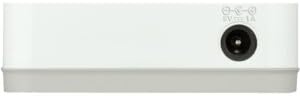
Figura 2: Traseira view of the D-Link GO-SW-5G switch with five Ethernet ports.
3.3. Connect Network Devices
- Connect your network devices (e.g., computers, gaming consoles, network printers, smart TVs) to the remaining available Ethernet ports on the D-Link GO-SW-5G switch using Ethernet cables.
- Each connected device will have its corresponding LED on the front of the switch illuminate, confirming a successful connection.

Figura 3: Fronte view of the D-Link GO-SW-5G switch showing active port LEDs.
4. Instrucións de funcionamento
The D-Link GO-SW-5G is an unmanaged switch, meaning it operates automatically without requiring user configuration. Once connected as described in the Setup section, it will begin forwarding network traffic between connected devices.
- Negociación automática: The switch automatically detects the network speed (10/100/1000 Mbps) and duplex mode (half/full) of connected devices and adjusts accordingly.
- MDI/MDIX automático: All ports support automatic MDI/MDIX crossover, eliminating the need for crossover cables when connecting to other switches or hubs.
- Indicadores LED: Each port has an LED indicator on the front panel. A lit LED indicates an active link, and blinking indicates network activity.
5. Mantemento
To ensure optimal performance and longevity of your D-Link GO-SW-5G switch, consider the following maintenance guidelines:
- Colocación: Coloque o interruptor nun lugar fresco e seco, lonxe da luz solar directa, de fontes de calor e de humidade excesiva. Asegúrese de que haxa unha ventilación axeitada arredor do dispositivo.
- Limpeza: Use a soft, dry cloth to clean the exterior of the switch. Avoid using liquid or aerosol cleaners, as they may damage the device.
- Xestión de cables Manteña os cables Ethernet ben organizados para evitar enredos e desconexións accidentais.
- Ciclo de enerxía: If you experience network issues, a simple power cycle (unplugging the power adapter for 10 seconds and then plugging it back in) can often resolve minor problems.
6 Solución de problemas
If you encounter issues with your D-Link GO-SW-5G switch, refer to the following common troubleshooting steps:
- Sen LED de alimentación:
- Asegúrate de que o adaptador de corrente estea conectado correctamente tanto ao interruptor como a unha toma de corrente que funcione.
- Verifica que a toma de corrente funcione conectando outro dispositivo.
- No Link/Activity LED for a Connected Device:
- Check that the Ethernet cable is securely plugged into both the switch port and the network device.
- Proba cun cable Ethernet diferente para descartar un cable defectuoso.
- Asegúrate de que o dispositivo conectado estea acendido e que o seu adaptador de rede funcione correctamente.
- Proba a conectar o dispositivo a un porto diferente do interruptor.
- Velocidade de rede lenta:
- Verify that all connected devices and cables support Gigabit Ethernet (1000 Mbps) for optimal performance. The switch will operate at the lowest common speed.
- Ensure your router and internet service provider (ISP) plan support the desired speeds.
- Perform a power cycle on the switch and your router.
- Conectividade intermitente:
- Comprobe se hai conexións de cable soltas.
- Ensure the switch is not overheating; provide adequate ventilation.
- Test with different Ethernet cables.
7. Especificacións
| Marca | D-Link |
| Número de modelo | GO-SW-5G/B |
| Número de portos | 5 |
| Tipo de cambio | Non xestionado |
| Taxa de transferencia de datos | 1 gigabit por segundo (10/100/1000 Mbps) |
| Interface | RJ45 |
| Cor | Branco |
| Peso do elemento | 0.22 libras |
| Voltage | 100-240 voltios |
| Dispositivos compatibles | PC, Mac, and other Ethernet-enabled devices |
| Tecido de cambio | 10 Gbps |
| UPC | 790069365669 |
8. Garantía e soporte
Garantía limitada: The D-Link GO-SW-5G switch comes with a 3-year limited warranty. For detailed terms and conditions, please refer to the warranty information included in your package or visit the official D-Link websitio.
Soporte técnico: For technical assistance, product registration, or to download the latest firmware and documentation, please visit the Soporte de D-Link Websitio or contact D-Link customer service.