
KODAK i2900
Kodak i2900 Scanner User Manual
Model: 1433283 / i2900
1. Introdución e finalview
The Kodak i2900 Scanner is a high-performance document scanner designed to enhance productivity in office environments. It combines a robust rotary A4 desktop scanner with an integrated book-edge flatbed scanner, offering versatile scanning capabilities for various document types.
This manual provides essential information for setting up, operating, maintaining, and troubleshooting your Kodak i2900 Scanner to ensure optimal performance and longevity.

Figure 1: Kodak i2900 Scanner with documents ready for scanning in the automatic document feeder.
2. Características do produto
- Robust Rotary A4 Desktop Scanner: Designed for high-volume document scanning.
- Integrated Book-Edge Flatbed Scanner: Ideal for scanning delicate documents, bound materials, passports, and other exception documents without damaging them.
- 250-Sheet Feeder/Elevator: Allows for efficient scanning of large batches of mixed-size documents.
- High Throughput Speed: Consistently high speeds for double-sided and color documents up to 300 dpi.
- Intelligent Document Protection: Safeguards documents from potential damage due to staples or bent edges during feeding by automatically stopping the scanner.
- Kodak Perfect Page Technology: Delivers exceptional image quality with features like streak filtering, image hole fill, and sharpness filtering, reducing the need for rescans.
- Funcionalidade táctil intelixente: Enables easy selection of scan settings and direct scanning to various destinations such as Microsoft SharePoint, file storage, email, printers, and other desktop applications.
- Selectable Rear-Exit Paper Path: Accommodates longer or thicker documents that may be challenging for traditional rotary scanners.
3. Configuración
3.1 Unpacking the Scanner
Carefully remove the Kodak i2900 Scanner from its packaging. Ensure all components are present, including the scanner unit, power cable, USB cable, and any included software or documentation. Retain the packaging for future transport or storage.
3.2 Colocación física
Place the scanner on a stable, flat surface with adequate space around it for ventilation and document feeding/exiting. Consider the dimensions: approximately 431.8 mm (17 in.) width, 371 mm (14.6 in.) depth (with input tray closed), and 237.5 mm (9.4 in.) height. The scanner weighs approximately 15.8 kg (35 lbs.).
3.3 Conexión do escáner
- Connect the power cable to the scanner's power input and then to a suitable electrical outlet (100-240 V, 50-60 Hz).
- Connect the supplied USB 3.0 cable (compatible with USB 2.0 ports) to the scanner's USB port and then to an available USB port on your computer.
3.4 Instalación de software
Before using the scanner, you must install the necessary drivers and software. The Kodak i2900 Scanner is bundled with TWAIN, ISIS, and WIA drivers, Kodak Capture Desktop Software, and Smart Touch functionality. Linux SANE and TWAIN drivers are also available from the Kodak websitio.
- Insert the software installation disc into your computer's optical drive, or download the latest software package from the official Kodak support websitio.
- Follow the on-screen instructions to complete the installation process. It is recommended to install all bundled software for full functionality.
- Reinicie o computador se se lle solicita despois da instalación.
3.5 Encendido inicial
After connecting the scanner and installing the software, press the power button on the scanner. The graphical LCD display will illuminate, indicating the scanner is ready for operation.
4. Funcionamento do escáner
4.1 Carga de documentos
The Kodak i2900 offers two primary methods for document feeding: the Automatic Document Feeder (ADF) and the integrated flatbed.
4.1.1 Uso do alimentador automático de documentos (ADF)
The ADF can hold up to 250 sheets of 75 g/m² (20 lb.) paper. It is suitable for scanning batches of standard documents.
- Adjust the paper guides in the input tray to match the width of your documents.
- Place the stack of documents face-down in the input tray, ensuring they are neatly aligned. The feeder/elevator will automatically adjust.
- For longer or thicker documents, you may manually select the straight-through paper path option at the rear of the scanner to prevent bending.
4.1.2 Using the Integrated Flatbed
The A4 size book-edge flatbed is designed for scanning delicate, bound, or irregularly shaped documents that cannot be fed through the ADF.
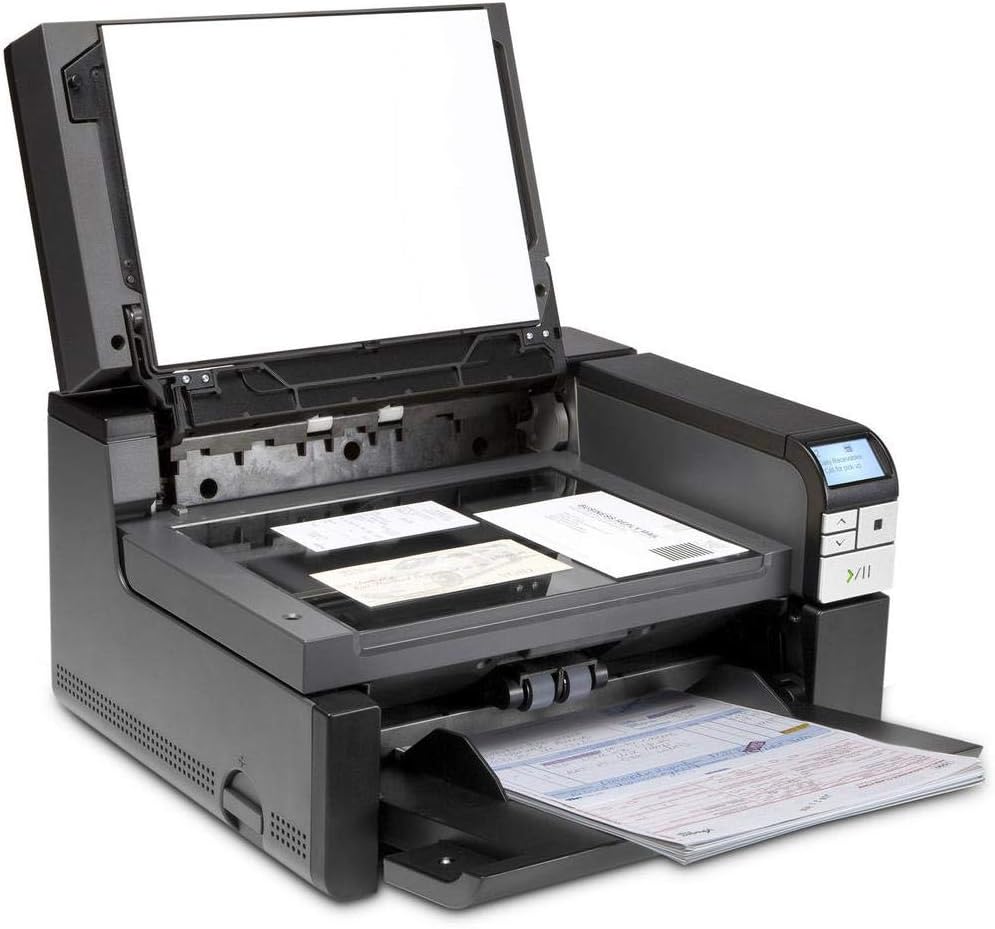
Figure 2: Kodak i2900 Scanner with the flatbed open, ready for scanning bound materials or delicate documents.
- Levante a cuberta da plataforma plana.
- Place the document face-down on the glass, aligning it with the corner guides. For books, place the spine along the book-edge to minimize distortion.
- Peche a tapa da plataforma con coidado.
4.2 Scanning Documents with Smart Touch
Smart Touch functionality simplifies the scanning process by allowing you to pre-configure scan jobs and execute them with a single button press.
- Open the Smart Touch application on your computer.
- Configure your desired scan settings, including:
- Scan mode (color, grayscale, black and white)
- Resolution (e.g., 200 dpi, 300 dpi, 600 dpi)
- Output format (TIFF, JPEG, RTF, BMP, PDF, searchable PDF)
- Destination (Microsoft SharePoint, file and storage, email, printers, other desktop applications)
- Save your settings as a Smart Touch shortcut.
- On the scanner's operator control panel, select the corresponding Smart Touch shortcut button.
- Press the "Scan" button to initiate the scanning process.
4.3 Intelligent Document Protection
The scanner features Intelligent Document Protection to prevent damage to documents. If the scanner detects a potential issue, such as a staple or severely bent edge, it will automatically stop feeding to protect the document. Remove the obstruction and resume scanning.
5. Mantemento
Regular maintenance ensures the longevity and optimal performance of your Kodak i2900 Scanner. Always power off and unplug the scanner before performing any cleaning or maintenance.
5.1 Limpeza do escáner
- Exterior: Limpe as superficies exteriores cun suave, damp pano. Non use produtos de limpeza ou disolventes abrasivos.
- Rolos: Use roller cleaning pads to clean the feed rollers. Refer to the software's help section for specific instructions on accessing and cleaning rollers.
- Glass Flatbed: Clean the flatbed glass with a lint-free cloth and a non-abrasive glass cleaner.
- Staticide Wipes: Use Staticide wipes as recommended by Kodak to reduce static buildup, which can affect document feeding.
5.2 Substitución de consumibles
Over time, certain parts of the scanner, known as consumables, will wear out and need replacement to maintain scanning quality and performance. These include the feed module, separation module, separation pad, and front transport rollers. Consumables kits are available for purchase. Refer to the scanner's software or Kodak's support website for instructions on replacing these parts.
6 Solución de problemas
This section provides solutions to common issues you might encounter with your Kodak i2900 Scanner. For more complex problems, refer to the online support resources or contact Kodak customer support.
6.1 Problemas comúns e solucións
- Atascos de papel:
Síntoma: Documents stop feeding or are crumpled within the scanner.
Solución: Power off the scanner. Carefully open access covers and gently remove any jammed paper. Ensure paper guides are correctly set for the document size. Clean rollers if they appear dirty or slippery.
- Poor Image Quality (Streaks, Spots, Blurry Images):
Síntoma: Scanned images have lines, spots, or are not clear.
Solución: Clean the scanner's glass surfaces and rollers thoroughly. Ensure documents are clean and free of debris. Utilize Kodak Perfect Page technology settings in your scanning software to enhance image clarity and remove imperfections.
- Scanner Not Detected by Computer:
Síntoma: The computer does not recognize the scanner, or scanning software cannot connect.
Solución: Check that the USB cable is securely connected to both the scanner and the computer. Try a different USB port. Ensure the scanner is powered on. Verify that the scanner drivers are correctly installed and up to date. Restart both the scanner and the computer.
- Multi-feeds or Skewed Documents:
Síntoma: Multiple pages feed at once, or documents are scanned crookedly.
Solución: Ensure the paper stack is neatly aligned and the paper guides are snug against the edges of the documents. Clean the feed rollers and separation pad. Adjust multi-feed detection settings in the scanning software if available.
7. Especificacións
| Característica | Especificación |
|---|---|
| Recommended Daily Volume (ADF) | Ata 10,000 páxinas ao día |
| Recommended Daily Volume (Flatbed) | 100 páxinas ao día |
| Throughput Speeds (B&W/Grayscale/Color) | Up to 60 ppm/120 ipm at 200 dpi and 300 dpi |
| Flatbed Support | Integrated A4 size (book-edge) |
| Scanning Technology (ADF) | CCD dual |
| Grayscale Output Bit Depth | 256 niveis (8 bits) |
| Color Capture Bit Depth | 48 bits (16 x 3) |
| Color Output Bit Depth | 24 bits (8 x 3) |
| Iluminación | LED dual |
| Resolución óptica | 600 ppp |
| Resolución de saída | 100, 150, 200, 240, 300, 400, 600, 1200 dpi |
| Max. Document Width (Auto-feed) | 215 mm (8.5 polgadas) |
| Min. Document Width (Auto-feed) | 63.5 mm (2.5 polgadas) |
| Max. Document Length (Auto-feed) | 863.6 mm (34 polgadas) |
| Min. Document Length (Auto-feed) | 63.5 mm (2.5 polgadas) |
| Long Document Mode | 4.1 meters (160 in.) maximum length |
| Paper Thickness and Weight | 34-413 g/m² (9-110 lb.) paper |
| Feeder/Elevator Capacity | Up to 250 sheets of 75 g/m² (20 lb.) paper |
| Document Sensing | Ultrasonic multi-feed detection; Intelligent Document Protection |
| Conectividade | USB 2.0 (compatible with USB 3.0-supported PCs); USB 3.0 cable included |
| Sistemas operativos compatibles | Windows XP SP3 (32/64-bit), Vista SP2 (32/64-bit), 7 SP1 (32/64-bit), 8 (32/64-bit), Ubuntu 10.04 |
| File Format Outputs | Single and multi-page TIFF, JPEG, RTF, BMP, PDF, searchable PDF |
| Requisitos Eléctricos | 100-240 V (International); 50-60 Hz |
| Power Consumption (Running) | <75 vatios |
| Consumo de enerxía (suspensión) | <4.5 vatios |
| Consumo de enerxía (desactivado) | <0.5 vatios |
| Temperatura de funcionamento | 15-35 °C (59-95 °F) |
| Humidade de funcionamento | 15% a 76% RH |
| Acoustical Noise (Operating) | <60 dB(A) |
| Dimensións (Profundidade x Anchura x Altura) | 371 mm (14.6 polgadas) x 431.8 mm (17 polgadas) x 237.5 mm (9.4 polgadas) |
| Peso | 15.8 kg (35 lb) |
8. Información da garantía
The Kodak i2900 Scanner comes with a Garantía de 90 días. This warranty includes Advanced Unit Replacement, ensuring minimal downtime in case of a covered defect. For detailed terms and conditions, please refer to the warranty documentation included with your product or visit the official Kodak support websitio.
9. Apoio
For further assistance, driver downloads, software updates, or to purchase consumables and accessories, please visit the official Kodak support websitio:
You may also contact Kodak customer service for technical support or service inquiries.
Ask a question about this manual
Ask about setup, troubleshooting, compatibility, parts, safety, or missing instructions. Manuals+ will review the question and use this page’s manual context to help answer it.