
D-Link DCS-5020L
D-Link Pan & Tilt Wi-Fi Camera
Model: DCS-5020L
Marca: D-Link
1. Introdución
This manual provides comprehensive instructions for the installation, operation, and maintenance of your D-Link Pan & Tilt Wi-Fi Camera (DCS-5020L). This camera offers advanced surveillance capabilities, allowing you to monitor your home or business remotely with ease.
Key features include ultra-smooth pan and tilt functionality, digital zoom, night vision, and motion/sound detection with instant alerts via the mydlink Lite app.
2. Produto rematadoview e contido do paquete
Antes de comezar, asegúrate de que todos os compoñentes estean presentes no paquete:
- D-Link Pan & Tilt Wi-Fi Camera (DCS-5020L)
- Adaptador de alimentación
- Cable Ethernet
- Kit de montaxe (parafusos e ancoraxes de parede)
- Guía de instalación rápida
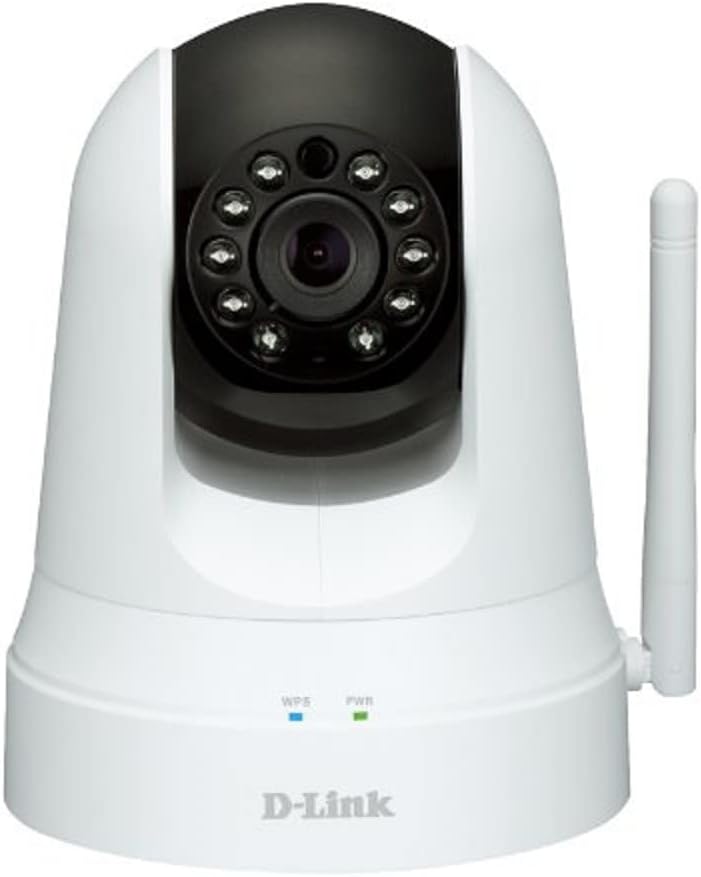
Figura 2.1: Fronte view of the D-Link DCS-5020L camera. It features a white dome-shaped body with a black pan/tilt head. The camera lens is surrounded by infrared LEDs for night vision. Below the head, on the base, are indicators for WPS and Power, and a detachable antenna is visible on the right side.
3. Configuración e instalación
3.1 Colocación
Escolla unha localización que proporcione o desexado viewing angle and is within range of your Wi-Fi network. The camera can be placed on a flat surface or mounted to a wall or ceiling using the provided mounting kit.
3.2. Acendido
- Conecta o adaptador de corrente ao porto de alimentación da cámara.
- Plug the power adapter into a wall outlet. The Power LED will illuminate.
3.3. Conexión de rede (Wi-Fi)
There are two primary methods to connect your camera to your Wi-Fi network:
3.3.1. WPS (Wi-Fi Protected Setup) Method
- Ensure your Wi-Fi router supports WPS.
- Press the WPS button on your D-Link camera. The WPS LED will blink.
- Within two minutes, press the WPS button on your Wi-Fi router.
- Wait for the WPS LED on the camera to turn solid blue, indicating a successful connection.
3.3.2. Manual Setup via mydlink Lite App
- Download the free mydlink Lite app from the App Store (iOS), Google Play (Android), or Windows Phone Store.
- Open the app and create a mydlink account if you don't have one.
- Follow the on-screen instructions in the app to add your new camera. You will typically scan a QR code on the camera or manually enter its setup information.
- A aplicación guiarache a través da conexión da cámara á túa rede wifi.
4. Instrucións de funcionamento
4.1. Accessing Your Camera
The primary way to operate your D-Link camera is through the mydlink Lite app or the mydlink web portal (www.mydlink.com).
4.2. Control de panorámica e inclinación
Within the mydlink app, you can remotely control the camera's pan (horizontal) and tilt (vertical) movements to view different areas. The camera offers 340° pan and 120° tilt capability.
4.3. Zoom dixital
Use the digital zoom feature (up to 4x) in the app to get a closer look at specific details within the camera's view.
4.4. Visión nocturna
The camera automatically switches to night vision mode in low-light conditions, providing clear black-and-white video up to 26 feet (8 meters).
4.5. Detección de movemento e son
Configure motion and sound detection settings in the mydlink app. When motion or sound is detected, the camera can send instant push notifications to your connected device, allowing you to stay informed of events.
Vídeo 4.1: Un overview of D-Link Wi-Fi Cameras, demonstrating their use for home security and monitoring. The video highlights features like remote viewing via mobile app, instant alerts for motion/sound detection, and ease of DIY installation. It shows scenarios such as monitoring children arriving home and receiving alerts about pets.
5. Mantemento
To ensure optimal performance and longevity of your D-Link camera, follow these maintenance guidelines:
- Limpeza: Gently wipe the camera lens and body with a soft, dry, lint-free cloth. Do not use liquid cleaners or aerosol sprays.
- Actualizacións de firmware: Regularly check for and install firmware updates through the mydlink app or web portal. As actualizacións adoitan incluír melloras de rendemento e de seguridade.
- Estabilidade da rede: Ensure your Wi-Fi network is stable and strong to prevent connection drops and ensure continuous monitoring.
- Fonte de alimentación: Empregue só o adaptador de corrente orixinal que se inclúe coa cámara.
6 Solución de problemas
| Problema | Posible Solución |
|---|---|
| A cámara non se conecta á wifi. |
|
| No video feed in mydlink app. |
|
| Motion/Sound alerts not received. |
|
| Pan/Tilt control is unresponsive. |
|
7. Especificacións
| Característica | Detalle |
|---|---|
| Nome do modelo | DCS-5020L |
| Marca | D-Link |
| Resolución de captura de vídeo | 480 p |
| Pan/Tilt Capability | Panorama de 340°, inclinación de 120° |
| Zoom dixital | 4x |
| Range de visión nocturna | 26 pés (8 metros) |
| Tecnoloxía de conectividade | Sen fíos (Wi-Fi) |
| Fonte de enerxía | AC/DC Adapter (12 Volts, 1 Watt) |
| Dispositivos compatibles | Smartphone, Tablet (iOS, Android, Windows Phone) |
| Características especiais | Motion Sensor, Sound Detection, Night Vision, Wi-Fi Extender |
| Dimensións (L x W x H) | 4.03 x 4.54 x 5.26 polgadas |
| Peso do elemento | 0.64 libras (10.2 onzas) |
| Cor | Branco |
| Clasificación de protección internacional | IP65 |
8. Garantía e soporte
Para obter información sobre a garantía e asistencia técnica, consulte co representante oficial de D-Link. websitio web ou póñase en contacto co servizo de atención ao cliente de D-Link. Garde o recibo de compra para reclamacións de garantía.
Soporte de D-Link Websitio: support.dlink.com