
Introdución
This manual provides detailed instructions for the Soundbot SB340 Universal Bluetooth 4.0 USB Adapter. This device enables Bluetooth connectivity for your computer, allowing seamless connection with various Bluetooth-enabled peripherals such as headsets, speakers, keyboards, and mice. Please read this manual thoroughly before use to ensure proper installation and operation.
Produto rematadoview
The Soundbot SB340 is a compact and efficient Bluetooth 4.0 USB adapter designed to add Bluetooth capabilities to your PC or laptop. It features a gold-plated connector for enhanced connectivity and supports a wide range of Bluetooth devices.
Características principais:
- Plug and Play: Creates cable-free connections between your PCs and other Bluetooth devices such as Bluetooth enabled headsets, speakers, cell phones, keyboard or mouse at speeds of up to 3 Mbps.
- Bluetooth 4.0 Low Energy Technology: Built with the newest Bluetooth Class 2 Smart Ready specification for efficient power consumption.
- Compatible con versións anteriores: Works with Legacy Bluetooth Equipment including Bluetooth 3.0, 2.1, 2.0, and 1.0.
- Enhanced Data Rate (EDR): Compliant for both 2 Mbps and 3 Mbps modulation modes with a gold-plated connector for reliable signal transfer.
- Ampla compatibilidade: Compatible with 32-bit and 64-bit Windows 8/7/Vista/XP and Mac OS.

Imaxe 1: Primeiro plano view of the Soundbot SB340 Bluetooth USB Adapter.

Figure 2: Size comparison of the SB340 adapter with a US quarter, highlighting its compact design.
Instrucións de configuración
1. Instalación de controladores
The Soundbot SB340 requires a driver for proper functionality. While Windows may attempt to install its own drivers, it is recommended to use the official Soundbot drivers for optimal performance and compatibility.
Option A: Using the Included Driver CD
- Insert the included mini-CD into your computer's CD/DVD drive.
- Navigate to the CD drive and run the "Setup.exe" file.
- Follow the on-screen instructions to install the CSR Harmony Wireless Software Stack.
Option B: Downloading Drivers from Soundbot Website (Recommended)
- Visit the official Soundbot websitio.
- Locate the support or downloads section and search for the SB340 model.
- Download the latest appropriate driver package for your operating system.
- Run the downloaded "Setup.exe" file and follow the on-screen instructions to install the CSR Harmony Wireless Software Stack.
After successful installation of the drivers, restart your computer to ensure all changes take effect.
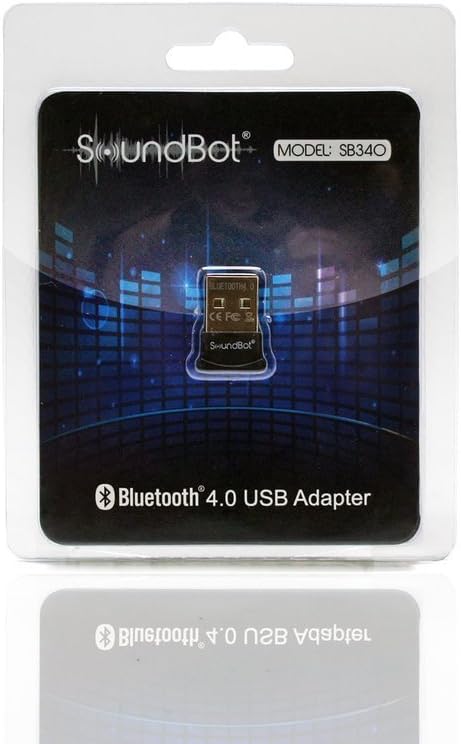
Figure 3: Retail packaging of the Soundbot SB340, which typically includes the driver CD.
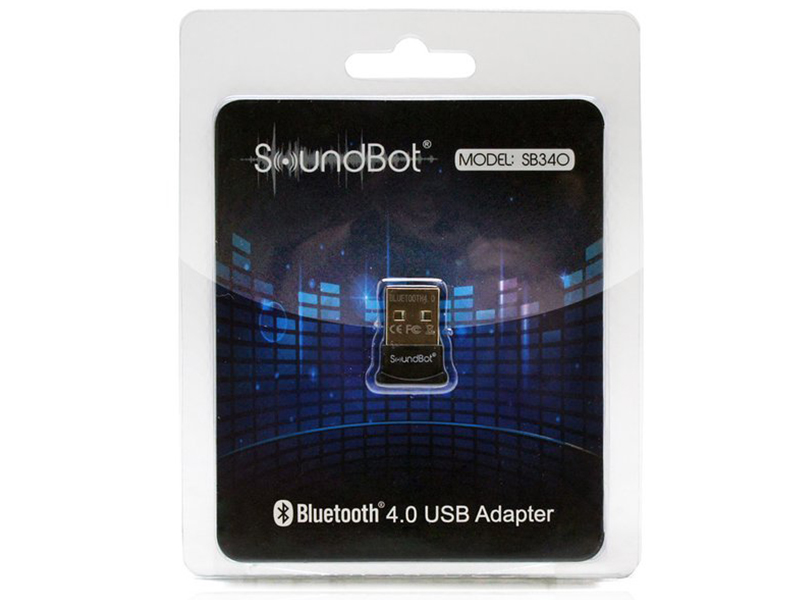
Figure 4: The adapter and its driver CD as found in the box.
2. Conexión do adaptador
Insert the Soundbot SB340 USB adapter into an available USB port on your computer. The adapter is designed to be compact and can remain plugged in without obstructing other ports.

Figure 5: The SB340 adapter connected to a laptop, ready for use.

Figura 6: Pro lateralfile of the SB340 adapter when plugged into a computer.
3. Emparellar dispositivos Bluetooth
Once the drivers are installed and the adapter is connected, you can pair your Bluetooth devices:
- Right-click the Bluetooth icon in your system tray (usually in the bottom-right corner of your screen).
- Select "Add Bluetooth Device" or "Show Bluetooth Devices".
- Ensure your Bluetooth device (headset, speaker, keyboard, mouse) is in pairing mode. Refer to your device's manual for specific pairing instructions.
- Follow the on-screen prompts to complete the pairing process. You may need to select "Discovery On" and specify the device type (e.g., "Laptop" or "Desktop") during the driver's setup wizard.
Instrucións de funcionamento
After successful pairing, your Bluetooth devices are ready for use.
Using with Wireless Headsets/Speakers (A2DP Profile)
For streaming high-quality audio to your Bluetooth headphones or speakers, ensure the A2DP (Advanced Audio Distribution Profile) is active. Right-click on the paired device icon in the Bluetooth settings, choose "Open Service", and then select "Connect" for A2DP to stream music.
Using with Hands-Free Devices (HFP/HSP Profile)
For wireless talking with a headset that includes a microphone, use the Hands-Free Profile (HFP) ou Headset Profile (HSP). Right-click on the paired device icon, choose "Open Service", and then select "Connect" for the Hands-Free Profile.
Using with Keyboards/Mice/Other Peripherals
Once paired, Bluetooth keyboards, mice, and other peripherals should function automatically. If not, check the device's specific settings within the Bluetooth control panel.
Mantemento
The Soundbot SB340 is a low-maintenance device. To ensure its longevity and optimal performance:
- Manteña o adaptador limpo e libre de po.
- Evite expor o adaptador a temperaturas extremas ou humidade.
- Non intente desmontar nin modificar o adaptador, xa que isto anulará a garantía.
- When not in use for extended periods, you may remove it from the USB port, though it is designed for continuous connection.
Resolución de problemas
If you encounter issues with your Soundbot SB340, consider the following:
Problemas de conectividade:
- Dispositivo sen emparellamento: Ensure the Bluetooth device is in pairing mode and within the 33-foot (10-meter) range of the adapter. Check if other Bluetooth devices are interfering.
- Conexión intermitente: Move closer to the adapter. Ensure there are no large obstructions (walls, metal objects) between the adapter and the device.
- Conflitos de condutores: If you experience issues, uninstall any existing Bluetooth drivers (especially generic Windows drivers) and reinstall the official Soundbot drivers from their websitio.
Problemas de audio:
- Mala calidade de son: Ensure you are using the correct profile (A2DP for high-quality music streaming). Check for potential interference from other wireless devices.
- Sen audio: Verify that the correct audio output device is selected in your computer's sound settings. Ensure the Bluetooth headset/speaker is connected and not muted.
- Audio Lag (especially during gaming): This can sometimes be CPU-dependent. Ensure your computer's CPU is not at 100% utilization. Consider disabling other unnecessary sound drivers.
Cuestións xerais:
- Adaptador non recoñecido: Try plugging the adapter into a different USB port. Reinstall the drivers.
- Compatibilidade con Windows 10: While the product packaging may list older Windows versions, the adapter is generally compatible with Windows 10. If issues arise, ensure you have the latest drivers from the Soundbot website, as Windows' native drivers might not fully support all features like aptX.
Especificacións
| Característica | Detalle |
|---|---|
| Número de modelo | SB340 |
| Versión Bluetooth | 4.0 (Smart Ready, Low Energy Technology) |
| Compatibilidade cara atrás | Bluetooth 3.0, 2.1, 2.0, 1.0 |
| Taxa de datos | Up to 3 Mbps (Enhanced Data Rate - EDR compliant) |
| Tipo de conector | Gold-plated USB |
| Compatibilidade do sistema operativo | Windows 8/7/Vista/XP (32-bit & 64-bit), Mac OS |
| Dimensións do produto | 0.86 x 0.27 x 0.7 polgadas |
| Peso do elemento | 0.32 onzas |
| Fabricante | Soundbot |
Garantía e Soporte
For warranty information or technical assistance, please contact Soundbot customer service. Refer to the official Soundbot website for the most up-to-date support contact details and resources. Keep your purchase receipt for warranty claims.