
1. Produto rematadoview
The HP 2013 D9Y32AA UltraSlim Docking Station is designed to expand the connectivity of compatible HP EliteBook notebooks. It provides additional display, network, and device connections through a simple one-click slide-in mechanism, enhancing productivity.
Key features include multiple USB 3.0 ports for high-speed data transfer, DisplayPort and VGA ports for video output, and an Ethernet/LAN port for network access. The docking station also includes a 65W power adapter to charge your notebook while docked.

Imaxe 1.1: Arriba view of the HP 2013 D9Y32AA UltraSlim Docking Station, showcasing o seu elegante deseño.
2. Contido do paquete
- HP 2013 D9Y32AA UltraSlim Docking Station
- Adaptador de alimentación de 65 W
- Documentación (este manual)
3. Identificación de compoñentes
Familiarize yourself with the various ports and features of your docking station:

Imaxe 3.1: Traseira view of the docking station, highlighting available ports.
- Conector de alimentación: Connects the 65W power adapter.
- Porto VGA: Connects to an external monitor with a VGA input.
- DisplayPort (2x): Connects to external monitors with DisplayPort input.
- Portos USB 3.0 (4x): Connects USB devices such as keyboards, mice, and external storage.
- Ethernet/LAN Port: Conéctase a unha rede con fíos.
- Audio Line-in Jack: Connects to an external microphone or audio input device.
- Audio Line-out Jack: Conéctase a altofalantes externos ou auriculares.
- Security Cable Lock Slot: For attaching a security cable (lock not included).
4. Compatibilidade
This docking station is compatible with the following HP EliteBook and ZBook models:
- HP EliteBook 720 G1-G2, 725 G2-G4, 740 G1-G2, 745 G2-G4, 750 G1-G2, 755 G2-G4, 820 G1-G4, 840 G1-G4, 850 G1-G4, 1020 G1, 1040 G1-G3
- HP EliteBook Folio 9480m, 9470m
- HP EliteBook Revolve 810 G1, 810 G3
- HP Pro x2 612 G1
- HP ProBook 640 G2-G3
- HP ZBook 14, 14u G4, 15U G3-G4 Mobile Workstation
Please verify your notebook's compatibility before use.
5. Instrucións de configuración
Follow these steps to set up your HP UltraSlim Docking Station:
- Conectar enerxía: Plug the 65W power adapter into the docking station's power connector, then plug the adapter into a wall outlet.
- Conectar periféricos: Connect your external monitor(s) to the DisplayPort or VGA ports on the docking station. Connect your keyboard, mouse, and other USB devices to the USB 3.0 ports. Connect an Ethernet cable for wired network access, if desired.
- Dock Your Notebook: Align your compatible HP EliteBook notebook with the docking station's connector. Gently slide the notebook onto the docking station until it clicks into place. Ensure a secure connection.
- Encendido: Power on your notebook. The docking station will provide power and connect all peripherals automatically.
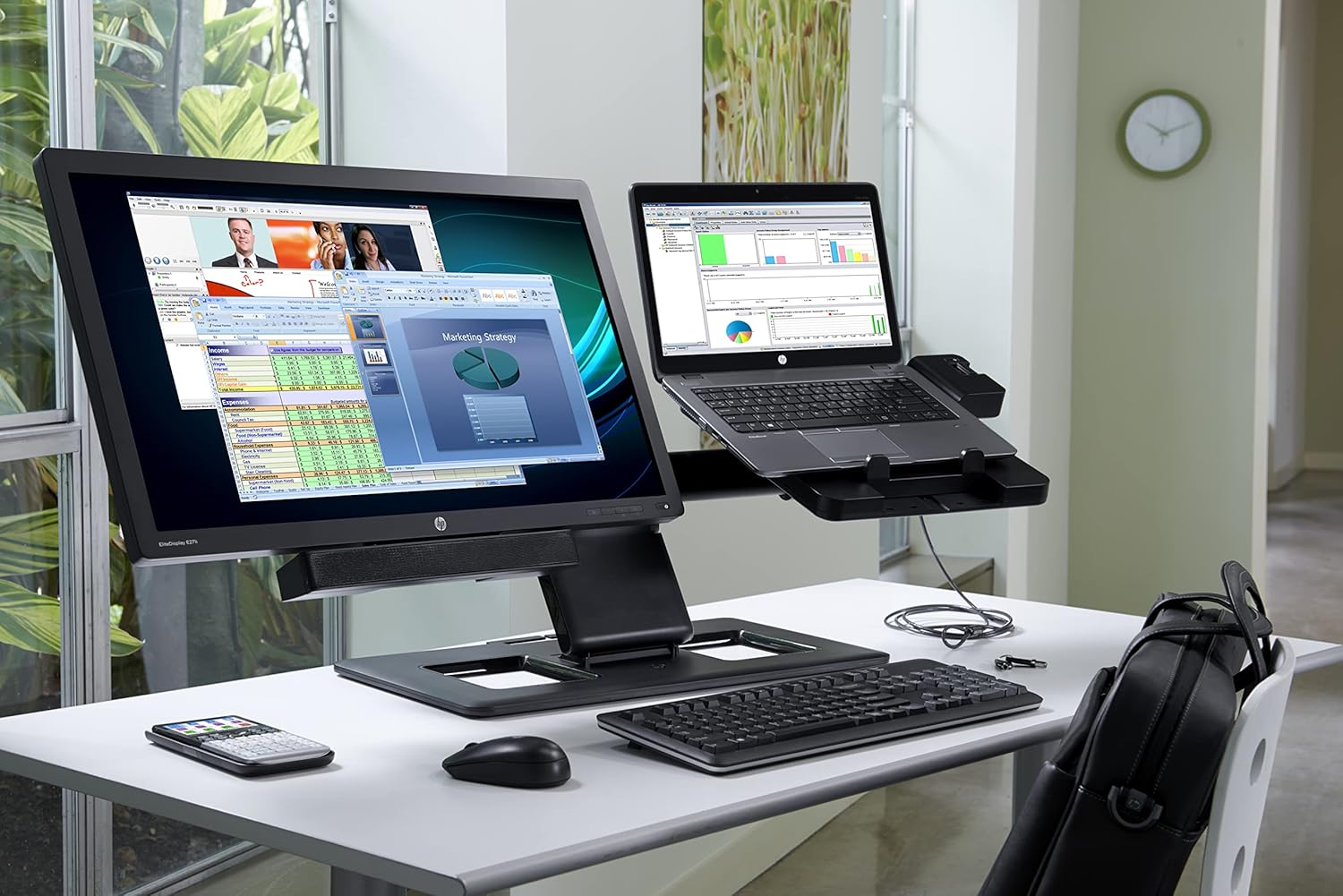
Image 5.1: An HP EliteBook notebook successfully docked and connected to external peripherals, demonstrating a typical workstation setup.
6. Instrucións de funcionamento
Once set up, operating the docking station is straightforward:
- Xestión de enerxía: The docking station provides power to your notebook. You can power on or off your notebook as usual.
- Pantallas externas: Your operating system should automatically detect and configure connected external displays. You can adjust display settings (e.g., extend, duplicate) through your notebook's display control panel.
- Undocking: To undock your notebook, ensure all applications are saved and closed. Safely remove any external storage devices. Then, press the release button on the docking station and gently lift your notebook.
7. Mantemento
Para garantir un rendemento e unha lonxevidade óptimos da súa estación de acoplamento:
- Limpeza: Usa un pano suave e seco para limpar o exterior da estación de carga. Evita produtos de limpeza líquidos ou materiais abrasivos.
- Ventilación: Ensure the docking station is placed in a well-ventilated area to prevent overheating. Do not block any ventilation openings.
- Almacenamento: When not in use for extended periods, disconnect the power adapter and store the docking station in a cool, dry place.
8 Solución de problemas
Se tes problemas, consulta os seguintes pasos comúns para a resolución de problemas:
- No Power to Notebook:
- Ensure the 65W power adapter is securely connected to both the docking station and a working wall outlet.
- Verify the notebook is properly seated and clicked into the docking station.
- A pantalla externa non funciona:
- Check that display cables (DisplayPort, VGA) are securely connected to both the docking station and the monitor.
- Asegúrate de que o monitor estea acendido e configurado na fonte de entrada correcta.
- Update your notebook's graphics drivers.
- Try restarting your notebook while docked.
- Dispositivos USB non recoñecidos:
- Ensure USB devices are securely plugged into the docking station's USB 3.0 ports.
- Test the USB device by connecting it directly to your notebook.
- Restart your notebook.
- Sen conectividade de rede:
- Verify the Ethernet cable is securely connected to both the docking station and your network router/switch.
- Check your notebook's network settings.
- Ensure your network is active and functioning.
If problems persist, consult the HP support websitio para obter máis axuda.
9. Especificacións
| Característica | Especificación |
|---|---|
| Número de modelo | D9Y32AA |
| Dimensións (LxWxH) | 16.57 x 4.06 x 8.23 polgadas (42.09 x 10.31 x 20.90 cm) |
| Peso do elemento | 1.69 libras (0.77 kg) |
| Adaptador de alimentación | 65 vatios |
| Vol. De entradatage | 18.5 voltios (DC) |
| Total de portos USB | 4 (USB 3.0) |
| Portos de vídeo | 2x DisplayPort 1.2, 1x VGA |
| Porto de rede | 1x Ethernet/LAN |
| Portos de audio | 1x Line-in, 1x Line-out |
10. Garantía e soporte
For warranty information and technical support, please refer to the official HP website or the documentation included with your HP EliteBook notebook. You can also visit www.hp.com/support for online resources and contact options.