
1. Introdución
The COUGAR Evolution Galaxy is a full tower computer case designed for enthusiasts, offering a spacious interior and advanced cooling capabilities. This manual provides detailed instructions for the assembly, operation, and maintenance of your computer case, ensuring optimal performance and longevity.
2. Características clave
- Interior amplo: Accommodates up to 8 PCI cards, providing flexibility for multiple graphics solutions.
- Refrixeración avanzada: Supports up to 7 fans, including dual 12cm COUGAR TURBINE HYPER-SPIN Bearing Silent Fans, with a unique dual-fan-set management system for excellent ventilation.
- Compatibilidade da placa base: Supports Extended ATX and ATX motherboards.
- Construción duradeira: Made from SECC Alloy Steel for robust protection.
- Conectividade do panel frontal: Features 4 USB 3.0 ports for high-speed data transfer.
- Bottom Mount PSU: Power supply mounts at the bottom for improved thermal management.
3. Configuración e instalación
3.1 Desembalaxe e inspección
Carefully remove the computer case from its packaging. Inspect for any signs of damage during transit. Retain all packaging materials for future transport or warranty claims.
3.2 Instalación da placa base
- Remove the side panel by unscrewing the thumbscrews at the rear of the case.
- Install the I/O shield provided with your motherboard into the rear opening of the case.
- Align the motherboard with the pre-installed standoffs. If necessary, install additional standoffs according to your motherboard's form factor.
- Gently place the motherboard onto the standoffs and secure it with screws.
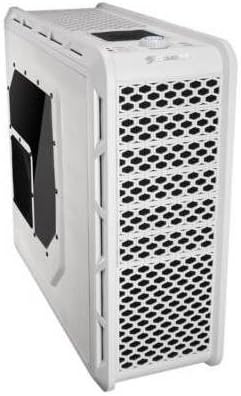
Figura 1: Interior view of the COUGAR Evolution Galaxy case, highlighting the motherboard tray and tool-less drive bays.
3.3 Instalación da unidade
The COUGAR Evolution Galaxy features tool-less drive bays for easy installation.
- 5.25" Devices (Optical Drives): Remove the front panel bay cover. Slide the 5.25" device into the bay until it clicks into place.
- Discos duros de 3.5 polgadas: Slide the hard drive into the designated 3.5" drive tray until it secures.
- 2.5" SSDs/HDDs: These can be mounted in the 3.5" trays using adapter screws or dedicated 2.5" mounts if available.

Figura 2: Interior detallado view showing the orange tool-less drive bay mechanisms for easy installation of storage devices.
3.4 Instalación da fonte de alimentación
The power supply unit (PSU) mounts at the bottom rear of the case.
- Position the PSU into the designated compartment at the bottom rear.
- Secure the PSU to the case using screws from the rear.
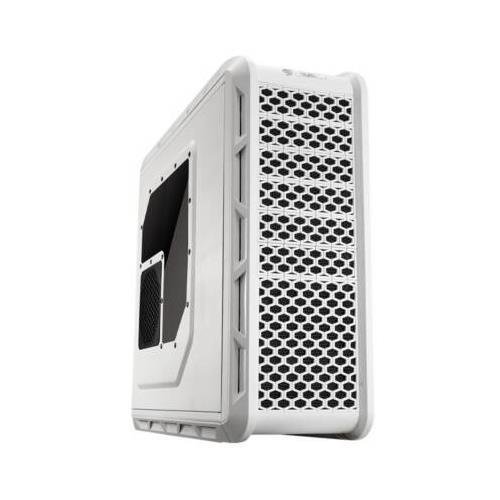
Figura 3: Traseira view of the COUGAR Evolution Galaxy case, illustrating the bottom-mounted power supply area, multiple PCI expansion slots, and the rear exhaust fan.
3.5 Xestión de cables
Utilize the cutouts and tie-down points behind the motherboard tray to route cables. This improves airflow and maintains a clean interior aesthetic.
3.6 Fan and Front Panel Connections
Connect all case fans to the motherboard or the integrated fan controller. Connect the front panel headers (USB 3.0, audio, power switch, reset switch, HDD LED, Power LED) to the corresponding pins on your motherboard. Refer to your motherboard manual for pin assignments.
4. Instrucións de funcionamento
4.1 Acendido
Once all components are installed and connected, ensure the power supply switch is in the 'ON' position. Press the power button on the front panel of the case to start your system.
4.2 Controlador de ventilador
The COUGAR Evolution Galaxy includes an integrated fan controller. Use the controls on the top panel to adjust fan speeds for optimal balance between cooling performance and noise levels. Connect your case fans to this controller for centralized management.
4.3 Portos do panel frontal
The front panel provides convenient access to USB 3.0 ports and audio jacks for headphones and microphones. Ensure these are correctly connected to your motherboard's internal headers during setup.

Figure 4: Angled front-side view of the COUGAR Evolution Galaxy case, showcasing the mesh front panel for airflow and the top-mounted controls and ports.
5. Mantemento
5.1 Limpeza do filtro de po
The case is equipped with dust filters to prevent dust accumulation inside. Regularly clean these filters (e.g., monthly) by removing them and washing with water or using a vacuum cleaner. Ensure filters are completely dry before reinstallation.
5.2 Limpeza xeral
Use un suave, damp cloth to clean the exterior surfaces of the case. Avoid abrasive cleaners or solvents that may damage the finish. For interior cleaning, use compressed air to remove dust from components and fans.
5.3 Fan Inspection
Periodically check all fans for proper operation. Ensure they are spinning freely and quietly. Replace any fans that are noisy or not functioning correctly to maintain optimal cooling.

Figura 5: Lateral view of the COUGAR Evolution Galaxy case, featuring a clear side panel window and a dedicated fan mount for additional cooling.
6 Solución de problemas
- O sistema non se acende:
- Check all power connections, including the PSU to the wall outlet, PSU to motherboard, and front panel power switch header.
- Asegúrese de que o interruptor da fonte de alimentación estea na posición "ON".
- Os ventiladores non xiran:
- Verify fan cables are securely connected to the motherboard or fan controller.
- Check fan controller settings if applicable.
- Front Panel USB Ports Not Working:
- Ensure the USB 3.0 header cable from the case is correctly connected to the motherboard.
- Check motherboard BIOS settings for USB port enablement.
7. Especificacións
| Característica | Especificación |
|---|---|
| Tipo de caso | Torre chea |
| Compatibilidade da placa base | Extended ATX, ATX |
| Material | Alloy Steel (SECC) |
| Cor | Branco |
| Peso do elemento | 29.8 libras |
| Tamaño do ventilador | 12 Centimeters (Dual COUGAR TURBINE HYPER-SPIN Bearing Silent Fans included) |
| Método de arrefriamento | Aire |
| Tipo de montaxe da fonte de alimentación | Montaxe inferior |
| Número de portos USB 3.0 | 4 |
8. Garantía e soporte
For warranty information and technical support, please refer to the official COUGAR websitio web ou póñase en contacto co seu distribuidor local. Garde o comprobante de compra para reclamacións de garantía.