
ASUS T100TA
Manual do usuario da tableta portátil ASUS T100 de 10 polgadas con base de acoplamento
Model: T100TA
1. Produto rematadoview
The ASUS T100 is a versatile 10-inch device designed to function as both a tablet and a laptop. It features a detachable keyboard dock, allowing for flexible use in various scenarios. This manual provides essential information for setting up, operating, maintaining, and troubleshooting your device.

Figure 1: ASUS T100 Tablet and Detachable Keyboard Dock
Características principais:
- Sistema operativo: Full Version Windows 8.1 (upgradeable to Windows 10).
- Procesador: Intel Quad-Core Z3775 1.46GHz Processor.
- Memoria: 2 GB de RAM.
- Almacenamento: 64GB SSD in the tablet.
- Conectividade: Dual-band 802.11N WiFi, Bluetooth 4.0.
- Portos: MicroSDXC card reader, MicroHDMI, microUSB ports, USB 3.0 port on the keyboard dock.
- Software: Includes 1 year of Microsoft Office 365 Personal.
2. Configuración e primeiro uso
2.1 Desembalaxe e contido
Carefully unpack your ASUS T100. Ensure all components are present:
- ASUS T100 10-Inch Tablet
- Chiclet Keyboard Dock
- Adaptador de alimentación
- 1-Lithium Ion Battery (integrated)
2.2 Carga do dispositivo
Before initial use, fully charge your ASUS T100. Connect the power adapter to the microUSB port on the tablet and plug it into a power outlet. The charging indicator light will illuminate.
2.3 Attaching the Keyboard Dock
To transform your tablet into a laptop, align the tablet with the docking connector on the keyboard dock and gently press down until it clicks securely into place. Ensure the connection is firm.
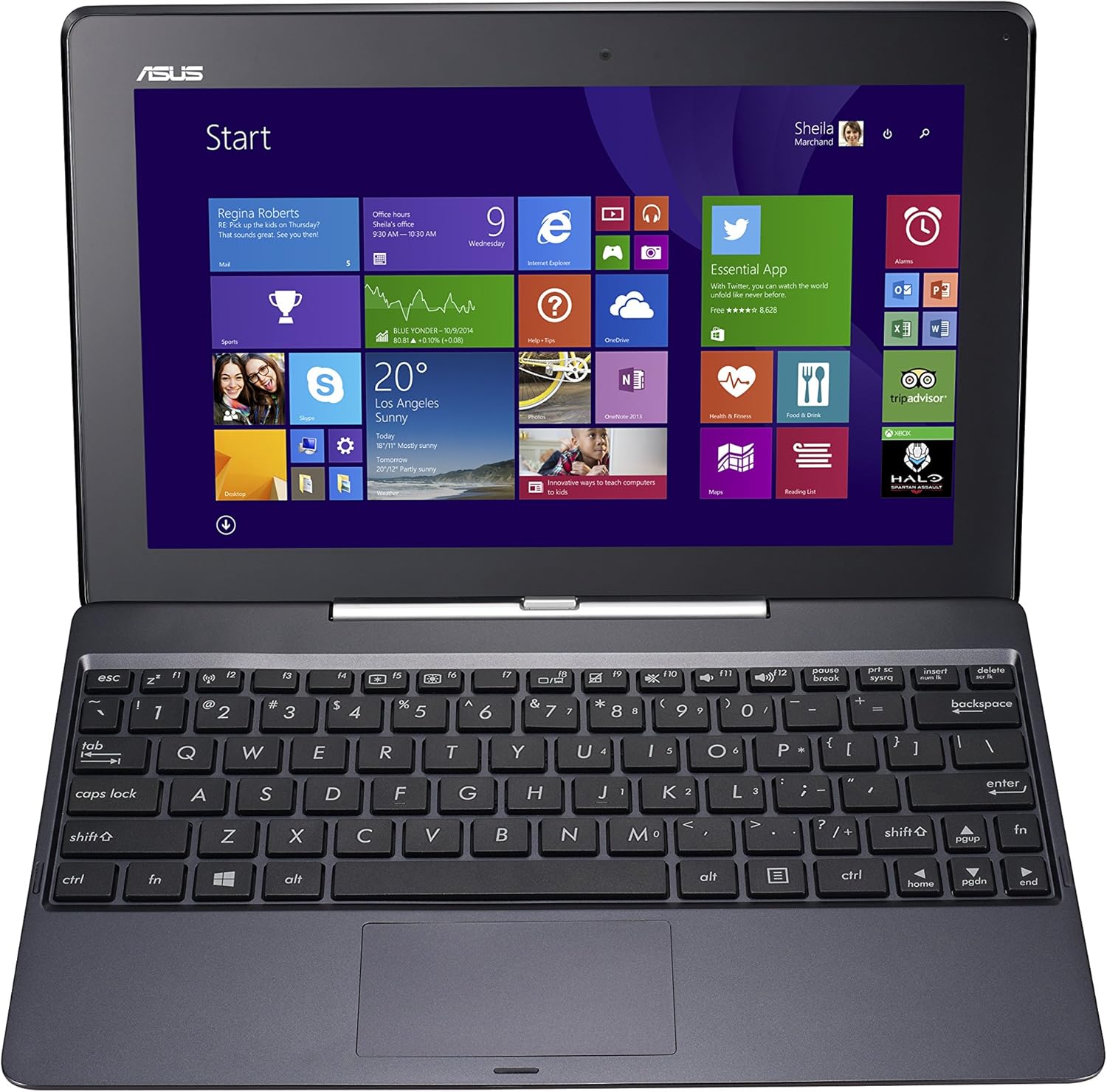
Figure 2: ASUS T100 Tablet Docked
2.4 Acendido inicial e configuración de Windows
Press and hold the power button located on the side of the tablet until the ASUS logo appears. Follow the on-screen instructions to complete the Windows 8.1 setup process, including language selection, network connection, and user account creation.
3. Operating Your ASUS T100
3.1 Tablet Mode
In tablet mode, interact with the device using the touchscreen. Swipe from the right edge to access charms, swipe from the left to switch between apps, and tap icons to open applications.
3.2 Laptop Mode
When docked, the keyboard and touchpad become active. Use the keyboard for typing and the touchpad for cursor control. The USB 3.0 port on the dock allows connection of external devices.

Figure 3: ASUS T100 Keyboard Dock
3.3 Conectividade
- Wi-Fi: Access network settings through the Windows operating system to connect to available Wi-Fi networks.
- Bluetooth: Pair Bluetooth devices like mice or headphones via the Windows Bluetooth settings.
- Pantallas externas: Use the MicroHDMI port to connect to an external monitor or TV.
- Expansión de almacenamento: Insert a MicroSDXC card into the card reader for additional storage.

Figura 4: Lateral View with USB 3.0 Port
4. Mantemento
4.1 Limpeza
Usa un pano suave e sen pelusa para limpar a pantalla e as superficies exteriores. Para manchas difíciles, lixeiramenteampEnxágüe o pano con auga ou unha solución para limpar pantallas. Evite produtos químicos agresivos.
4.2 Coidado coa batería
To prolong battery life, avoid extreme temperatures. It is recommended to fully discharge and recharge the battery periodically. The device has an average battery life of 11 hours.
4.3 Actualizacións de software
Regularly check for and install Windows updates to ensure optimal performance and security. Your device runs Windows 8.1 and is eligible for a free upgrade to Windows 10, which can improve performance and address some issues.
5 Solución de problemas
This section addresses common issues you might encounter with your ASUS T100.
5.1 Problemas de rendemento
- Rendemento lento: Ensure you have sufficient free storage space. Close unnecessary applications running in the background. Consider upgrading to Windows 10, as users have reported significant performance improvements.
- Lagging: If experiencing lag, especially during multitasking, check for system updates. A fresh installation of Windows 10 has been noted to resolve many performance-related issues.
5.2 Problemas de acoplamento
- Tablet not seating correctly: Ensure the tablet is properly aligned with the docking connector. Apply gentle, even pressure until it clicks into place. If it feels loose after extended use, try re-docking.
- Keyboard/Touchpad not responding: Detach and re-attach the tablet to the dock. Ensure the connectors are clean and free of debris.
5.3 Problemas de carga
- Carga lenta: The device is known to charge slowly. Ensure you are using the provided 2.0 amp adapter. Charging overnight is typical for a full charge.
- Charging port difficulty: Some users find the charging port difficult to plug into. Try plugging the cable in at a very slight downward angle.
5.4 Touchscreen Inaccuracy
If the touchscreen is not always perfectly accurate for file operations or dragging items, consider using a Bluetooth mouse for more precise control, especially in laptop mode.
6. Especificacións
| Característica | Especificación |
|---|---|
| Tamaño de visualización da pantalla de pé | 10.1 polgadas |
| Resolución máxima de pantalla | 1366 x 768 píxeles |
| Procesador | 1.46 GHz Intel Atom (Quad-Core Z3775) |
| RAM | 2 GB DDR3 |
| Disco duro | 64 GB SSD (in Tablet) |
| Coprocesador gráfico | Intel GMA HD (Integrated) |
| Tipo sen fíos | 802.11n |
| Número de portos USB 2.0 | 1 |
| Número de portos USB 3.0 | 1 (on Keyboard Dock) |
| Duración media da batería | 11 horas |
| Sistema Operativo | Windows 8.1 |
| Peso do elemento | 2.4 libras |
| Dimensións do produto | 6.7 x 10.4 x 0.93 polgadas |
| Cor | Vermello |
| Traseira WebResolución de cámara | 1 MP |
7. Garantía e soporte
Para obter información detallada sobre a garantía e asistencia técnica, consulte a páxina oficial de ASUS website or the documentation included with your purchase. Product registration may be required to activate your warranty.
Exención de responsabilidade legal: Must be at least 18 & over to purchase.
Documentos relacionados - T100TA
 |
DFI ASL253 Intel® Atom® RE Series User's Manual This user manual provides detailed information and instructions for the DFI ASL253 industrial motherboard, featuring Intel® Atom® RE Series processors. It covers hardware installation, jumper settings, BIOS configuration, and advanced out-of-band management features for efficient system control and maintenance. |
 |
ASUS Tablet and Smartphone Product Guide - March-April 2014 Explore the latest ASUS tablets and smartphones in the March-April 2014 product guide, featuring detailed specifications, features, and awards for models like ZenFone, PadFone, Fonepad, Transformer Book, Transformer Pad, and MeMO Pad. |
 |
Dell Inspiron Mini 10 Setup Guide Dell Inspiron Mini 10 (Inspiron 1011, PP19S) setup guide. Learn how to set up your laptop, connect to networks, configure Windows XP or Ubuntu, troubleshoot common issues, and restore your system. Includes hardware features and specifications. |
 |
Trimble T100 Tablet User Guide This comprehensive user guide provides essential information for operating the Trimble T100 tablet, covering setup, configuration, daily use, wireless connectivity, accessories, camera, pre-installed applications, safety, specifications, and warranty. |
 |
Asus VivoTab Smart Teardown and Disassembly Guide A detailed step-by-step guide for disassembling the Asus VivoTab Smart tablet, including instructions for removing the back panel, internal components, screen, and all parts. Useful for repair and understanding the device's internal structure. |
 |
Thomson NEO Laptops: Classic Notebooks & Ultrabooks (2020 Range) Explore the Thomson NEO range of laptops, including the Classic Notebook Atom, Classic Notebook Celeron, and NEOX Metal Ultrabook models. Featuring Windows 10, Intel processors, and various screen sizes and storage options for work and home. |
Ask a question about this manual
Ask about setup, troubleshooting, compatibility, parts, safety, or missing instructions. Manuals+ will review the question and use this page’s manual context to help answer it.