
D-Link DSL-X1852E
D-Link DSL-X1852E WI-FI 6 Wireless AX 1800 Dual-Band Gigabit VDSL2/ADSL2+ IAD User Manual
Model: DSL-X1852E | Brand: D-Link
1. Produto rematadoview
The D-Link DSL-X1852E is an advanced Wi-Fi 6 (802.11ax) modem router designed to provide high-speed internet connectivity and robust wireless performance for homes and businesses. It integrates a VDSL2/ADSL2+ modem, a powerful Wi-Fi 6 access point, and multiple Gigabit Ethernet ports, offering a comprehensive networking solution.

Figura 1: Fronte view of the D-Link DSL-X1852E modem router, showcasinpolo seu elegante deseño e as súas catro antenas externas.
As características principais inclúen:
- Integrated VDSL/ADSL2+ Modem: Supports universal DSL connectivity.
- Tecnoloxía Wi-Fi 6 (802.11ax): Delivers faster speeds, greater capacity, and reduced network congestion with AX1800 speeds (1200Mbps on 5GHz and 574Mbps on 2.4GHz).
- Portos Gigabit: One dedicated Gigabit WAN port and four Gigabit LAN ports for high-speed wired connections.
- Voice over IP (VoIP): Two FXS ports for connecting traditional phones to make calls over the internet.
- Porto USB 3.0: Para conectar dispositivos de almacenamento externos para compartir files en toda a rede.
- Tecnoloxías Avanzadas: OFDMA and MU-MIMO for efficient data transmission to multiple devices, BSS Colouring for interference reduction, and Target Wake Time (TWT) for improved device battery life.
- Soporte VPN: Built-in VPN Wizard for LAN-to-LAN and remote access VPN connections.
2. Guía de configuración
2.1 Contido do paquete
Antes de comezar, asegúrate de que todos os elementos estean presentes na caixa:
- Módem Router D-Link DSL-X1852E
- Adaptador de alimentación
- Cable Ethernet
- Cable DSL
- Guía de instalación rápida
- Documentos de garantía

Figure 2: The product packaging, illustrating the modem router and its included accessories.
2.2 Instalación de hardware
- Posicionamento: Coloca o enrutador nun lugar céntrico da túa casa ou oficina, lonxe de obstrucións e fontes de interferencias (por exemplo, microondas, teléfonos sen fíos).
- Conectar liña DSL: Connect one end of the DSL cable to the DSL port on the back of the router and the other end to your telephone wall jack or DSL splitter.
- Conectar enerxía: Connect the power adapter to the DC-IN port on the router and plug the other end into a power outlet. Press the ON/OFF button to power on the device.
- Conectar dispositivos (opcional):
- For wired devices, connect an Ethernet cable from a LAN port (LAN1-LAN4) on the router to your computer or other network device.
- For VoIP phones, connect them to the Phone1 or Phone2 FXS ports.
- Axuste da antena: Ensure all four external antennas are securely attached and oriented vertically for optimal Wi-Fi coverage.

Figura 3: Traseira view of the D-Link DSL-X1852E, showing the power button, DC-IN, USB 3.0, FXS ports (Phone1, Phone2), LAN ports (LAN1-LAN4), WAN port, and DSL port.
2.3 Configuración inicial
After hardware installation, configure the router via a web navegador:
- Conectar ao enrutador: Connect your computer to the router either via an Ethernet cable (to any LAN port) or wirelessly using the default Wi-Fi name (SSID) and password printed on the router's label.
- Acceso Web Interface: Abrir a web navegador e escriba
http://dlinkrouter.localorhttp://192.168.1.1(default IP address) into the address bar and press Enter. - Iniciar sesión: Enter the default username and password (usually printed on the router's label or in the Quick Install Guide).
- Executar o asistente de configuración: Follow the on-screen instructions of the setup wizard to configure your internet connection (VDSL/ADSL settings provided by your ISP), Wi-Fi network name (SSID), and password. It is highly recommended to change the default administrator password for security.
3. Instrucións de funcionamento
3.1 Conectividade Wi-Fi
The DSL-X1852E supports dual-band Wi-Fi 6, operating on both 2.4 GHz and 5 GHz frequencies. Wi-Fi 6 technology enhances network efficiency and speed, especially in environments with many connected devices.

Figure 4: Visual representation of Wi-Fi 6 benefits, including exceptional capacity, smart home optimization, next-gen speed and range, and unprecedented efficiency.
- Dispositivos de conexión: Busca your Wi-Fi network name (SSID) on your device and enter the Wi-Fi password.
- OFDMA: Orthogonal Frequency Division Multiple Access allows small data packets for multiple devices to be transmitted simultaneously, improving efficiency.
- MU-MIMO: Multi-User, Multiple-Input, Multiple-Output technology enables the router to communicate with multiple devices concurrently, enhancing throughput. The DSL-X1852E supports two-way MU-MIMO for both upstream and downstream transmissions.
- BSS Colouring: Reduces interference from neighboring Wi-Fi networks, making more efficient use of the Wi-Fi spectrum.
- Tempo de activación obxectivo (TWT): Allows devices to negotiate when and how often they will wake up to send or receive data, extending battery life for connected devices.
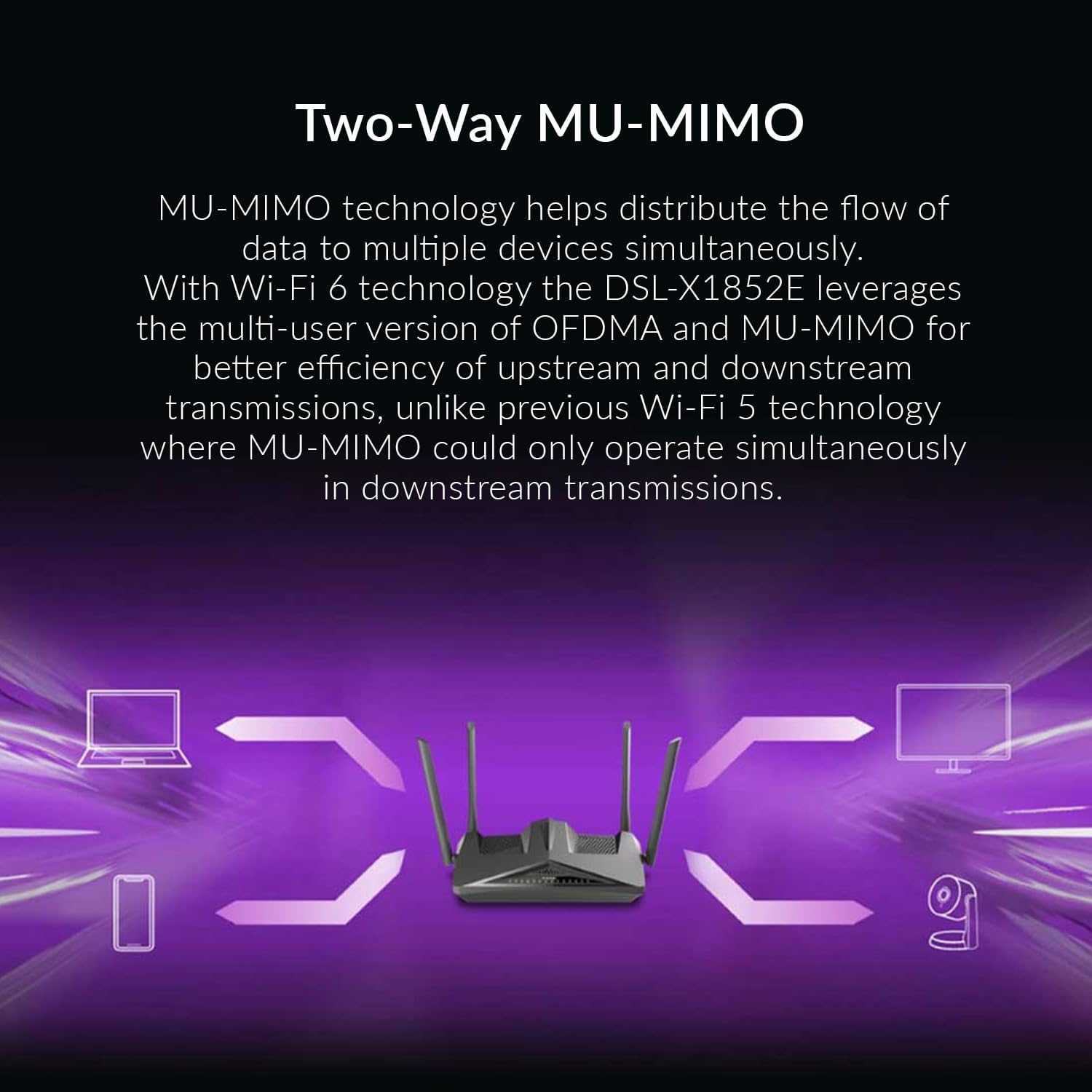
Figure 5: Diagram illustrating how Two-Way MU-MIMO technology enables simultaneous data flow to multiple devices, such as laptops, smartphones, and cameras.
3.2 Uso do porto USB
The USB 3.0 port on the back of the router can be used to connect external storage devices (e.g., USB hard drives, flash drives) to create network-attached storage (NAS). This allows users on the network to access and share files centrally.
- Plug your USB storage device into the USB 3.0 port.
- Acceder ao enrutador web interface para configurar file sharing settings (e.g., SMB/DLNA server).
3.3 Configuración da VPN
The DSL-X1852E includes a VPN Wizard to simplify the setup of Virtual Private Network connections. This feature supports both LAN-to-LAN and remote access VPNs, allowing secure communication over public networks.
- Navigate to the VPN section in the router's web interface.
- Use the VPN Wizard to guide you through the setup process for your desired VPN type.
- The router also supports VPN passthrough, allowing devices connected to it to establish their own outbound VPN connections.
4. Mantemento
4.1 Actualizacións de firmware
Regularly updating the router's firmware is crucial for optimal performance, security, and access to new features. D-Link periodically releases firmware updates to address bugs and improve functionality.
- Visita o soporte oficial de D-Link website for your region (e.g., D-Link Egypt) to check for the latest firmware version for the DSL-X1852E.
- Descarga o firmware file and follow the instructions provided on the support website or within the router's web interface to perform the update.
- Importante: Do not power off the router during a firmware update.
4.2 Restablecemento de fábrica
A factory reset can resolve persistent issues or restore the router to its default settings. This will erase all custom configurations, including Wi-Fi settings and passwords.
- With the router powered on, locate the recessed Reset (RST) button on the back panel.
- Use a paperclip or a similar pointed object to press and hold the RST button for approximately 10 seconds until the power LED blinks.
- Solte o botón. O router reiniciarase coa configuración predeterminada de fábrica.
5 Solución de problemas
This section provides solutions to common issues you might encounter with your D-Link DSL-X1852E modem router.
5.1 Sen acceso a Internet
- Comproba os cables: Ensure the DSL cable is securely connected to the router's DSL port and the wall jack. Verify Ethernet cables are properly connected if using wired devices.
- Modem Lights: Check the DSL and Internet indicator lights on the router. If they are off or blinking, there might be an issue with your DSL line or ISP connection.
- Configuración do ISP: Confirm that the VDSL/ADSL settings (VPI/VCI, encapsulation, connection type) in the router's web interface match those provided by your Internet Service Provider (ISP). Incorrect settings are a common cause of no internet.
- Reiniciar: Power cycle the router by unplugging the power adapter, waiting 30 seconds, and then plugging it back in.
- Firmware: Ensure your router has the latest firmware, especially if experiencing persistent connectivity issues. Note that some region-specific firmware versions may have limitations or bugs.
5.2 Problemas de conexión Wi-Fi
- Contrasinal incorrecto: Double-check that you are entering the correct Wi-Fi password. Passwords are case-sensitive.
- Potencia do sinal: Ensure your device is within range of the router. Walls and other obstructions can weaken the Wi-Fi signal.
- Interferencia: Other electronic devices (e.g., cordless phones, microwaves) can interfere with Wi-Fi signals. Try changing the Wi-Fi channel in the router's settings.
- Compatibilidade do dispositivo: Ensure your device supports Wi-Fi 6 (802.11ax) for optimal performance, though it is backward compatible with older Wi-Fi standards.
5.3 USB Storage/DLNA Not Working
- Formato: Ensure the USB drive is formatted in a compatible file sistema (por exemplo, FAT32, NTFS).
- Potencia: For external hard drives, ensure they have their own power supply if required.
- Configuración do enrutador: Verify that the USB sharing and DLNA/SMB server features are enabled in the router's web interface.
6. Especificacións
| Característica | Descrición |
|---|---|
| Nome do modelo | DSL-X1852E |
| Marca | D-Link |
| Tecnoloxía de conectividade | Wi-Fi, Ethernet, DSL |
| Estándar sen fíos | 802.11ax (Wi-Fi 6) |
| Clase de banda de frecuencia | Dobre banda (2.4 GHz e 5 GHz) |
| Velocidade Wi-Fi | Up to AX1800 (574 Mbps on 2.4 GHz, 1200 Mbps on 5 GHz) |
| Compatibilidade DSL | VDSL2/ADSL2+ |
| Portos Ethernet | 4 LAN Gigabit, 1 WAN Gigabit |
| Porto USB | 1 x USB 3.0 |
| FXS Ports (VoIP) | 2 |
| Antenas | 4 antenas externas |
| Seguridade | Cifrado WPA3 |
| Dimensións (L x W x H) | 30 x 11 x 27 cm |
| Peso | 1.5 kg |
| País de Orixe | China |
7. Garantía e soporte
7.1 Garantía do produto
For information regarding the warranty period and terms for your D-Link DSL-X1852E, please refer to the warranty card included in your product packaging or visit the official D-Link website for your region. D-Link offers various extended warranty options through authorized resellers.
- Garantía estendida de 1 anos: Available through Salama Care (E-mail delivery).
- Garantía estendida de 2 anos: Available through Salama Care (E-mail delivery).
7.2 Soporte técnico
If you encounter issues that cannot be resolved using this manual, or require further assistance, please contact D-Link Technical Support. Support resources typically include:
- Soporte en liña: Visit the D-Link support websitio web con preguntas frecuentes, guías de resolución de problemas e descargas de firmware.
- Asistencia telefónica: Contact D-Link's regional support hotline during business hours.
- Foros da comunidade: Engage with other D-Link users and experts on official forums.
When contacting support, please have your product model number (DSL-X1852E) and serial number ready. The serial number is usually located on a sticker on the bottom of the device.