
Introdución
The ASTRO Gaming A40 TR Headset and MixAmp Pro TR are designed to provide a high-fidelity audio experience for gaming on PlayStation 4 and PC. The A40 TR headset offers user customization, allowing transformation from an open-back to a closed-back noise-canceling headset with optional Mod Kits. The MixAmp Pro TR features all-digital components for clear, interference-free audio and voice communication, with customizable settings via the ASTRO Command Center software.

Imaxe: Auriculares e mestura ASTRO Gaming A40 TRAmp Pro TR, showcasing both components together. The headset is black with gold accents, and the MixAmp is a compact black unit with control dials.
Contido do paquete
Verifique que todos os elementos que se indican a continuación estean incluídos na embalaxe do produto:
- ASTRO A40 TR Headset
- ASTRO MixAmp Pro TR
- A40 TR Inline Mute Cable (2.0m)
- TOSlink Optical Cable (3.0m)
- Micro-USB Cable (3.0m)
- Digital Daisy Chain Cable (0.5m)
- Swappable Microphone
Configuración
Connecting to PlayStation 4 (PS4)
- Conecta o TOSlink Optical Cable from the MixAmp Pro TR's OPTICAL port to the PS4's Optical Out port.
- Conecta o Cable micro-USB from the MixAmp Pro TR's USB port to an available USB port on the PS4.
- Conecta o A40 TR Inline Mute Cable from your A40 TR Headset to the headset port on the front of the MixAmp Pro TR.
- Na túa PS4, navega ata Settings > Sound and Screen > Audio Output Settings.
- Establecer Porto de saída principal a Saída dixital (óptica).
- Seleccione Dolby Digital (Bitstream) for the audio format.
- Ir a Axustes> Dispositivos> Dispositivos de audio.
- Establecer Dispositivo de entrada a USB Headset (ASTRO MixAmp Pro TR).
- Establecer Dispositivo de saída a USB Headset (ASTRO MixAmp Pro TR).
- Axustar Control de volume (auriculares) ao máximo.
- Establecer Saída para auriculares a Audio de chat or Todo son as preferred.
Conectando ao PC
- Conecta o Cable micro-USB from the MixAmp Pro TR's USB port to an available USB port on your PC.
- Conecta o A40 TR Inline Mute Cable from your A40 TR Headset to the headset port on the front of the MixAmp Pro TR.
- On your PC, ensure the MixAmp Pro TR is selected as the default playback and recording device in your sound settings.
- Descarga e instala o ASTRO Command Center software from the official ASTRO Gaming website to customize settings, update firmware, and manage EQ presets.
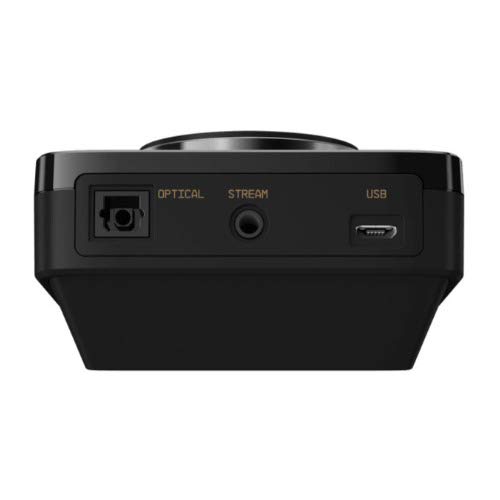
Imaxe: Traseira view of the ASTRO MixAmp Pro TR, highlighting the Optical, USB, AUX, and Stream ports for various connections.
Operating the MixAmp Pro TR
A mesturaAmp Pro TR provides intuitive controls for managing your audio experience:
- Dial de volume principal: The large dial on the left controls the overall volume of your headset. Rotate clockwise to increase volume, counter-clockwise to decrease.
- Game/Voice Balance Dial: The smaller dial on the right allows you to adjust the balance between game audio and voice chat.
- Rotate towards "GAME" to prioritize game audio.
- Rotate towards "VOICE" to prioritize voice chat.
- EQ Presets Button: Located in the center, this button cycles through four customizable equalizer presets. The active preset is indicated by the illuminated icon (star, headphone, etc.). These presets can be configured using the ASTRO Command Center software.
- Dolby Button: Activates or deactivates Dolby Surround Sound. When active, the Dolby logo will illuminate.
- Botón de silencio do micrófono: Located on the A40 TR Inline Mute Cable, this switch mutes or unmutes your microphone. When muted, the MixAmp's volume dials will typically glow red.
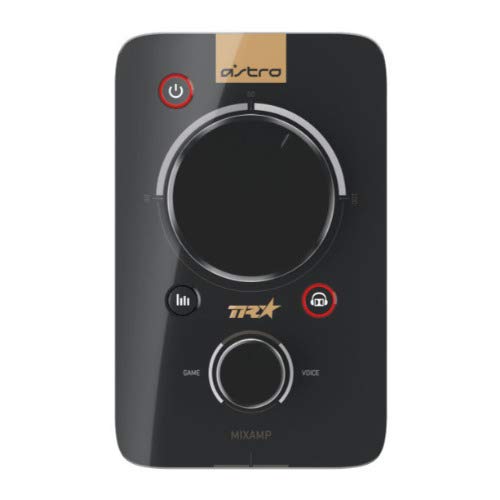
Imaxe: Arriba view of the ASTRO MixAmp Pro TR, showing the large master volume dial, the smaller game/voice balance dial, and the EQ preset buttons.
Mantemento
- Limpeza: Usa un pano suave e seco para limpar os auriculares e MixAmp. Avoid abrasive cleaners or solvents.
- Almacenamento: Store the headset and MixAmp nun lugar fresco e seco lonxe da luz solar directa e das temperaturas extremas.
- Coidado do cable: Manexa os cables con coidado para evitar danos. Evita curvas bruscas ou tiróns excesivos.
- Almofadas para oídos: Periodically check ear cushions for wear and tear. Replacement cushions are available from ASTRO Gaming.
Resolución de problemas
If you encounter issues with your ASTRO Gaming A40 TR Headset or MixAmp Pro TR, proba as seguintes solucións:
| Problema | Solución |
|---|---|
| Non se escoita son dos auriculares. |
|
| O micrófono non funciona. |
|
| Distorted or poor audio quality. |
|
For more detailed troubleshooting, please refer to the official ASTRO Gaming support resources.
Especificacións
- Número de modelo: 939-001511
- Resposta en frecuencia: 20 - 20,000 Hz
- Impedancia nominal: 48 ohmios
- Presión da diadema: 2.6N
- Dimensións do produto: 9.06 x 13.87 x 4.33 polgadas
- Peso do artigo: 1.06 libras
- Conectividade: Óptico, USB
- Compatibilidade: PlayStation 4, PC
Garantía e Soporte
For detailed warranty information and product support, please visit the official ASTRO Gaming websitio web ou consulte a documentación proporcionada:
Ensure you register your product on the ASTRO Gaming website for the latest updates and support.