
1. Introdución
This manual provides detailed instructions for installing, configuring, and maintaining your GIGABYTE GA-B150M-D3H Micro ATX motherboard. The GA-B150M-D3H is designed to support 6th Generation Intel Core Processors and features Dual Channel DDR4 memory, PCIe Gen3 x4 M.2 connector, SATA Express, and 8-channel HD audio with Audio Noise Guard.
Please read this manual thoroughly before beginning installation to ensure proper setup and operation.
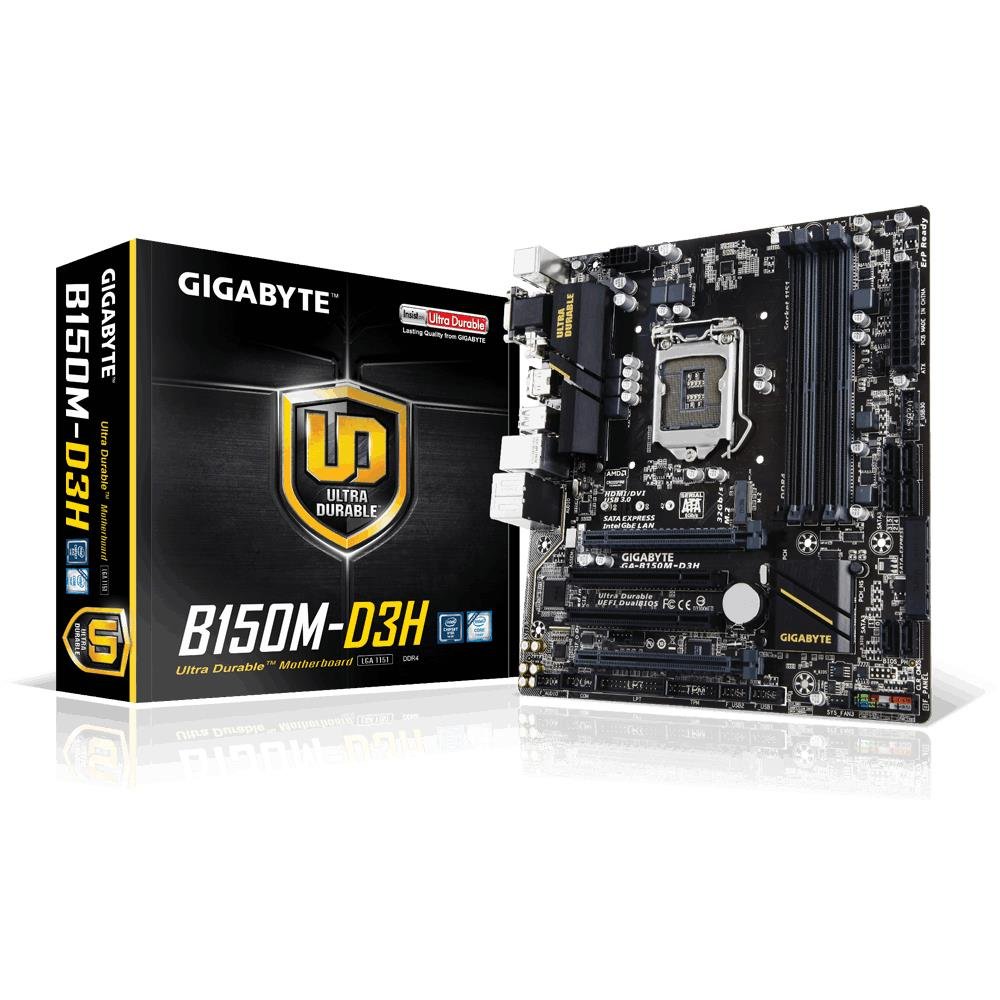
Image 1.1: GIGABYTE GA-B150M-D3H Micro ATX Motherboard. This image displays the overall layout of the motherboard, highlighting its compact Micro ATX form factor and various component slots.
2. Información de seguridade
Observe the following safety precautions to prevent damage to the motherboard and injury to yourself:
- Desconecte sempre o cable de alimentación da toma de corrente antes de tocar calquera compoñente.
- Use unha pulseira antiestática ou toque con frecuencia un obxecto metálico conectado á terra para descargar a electricidade estática.
- Sujete a placa base polos bordos para evitar tocar os compoñentes sensibles.
- Manteña a placa base lonxe da humidade e das temperaturas extremas.
- Asegúrate de que haxa unha ventilación axeitada dentro da carcasa do ordenador para evitar o sobrequecemento.
3. Contido do paquete
Verifica que todos os elementos estean presentes na caixa da túa placa base:
- GIGABYTE GA-B150M-D3H Motherboard
- Manual de usuario
- Escudo de E / S
- Cables SATA
- CD/DVD de controladores
Note: Contents may vary slightly depending on region or revision.
4. Deseño da placa base
Familiarize yourself with the various components and connectors on the GA-B150M-D3H motherboard.
Image 4.1: GIGABYTE GA-B150M-D3H Motherboard Layout. This image provides a visual reference for the location of key components such as the CPU socket, DIMM slots, PCIe slots, SATA ports, and M.2 connector.
Compoñentes clave:
- Soquete da CPU LGA 1151: For 6th Generation Intel Core Processors.
- DDR4 DIMM Slots (4): Supports Dual Channel DDR4 memory up to 2133 MHz.
- Ranuras PCIe: Includes PCIe Gen3 x16 for graphics cards and PCIe x1 slots for expansion.
- M.2 Connector: Supports PCIe NVMe & SATA SSDs with up to 32Gb/s data transfer.
- SATA Express Connector: For up to 16Gb/s data transfer.
- Portos SATA de 6 Gb/s: Para conectar dispositivos de almacenamento SATA tradicionais.
- 24-Pin ATX Power Connector: Entrada de alimentación principal.
- 8-Pin ATX 12V Power Connector: CPU power input.
- Cabeceiras do panel frontal: For power button, reset button, LED indicators, and USB ports.
- Conectores de audio: 8-channel HD Audio with high quality capacitors and Audio Noise Guard.
5. Configuración e instalación
Siga estes pasos para instalar correctamente a placa base e os seus compoñentes.
5.1. Instalación da CPU
- Locate the LGA 1151 CPU socket.
- Abra a panca do socket da CPU e levante a placa de carga.
- Carefully align the CPU with the socket, ensuring the gold triangle on the CPU matches the triangle on the socket. Do not force the CPU into the socket.
- Baixa a placa de carga e asegúraa coa palanca.
5.2. Instalación do refrigerador da CPU
Refer to your CPU cooler's instruction manual for specific installation steps. Ensure thermal paste is applied correctly between the CPU and cooler base.
5.3. Instalación de memoria (RAM)
- Abra os clips en ambos extremos das ranuras DIMM DDR4.
- Aliña o módulo de memoria coa ranura, asegurándote de que a muesca do módulo coincida coa chave da ranura.
- Prema firmemente os dous extremos do módulo de memoria ata que os clips encaixen no seu lugar.
- For dual-channel performance, install memory modules in matching colored slots (e.g., DIMM1 and DIMM2).
5.4. Installing Expansion Cards
- Retire o soporte metálico da ranura PCIe desexada na caixa do ordenador.
- Align the expansion card with the PCIe slot and press down firmly until it is seated correctly.
- Fixa a tarxeta cun parafuso á carcasa do ordenador.
5.5. Connecting Storage Devices
- Dispositivos SATA: Connect one end of the SATA data cable to a SATA 6Gb/s port on the motherboard and the other end to your hard drive or SSD. Connect the SATA power cable from your power supply to the device.
- SSD M.2: Insira o SSD M.2 na ranura M.2 en ángulo, logo empúxeo suavemente cara abaixo e asegúreo co parafuso fornecido.
- SATA Express: If using a SATA Express device, connect it to the designated SATA Express connector.
5.6. Connecting Front Panel Connectors
Connect the cables from your computer case's front panel (power button, reset button, HDD LED, power LED, front USB, front audio) to the corresponding headers on the motherboard. Refer to the motherboard layout diagram for exact locations and pin assignments.
5.7. Conexión da fonte de alimentación
- Connect the 24-pin ATX main power connector from your power supply to the 24-pin power socket on the motherboard.
- Connect the 8-pin ATX 12V CPU power connector to the 8-pin socket near the CPU.
- Asegúrate de que todas as conexións de alimentación estean seguras.
6. Instrucións de funcionamento
6.1. Primeiro arranque
After assembling all components, connect your monitor, keyboard, and mouse. Power on the system. The system should display the GIGABYTE splash screen and then enter the BIOS/UEFI setup or attempt to boot from a connected storage device.
6.2. Configuración da BIOS/UEFI
Para entrar na configuración da BIOS/UEFI, prema a tecla DEL key repeatedly during the boot process when the GIGABYTE logo appears. Here you can configure system settings, boot order, and monitor hardware status. The GA-B150M-D3H features GIGABYTE UEFI Dual BIOS for enhanced reliability.
6.3. Instalación de controladores
After installing your operating system, install the necessary drivers for the motherboard components. These can be found on the included driver CD/DVD or downloaded from the official GIGABYTE website. Key drivers include chipset, audio (Realtek ALC892 codec), LAN, and any integrated graphics drivers.
6.4. Instalación do sistema operativo
Insert your operating system installation media (USB drive or DVD) and configure the boot order in the BIOS/UEFI to boot from it. Follow the on-screen instructions to install your preferred operating system (e.g., Windows 8.1, Windows 10).
7. Mantemento
7.1. Limpeza
Regularly clean the interior of your computer case to prevent dust buildup, which can lead to overheating. Use compressed air to remove dust from fans, heatsinks, and motherboard components. Ensure the system is powered off and unplugged before cleaning.
7.2. Actualizacións da BIOS
GIGABYTE periodically releases BIOS updates to improve system stability, compatibility, and performance. Visit the official GIGABYTE website for your motherboard model (GA-B150M-D3H) to check for the latest BIOS version and follow the provided instructions for updating. Exercise caution during BIOS updates, as an interruption can render the motherboard inoperable.
8 Solución de problemas
Esta sección aborda problemas comúns cos que podes atoparte.
8.1. Sen alimentación / O sistema non se acende
- Check if the power supply is connected correctly to the motherboard (24-pin and 8-pin connectors).
- Asegúrese de que o interruptor da fonte de alimentación estea na posición de acendido.
- Verifique que o cable do botón de acendido do panel frontal estea conectado correctamente á cabeceira da placa base.
- Proba a fonte de alimentación con outro sistema ou cun comprobador de fontes de alimentación.
8.2. Sen saída de visualización
- Ensure the monitor is connected to the correct graphics output (either integrated graphics on the motherboard or a dedicated graphics card).
- Volva colocar a tarxeta gráfica e os módulos de memoria.
- Try booting with only one memory module installed.
- Comprobe se o monitor está acendido e configurado na fonte de entrada correcta.
8.3. Inestabilidade/fallos do sistema
- Comprobe as temperaturas da CPU e da GPU para asegurarse de que estean dentro dos límites de funcionamento seguros.
- Verify that all drivers are installed and up to date.
- Executa ferramentas de diagnóstico de memoria para comprobar se hai defectos na RAM.
- Ensure the power supply provides sufficient and stable power to all components.
9. Especificacións
Detailed technical specifications for the GIGABYTE GA-B150M-D3H motherboard:
| Característica | Especificación |
|---|---|
| Nome do modelo | GA-B150M-D3H |
| Factor de forma | Micro ATX (24.4 cm x 22.5 cm) |
| Socket CPU | LGA 1151 |
| Procesadores compatibles | 6th Generation Intel Core Processors |
| Chipset | Chipset Intel B150 Express |
| Tecnoloxía da memoria | DDR4 |
| Slots de memoria | 4 x DDR4 DIMM sockets (Dual Channel) |
| Capacidade máxima de memoria | 16 GB |
| Velocidade do reloxo da memoria | 2133 MHz |
| Slots PCIe | 1 x PCI Express x16, 1 x Total PCIe Ports |
| Interfaces de almacenamento | PCIe Gen3 x4 M.2, SATA Express, SATA 6Gb/s |
| Codec de audio | Realtek ALC892 codec, 8-channel HD Audio |
| Portos USB | Total 8 USB Ports (including USB 2.0) |
| Conector de alimentación principal | 24-Pin ATX |
| Conector de alimentación da CPU | 8-Pin ATX 12V |
| Características únicas | GIGABYTE UEFI Dual BIOS, Audio Noise Guard with LED Trace Path Lighting, App Center (Easy Tune, Cloud Station) |
10. Garantía e soporte
For warranty information, please refer to the warranty card included in your product package or visit the official GIGABYTE websitio. Os termos e condicións da garantía poden variar segundo a rexión.
For technical support, driver downloads, BIOS updates, and further product information, please visit the GIGABYTE official support websitio:
https://www.gigabyte.com/Support
When contacting support, please have your motherboard model (GA-B150M-D3H) and serial number ready.