
Introdución
This manual provides comprehensive instructions for the setup, operation, and maintenance of your Zelotes T90 Professional 9200 DPI High Precision USB Wired Gaming Mouse. Please read this manual thoroughly before using the product to ensure optimal performance and longevity.

Figure 1: Zelotes T90 Professional Gaming Mouse, showcasing its ergonomic design and LED lighting.
Contido do paquete
- 1 x Zelotes T90 Gaming Mouse
- 1 x Manual de instrucións (este documento)
Configuración
Requisitos do sistema
- Operating System: Windows 98/ 2000/ ME/ NT / XP/ win 7/ win 8/ win 10/ Mac OS and other OS
- Interface: porto USB
Instalación
- Desembalar o rato: Carefully remove the Zelotes T90 Gaming Mouse from its packaging.
- Eliminar a película protectora: Before use, please remove the foot pad protective film located on the underside of the mouse.
- Conectar ao ordenador: Plug the USB connector of the mouse into an available USB port on your computer. The mouse is plug-and-play and does not require additional driver installation for basic functionality.
Instrucións de funcionamento
Funcións dos botóns
The Zelotes T90 mouse features 8 programmable buttons designed for enhanced gaming and productivity.
- Botón de clic esquerdo
- Botón de clic dereito
- Middle Button / Scroll Wheel
- Botón de avance: Quick forward function when browsing the web or navigating folders.
- Botón de retroceso: Quick backward function when browsing the web or navigating folders.
- Botón DPI: Axusta a sensibilidade do rato (DPI).
- Chave de lume: Configurable for rapid actions.
- Interruptor de modo de luz: Controls the LED lighting effects.
Axuste de DPI (sensibilidade)
The mouse supports 6-speed DPI adjustment, allowing you to customize sensitivity for different tasks or games. Press the Botón DPI to cycle through the following settings:
- 1000 DPI: Indicated by red light flashing 3 times.
- 1600 DPI: Indicated by orange light.
- 2400 DPI: Indicated by green light.
- 3200 DPI: Indicated by light blue light.
- 5500 DPI: Indicated by blue light.
- 9200 DPI: Indicated by purple light.

Figure 2: Location of DPI and Fire Key buttons on the Zelotes T90 mouse.
Fire Key Function
- Prensa curta: Performs a double click.
- Presión longa (máis de 2 segundos): Switches to triple click mode. The light will flash 3 times to confirm the successful switch.
Interruptor de modo de luz
The Zelotes T90 features various LED lighting modes:
- Prensa curta: Cycles through 7-color breathing, 6 single-color breathing, and 6 single-color constant light modes (13 modes total).
- Presión longa (máis de 2 segundos): Turns off the LED lights.

Figure 3: The Zelotes T90 mouse showcasing its 7-color cycle breathing and single-color lighting options.
Sistema de axuste de peso
The mouse includes 8 removable 2.5-gram weights, allowing you to customize the mouse's weight and balance for improved stability and control, especially during fast movements.
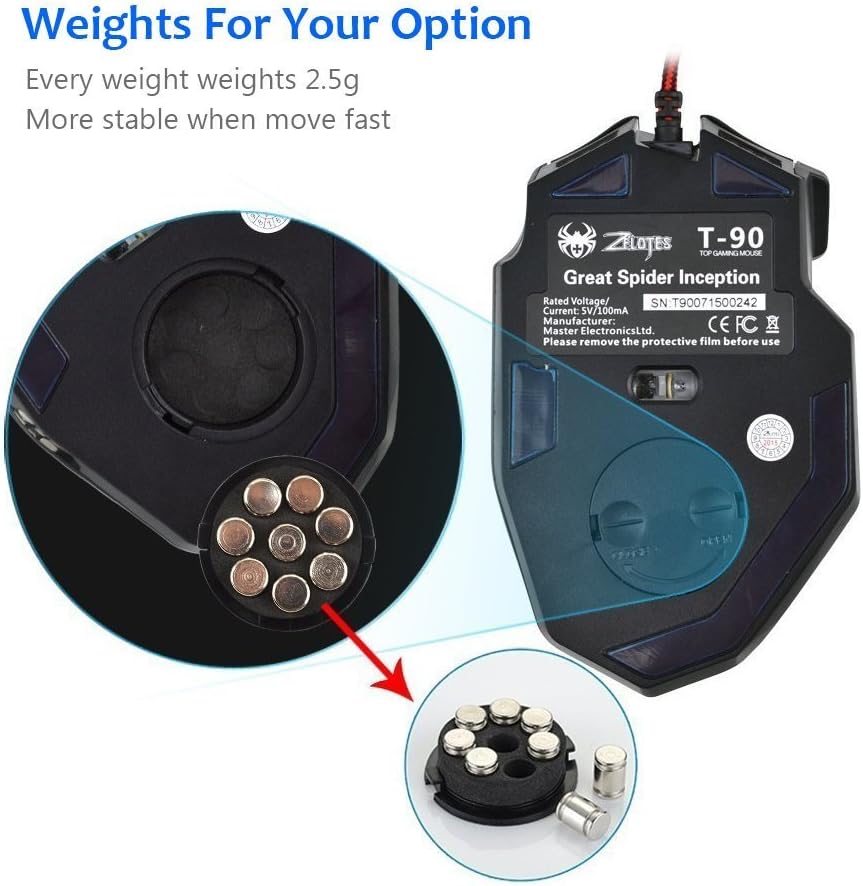
Figure 4: Location of the weight tuning system on the underside of the Zelotes T90 mouse.
Mantemento
Limpeza
- Use un pano suave e seco para limpar a superficie do rato.
- Para a sucidade persistente, d lixeiramenteampEnxágüe o pano con auga ou unha solución de limpeza suave. Evite produtos químicos agresivos.
- Non mergulles o rato en auga nin en ningún líquido.
Almacenamento
Store the mouse in a cool, dry place away from direct sunlight and extreme temperatures when not in use for extended periods.
Resolución de problemas
| Problema | Causa posible | Solución |
|---|---|---|
| O rato non responde | Conexión USB solta, porto USB defectuoso, erro do sistema. | Ensure the USB cable is securely plugged into the computer. Try a different USB port. Restart your computer. |
| As luces LED non funcionan | Lights turned off, software issue. | Short press the Light Mode Switch button to cycle through modes. Long press the Light Mode Switch button for more than 2 seconds to turn lights on if they were off. |
| DPI setting not changing | DPI button not pressed correctly. | Ensure you are pressing the dedicated DPI button. Observe the light flashes to confirm DPI changes. |
| Mouse cursor erratic or jumpy | Sensor óptico sucio, superficie inadecuada da alfombrilla do rato. | Clean the optical sensor on the underside of the mouse. Use a clean, uniform mouse pad surface. |
| Mouse settings reset | Accidental factory reset. | Press the left and right buttons simultaneously for more than 2 seconds to restore factory settings. If settings are reset, reconfigure them as desired. |
Especificacións
| Modelo | T90 |
| Dimensións (LxWxH) | 130 mm x 81 mm x 40 mm (5.12 x 3.19 x 1.57 polgadas) |
| Peso | 145g ± 5g (excluding cable) |
| Contrapeso | 8 x 2.5 Gram tuning weights |
| Configuración de DPI | 1000/1600/2400/3200/5500/9200 DPI |
| FPS | 6666 |
| Aceleración | 23G |
| Taxa de votación | 500 Hz |
| Cambiar vida | 800 millóns de veces |
| Botóns | 8 |
| Lonxitude do cable USB | 1.8M braided-fiber cable |
| Interface | USB |
| Tipo óptico | Red wave |
| Compatibilidade | Windows 98/ 2000/ ME/ NT / XP/ win 7/ win 8/ win 10/ Mac OS and other OS |
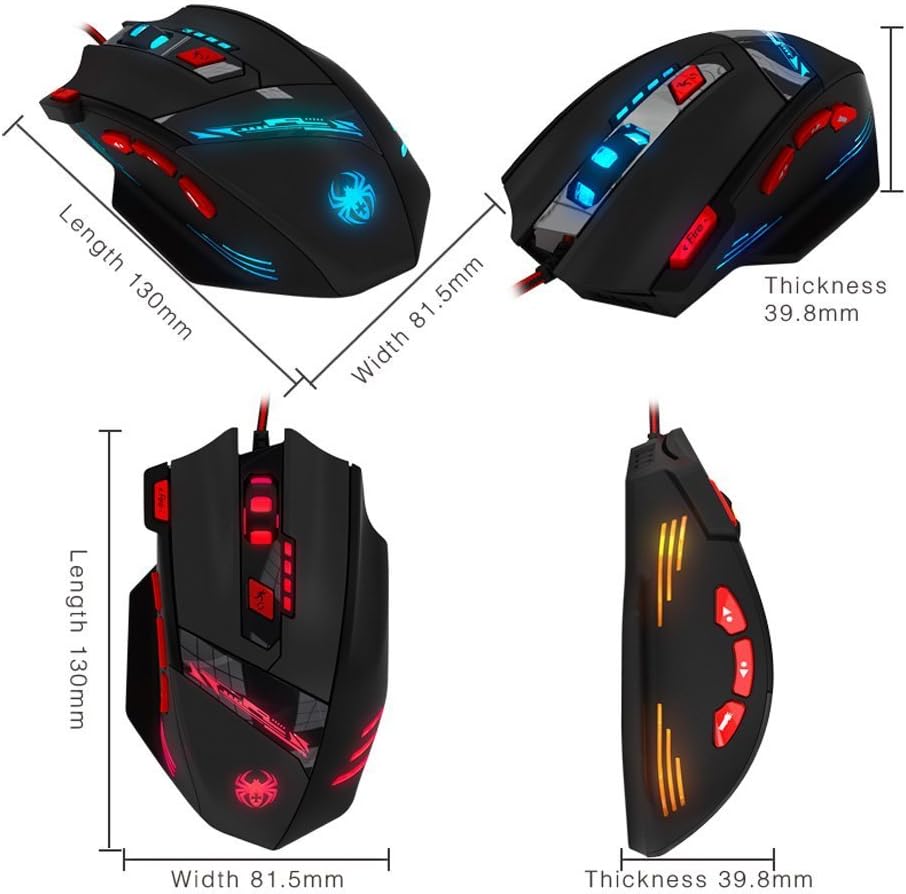
Figure 5: Detailed dimensions of the Zelotes T90 Professional Gaming Mouse.
Deseño Ergonómico
The Zelotes T90 mouse is designed with ergonomics in mind, providing a comfortable fit for both fingertip and claw-style grips. This design aims to reduce fatigue during long periods of use.

Figure 6: Ergonomic design of the Zelotes T90 mouse, showing a comfortable hand grip.
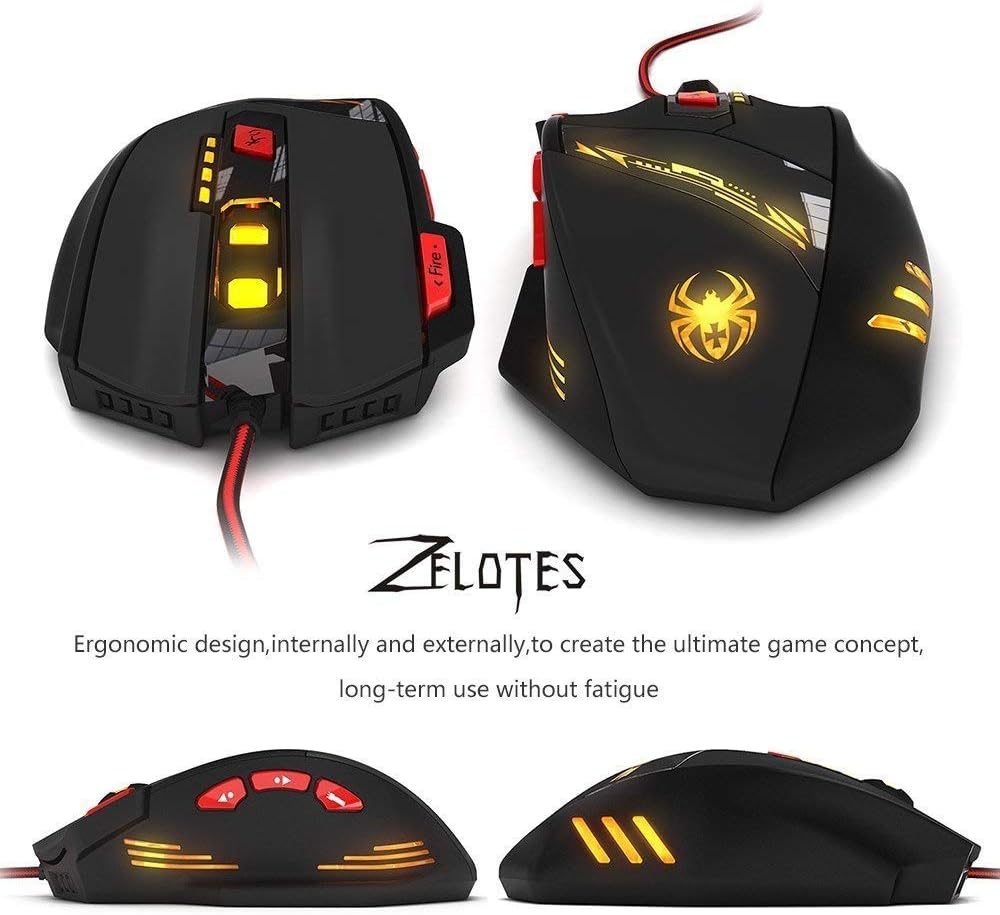
Figura 7: Varios views highlighting the ergonomic contours of the Zelotes T90 mouse.
Notas importantes
- Always remove the foot pad protective film before using the mouse.
- To restore the mouse to factory settings, press and hold the left and right mouse buttons simultaneously for more than 2 seconds.