
1. Introdución
The CHERRY KC 1000 is a reliable wired keyboard designed for professional office use and everyday computing. It features a full-size Italian QWERTY layout, a flat design, and quiet keystrokes for comfortable and efficient typing. This manual provides essential information for setting up, operating, maintaining, and troubleshooting your keyboard.
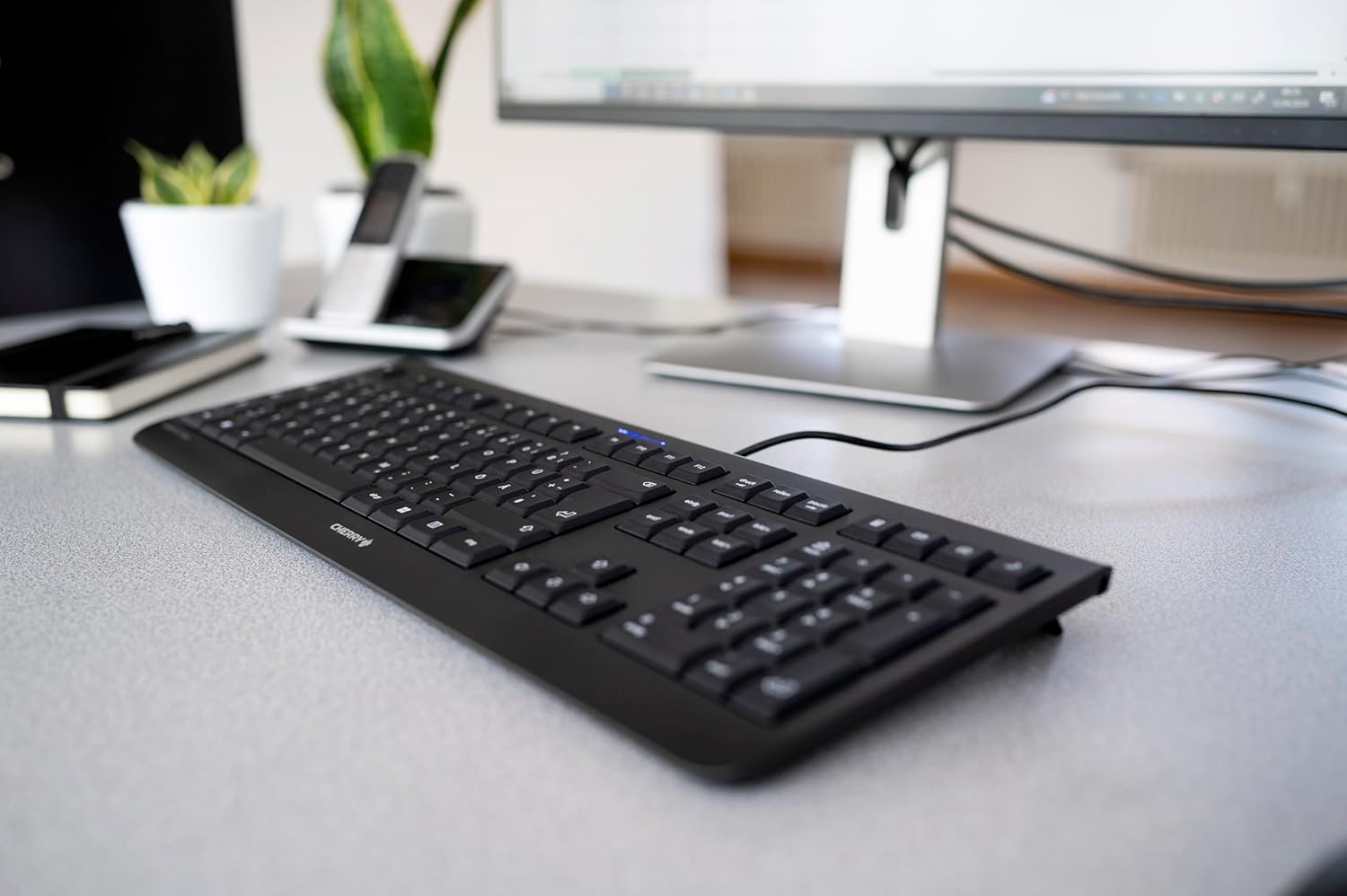
Image 1.1: The CHERRY KC 1000 keyboard in a typical office setup.
2. Configuración
The CHERRY KC 1000 keyboard is designed for simple Plug & Play installation. No additional drivers are required for most operating systems.
2.1 Conexión do teclado
- Locate an available USB-A port on your computer (desktop PC, laptop, or compatible device).
- Insert the USB connector of the CHERRY KC 1000 keyboard into the USB-A port.
- O teu sistema operativo detectará e instalará automaticamente os controladores necesarios. Este proceso adoita levar uns segundos.
- O teclado xa está listo para o seu uso.
The keyboard features a 180 cm (approximately 5.9 feet) long cable, providing ample flexibility for desk arrangements.

Image 2.1: The USB cable connection of the CHERRY KC 1000 keyboard.
3. Uso do teclado
The CHERRY KC 1000 offers a standard Italian QWERTY layout with additional function keys for enhanced productivity.
3.1 Disposición e funcións das teclas
The keyboard includes a full-size layout with a dedicated numeric keypad and cursor keys. The Italian QWERTY layout supports specific characters and symbols commonly used in the Italian language.

Imaxe 3.1: Acabadoview of the CHERRY KC 1000 Italian QWERTY key layout.
3.2 Teclas de función especial
The keyboard features 4 additional keys located above the numeric keypad for quick access to common functions:
- Calculadora: Abre a aplicación de calculadora predeterminada.
- Correo electrónico: Inicia o teu cliente de correo electrónico predeterminado.
- Navegador: Abre o teu valor predeterminado web navegador.
- Modo de suspensión: Pon o teu ordenador en modo de suspensión.
3.3 LEDs de estado
Three blue status LEDs are located above the function keys to indicate the status of:
- BLOQUEO DE MAIÚSCULAS: Ilumínase cando o Bloq Maiús está activo.
- NÚMERO: Ilumínase cando o Bloq Num está activo.
- DESPRAZAMENTO: Ilumínase cando o Bloqueo de Desprazamento está activo.

Image 3.2: User interacting with the CHERRY KC 1000 keyboard.
4. Mantemento
Proper care and maintenance will ensure the longevity and optimal performance of your CHERRY KC 1000 keyboard.
4.1 Limpeza do teclado
- Desconecte o teclado do ordenador antes de limpalo.
- Use un pano suave e sen pelusa lixeiramente dampened with water or a mild cleaning solution (e.g., isopropyl alcohol) to wipe the keycaps and keyboard surface.
- Avoid using abrasive cleaners, solvents, or harsh chemicals, as these can damage the keyboard's finish or key legends.
- Para o po e os residuos entre as teclas, use aire comprimido ou un cepillo pequeno.
- Asegúrate de que o teclado estea completamente seco antes de volvelo conectar ao ordenador.
4.2 Coidados xerais
- Evita derramar líquidos sobre o teclado.
- Do not expose the keyboard to extreme temperatures or direct sunlight for extended periods.
- Do not attempt to disassemble the keyboard, as this may void the warranty.
5 Solución de problemas
If you encounter issues with your CHERRY KC 1000 keyboard, refer to the following common troubleshooting steps.
5.1 O teclado non responde
- Comprobar a conexión USB: Ensure the USB cable is securely plugged into both the keyboard and the computer's USB port. Try a different USB port.
- Reiniciar o ordenador: Ás veces, un simple reinicio do ordenador pode resolver os problemas de conectividade.
- Proba noutro ordenador: If possible, connect the keyboard to another computer to determine if the issue is with the keyboard or the original computer.
- Reinstalación do controlador: Although Plug & Play, sometimes reinstalling drivers can help. Disconnect the keyboard, restart the computer, and then reconnect the keyboard.
5.2 As teclas non funcionan correctamente
- Limpar as teclas: Dust or debris under the keycaps can cause keys to stick or not register. Refer to the cleaning instructions in Section 4.1.
- Conflitos de software: Ensure no other software or keyboard utilities are interfering with the keyboard's operation.
5.3 Status LEDs Not Working
- Verify that the corresponding lock function (Caps Lock, Num Lock, Scroll Lock) is activated.
- If the keyboard is otherwise functional, a minor software glitch might be preventing the LED from lighting up. A computer restart may resolve this.
6. Especificacións
Below are the technical specifications for the CHERRY KC 1000 Wired Keyboard.
| Característica | Detalle |
|---|---|
| Nome do modelo | CHERRY KC 1000 |
| Número de modelo | JK-0800IT-2 |
| Conectividade | USB-A con cable |
| Disposición do teclado | QWERTY italiano |
| Número de chaves | 109 |
| Tecnoloxía clave | Membrane or Rubber Dome |
| Características especiais | Whisper-quiet keystroke, 4 additional function keys (Calculator, Email, Browser, Sleep Mode), 3 blue status LEDs |
| Lonxitude do cable | 1.8 metros (5.9 pés) |
| Material | Plástico |
| Cor | Negro |
| Peso | 530 gramos |
| Dispositivos compatibles | Portátil, PC |
| Certificacións | c-tick, cULus, CE, FCC, BSMI, TÜV/GS, Blue Angel eco-label |
7. Garantía e soporte
CHERRY products are manufactured to high-quality standards. For information regarding warranty coverage, please refer to the warranty card included with your product or visit the official CHERRY website. For technical support or further assistance, please contact CHERRY customer service through their official channels.
The product package includes: 1 CHERRY KC 1000 keyboard and a printed instruction manual.