
1. Introdución
The Zmodo Pivot is an all-in-one monitoring solution designed for indoor use, featuring a 1080p camera with 360-degree rotation capabilities. It integrates security with smart home features, offering two-way audio, local storage, and environmental monitoring. This manual provides essential information for setting up, operating, and maintaining your Zmodo Pivot device.

Image 1: Zmodo Pivot 1080p 360° Rotating Wireless Security Camera.
2. Que hai na caixa
- 1 x Zmodo Pivot Device
- 1 x fonte de alimentación
- 2 x Window/Door Sensors
- 1 x Guía rápida

Image 2: Zmodo Pivot packaging and included components.
3. Configuración
3.1 Configuración inicial do dispositivo
- Encendido: Connect the Zmodo Pivot to the included power supply and plug it into a wall outlet.
- Descarga a aplicación: Download the Zmodo mobile app from your device's app store.
- Crear conta: Open the app and create a new Zmodo account or log in with existing credentials.
- Engadir dispositivo: Follow the in-app instructions to add your Zmodo Pivot. This typically involves scanning a QR code on the device and connecting it to your password-protected 2.4GHz Wi-Fi network with WPA/WPA2 encryption.
3.2 Pairing Door/Window Sensors
The Zmodo Pivot acts as a smart hub for Zmodo accessories, including the provided door and window sensors. To pair these sensors:
- In the Zmodo app, navigate to the device settings for your Pivot.
- Select "Connected Accessories" and tap the '+' icon to add a new accessory.
- Follow the on-screen prompts to activate the sensor (usually by pressing a small button on the sensor itself).
- Once paired, you can customize rules, such as having the Pivot camera turn to a specific direction when a sensor is triggered.
Video 1: Tutorial on setting up the Zmodo Pivot and pairing door-window sensors.
4. Instrucións de funcionamento
4.1 En directo View e control da cámara
- Access live 1080p video feed through the Zmodo app.
- Control the 360-degree rotation of the camera directly from the app to view different areas of your space.
- If mounted upside down, use the "Flip Screen" option in the app settings to correct the video orientation.

Image 3: Zmodo app interface displaying live camera view and control options.
4.2 Detección de movemento e alertas
- Recibe alertas instantáneas no teu teléfono intelixente cando se detecte movemento.
- Customize specific areas within the camera's field of view to trigger motion detection alerts, reducing false alarms.
- The Pivot records short video clips (typically 12-15 seconds) upon motion detection, which are stored locally for 24 hours.
4.3 Audio bidireccional
- Utilize the built-in microphone and speaker for two-way communication through the app.
4.4 Smart Home Hub Features
- The Pivot provides real-time temperature and humidity readings for your home environment.
- It functions as a hub for Zmodo smart accessories, allowing for integrated security and automation.
- The device also includes a Bluetooth speaker for audio playback.
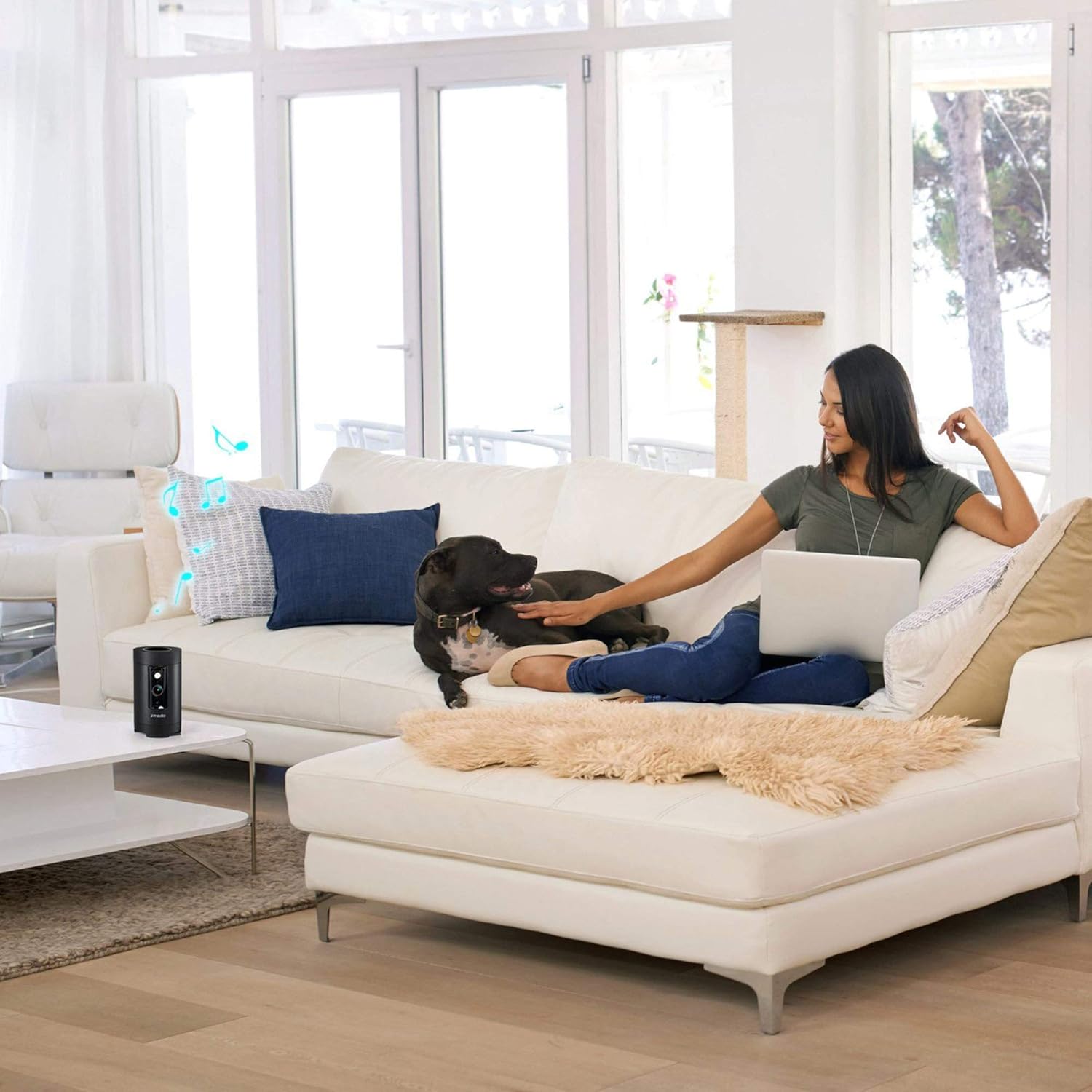
Image 4: Zmodo Pivot in a living room, demonstrating its discreet design and smart home capabilities.
4.5 Lighting Schedule and Color Settings
- Set up custom lighting schedules through the app to automatically turn the device's light on or off at specific times.
- Adjust color settings and brightness to suit your preferences or create ambient lighting effects.
5. Mantemento
- Limpeza: Gently wipe the camera lens and device exterior with a soft, dry cloth. Avoid abrasive cleaners or solvents.
- Actualizacións de firmware: Regularly check the Zmodo app for available firmware updates to ensure optimal performance and security.
- Colocación: The Zmodo Pivot is designed for indoor use. While it has an IP65 rating (indicating dust-tight and protection against low-pressure water jets), it is not recommended for prolonged outdoor exposure to harsh weather conditions.
6 Solución de problemas
- Problemas de conexión: Ensure your Zmodo Pivot is connected to a stable 2.4GHz Wi-Fi network with WPA/WPA2 encryption. If connection drops, try restarting your router and the Pivot device.
- A detección de movemento non se activa: Verify that motion detection is enabled in the app settings and that the detection areas are correctly configured. Adjust sensitivity if necessary.
- Claridade da visión nocturna: Ensure there are no obstructions in front of the camera lens that could interfere with infrared illumination.
- App Responsiveness: If the app is slow or unresponsive, try closing and reopening it, or reinstalling the app. Ensure your smartphone's operating system is up to date.
- Changing Wi-Fi Networks: If you change your Wi-Fi network (e.g., new router or ISP), you will need to re-register the device to the new network through the Zmodo app.
7. Especificacións
| Característica | Especificación |
|---|---|
| Uso interior/exterior | Interior |
| Resolución de captura de vídeo | 1080 p |
| Campo de View | 360 Degrees (Rotation) / 135 Degrees (Camera Lens) |
| Tecnoloxía de conectividade | Sen fíos (Wi-Fi 2.4 GHz) |
| Almacenamento | 16 GB Flash Memory Installed |
| Range de visión nocturna | 32 pés |
| Audio | Audio bidireccional |
| Característica especial | Motion Sensor, Temperature & Humidity Readings, Bluetooth Speaker |
| Dimensións (L x W x H) | 5.3 x 3 x 3 polgadas |
| Peso do elemento | 1.25 libras |
| Fonte de enerxía | AC/DC |
| Clasificación de protección internacional | IP65 |
8. Garantía e soporte
The Zmodo Pivot comes with a full 1-Year US Warranty. Complimentary unlimited US-based technical support is included within the warranty period. For assistance, please refer to the contact information provided in your Quick Guide or visit the official Zmodo support websitio.