
1. Introdución
This manual provides instructions for the setup, operation, maintenance, and troubleshooting of the HP PageWide Enterprise Color 586dn Multifunction Printer. This device is designed for business environments, offering print, scan, and copy functionalities with a focus on efficiency and security.
Características principais:
- Multifunction capabilities: Print, scan, and copy.
- High-speed color printing up to 75 pages per minute (ppm).
- Single-pass, two-sided scanning with a 100-sheet automatic document feeder (ADF).
- Integrated security features for data and device protection.
- Energy-efficient HP PageWide Technology.
- Automatic duplex printing.
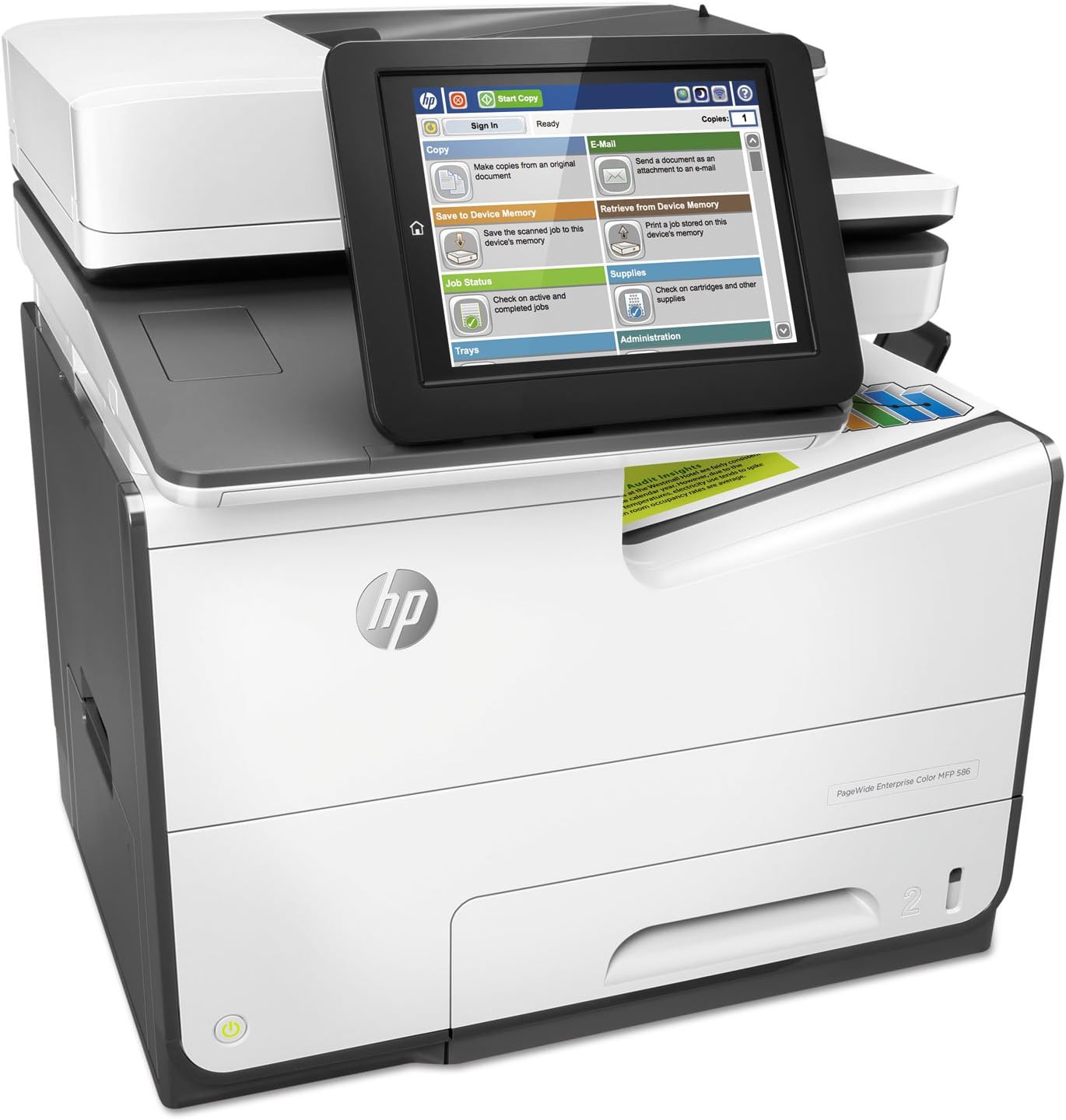
Figura 1: Fronte view of the HP PageWide Enterprise Color 586dn Multifunction Printer, showing the control panel and paper trays.
2. Instrucións de configuración
2.1 Desembalaxe e colocación
- Carefully remove the printer from its packaging. Retain all packaging materials for future transport.
- Place the printer on a stable, level surface with adequate space for ventilation and access to paper trays.
- Retire todas as cintas protectoras e os materiais de embalaxe do exterior e do interior da impresora.

Figura 2: En ángulo view of the printer, highlighting the output tray and paper path.
2.2 Conexión da enerxía e da rede
- Conecte o cable de alimentación á impresora e despois a unha toma de corrente con conexión a terra.
- Para a conectividade de rede, conecte un cable Ethernet desde o porto Ethernet da impresora ao enrutador ou conmutador de rede.
- Power on the printer using the power button.

Figura 3: Traseira view of the printer, showing the power input, Ethernet port, and USB ports.
2.3 Configuración inicial do software
- Follow the on-screen prompts on the printer's control panel to select language, country/region, and date/time settings.
- Install the printer drivers and software on your computer from the provided installation disc or by downloading them from the official HP support websitio.
- Configure network settings if necessary, using the printer's control panel or the HP Web Interface de administración.

Figure 4: Close-up of the printer's control panel, displaying various function options.
3. Instrucións de funcionamento
3.1 Impresión de documentos
- Load paper into the input tray. Ensure paper guides are adjusted to fit the paper size.
- Desde o teu ordenador, abre o documento que queres imprimir.
- Seleccione "Imprimir" no menú da aplicación.
- Choose the HP PageWide Enterprise Color 586dn printer.
- Adjust print settings such as color, duplex (two-sided), paper size, and quality as needed.
- Fai clic en "Imprimir".
3.2 Escanear documentos
- Place the document face-up in the Automatic Document Feeder (ADF) or face-down on the scanner glass.
- On the printer's control panel, select the "Scan" option.
- Choose your desired scan destination (e.g., email, network folder, USB drive).
- Adjust scan settings such as resolution, color mode, and file formato.
- Press "Start Scan".

Figure 5: The printer's automatic document feeder in use, scanning a multi-page document.
3.3 Copia de documentos
- Place the document face-up in the ADF or face-down on the scanner glass.
- On the printer's control panel, select the "Copy" option.
- Introduza o número de copias requiridas.
- Adjust copy settings such as color, duplex, and quality.
- Press "Start Copy".
4. Mantemento
4.1 Replacing Print Cartridges
- The printer will display a low cartridge warning when a cartridge needs replacement.
- Abra a porta de acceso ao cartucho.
- Remove the old cartridge by pulling it straight out.
- Unpack the new Original HP 981A/981X PageWide cartridge and insert it into the corresponding slot until it clicks into place.
- Peche a porta de acceso ao cartucho.
Importante: This printer is designed to work only with cartridges containing original HP chips or circuitry. Periodic firmware updates may affect the functionality of non-HP cartridges.
4.2 Procedementos de limpeza
- Exterior: Limpe as superficies exteriores cun suave, damp, pano sen pelusa.
- Cristal do escáner: Use a soft cloth lightly moistened with glass cleaner to clean the scanner glass. Avoid abrasive cleaners.
- Rodillos do ADF: Refer to the printer's on-screen menu for instructions on cleaning the Automatic Document Feeder rollers if paper feed issues occur.
4.3 Actualizacións de firmware
Regularly check for and install firmware updates to ensure optimal performance, security, and compatibility. Updates can typically be managed through the printer's control panel or the HP Web Interface de administración.
5 Solución de problemas
5.1 Problemas comúns e solucións
- Atascos de papel: Follow the on-screen instructions to clear paper jams from designated access areas. Ensure paper is loaded correctly and not creased.
- Problemas de calidade de impresión: Check cartridge levels. Perform a printhead cleaning or alignment from the printer's maintenance menu. Ensure you are using appropriate paper types.
- Problemas de conectividade: Verify network cable connections. Restart the printer and your network router. Check network settings on the printer's control panel.
- Scanning Issues (Mac): Some users have reported scanning issues specifically with Mac operating systems. Ensure your printer's firmware and Mac drivers are up to date. If problems persist, contact HP support.
5.2 Mensaxes de erro
Refer to the printer's control panel for specific error codes and messages. Consult the HP support website for detailed explanations and resolution steps for each error.
6. Especificacións
| Característica | Detalle |
|---|---|
| Nome do modelo | 586dn |
| Número de modelo do artigo | G1W39A#BGJ |
| Funcións | Imprimir, escanear, copiar |
| Tecnoloxía de impresión | PageWide (Inkjet) |
| Saída da impresora | Cor |
| Velocidade máxima de impresión (monocromo) | 75 ppm |
| Velocidade máxima de impresión (cor) | 50 ppm |
| Resolución máxima de impresión en cor | 1200 x 1200 ppp |
| Resolución máxima de impresión en branco e negro | 1200 ppp |
| Impresión dúplex | Automático (estándar) |
| Tipo de escáner | Follado en folla |
| Capacidade máxima da folla de entrada | 100 follas (ADF) |
| Tamaño máximo do soporte | 8.5 x 14 polgadas |
| Tamaños de soportes compatibles | A4, B5, C5, C6, 3 x 5 inch |
| Tecnoloxía de conectividade | 1G Ethernet; 2 HS USB 2.0 Host; 1 HS USB 2.0 Device |
| Dimensións do produto (L x W x H) | 20.87 x 22.2 x 20.83 polgadas |
| Peso do elemento | 71.2 libras |
7. Garantía e soporte
7.1 Información da garantía
The HP PageWide Enterprise Color 586dn Multifunction Printer typically includes a one-year, onsite warranty. For specific terms and conditions, please refer to the documentation provided with your product or visit the official HP websitio.
7.2 Atención ao cliente
For technical assistance, troubleshooting, or warranty claims, please contact HP customer support. Free HP Web support is available 24 hours a day, 7 days a week. Visit the official HP support websitio web con información de contacto e recursos.