
JACKYLED QK1260-U3
JACKYLED Power Strip Tower Surge Protector (Model QK1260-U3) Instruction Manual
Model: QK1260-U3 | Brand: JACKYLED
1. Introdución
This manual provides essential information for the safe and efficient operation of your JACKYLED Power Strip Tower Surge Protector. Please read these instructions thoroughly before use and retain them for future reference.
The JACKYLED Power Strip Tower is designed to provide multiple power outlets and USB charging ports in a compact, vertical form factor, suitable for various environments such as home offices, classrooms, or entertainment setups. It integrates surge protection and individual power control for enhanced safety and energy management.
2. Instrucións de seguridade importantes
Para reducir o risco de descarga eléctrica, incendio ou lesións, siga sempre estas precaucións de seguridade básicas:
- Do not exceed the maximum power rating of 1625W (13A at 125V).
- This device is for indoor use only. Do not expose to moisture or use in wet environments.
- Non desmonte nin modifique a unidade. Encargue calquera mantemento a persoal cualificado.
- Manter lonxe dos nenos e animais.
- Ensure the power cord is fully extended when in use to prevent overheating.
- Avoid plugging high-power appliances (e.g., heaters, microwaves) into the power strip.
- The unit features 1050 Joules of surge protection and 13A overload protection. In case of an overload, the circuit breaker will trip, and the unit will shut off. Disconnect devices, reduce the load, and press the reset button on the bottom of the unit to restore power.


3. Características do produto
The JACKYLED Power Strip Tower is equipped with several features for versatile power distribution:
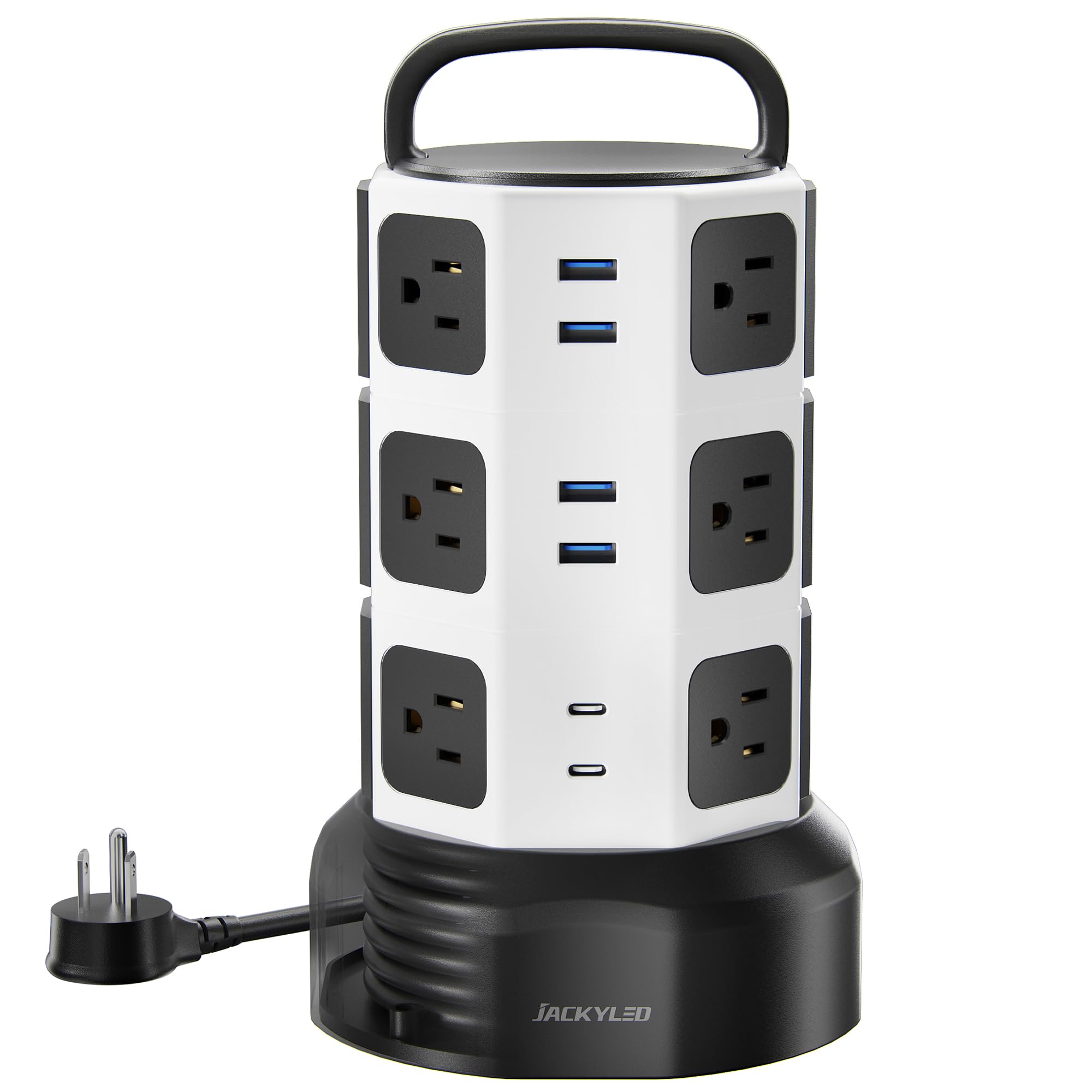
- 12 tomas de CA: Widely spaced (2.2 inches) to accommodate larger power adapters without blocking adjacent outlets.
- 6 portos de carga USB: Includes 2 USB-C ports (5V⎓3A) and 4 USB-A ports (5V⎓2.4A), with smart charging technology for optimal device charging. Total USB output is 4.8A/24W shared.
- 3 Independent Switches: Each tier of AC outlets has its own power switch with an indicator light, allowing you to control power to specific sections and save energy.
- Retractable 6.5ft Cord: A pure copper extension cord that can be rolled up by rotating the tower's base, providing flexible cord length management and reducing clutter.
- 45° Flat Plug: Designed for a snug fit in wall outlets, especially useful behind furniture.
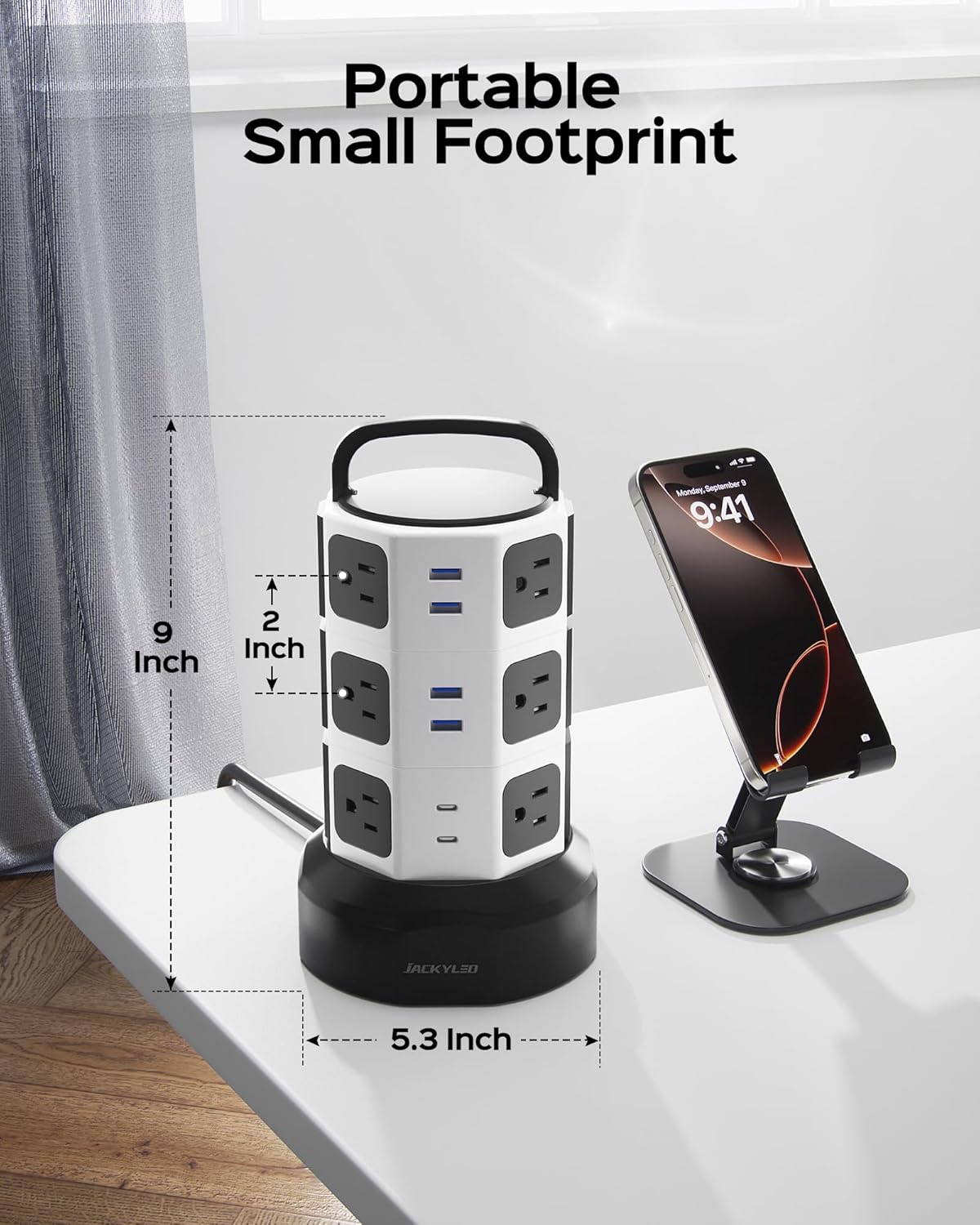
- Compact Tower Design: Vertical orientation saves desk space and keeps your area tidy.
- Sistema de protección múltiple: Includes 1050J surge protection, 13A overload protection, short-circuit protection, over-current protection, over-voltage protection, and overheat protection. RoHS and FCC certified.


4. Configuración
- Desempaquetar: Retire con coidado a regleta de enchufes da súa embalaxe.
- Colocación: Place the power strip on a stable, dry surface, away from heat sources or flammable materials. Its vertical design is ideal for desktops or floor use.
- Extend the Cord: Hold the base of the tower and pull the power cord from the bottom to extend it to the desired length. The cord is 6.5 feet long.
- Conectar: Insert the 3-prong Type B plug into a grounded wall outlet.
- Retract the Cord (Optional): To retract excess cord, hold the base and rotate the top handle clockwise. The cord will wind back into the base, helping to manage cable clutter.

5. Instrucións de funcionamento
- Powering On/Off Sections: The power strip features three independent switches, one for each tier of AC outlets. Press the switch on the desired tier to turn it on or off. The indicator light on the switch will illuminate when the section is active.
- Usando tomas de corrente alterna: Plug your devices into any of the 12 widely spaced AC outlets. Ensure the device's power requirements do not exceed the power strip's maximum rating.
- Usando portos USB: Connect your USB-powered devices (phones, tablets, cameras, etc.) to the 2 USB-C or 4 USB-A ports. The smart charging technology will automatically detect your device and deliver optimal charging speed.
- Rotating the Tower: The tower can be rotated 360 degrees on its base, allowing easy access to all outlets and ports from any angle.

6. Mantemento
- Limpeza: Disconnect the power strip from the wall outlet before cleaning. Use a dry, soft cloth to wipe the exterior. Do not use liquid cleaners or aerosols.
- Almacenamento: When not in use for extended periods, retract the power cord fully and store the unit in a cool, dry place.
- Inspección: Periodically inspect the power cord and the unit for any signs of damage. If damage is found, discontinue use and contact customer support.
7 Solución de problemas
- No power to devices:
- Ensure the power strip is securely plugged into a live wall outlet.
- Check if the individual switch for the connected tier is turned on (indicator light should be blue).
- Verify that the circuit breaker on the bottom of the unit has not tripped. If it has, disconnect some devices, and press the reset button.
- Confirm that the total power draw of connected devices does not exceed 1625W.
- USB ports stopped working or are blinking green continuously:
- This may indicate an issue with the USB charging circuit or an incompatible device.
- Try disconnecting all USB devices and then reconnecting them one by one.
- Power cycle the entire unit by unplugging it from the wall for a few minutes, then plugging it back in.
- Se o problema persiste, póñase en contacto co servizo de atención ao cliente.
Video 1: Demonstration of USB ports blinking green continuously, indicating a potential issue.
8. Especificacións
| Atributo | Detalle |
|---|---|
| Marca | JACKYLED |
| Número de modelo | QK1260-U3 |
| Cor | Branco Negro |
| Total de tomas de corrente | 12 tomas de corrente alterna |
| Total de portos USB | 6 (2 USB-C, 4 USB-A) |
| Saída USB-C | 5V⎓3A |
| Saída USB-A | 5V⎓2.4A |
| Saída USB total | 4.8A/24W Shared |
| Potencia máxima | 1625W / 13A |
| Voltage | 120V (as per product title, 240V listed in generic specs may apply to other regions) |
| Clasificación de protección contra sobretensiones | 1050 Xulios |
| Lonxitude do cable de alimentación | 6.5 ft (Retractable) |
| Tipo de enchufe | Type B - 3 pin (North American & Japanese) |
| Material | Acrilonitrilo butadieno estireno, policarbonato |
| Dimensions (H x Base Dia.) | Aprox. 10.3" x 5.9" |
| Certificacións | RoHS, FCC |
9. Información da garantía
The JACKYLED Power Strip Tower Surge Protector comes with a 1 ano de garantía desde a data de compra. Esta garantía cobre defectos de fabricación e man de obra en condicións de uso normal. Non cobre danos causados por mal uso, accidentes, modificacións non autorizadas ou desastres naturais.
Conserve o comprobante de compra para reclamacións de garantía.
10. Atención ao cliente
For any questions, technical assistance, or warranty claims, please contact JACKYLED customer support. Our team is available to provide quick, easy-to-follow solutions and professional assistance.
Refer to the product packaging or the official JACKYLED websitio para obter a información de contacto máis actualizada.
Ask a question about this manual
Ask about setup, troubleshooting, compatibility, parts, safety, or missing instructions. Manuals+ will review the question and use this page’s manual context to help answer it.