
Introdución
This guide provides essential information for new owners of the Samsung Galaxy S5 smartphone. It covers fundamental operations, key features, and tips to help you effectively utilize your device. This manual is specifically tailored for the American version of the Galaxy S5 smartphone sold in the United States.
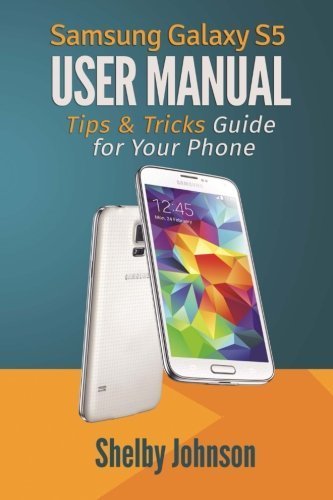
Image: A Samsung Galaxy S5 smartphone, showcasing its display and physical buttons. This image illustrates the general appearance of the device.
Configuración e configuración inicial
Begin your experience with the Samsung Galaxy S5 by performing the initial setup steps.
Comezando
- Encendido: Press and hold the power button located on the right side of the device until the Samsung logo appears.
- Selección do idioma: Siga as instrucións na pantalla para seleccionar o idioma que prefira.
- Conexión Wi-Fi: Connect to a Wi-Fi network to facilitate setup and software updates.
- Configuración da conta de Google: Inicia sesión coa túa conta de Google ou crea unha nova. Isto é esencial para acceder a Google Play Store e outros servizos de Google.
- Configuración da conta de Samsung: Optionally, sign in or create a Samsung account for additional features and services.
Transferring Contacts
There are several methods to transfer your contacts to your new Galaxy S5:
- Google Account Sync: If your previous phone's contacts were synced with a Google account, they will automatically transfer upon signing into the same account on your S5.
- Samsung Smart Switch: Use the Smart Switch application to transfer data, including contacts, from an old device to your Galaxy S5. This can be done wirelessly or via a USB cable.
- SIM Card Import: If contacts are stored on your SIM card, navigate to Contacts > Menu > Import/Export > Import from SIM card.
Funcionamento do teu Galaxy S5
Understand the core functionalities and advanced features of your Samsung Galaxy S5.
Escáner de pegadas dixitais
The Galaxy S5 features a fingerprint scanner integrated into the home button for enhanced security and convenience.
- Configuración: Ir a Settings > Finger Scanner > Fingerprint Manager to register your fingerprints. You will need to swipe your finger over the home button multiple times for accurate registration.
- Uso: Use your registered fingerprint to unlock your device or authorize purchases.
Funcións básicas do teléfono
- Facer chamadas: Toca o Teléfono icon, enter the number, and tap the call button.
- Envío de mensaxes: Toca o Mensaxes icon, tap the new message icon, enter the recipient and your message.
- Navegación por Internet: Usar o preinstalado Internet browser or Google Chrome to access websitios.
Advanced Features: S Voice and S Beam
- S Voice: Activate S Voice by double-pressing the home button. Use voice commands to make calls, send messages, set alarms, and more.
- S Beam: S Beam allows for quick sharing of large files between NFC-enabled Samsung devices. Ensure both devices have NFC and S Beam enabled in Settings > NFC and payment > S Beam. Touch the backs of the devices together and tap the screen to share content.
Gravación de cámara e vídeo
The Galaxy S5 camera offers various modes and settings for capturing photos and videos.
- Facendo fotos: Abre o Cámara app, frame your shot, and tap the shutter button.
- Gravación de vídeos: In the Camera app, switch to video mode and tap the record button to start and stop recording.
- Modos da cámara: Explore modes like Selective Focus, Panorama, and Virtual Tour Shot for diverse photographic experiences.
Mantemento
Regular maintenance helps ensure the longevity and optimal performance of your Samsung Galaxy S5.
- Actualizacións de software: Periodically check for and install software updates via Configuración > Acerca do dispositivo > Actualización de software. Updates often include performance improvements and security patches.
- Coidado da batería: To maximize battery life, avoid extreme temperatures and consider enabling power-saving modes when needed.
- Xestión de almacenamento: Limpar regularmente o innecesario files and uninstall unused applications to free up storage space. Go to Configuración > Almacenamento to manage your device's memory.
- Limpeza: Use a soft, lint-free cloth to gently clean the screen and body of the device. Avoid harsh chemicals.
Resolución de problemas
This section addresses common issues you might encounter with your Galaxy S5.
O dispositivo non responde
- Reiniciar: Mantén premido o botón de acendido durante uns 10 segundos para forzar un reinicio.
- Comprobación da batería: Ensure the battery is charged. Connect the device to a charger and wait a few minutes before attempting to power it on.
Problemas de conectividade (Wi-Fi/Bluetooth)
- Activar/Desactivar: Turn Wi-Fi or Bluetooth off and then back on from the Quick Settings panel or Configuración menú.
- Esquecer a rede: For Wi-Fi issues, try forgetting the network and reconnecting. Go to Configuración > Wi-Fi, tap and hold the network, then select Esquece a rede.
- Restart Router/Access Point: If other devices are also affected, restart your Wi-Fi router.
Application Crashes or Freezes
- Aplicación de parada forzada: Ir a Configuración > Aplicacións > Xestor de aplicacións, selecciona a aplicación problemática e toca Forzar parada.
- Borrar caché: In the Application manager, select the app and tap Borrar caché.
- Actualizar a aplicación: Asegúrate de que a aplicación estea actualizada á súa última versión desde Google Play Store.
Especificacións
Key technical specifications for the Samsung Galaxy S5.
| Característica | Detalle |
|---|---|
| Modelo | Samsung Galaxy S5 |
| ASIN | B01FIXDMDA |
| Editora | RAM Internet Media |
| Autor | Shelby Johnson |
| Formato | Book (User Guide) |
Note: This manual focuses on software features and general usage. For detailed hardware specifications, please refer to official Samsung documentation.
Garantía e Soporte
Information regarding product warranty and customer support is typically provided with the device packaging or available on the official Samsung website. This guide does not contain specific warranty details or direct support contact information.
For official support, please visit the Soporte Samsung websitio ou póñase en contacto co seu servizo de atención ao cliente.