
Denso BHT-825Q
Denso BHT-825Q Handy Terminal Mobile Computer User Manual
Model: BHT-825Q
Introdución
This manual provides essential information for the safe and efficient operation of your Denso BHT-825Q Handy Terminal Mobile Computer. Please read this manual thoroughly before using the device and keep it for future reference. The BHT-825Q is a robust mobile computer designed for data capture, featuring a 2D imager, a 2.6-inch color screen, and a 27-key keypad, running on a basic operating system.
Produto rematadoview
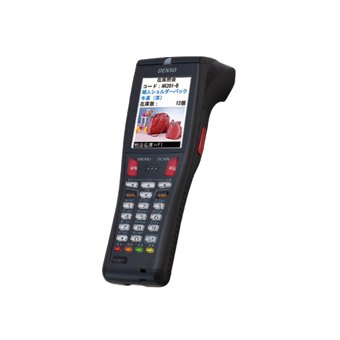
Figura 1: Denso BHT-825Q Handy Terminal Mobile Computer. This image displays the front view of the device, showing its ergonomic design, the 2.6-inch color screen, and the 27-key alphanumeric keypad. The device is black with red accents on some keys.
The Denso BHT-825Q is engineered for reliable performance in various data collection environments. Its key features include:
- Basic OS: Optimized for efficient data processing.
- Batch/IrDA Communication: Para transferencia de datos.
- Imaxe 2D: Capable of reading various 1D and 2D barcodes.
- 27 teclas: A comprehensive keypad for data entry and navigation.
- Pantalla a cor de 2.6 polgadas: Provides clear display of information.
Configuración
1. Cargando a batería
Before initial use, fully charge the device's battery. Connect the charging cable to the charging port on the device and plug the adapter into a power outlet. The charging indicator light will typically show the charging status.
2. Acendido/apagado
- Para acender: Mantén premido o botón de acendido (normalmente situado no lateral ou na parte superior) ata que a pantalla se ilumine.
- Para apagar: Press and hold the Power button until a power-off menu appears, then select "Power Off" or "Shut Down".
3. Configuración inicial
Upon first power-on, you may be prompted to set basic configurations such as date, time, and language. Follow the on-screen instructions to complete these settings.
Operación do Dispositivo
1. Navegación pola interface
Use the directional keys (up, down, left, right) and the Enter key to navigate through menus and select options on the 2.6-inch color screen. The keypad allows for alphanumeric input.
2. Escaneado de códigos de barras
- Point the 2D imager at the barcode you wish to scan.
- Press the scan trigger button (typically located on the side of the device).
- Ensure the barcode is within the imager's field of view. A successful scan will usually be indicated by an audible beep or a visual confirmation on the screen.
3. Data Entry
Utilize the 27-key keypad for manual data input. The keys include numbers, letters, and function keys. Refer to the on-screen prompts for specific data entry requirements within applications.
4. Data Transfer (Batch/IrDA)
The BHT-825Q supports batch data transfer and IrDA (Infrared Data Association) communication. Consult your system administrator or application guide for specific instructions on how to transfer collected data to a host system.
Mantemento
1. Limpeza do dispositivo
- Use un pano suave e sen pelusa lixeiramente dampened with water or a mild, non-abrasive cleaning solution to wipe the exterior of the device.
- Non empregue produtos químicos agresivos, solventes nin produtos de limpeza abrasivos.
- Ensure no liquid enters the device's ports or openings.
- For the imager window, use a lens cleaning cloth to avoid scratches.
2. Coidado da batería
- Evite descargar completamente a batería con frecuencia.
- Garde o dispositivo nun lugar fresco e seco cando non o use durante períodos prolongados.
- Use only Denso-approved charging accessories.
3. Actualizacións de software
Periodically check with your system administrator or Denso support for available software or firmware updates to ensure optimal performance and security.
Resolución de problemas
| Problema | Causa posible | Solución |
|---|---|---|
| O dispositivo non se acende. | Batería baixa ou esgotada. | Charge the battery for at least 30 minutes. Ensure the charger is properly connected. |
| Código de barras non escaneado. | Barcode damaged or poor quality; Imager lens dirty; Incorrect scanning angle. | Try scanning a different barcode. Clean the imager lens. Adjust the scanning angle and distance. Ensure the barcode symbology is enabled. |
| A pantalla está en branco ou conxelada. | Software error; Device crash. | Perform a soft reset (refer to device documentation for specific key combination, often holding power button for 10+ seconds). If issue persists, contact support. |
| Problemas de transferencia de datos. | Incorrect settings; Connection problem. | Verify communication settings (e.g., IrDA alignment). Check cables if using a cradle. Consult your system administrator. |
If the problem persists after attempting these solutions, please contact Denso customer support.
Especificacións
| Característica | Detalle |
|---|---|
| Número de modelo | BHT-825Q |
| Sistema Operativo | Sistema operativo básico |
| Imager Type | Imaxe 2D |
| Teclado | 27 chaves |
| Mostrar | Pantalla a cor de 2.6 polgadas |
| Comunicación | Batch/IrDA |
| Dimensións do paquete | 12 x 6 x 4 polgadas |
| Peso do elemento | 1 libra |
| Fabricante | Denso |
| Data de primeira dispoñibilidade | 14 de setembro de 2016 |
Garantía e Soporte
Información da garantía
The Denso BHT-825Q Handy Terminal Mobile Computer is covered by Denso's standard limited warranty. Please refer to the warranty card included with your product or visit the official Denso websitio web para obter termos e condicións detallados relativos á cobertura da garantía, a duración e os procedementos de reclamación.
Atención ao cliente
For technical assistance, troubleshooting beyond this manual, or service inquiries, please contact Denso customer support:
- Websitio: Visit the official Denso websitio con recursos de asistencia, preguntas frecuentes e formularios de contacto.
- Teléfono: Refer to the Denso websitio web para obter números de teléfono de asistencia rexional.
- Correo electrónico: Specific email contacts may be available on the Denso support page.
When contacting support, please have your product model number (BHT-825Q) and serial number ready.
Ask a question about this manual
Ask about setup, troubleshooting, compatibility, parts, safety, or missing instructions. Manuals+ will review the question and use this page’s manual context to help answer it.