
Introdución
This manual provides detailed instructions for setting up, operating, and maintaining your ASUS RT-AC58U AC1300 Dual Band Gigabit Wireless Router. Please read this guide thoroughly to ensure proper installation and optimal performance of your device.
The ASUS RT-AC58U is designed to deliver high-speed Wi-Fi connectivity with advanced features such as MU-MIMO technology, parental controls, and a versatile USB 3.0 port for enhanced network performance and management.
O que hai na caixa
Verifica que todos os elementos estean presentes no paquete do teu produto:
- ASUS RT-AC58U AC1300 Dual Band Gigabit Wireless Router
- Adaptador de alimentación
- Cable Ethernet
- Guía de inicio rápido
- Tarxeta de garantía
- Manual de usuario (este documento)
- Software Drivers CD (if applicable)
Produto rematadoview
The ASUS RT-AC58U router features a sleek design with four external antennas for improved Wi-Fi range and stability. It supports dual-band Wi-Fi (2.4 GHz and 5 GHz) and includes multiple ports for wired connections and USB devices.
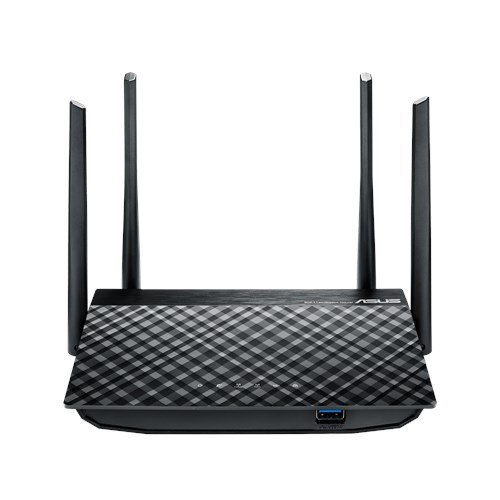
Figura 1: Fronte view of the ASUS RT-AC58U Router, showcasing its four external antennas and patterned top surface.
Características principais:
- AC1300 Dual Band Wi-Fi: Simultaneous 2.4 GHz and 5 GHz bands for combined speeds up to 1300 Mbps.
- Tecnoloxía MU-MIMO: Enables multiple devices to connect at full Wi-Fi speed simultaneously.
- Procesador potente: Equipped with a Qualcomm IPQ4018 (717 MHz, 4 cores) SOC and 128MB memory for efficient multi-device performance.
- Improved Wi-Fi Range: Four external antennas with AiRadar beamforming technology enhance signal coverage.
- Multi-purpose USB 3.0 Port: Offers 10x faster data transfers than USB 2.0 for file sharing and printer connections.
- Controis parentais: Monitor and filter internet activities for family and children.
- Portos Gigabit Ethernet: Ensures fast wired connections for devices like PCs and gaming consoles.

Figure 2: Illustration highlighting the powerful processor of the ASUS RT-AC58U, contributing to higher network speeds.
Portos e indicadores:
Familiarize yourself with the ports and LED indicators on your router for easy setup and monitoring.
- Porto de alimentación: Conéctase ao adaptador de alimentación.
- Porto WAN: Conéctase ao teu módem para acceder a internet.
- Portos LAN (x4): Conéctase a dispositivos con cable como ordenadores, consolas de xogos ou televisores intelixentes.
- Porto USB 3.0: Para conectar dispositivos de almacenamento externos ou impresoras.
- Botón WPS: For quick and secure connection to Wi-Fi devices.
- Botón de reinicio: Para restaurar a configuración predeterminada de fábrica.
- Indicadores LED: Provide status updates for power, internet, Wi-Fi bands, LAN ports, and USB activity.
Configuración
Follow these steps to set up your ASUS RT-AC58U router:
- Desembalar o enrutador: Remove the router and all accessories from the box.
- Colocar o router: Place the router in a central location to maximize Wi-Fi coverage. Avoid placing it near obstructions or other electronic devices that may cause interference.
- Conecta as antenas: Ensure the four external antennas are securely attached and oriented vertically for optimal signal.
- Conectar á enerxía: Plug the power adapter into the router's power port and then into an electrical outlet. Wait for the power LED to light up.
- Conectar ao módem: Connect one end of the provided Ethernet cable to the WAN port (usually blue) on your router and the other end to your modem's Ethernet port. Ensure your modem is powered on and connected to the internet.
- Conectar un dispositivo (opcional): For initial configuration, you can connect a computer to one of the router's LAN ports (yellow) using another Ethernet cable. Alternatively, you can connect wirelessly using the default Wi-Fi network name (SSID) and password found on the router's label.
- Accede a Web Interface: Abrir a web browser on your connected device and navigate to
router.asus.comor192.168.1.1. Follow the on-screen instructions of the ASUS Web GUI to complete the internet setup wizard, set up your Wi-Fi network name and password, and configure an administrator password for the router.
Funcionamento do enrutador
Once set up, your ASUS RT-AC58U router provides a robust network for your home or office. Here's how to utilize its key features:
Dual Band Wi-Fi (2.4 GHz and 5 GHz):
The router broadcasts two separate Wi-Fi networks. The 2.4 GHz band offers wider coverage and better penetration through walls, suitable for general browsing and devices further away. The 5 GHz band provides faster speeds and less interference, ideal for bandwidth-intensive tasks like 4K video streaming and online gaming, especially for devices closer to the router.

Figure 3: Demonstrates multiple users enjoying full Wi-Fi speeds simultaneously, thanks to the router's multi-device performance capabilities.
Tecnoloxía MU-MIMO:
Multi-User, Multiple-Input, Multiple-Output (MU-MIMO) technology allows the router to communicate with multiple compatible devices simultaneously, rather than sequentially. This significantly improves network efficiency and speed, especially in environments with many connected devices.
Controis parentais:
Acceder ao enrutador web interface to configure parental control settings. You can set schedules for internet access, block specific websites or applications, and monitor internet usage for connected devices. This helps create a safer online environment for your family.
USB 3.0 Port Functionality:
The USB 3.0 port allows you to connect various devices:
- Network Storage (NAS): Connect an external hard drive or USB flash drive to create network-attached storage, allowing all connected devices to access files.
- Uso compartido da impresora: Conecta unha impresora USB ao enrutador para que sexa accesible a todos os dispositivos da túa rede.
- 3G/4G USB Dongle Support: Use a compatible 3G/4G USB dongle as a primary or backup internet connection.
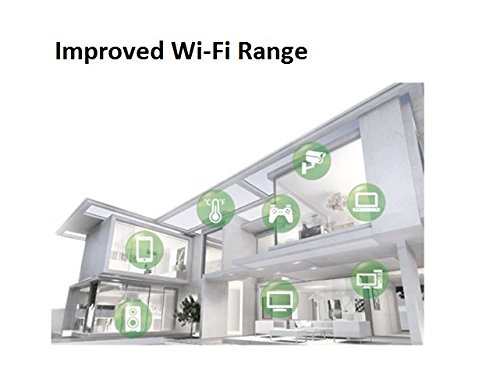
Figure 4: The ASUS RT-AC58U router connected to a Reliance Jio 4G dongle, demonstrating its capability to share mobile broadband internet across the network.
Mantemento
Regular maintenance ensures the longevity and optimal performance of your router:
- Actualizacións de firmware: Comprobe e instale regularmente as últimas actualizacións de firmware do soporte de ASUS websitio ou a través do enrutador web interface. As actualizacións do firmware adoitan incluír melloras de rendemento, parches de seguranza e novas funcións.
- Reiniciando o enrutador: Se tes problemas de rede, tenta reiniciar o enrutador desconectando o adaptador de corrente durante 10 segundos e logo volvéndoo conectar.
- Restablecemento de fábrica: In case of persistent issues or if you forget your administrator password, you can perform a factory reset. Locate the Reset button (often a small pinhole) on the router, press and hold it for about 5-10 seconds until the power LED blinks, then release. This will restore all settings to their factory defaults, requiring you to reconfigure the router.
- Limpeza física: Keep the router free from dust by gently wiping it with a soft, dry cloth. Ensure ventilation openings are not blocked.
Resolución de problemas
This section addresses common issues you might encounter with your ASUS RT-AC58U router.
Sen conexión a Internet:
- Check if the WAN LED on the router is lit. If not, ensure the Ethernet cable from your modem is securely connected to the router's WAN port.
- Verifica que o teu módem funciona correctamente e que ten unha conexión a internet activa.
- Reinicia tanto o módem como o enrutador.
- Acceder ao enrutador web interface and check the internet connection status. Run the setup wizard again if necessary.
Poor Wi-Fi Signal or Range:
- Ensure the router is placed centrally and away from large metal objects, concrete walls, or other electronic devices that can cause interference.
- Adjust the orientation of the external antennas.
- Note that the 5 GHz band offers higher speeds but has a shorter range and less penetration than the 2.4 GHz band. Consider connecting devices further away to the 2.4 GHz network.
- Actualiza o firmware do enrutador á última versión.

Figure 5: An architectural diagram illustrating how the router's improved Wi-Fi range covers various rooms and floors within a home.
Slow Data Transfer Rates (Wired or Wireless):
- Ensure you are using Gigabit Ethernet cables (Cat5e or Cat6) for wired connections to fully utilize the router's Gigabit ports.
- For wireless connections, ensure your devices support 802.11ac and are connected to the 5 GHz band for optimal speed.
- Check for background applications or devices consuming significant bandwidth.
- Perform a speed test to verify your internet service provider's speed.
Dispositivo USB non recoñecido:
- Ensure the USB device is properly formatted (e.g., NTFS, FAT32) and compatible with the router.
- Try connecting the USB device to a different port or restarting the router.
- Comproba o enrutador web interface for USB application settings and ensure the USB device is enabled.
Especificacións
| Característica | Detalle |
|---|---|
| Marca | ASUS |
| Nome do modelo | Asus AC1300 |
| Número de modelo | RT-AC58U |
| Estándar sen fíos | 802.11ac |
| Clase de banda de frecuencia | Dobre banda (2.4 GHz, 5 GHz) |
| Taxa de transferencia de datos | Up to 1300 Mbps (AC1300) |
| Tipo de antena | Externo (4 antenas) |
| Número de portos | 4 x LAN, 1 x WAN, 1 x USB 3.0 |
| Tecnoloxía de conectividade | Ethernet, Wi-Fi |
| Método de control | aplicación, Web Interface |
| Soporte do SO | Windows 10/8.1/8/7, Mac OS X 10.1/10.4/10.5/10.6/10.7/10.8 |
| Fonte de alimentación | AC Input: 110V~240V (50~60Hz), DC Output: 12 V with max. 1.5 A current |
| Peso do elemento | 762 gramos |
| UPC | 889349375334 |
Garantía e Soporte
Your ASUS RT-AC58U router comes with a manufacturer's warranty. Please refer to the included Warranty Card for specific terms and conditions, including warranty period and coverage details.
For technical support, driver downloads, firmware updates, and additional resources, please visit the official ASUS support websitio. Tamén podes atopar alí preguntas frecuentes e guías de resolución de problemas.
Soporte ASUS Websitio: https://www.asus.com/support/
Vídeo do produto máis aláview
Vídeo 1: Un breve resumoview of the ASUS RT-AC58U AC1300 Dual Band Gigabit Wireless Router's key features and benefits.