
1. Introdución
The HyperX Cloud Pro Gaming Headset is engineered for serious console and PC gamers, offering superior comfort and audio performance. Featuring a durable aluminum frame, memory foam ear cushions, and 53mm drivers, this headset delivers crystal clear highs, mids, and lows. The convenient in-line audio control provides easy access to volume adjustments and microphone muting, ensuring an immersive gaming experience.
2. Contido do paquete
- HyperX Cloud Pro Gaming Headset
- Micrófono desmontable con cancelación de ruído
- In-line Audio Control Box
- PC Extension Cable (2M) with Stereo and Mic Plugs
- Bolsa de transporte

Image: All components included with the HyperX Cloud Pro Gaming Headset.
3. Produto rematadoview
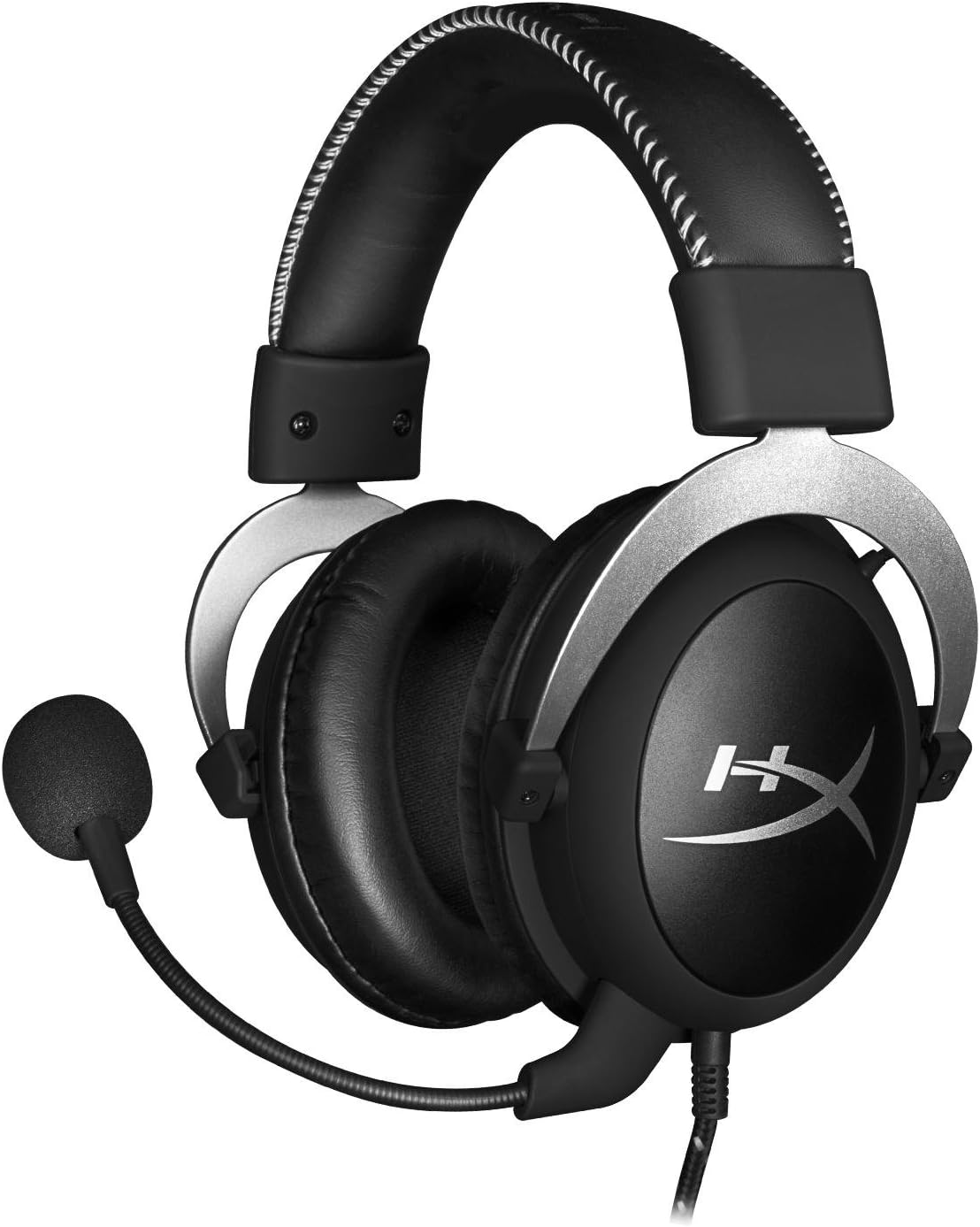
Fronte view of the headset with microphone.
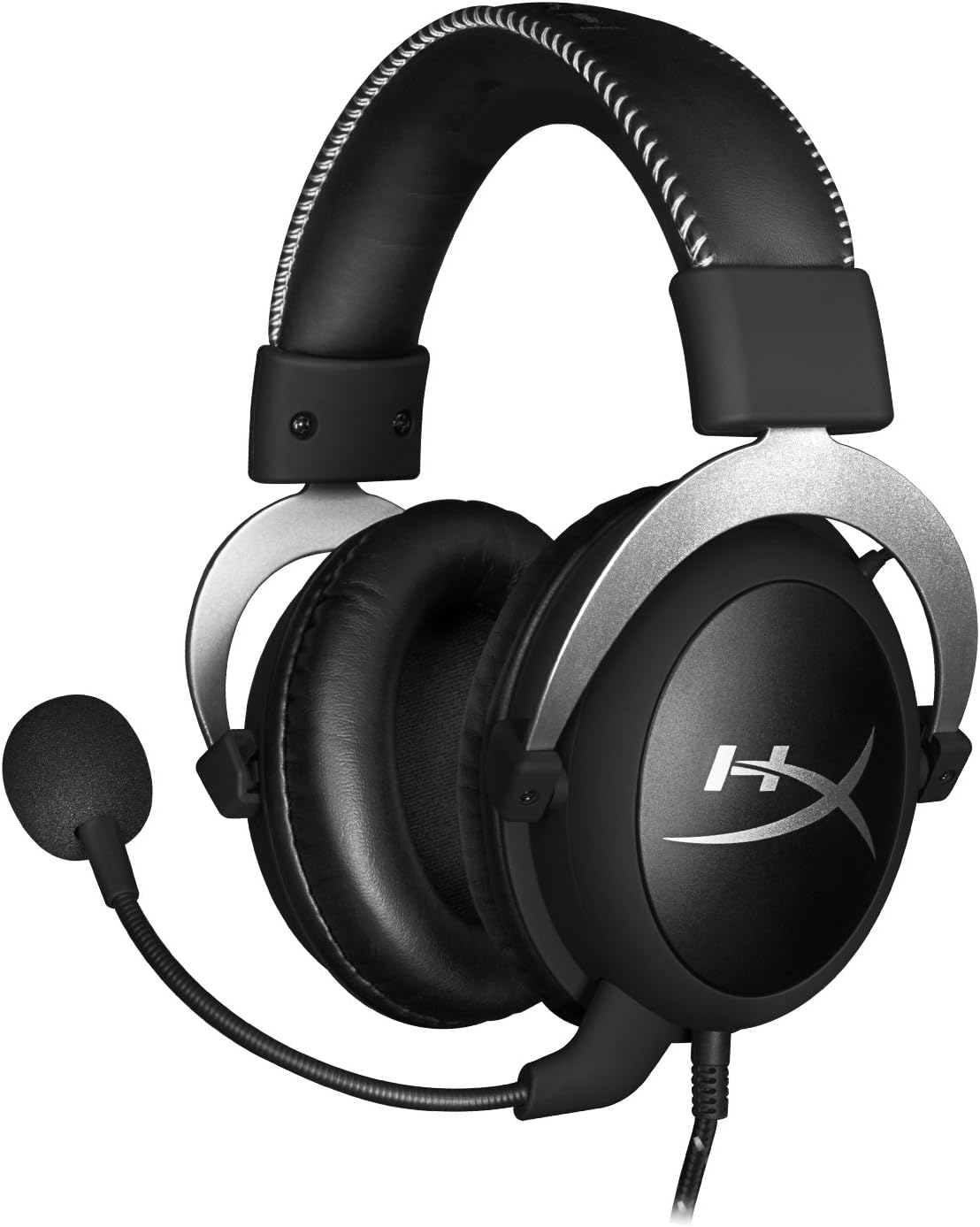
Lado view do auricular.

Headset folded flat for storage.

Arriba view of the headband.
Compoñentes clave:
- Diadema: Padded with leatherette for comfort during extended use.
- Auriculares: Over-ear design with memory foam cushions, providing passive noise isolation.
- Micrófono desmontable: Micrófono flexible con cancelación de ruído para unha comunicación clara.
- In-line Audio Control: Integrated unit on the cable for volume adjustment and microphone mute.
4. Configuración e conexión
4.1 Conexión a PC
- Connect the headset's 3.5mm plug to the in-line audio control box.
- Attach the PC extension cable to the in-line audio control box.
- Plug the green audio jack of the extension cable into your PC's audio output (headphone) port.
- Plug the pink microphone jack of the extension cable into your PC's microphone input port.
- Ensure the detachable microphone is securely inserted into the headset's microphone port.
4.2 Console Connection (PS4, Xbox One, Wii U)
- Connect the headset's 3.5mm plug directly into your console controller's 3.5mm port.
- Ensure the detachable microphone is securely inserted into the headset's microphone port.
- Adjust audio settings on your console as needed to route chat and game audio through the headset.
4.3 Mobile Device Connection
- Connect the headset's 3.5mm plug directly into your mobile device's 3.5mm audio jack.
- The microphone can be attached for calls or detached if not needed.

Image: In-line audio control unit.
5. Instrucións de funcionamento
5.1 Control de volume
The in-line audio control features a rotary volume wheel. Rotate the wheel upwards to increase volume and downwards to decrease volume. This adjusts the headset's output volume independently of your device's master volume.
5.2 Silenciar o micrófono
A switch on the in-line audio control allows you to quickly mute or unmute the microphone. Slide the switch to the 'Mute' position to disable the microphone, and slide it back to enable it. This is useful for privacy or when you do not wish your voice to be transmitted.
6. Mantemento e coidados
- Limpeza: Usa un pano suave e seco para limpar os auriculares. Para as almofadas dos oídos, un pano lixeiramente secoamp Pódese usar un pano, pero asegúrese de que estea completamente seco antes de usalo. Evite produtos químicos agresivos ou produtos de limpeza abrasivos.
- Almacenamento: When not in use, store the headset in the provided carrying pouch to protect it from dust and scratches. Avoid extreme temperatures and humidity.
- Coidado do cable: Do not excessively bend or pull the cables. Store them neatly to prevent tangling and damage.
7 Solución de problemas
| Problema | Causa posible | Solución |
|---|---|---|
| Non hai audio dos auriculares | Conexión incorrecta; Volume demasiado baixo; Configuración de audio do dispositivo. | Ensure all cables are securely connected. Increase volume using the in-line control and device settings. Verify audio output settings on your PC/console. |
| O micrófono non funciona | Microphone muted; Incorrect connection; Device microphone settings. | Check the microphone mute switch on the in-line control. Ensure the microphone is fully inserted. Verify microphone input settings on your PC/console. |
| Mala calidade de son / Estática | Loose connection; Interference; Damaged cable. | Reconnect all cables. Test on another device to rule out interference. If issues persist, the cable may be damaged. |
| Headset uncomfortable | Axuste incorrecto. | Adjust the headband for a comfortable fit. The memory foam ear cushions are designed for extended comfort. |
8. Especificacións técnicas
- Nome do modelo: HyperX Cloud Pro Gaming Headset - Silver - with In-Line Audio Control
- Número de modelo: HX-HSCL-SR/NA
- Conectividade: Con cable (conector de 3.5 mm)
- Condutores: Controladores dinámicos de 53 mm
- Resposta en frecuencia: 15 Hz - 25 kHz
- Material: Foam, Aluminum, Leather
- Peso do artigo: 0.6 quilogramos (1.32 libras)
- Dispositivos compatibles: PS5, PS4, Xbox One, Wii U, Mac, Mobile Devices, PC
- Tipo de control: Volume Control, Microphone Mute
- Control de ruído: Cancelación activa de ruído (micrófono)
9. Garantía e soporte
The HyperX Cloud Pro Gaming Headset is backed by a 2 ano de garantía. For technical support or warranty claims, please contact HyperX customer service. You can also refer to the official Manual do usuario (PDF) para información adicional.