
1. Introdución
This manual provides instructions for the EJEAS Vnetphone V4/V6 Bluetooth Intercom Headset Accessory. This product is designed to enhance your motorcycle communication experience by providing a high-quality headset and microphone solution compatible with Vnetphone V4-1200 and V6-1200 series Bluetooth intercom systems. It offers clear audio and ease of use for riders.
2. Produto rematadoview
The EJEAS Vnetphone V4/V6 Headset Accessory includes a universal microphone and headset unit with a 3.5mm jack, along with a mounting clip. It is engineered for optimal performance in motorcycle helmet environments.
Características principais:
- Compatibilidade: Specifically designed for Vnetphone V4/V6 series Bluetooth intercoms (V4-1200, V6-1200).
- Audio de alta calidade: Features noise and wind isolation for clear sound, even in noisy environments.
- Ajuste universal: Suitable for most full-face helmets.
- Conectividade versátil: Equipped with a 3.5mm jack for connection to MP3 players, GPS devices, and mobile phones.
- Deseño compacto: Lightweight and easy to install, with a removable ear hook for user preference.
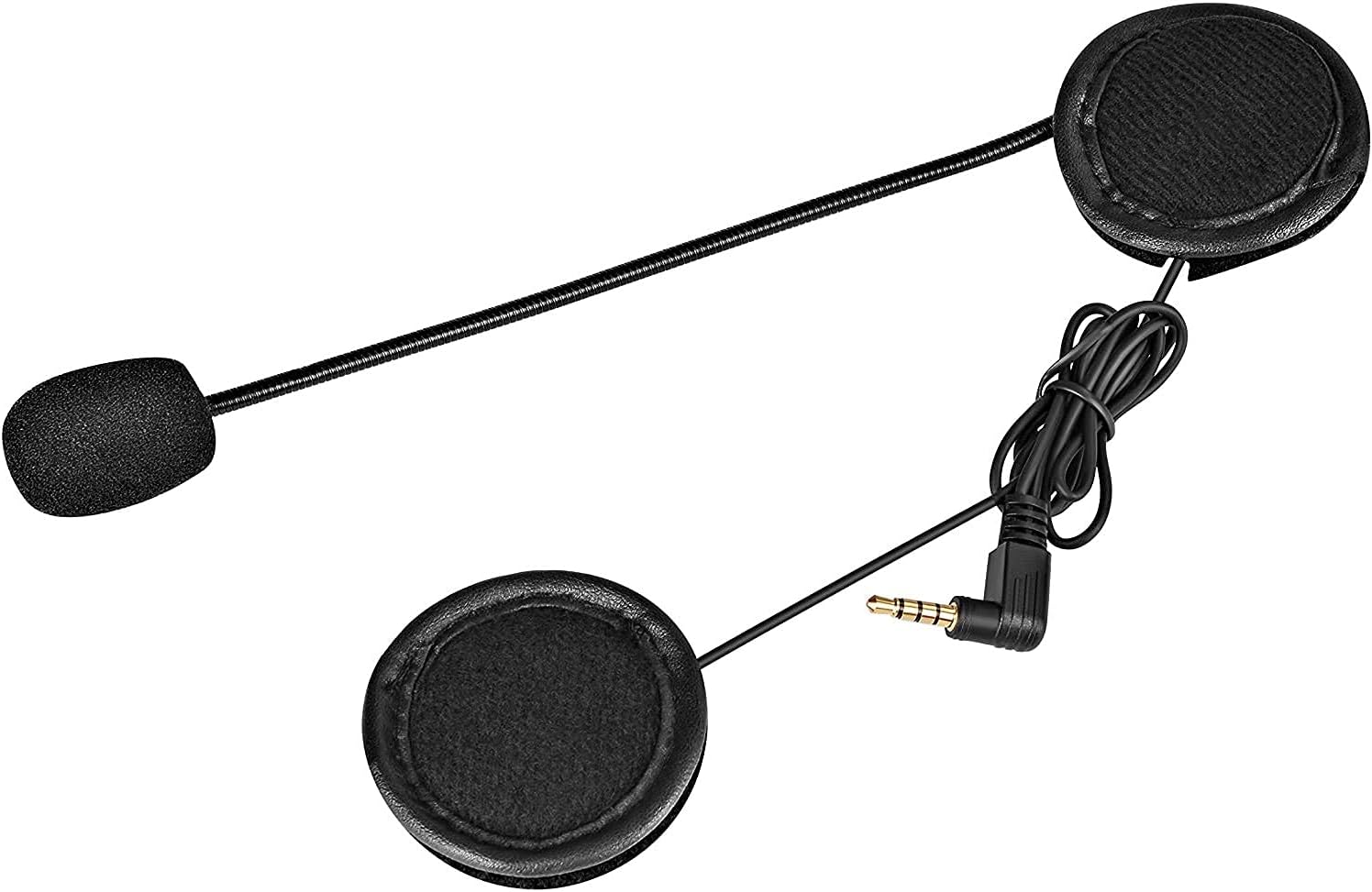
Figure 2.1: The EJEAS Vnetphone V4/V6 headset and microphone unit, featuring two flat speakers, a flexible boom microphone, and a 3.5mm audio jack for connection to the main intercom unit or other devices.
3. Configuración e instalación
Follow these steps to properly install your headset accessory into your motorcycle helmet.
3.1. Attaching the Mounting Clip
- Identify a suitable location on the left side of your helmet, typically near the bottom edge, where the main intercom unit will be attached.
- Slide the mounting clip onto the helmet's edge, ensuring it is securely fastened. Some clips may require tightening screws for a firm grip.
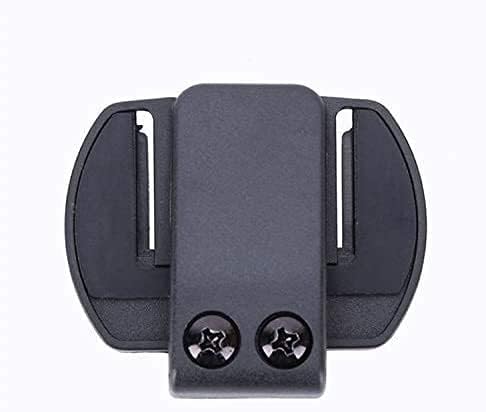
Figure 3.1: The mounting clip for securing the main intercom unit to the helmet. This clip provides a stable base for the intercom.

Figure 3.2: The mounting clip securely attached to the side of a motorcycle helmet, ready to receive the main intercom unit.
3.2. Installing the Headset and Microphone
- Open the helmet's interior padding.
- Place the flat speakers inside the helmet's ear pockets. Ensure they are positioned directly over your ears for optimal sound clarity.
- Route the microphone boom towards the front of the helmet, positioning the microphone close to your mouth for clear voice pickup.
- Tuck any excess wiring neatly under the helmet's padding to prevent interference and ensure comfort.
- Connect the 3.5mm jack from the headset to the corresponding port on your Vnetphone V4-1200 or V6-1200 intercom unit.
4. Instrucións de funcionamento
Once installed, the headset accessory functions as the audio input and output for your Vnetphone intercom system.
4.1. Uso básico
- Ensure the 3.5mm jack is fully inserted into the intercom unit.
- Power on your Vnetphone V4-1200 or V6-1200 intercom unit according to its specific manual.
- Adjust the volume on your intercom unit to a comfortable listening level.
- Speak clearly into the microphone for effective communication with other riders or during phone calls.
4.2. External Device Connectivity
If your Vnetphone intercom unit supports external audio input via its 3.5mm port, you can connect devices such as MP3 players, GPS navigators, or mobile phones directly to the intercom unit. The audio from these devices will be routed through the headset accessory.
5. Mantemento
Proper care will extend the life and performance of your headset accessory.
- Limpeza: Wipe the speakers and microphone foam gently with a soft, dry cloth. Avoid using harsh chemicals or abrasive materials.
- Almacenamento: When not in use, store the headset in a dry place away from extreme temperatures and direct sunlight.
- Coidado do cable: Evite curvas bruscas ou tirar excesivamente dos cables para evitar danos internos.
6 Solución de problemas
Se tes problemas, consulta as seguintes solucións habituais:
- Sen son dos altofalantes:
- Ensure the 3.5mm jack is fully and securely plugged into the intercom unit.
- Check the volume level on your intercom unit and any connected external devices.
- Verifique que a unidade de intercomunicación estea acendida e funcione correctamente.
- Microphone Not Picking Up Voice:
- Ensure the microphone is positioned close to your mouth.
- Check for any obstructions on the microphone foam.
- Confirm the 3.5mm jack is fully inserted.
- Poor Audio Quality (Static, Distortion):
- Asegúrese de que todas as conexións estean seguras.
- Adjust the speaker placement within the helmet to ensure they are not muffled.
- Reduce o volume se se produce distorsión a niveis altos.
7. Especificacións
| Marca | EXEAS |
| Modelo | 4333025057 |
| Cor | Auriculares |
| Control de ruído | Illamento acústico |
| Conector de auriculares | Jack de 3.5 mm |
| Tecnoloxía de conectividade | Wired, Wireless (via intercom unit) |
| Descrición do intervalo de idade | Adulto |
| UPC | 753318593305, 645415626423 |
| Fabricante | Vnetphone |
| Outras características | Lightweight, Microphone Included |
| Tecnoloxía sen fíos | Bluetooth (via intercom unit) |
| Peso do elemento | 75 gramos |
| GTIN | 753318593305, 645415626423 |
8. Información da garantía
This product is covered by the manufacturer's standard warranty. Please refer to the warranty card included with your original Vnetphone intercom system or contact EJEAS customer support for specific details regarding warranty terms and conditions.
9. Apoio
For technical assistance, troubleshooting beyond this manual, or warranty claims, please contact EJEAS customer support. Contact information can typically be found on the manufacturer's official website or in the documentation provided with your main Vnetphone intercom unit.