
1. Introdución
This manual provides essential information for setting up, operating, maintaining, and troubleshooting your HP ENVY Photo 7155 All-in-One Printer. This device is designed for printing, scanning, and copying, with a focus on high-quality photo output and wireless connectivity.
2. Que hai na caixa
Comprobe que todos os compoñentes estean presentes antes de comezar a configuración:
- HP ENVY Photo 7155 All-in-One Printer
- HP 64 Setup Black Ink Cartridge
- HP 64 Setup Tri-color Ink Cartridge
- Cable de alimentación
- Cartel de configuración

Figura 2.1: Fronte view of the HP ENVY Photo 7155 printer, illustrating its photo printing capability.
3. Configuración
Follow these steps for initial printer setup:
- Desembalar a impresora: Remove all packaging materials, tapes, and protective films from the printer.
- Conectar enerxía: Plug the power cord into the printer and then into a wall outlet. The printer will power on automatically.
- Instalación de cartuchos de tinta: Open the ink cartridge access door. Wait for the carriage to stop moving. Insert the HP 64 Black and Tri-color ink cartridges into their respective slots until they click into place. Close the access door.
- Cargar papel: Load plain white paper into the main paper tray. For photo printing, load photo paper into the dedicated photo tray.
- Install Software and Drivers: Download the HP Smart app from your device's app store or visit the official HP support website. Follow the on-screen instructions to install the necessary software and drivers for your computer or mobile device.
- Conectar a unha rede: During the software installation, you will be prompted to connect the printer to your wireless network. Follow the instructions on the printer's touchscreen display and the HP Smart app to establish a Wi-Fi connection.
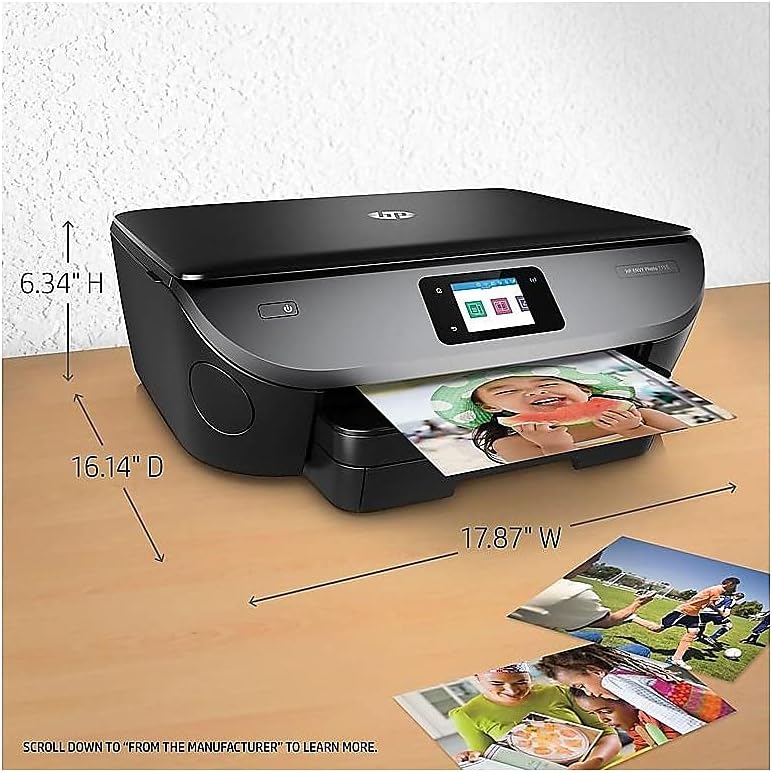
Figura 3.1: Traseira view of the printer, highlighting the power connection and USB port for wired setup options.
4. Funcionamento da impresora
4.1. Using the Touchscreen Display
The printer features a 2.65-inch color touchscreen for direct control of printing, scanning, and copying functions, as well as managing settings.

Figure 4.1: Interacting with the printer's color touchscreen for various functions.
4.2. Cargando papel
- Bandexa de papel principal: For plain paper, envelopes, and other standard media. Adjust the paper guides to fit the paper size.
- Bandexa de fotos: For photo paper. Ensure the photo paper is loaded correctly, typically glossy side up.
4.3. Impresión de documentos e fotos
- Desde un ordenador: Select the print option from your application, choose the HP ENVY Photo 7155, and adjust settings as needed (paper type, quality, color).
- From Mobile Devices (HP Smart App): Use the HP Smart app to print documents and photos directly from your smartphone or tablet. The app allows printing from cloud services like iCloud, Google Drive, and Dropbox.
- Impresión directa de fotografías: Insert an SD card into the printer's card slot and use the touchscreen to select and print photos directly.

Figure 4.2: Demonstrating remote wireless printing from a mobile device using the HP Smart app.
4.4. Escaneado de documentos
You can scan documents and photos using the flatbed scanner:
- Escanear a ordenador: Place the document on the scanner glass. Use the HP Smart app or the printer's touchscreen to initiate a scan and save it to your computer.
- Escanear a correo electrónico: Select the scan to email option from the printer's touchscreen and follow the prompts to send the scanned document as an email attachment.
4.5. Copia de documentos
Place the original document on the scanner glass. From the printer's touchscreen, select the 'Copy' option. You can choose between color or black and white copies and adjust the number of copies.
5. Mantemento
5.1. Substitución dos cartuchos de tinta
When an ink cartridge is low or empty, the printer will display a notification. To replace:
- Asegúrate de que a impresora estea acendida.
- Abra a porta de acceso ao cartucho de tinta.
- Prema o cartucho baleiro para liberalo e, a seguir, tíreo cara a fóra.
- Remove the new cartridge from its packaging and carefully remove the protective tape.
- Insira o novo cartucho na súa ranura ata que encaixe no seu lugar.
- Pecha a porta de acceso ao cartucho de tinta.
Consider enrolling in HP Instant Ink for automatic ink delivery.
5.2. Limpeza da impresora
- Exterior: Limpa as superficies exteriores cun pano suave e sen fiapos. Non empregues produtos de limpeza abrasivos.
- Cabezal de impresión: If print quality issues occur (streaks, faded colors), use the printer's maintenance menu on the touchscreen or the HP Smart app to perform a printhead cleaning cycle.
- Cristal do escáner: Limpe o cristal do escáner cun pano suave e sen fiapos, lixeiramenteamprematado con limpiacristales.
6 Solución de problemas
If you encounter issues with your printer, try the following common solutions:
- A impresora non responde: Ensure the printer is powered on and connected to the network. Restart both the printer and your computer/mobile device.
- Problemas de calidade de impresión: Check ink levels. Perform a printhead cleaning cycle. Ensure you are using appropriate paper settings for your print job.
- Atascos de papel: Follow the on-screen instructions or consult the HP support website for steps to clear paper jams from various areas of the printer.
- Problemas de conectividade: Verify your Wi-Fi network is active and the printer is within range. Reconnect the printer to the network via the setup menu or HP Smart app. Ensure printer drivers are up to date.
- Mensaxes de erro: Note any error codes or messages displayed on the touchscreen and refer to the HP support websitio para solucións específicas.
7. Especificacións
| Característica | Especificación |
|---|---|
| Nome do modelo | HP ENVY Photo 7155 |
| Funcións | Imprimir, copiar, escanear |
| Tecnoloxía de impresión | Inxección de tinta |
| Conectividade | Wi-Fi, Bluetooth, USB 2.0 |
| Resolución máxima de impresión en cor | 4800 x 1200 ppp |
| Maximum Black Print Resolution | 1200 x 1200 ppp |
| Velocidade de impresión (negro) | Ata 14 ppm |
| Velocidade de impresión (cor) | Ata 9 ppm |
| Impresión dúplex | Automático |
| Tipo de escáner | Cama plana |
| Capacidade máxima da folla de entrada | 100 follas (bandexa principal) |
| Número de bandexas | 2 (Main, Photo) |
| Método de control | Touchscreen, Voice (Alexa) |
| Dimensións do produto (P x A x A) | 6.34" x 17.87" x 16.14" |
| Peso do elemento | 14 libras |
| Consumo de enerxía | 13.95 vatios (modo aceso) |

Figure 7.1: Printer dimensions for placement and space planning.
8. Garantía e soporte
The HP ENVY Photo 7155 All-in-One Printer comes with a limited warranty. For detailed warranty information, technical support, driver downloads, and additional troubleshooting resources, please visit the official HP support website. You can also find comprehensive user manuals in PDF format on the HP support portal.