
1. Introdución
This manual provides instructions for the ROCCAT KONE Aimo Gaming Mouse. The KONE Aimo features an Owl-Eye Optical Sensor, customizable RGB AIMO LED illumination, and 23 programmable keys. It is designed for precision and ergonomic comfort during extended use.
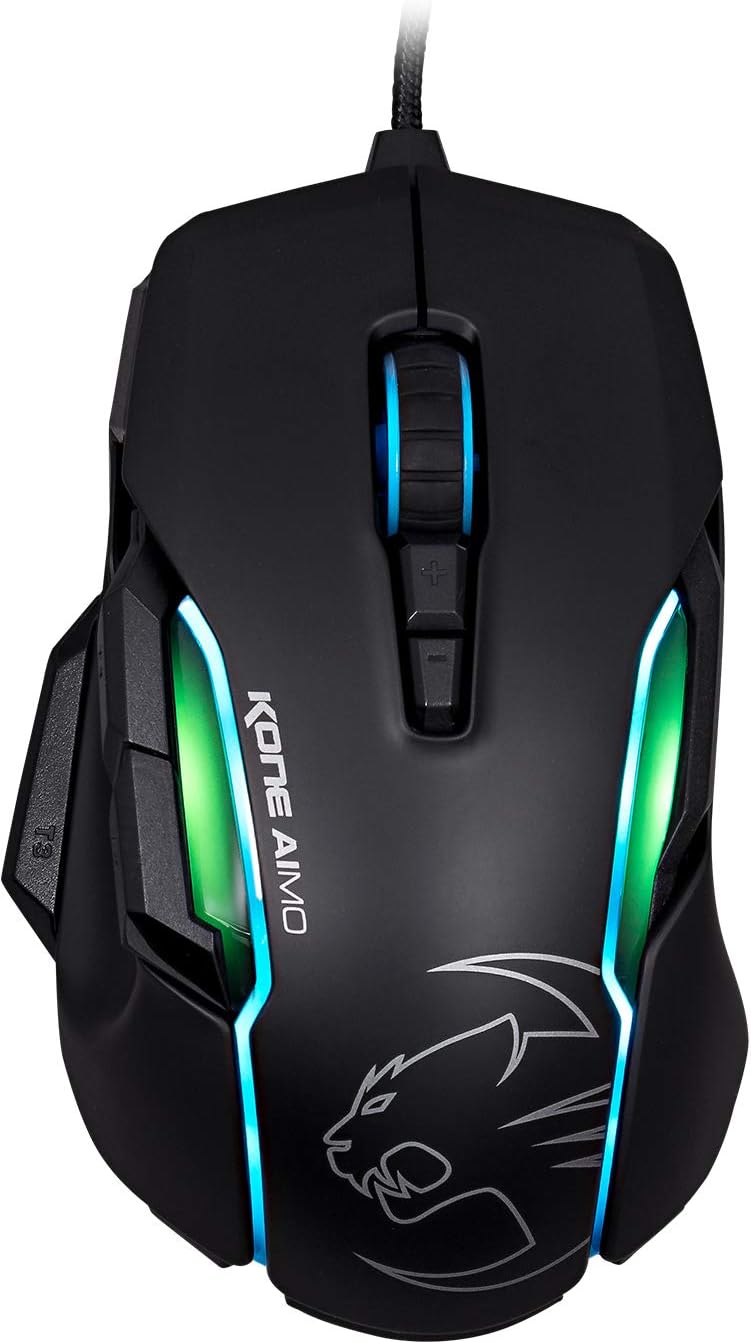
Figura 1: Arriba view of the ROCCAT KONE Aimo Gaming Mouse, showcasing its ergonomic shape and RGB lighting zones.
2. Contido do paquete
Verifica que todos os elementos estean presentes no paquete:
- KONE AIMO Mouse with Attached Braided USB Cable
- Guía rápida
- ROCCAT Stickers

Figure 2: Retail packaging of the ROCCAT KONE Aimo Gaming Mouse.
3. Configuración
- Conecta o rato: Plug the USB cable of the ROCCAT KONE Aimo mouse into an available USB port on your computer.
- Instalación de controladores: Your operating system (Windows 7, 8, 8.1, 10) should automatically detect and install the necessary drivers.
- Install ROCCAT Swarm Software: For full customization of DPI settings, button assignments, and AIMO lighting, download and install the ROCCAT Swarm software from the official ROCCAT website. This software allows you to create and manage profiles.

Figure 3: The ROCCAT KONE Aimo mouse in use on a mouse pad, connected to a computer.
4. Instrucións de funcionamento
4.1. Funcións dos botóns
The KONE Aimo features 23 programmable keys, including a tri-button thumb zone and a 4D tilting Titan wheel. These can be customized via the ROCCAT Swarm software.
- Clic esquerdo/dereito: Funcións estándar do rato.
- Scroll Wheel (4D Titan Wheel): Scrolls vertically and can tilt horizontally for additional functions. Also acts as a clickable button.
- Botóns de axuste de DPI: Located above and below the scroll wheel, these buttons allow for on-the-fly DPI sensitivity changes. Settings are configured in the Swarm software.
- Thumb Buttons (T1, T2, T3): Three buttons located on the left side, easily accessible by the thumb. The bottom-most button (T3) is often defaulted to the Easy-Shift[+] function.
- Easy-Shift[+] Button: This exclusive ROCCAT feature doubles the number of programmable functions for other buttons when held down, effectively expanding the total programmable keys.

Figura 4: detallada view of the programmable thumb buttons (T1, T2, T3) on the left side of the mouse.
4.2. AIMO Lighting System
The AIMO lighting system provides intelligent, reactive RGB illumination across four independently configurable LED light zones and the glowing mouse wheel. It can synchronize with other compatible ROCCAT devices and is programmable through the ROCCAT Swarm software.

Figure 5: The KONE Aimo mouse displaying its multi-zone RGB AIMO illumination.
4.3. Owl-Eye Optical Sensor
The mouse is equipped with the ROCCAT Owl-Eye Optical Sensor, a modified PixArt 3361 sensor, offering adjustable DPI from 100 to 12,000. This sensor provides precise tracking and responsiveness. A built-in tracking distance control unit monitors the lift-off distance for enhanced accuracy.

Figure 6: The bottom of the mouse, highlighting the Owl-Eye Optical Sensor.
4.4. Ergonomía
The KONE Aimo features refined ergonomics designed for comfort during extended use. Its shape provides a natural fit for the hand, with a dedicated thumb rest area.

Figure 7: A hand gripping the KONE Aimo mouse, illustrating its ergonomic design.
5. Mantemento
- Limpeza: Usa un pano suave e seco para limpar a superficie do rato. Para a sucidade persistente, usa un pano lixeiramente seco.amp pódese usar un pano, garantindo que non entre humidade nos compoñentes internos.
- Coidados do sensor: Keep the optical sensor on the underside of the mouse clean and free of dust or debris to ensure optimal tracking performance.
- Xestión de cables Evite dobrar bruscamente ou tirar demasiado do cable USB trenzado para evitar danos.
6 Solución de problemas
- O rato non responde:
- Asegúrate de que o cable USB estea conectado correctamente a un porto USB que funcione.
- Try a different USB port or another computer to rule out port or system issues.
- Reinicia o teu ordenador.
- Tracking Issues / Inaccurate Movement:
- Limpa o sensor óptico da parte inferior do rato.
- Ensure you are using the mouse on a clean, suitable mouse pad or surface.
- Check DPI settings in the ROCCAT Swarm software.
- RGB Lighting Not Working / Incorrect:
- Verifique que o software ROCCAT Swarm estea executándose e actualizado.
- Check lighting settings within the Swarm software.
- Asegúrate de que ningún software contraditorio estea a controlar a iluminación RGB.
- Botóns que non funcionan:
- Check button assignments in the ROCCAT Swarm software.
- Ensure the software is not experiencing issues (try restarting it).
7. Especificacións
| Característica | Detalle |
|---|---|
| Marca | ROCCAT |
| Número de modelo | ROC-11-815-BK |
| Sensor | Owl-Eye Optical Sensor (modified PixArt 3361) |
| Rango de DPI | De 100 a 12 000 ppp |
| Botóns programables | 23 (with Easy-Shift[+]) |
| Iluminación | RGBA AIMO LED Illumination (4 independent zones + scroll wheel) |
| Conectividade | USB (con cable) |
| Compatibilidade do sistema operativo | Windows 7, Windows 8, Windows 8.1, Windows 10 (32-bit and 64-bit versions) |
| Peso do elemento | 11.2 onzas (aproximadamente 317.5 gramos) |
| Dimensións do produto (LxWxH) | 5.12 x 2.95 x 1.57 polgadas (aproximadamente 13 x 7.5 x 4 cm) |
8. Garantía e soporte
For warranty information, technical support, and additional resources, please visit the official ROCCAT website or contact ROCCAT customer service. Keep your proof of purchase for warranty claims.
Tamén podes visitar o ROCCAT Store on Amazon para obter máis información sobre o produto.