
BenQ EX3501R
BenQ EX3501R Ultrawide Curved Gaming Monitor User Manual
Model: EX3501R
1. Configuración
1.1 Desembalaxe do monitor
Retire con coidado todos os compoñentes da embalaxe. Asegúrese de que estean presentes todos os elementos que se indican a continuación:
- BenQ EX3501R Monitor
- Soporte para monitor (base e pescozo)
- Adaptador de alimentación
- Cable de alimentación
- Cable HDMI
- Cable DisplayPort
- Cable USB-C
- Manual de usuario (este documento)
1.2 Montaxe do soporte
Siga estes pasos para conectar o soporte ao monitor:
- Coloque o monitor boca abaixo sobre un pano suave e limpo para evitar rabuñaduras.
- Attach the stand neck to the back of the monitor. Ensure it clicks securely into place.
- Connect the stand base to the neck, tightening any screws as indicated in the quick start guide.

Figura 1: Fronte view of the BenQ EX3501R monitor with its stand.
1.3 Cables de conexión
Connect the necessary cables to the monitor and your computer. The monitor supports various input options:
- Potencia: Conecta o adaptador de corrente ao monitor e despois a unha toma de corrente.
- Entrada de vídeo: Use either the HDMI, DisplayPort, or USB-C cable to connect your computer to the monitor.
- USB-C: The USB-C port supports video, data transfer, and power delivery, allowing for a single-cable connection with compatible devices.
- Portos USB 3.0: Utilize the integrated USB 3.0 ports for connecting peripherals.
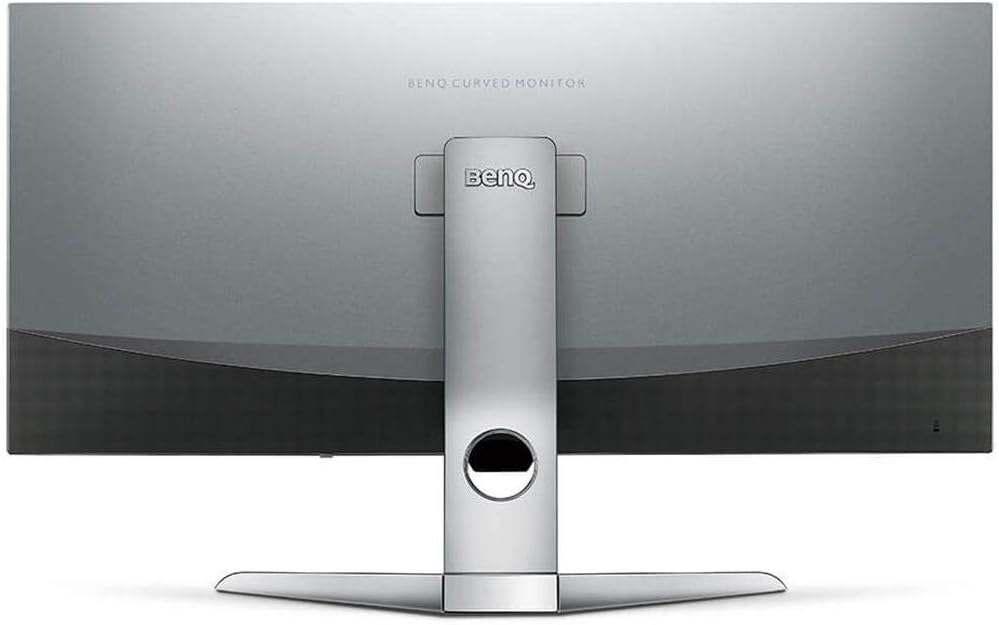
Figura 2: Traseira view of the monitor displaying the connectivity ports.
2. Funcionamento do monitor
2.1 Encendido/apagado
Press the power button, usually located on the bottom right side of the monitor, to turn it on or off. The power indicator light will illuminate when the monitor is active.
2.2 Navegación en pantalla (OSD)
Use the joystick or buttons located on the monitor's underside to navigate the On-Screen Display (OSD) menu. This menu allows you to adjust various settings such as brightness, contrast, color modes, and input sources.
2.3 Display Features and Eye-Care Technology
The BenQ EX3501R incorporates several technologies designed to enhance viewing experience and reduce eye strain:
- Brightness Intelligence Plus (B.I.+): This patented technology automatically senses ambient lighting conditions and adjusts the screen's brightness and color temperature to provide optimal viewing comfort and protect your eyes during extended use.
- Luz azul baixa: Filters out harmful blue light emissions to reduce eye fatigue. Multiple levels of blue light reduction are available.
- ZeroFlicker™: Eliminates screen flickering at all brightness levels, further reducing eye strain and discomfort.
- HDR (Alto Rango Dinámico): Offers enhanced brightness and contrast, bringing greater detail and vibrancy to HDR video content.
Vídeo 1: Un overview of BenQ's Eye-Care technology, including Low Blue Light, ZeroFlicker, and Brightness Intelligence Plus, demonstrating how these features work to reduce eye strain and adjust screen settings automatically based on ambient light.
2.4 Resolución e taxa de actualización
The monitor features a QHD (3440x1440) resolution and a 100Hz refresh rate, providing a smooth and detailed visual experience. The 21:9 ultrawide aspect ratio offers ample screen space for multitasking, such as viewing multiple documents side-by-side without needing a second monitor.
2.5 AMD FreeSync
For a fluid gaming experience, the monitor supports AMD FreeSync technology, which synchronizes the monitor's refresh rate with your graphics card's frame rate to eliminate screen tearing and stuttering.
3. Mantemento
3.1 Limpeza do monitor
To maintain optimal performance and appearance, regularly clean your monitor:
- Pantalla: Gently wipe the screen with a soft, lint-free cloth. For stubborn smudges, use a monitor-specific cleaning solution applied to the cloth, not directly to the screen.
- Exterior: Use un pano suave e seco para limpar o po e os residuos do monitor.asing e estar de pé.
Avoid using abrasive cleaners, waxes, or solvents as they can damage the monitor's surface.
3.2 Consellos xerais de coidados
- Non bloquee as aberturas de ventilación do monitor.
- Evite colocar o monitor á luz solar directa ou preto de fontes de calor.
- Manipula o monitor con coidado para evitar danos físicos.
4 Solución de problemas
If you encounter issues with your BenQ EX3501R monitor, refer to the following common troubleshooting steps:
4.1 No Display or Black Screen
- Asegúrate de que o cable de alimentación estea conectado correctamente tanto ao monitor como á toma de corrente.
- Verify that the video cable (HDMI, DisplayPort, or USB-C) is firmly connected to both the monitor and your computer.
- Comprobe se está seleccionada a fonte de entrada correcta no menú OSD do monitor.
- Reinicia o teu ordenador.
4.2 Flickering or Unstable Image
- Ensure the ZeroFlicker™ feature is enabled in the OSD menu.
- Comprobe se hai conexións soltas do cable de vídeo.
- Actualiza os controladores da túa tarxeta gráfica á versión máis recente.
- If using AMD FreeSync, ensure it is properly configured in your graphics card settings.
4.3 Color or Brightness Issues
- Axuste o brillo, o contraste e a cor a través do menú OSD.
- Enable or disable Brightness Intelligence Plus (B.I.+) to see if it resolves the issue.
- Perform a factory reset through the OSD menu.
5. Especificacións
Key technical specifications for the BenQ EX3501R monitor:
| Característica | Especificación |
|---|---|
| Tamaño da pantalla | 35 polgadas |
| Resolución máxima de pantalla | 3440 x 1440 Pixels (QHD Ultrawide) |
| Relación de aspecto | 21:9 |
| Taxa de actualización | 100 Hz |
| Curvatura | 1800R |
| Tipo de panel | VA (alineación vertical) |
| Conectividade | USB-C, HDMI, DisplayPort |
| Características especiais | AMD FreeSync, Brightness Intelligence Plus, Low Blue Light, ZeroFlicker |
| Peso do elemento | 21.3 libras |
| Dimensións do produto | 6.88 x 3.47 x 12.93 polgadas |
6. Garantía e soporte
6.1 Garantía do produto
The BenQ EX3501R monitor typically comes with a 3-year manufacturer's warranty. Please refer to the warranty card included in your product packaging for specific terms and conditions, or visit the official BenQ websitio para obter información detallada sobre a garantía.
6.2 Atención ao cliente
For further assistance, technical support, or warranty claims, please contact BenQ customer service. You can find contact information and support resources on the official BenQ websitio: www.benq.com/gl-es/soporte.html
Ask a question about this manual
Ask about setup, troubleshooting, compatibility, parts, safety, or missing instructions. Manuals+ will review the question and use this page’s manual context to help answer it.