
Introdución
Thank you for choosing the MeeTion K9310 Gaming Keyboard. This manual provides detailed instructions for setting up, operating, and maintaining your new keyboard. The K9310 is designed for an enhanced gaming experience with features such as multicolor backlighting, anti-ghosting, and dedicated shortcut keys.
Contido do paquete
- MeeTion K9310 Gaming Keyboard
- Manual de usuario (este documento)
Configuración
Follow these steps to connect your MeeTion K9310 Gaming Keyboard to your computer:
- Desembale o teclado da súa embalaxe.
- Localiza un porto USB dispoñible no teu ordenador.
- Conecte o conector USB do teclado ao porto USB.
- Your operating system (Windows XP/Vista/7/8/10) will automatically detect and install the necessary drivers. No additional software installation is typically required.
- The keyboard is ready for use once the drivers are installed.

Imaxe: Arriba view of the MeeTion K9310 Gaming Keyboard with its USB cable, ready for connection.
Instrucións de funcionamento
Características clave
- Multicolor Key Backlit: The keyboard features vibrant multicolor backlighting for enhanced visibility and aesthetic appeal, especially in low-light conditions.
- Comfortable and Soft Keys: Designed with membrane keys offering tactile feedback, providing a comfortable typing and gaming experience.
- 19 Keys Anti-Ghosting: This feature ensures that up to 19 keys can be pressed simultaneously without any input loss, crucial for complex gaming commands.
- Win Lock Function with LED Indication: Prevents accidental presses of the Windows key during gameplay, which can interrupt your game. An LED indicator shows when this function is active.
- 12 FN Shortcut Buttons: Access various multimedia and system functions quickly using the Function (FN) key in combination with the F1-F12 keys.
Control de retroiluminación
The K9310 keyboard features a multicolor backlight. Specific key combinations may be used to adjust brightness or switch lighting modes. Refer to the keyboard's markings for dedicated backlight control keys, often indicated by a sun or light bulb icon, or through FN key combinations.
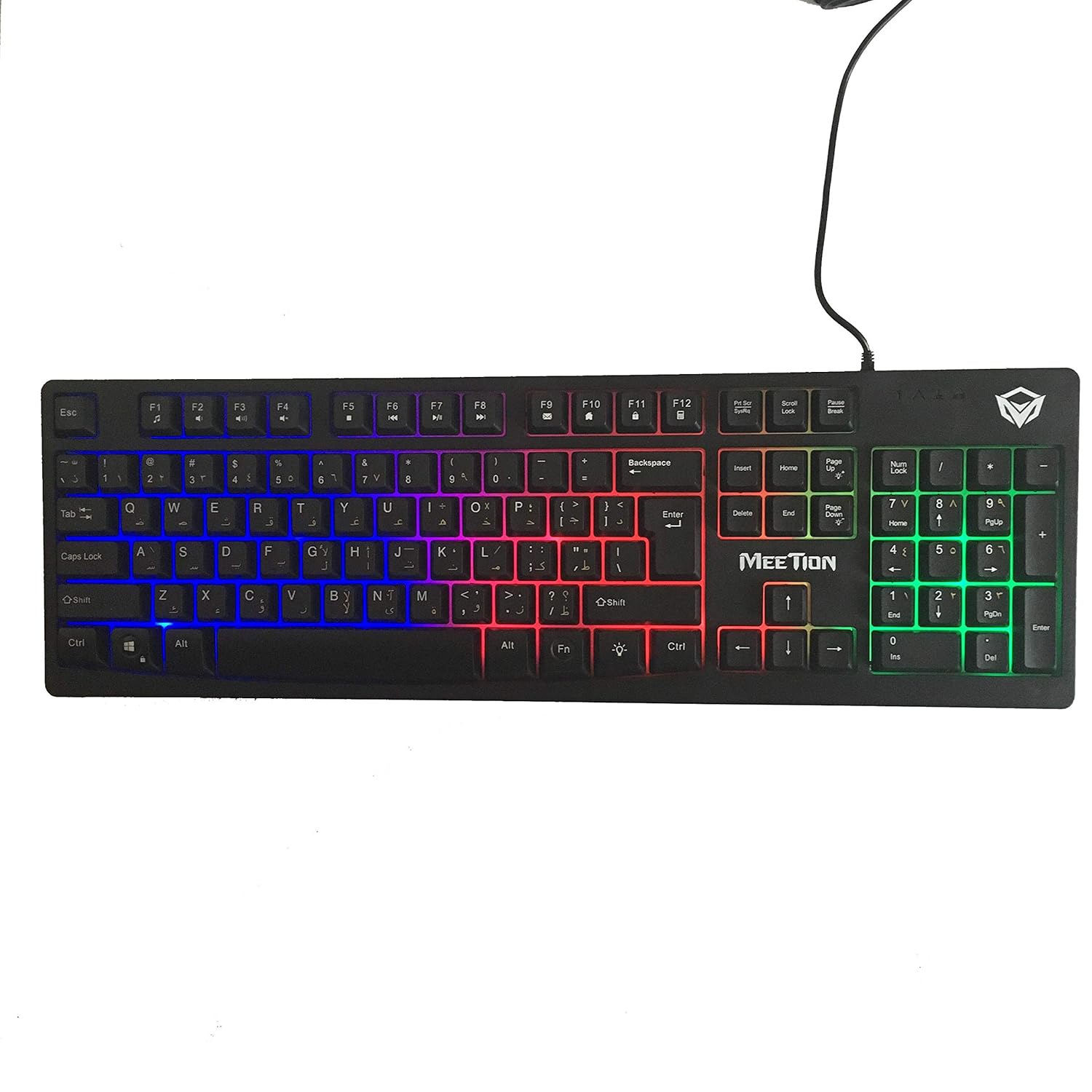
Imaxe: Arriba view of the MeeTion K9310 Gaming Keyboard with its multicolor backlighting illuminated.
FN Shortcut Functions
The keyboard includes 12 FN (Function) shortcut buttons. To activate these functions, press and hold the FN key, then press the desired F-key (F1-F12).
| Combinación de teclas | Función |
|---|---|
| FN + F1 | Reproductor multimedia |
| FN + F2 | Baixar o volume |
| FN + F3 | Subir volume |
| FN + F4 | Silenciar |
| FN + F5 | Pare |
| FN + F6 | Pista anterior |
| FN + F7 | Reproducir/Pausa |
| FN + F8 | Próxima pista |
| FN + F9 | Correo electrónico |
| FN + F10 | Web Navegador |
| FN + F11 | O meu ordenador |
| FN + F12 | Calculadora |
Win Lock Function
To activate or deactivate the Windows key lock function, press Tecla FN + Win. When active, the Windows key will be disabled, preventing accidental presses during gaming. An LED indicator on the keyboard will typically illuminate to show the Win Lock status.
Mantemento
Un mantemento axeitado garante a lonxevidade e o rendemento óptimo do teu teclado.
- Limpeza: Usa un pano suave e seco para limpar a superficie do teclado. Para unha limpeza máis profunda, limpa lixeiramenteamp Pódese usar un pano con xabón suave, garantindo que non entre líquido nos interruptores de chave nin nos compoñentes internos.
- Eliminación de po: Usa aire comprimido para eliminar o po e os residuos que hai entre as teclas.
- Evitar líquidos: Do not spill liquids on the keyboard. If a spill occurs, immediately disconnect the keyboard from the computer and allow it to dry completely before reconnecting.
- Almacenamento: Garde o teclado nun lugar fresco e seco, lonxe da luz solar directa e de temperaturas extremas, cando non o use durante períodos prolongados.

Imaxe: Parte inferior view of the MeeTion K9310 Gaming Keyboard, showing the product label and rubber feet.
Resolución de problemas
If you encounter issues with your MeeTion K9310 Gaming Keyboard, refer to the following troubleshooting steps:
- O teclado non responde:
- Asegúrate de que o cable USB estea conectado correctamente a un porto USB que funcione no teu ordenador.
- Tenta conectar o teclado a un porto USB diferente.
- Reinicia o teu ordenador.
- Proba o teclado noutro ordenador para determinar se o problema é do teclado ou do ordenador.
- Keys Not Working (e.g., 'W' key):
- Check for any debris or foreign objects lodged under the affected key. Use compressed air to clear it.
- If only specific keys are not responding, and the keyboard is otherwise functional, it might indicate a hardware issue.
- A retroiluminación non funciona ou parpadea:
- Asegúrate de que o teclado estea conectado correctamente.
- Check if the backlight brightness is set to minimum or turned off via FN key combinations.
- Se o problema persiste, pode indicar un mal funcionamento do hardware.
- Win Lock Function Not Working:
- Ensure you are using the correct key combination (FN + Win Key) to toggle the function.
- Check the LED indicator for Win Lock status.
Especificacións
| Característica | Detalle |
|---|---|
| Marca | REUNIÓN |
| Modelo | K9310 |
| Tipo de teclado | Teclado para xogos |
| Contacto clave | Membrane with tactile feedback |
| Maquetación | Cyrillic alphabet layout (Windows Keys) |
| Anti-Ghosting | 19 teclas |
| Retroiluminación | Tecla multicolor retroiluminada |
| Win Lock Function | Si, con indicación LED |
| FN Shortcut Buttons | 12 |
| Error-Free Running Time | More than 10 million strokes |
| Compatibilidade con SO | Windows XP/Vista/7/8/10 |
| Dimensións | 17.5 × 5.5 x 1.5 inches (approximate) |
| Peso | 1.2 libras (aproximadamente) |
| Dispositivos compatibles | Laptop (and Desktop PCs) |
Garantía e Soporte
For warranty information or technical support, please refer to the documentation provided at the time of purchase or visit the official MEETION websitio. Garda o comprobante de compra para calquera reclamación de garantía.