
1. Introdución
This manual provides essential information for the safe and efficient operation of your Digi International WR21-L52A-DE1-TB Cellular Wireless Router. Please read this manual thoroughly before installation and use, and retain it for future reference. This device is designed to provide reliable cellular connectivity for various applications.
2. Información de seguridade
- Fonte de alimentación: Use only the power adapter supplied with the device. Using an incorrect adapter may damage the device and void the warranty.
- Ventilación: Asegúrate de que haxa unha ventilación axeitada arredor do router. Non bloquees as aberturas de ventilación.
- Ambiente: Avoid exposing the device to extreme temperatures, humidity, direct sunlight, or corrosive environments.
- Servizo: Non intente abrir nin reparar o dispositivo vostede mesmo. Encargue calquera mantemento a persoal cualificado.
- Antenas: Ensure antennas are securely connected before powering on the device.
3. Contido do paquete
Verifica que todos os elementos estean presentes no paquete:
- Digi International WR21-L52A-DE1-TB Cellular Wireless Router
- Adaptador de alimentación
- Antennas (quantity may vary)
- Cable Ethernet
- Guía de inicio rápido (se se inclúe)
Se falta ou está danado algún elemento, póñase en contacto co seu provedor inmediatamente.
4. Produto rematadoview
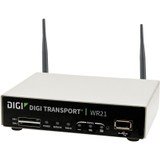
Imaxe: Fronte view of the Digi International WR21-L52A-DE1-TB Cellular Wireless Router. This image displays the compact form factor of the device, likely showing ports for antennas, power, and network connections.
The Digi International WR21-L52A-DE1-TB is a robust cellular wireless router designed for reliable and secure connectivity. It features multiple connectivity options and is suitable for various industrial and enterprise applications requiring remote access and data transfer over cellular networks.
5. Configuración
5.1. Instalación da tarxeta SIM
- Asegúrese de que o enrutador estea apagado e desconectado da fonte de enerxía.
- Locate the SIM card slot(s) on the device. Refer to the device's physical markings for exact location.
- Insert the activated cellular SIM card into the slot with the gold contacts facing down and the notched corner oriented correctly. Push until it clicks into place.
- If applicable, secure the SIM card tray or cover.
5.2. Conexión de antena
- Identify the cellular antenna ports (typically labeled 'MAIN' and 'DIV' or similar).
- Screw the provided cellular antennas onto the corresponding ports until finger-tight. Do not overtighten.
- Coloque as antenas para unha recepción óptima do sinal.
5.3. Conexión de alimentación
- Conecta o adaptador de corrente ao porto de entrada de alimentación do enrutador.
- Enchufe o adaptador de alimentación nunha toma eléctrica adecuada.
- The router will power on automatically or may require pressing a power button. Observe the LED indicators for power status.
5.4. Conexión de rede (opcional)
- To connect a device via Ethernet, plug one end of an Ethernet cable into an available LAN port on the router.
- Plug the other end of the Ethernet cable into the network port of your computer or other network device.
6. Instrucións de funcionamento
6.1. Acendido/apagado
- Encendido: Connect the power adapter. The device will typically power on automatically. Observe the power LED.
- Apagado: Disconnect the power adapter from the electrical outlet. For controlled shutdown, refer to the device's web interface or specific documentation for a software shutdown procedure if available.
6.2. Accedendo ao Web Interface
- Ensure your computer is connected to the router via Ethernet or Wi-Fi (if enabled).
- Abrir a web navegador (por exemplo, Chrome, Firefox, Edge).
- Enter the router's default IP address (e.g., 192.168.1.1 or 192.168.0.1) into the address bar and press Enter. Refer to the Quick Start Guide or device label for the exact default IP address.
- Enter the default username and password when prompted. These are typically found on a label on the device or in the Quick Start Guide.
- Upon successful login, you will access the router's configuration interface.
6.3. Configuración básica
Dentro do web interface, you can configure various settings:
- Cellular Settings: Verify APN settings, signal strength, and connection status.
- Configuración de rede: Configure LAN IP address, DHCP server, and port forwarding.
- Seguridade: Change default login credentials, configure firewall rules, and VPN settings.
- Actualización de firmware: Check for and apply firmware updates to ensure optimal performance and security.
7. Mantemento
- Limpeza: Usa un pano suave e seco para limpar o exterior do router. Non empregues produtos de limpeza líquidos nin aerosois.
- Actualizacións de firmware: Comprobe regularmente o fabricante website for firmware updates. Keeping the firmware updated ensures the latest features, security patches, and performance improvements.
- Condicións ambientais: Ensure the router is operating within its specified temperature and humidity ranges to prevent overheating or damage.
8 Solución de problemas
8.1. No Cellular Connection
- Verify the SIM card is correctly inserted and activated with your cellular provider.
- Check antenna connections and ensure they are positioned for optimal signal.
- Inicia sesión en web interface to check cellular signal strength and connection status.
- Reinicie o router.
8.2. Non se pode acceder Web Interface
- Ensure your computer is directly connected to the router via Ethernet.
- Verify your computer's IP address is in the same subnet as the router (e.g., if router is 192.168.1.1, computer should be 192.168.1.x).
- Tenta limpar a caché do teu navegador ou usar un navegador diferente.
- If you forgot the password, a factory reset might be necessary (refer to specific device documentation for this procedure, as it will erase all configurations).
8.3. Velocidade de conexión lenta
- Check cellular signal strength in the web interface. Weak signal can lead to slow speeds.
- Ensure antennas are properly positioned and unobstructed.
- Verify your cellular data plan has not reached its data cap or is being throttled.
- Restart the router and connected devices.
9. Especificacións
| Característica | Descrición |
|---|---|
| Modelo | WR21-L52A-DE1-TB |
| Marca | Digi International |
| Protocolo de conectividade | Celular |
| Tecnoloxía de conectividade | USB |
| Método de control | Mando a distancia |
| Característica especial | WPS |
| Dispositivos compatibles | Ordenador persoal |
| Usos recomendados | Casa |
| UPC | 747356312219 |
10. Garantía e soporte
Para obter información detallada sobre a garantía, consulte a tarxeta de garantía incluída co produto ou visite o sitio web oficial de Digi International. website. Technical support is available through the manufacturer's support channels. Please have your product model number (WR21-L52A-DE1-TB) and serial number ready when contacting support.