
1. Introdución
The HP Thunderbolt Dock 120W G2 (model 2UK37AA) is a compact and versatile docking station designed to expand the connectivity of your compatible laptop. This device allows you to connect multiple peripherals, external displays, and network cables through a single Thunderbolt or USB-C connection to your computer, while also providing power delivery.
This manual provides essential information for setting up, operating, maintaining, and troubleshooting your HP Thunderbolt Dock 120W G2.
2. Produto rematadoview
The HP Thunderbolt Dock G2 offers a range of ports to enhance your workstation setup. Below are images illustrating the dock's design and port layout.

Figura 2.1: Fronte view of the HP Thunderbolt Dock 120W G2, showcasing its compact, square design and the integrated USB-C host cable extending from the front.

Figura 2.2: Traseira view of the HP Thunderbolt Dock 120W G2, displaying the various connectivity ports including DisplayPort, USB, Ethernet, and the power input, with the host cable visible.
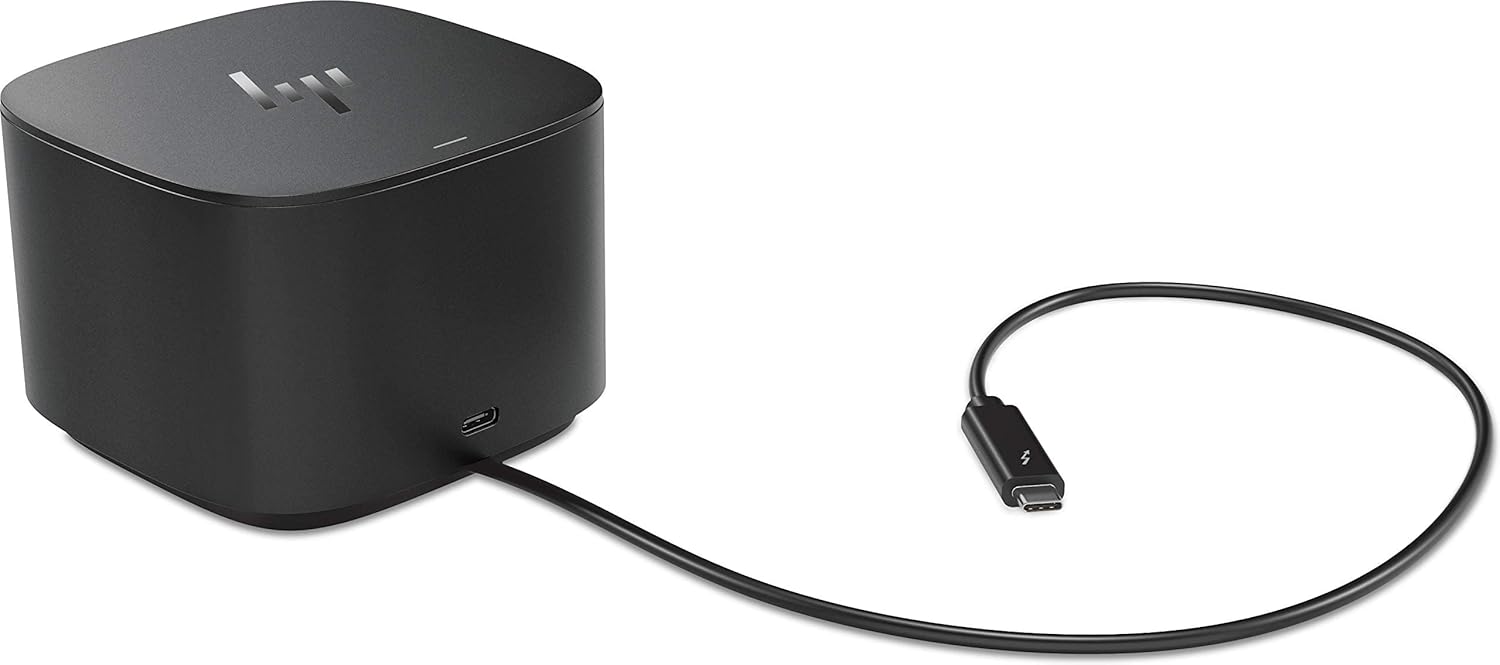
Figura 2.3: Lado view of the HP Thunderbolt Dock 120W G2, emphasizing its vertical orientation and the connection point for the host USB-C cable.
2.1. Available Ports
- 1x porto USB-C
- 1x Powered USB 3.0 port
- 1x Thunderbolt port (for host connection)
- 1x USB-C DisplayPort (Data and Power Out, 15W) port
- 2x DisplayPort ports
- 1x porto VGA
- 2x portos USB 3.0
- 1x Combo Audio Jack
- 1x RJ45 Ethernet port
- 1x Kensington Lock Slot (lock sold separately)
- 1x AC Adapter input
3. Compatibilidade
The HP Thunderbolt Dock 120W G2 is designed for use with a range of HP laptops and other devices supporting Thunderbolt or USB-C connectivity. For optimal performance, ensure your device's drivers and firmware are up to date.
3.1. Supported HP Models
- HP Elite X2 1012 G1, G2
- HP Pro X2 612 G2
- HP EliteBook Folio G1
- HP EliteBook X360 1030 & 1020 G2
- HP EliteBook 1040 G4
- HP EliteBook 800, 700 G5 series
- HP ProBook 600 G4, 400 G5 series
- ZBook 14u/15u G5 series
The dock is also compatible with other USB-C and Thunderbolt-enabled devices. Functionality may vary depending on the host device's capabilities and operating system support.
4. Instrucións de configuración
Follow these steps to set up your HP Thunderbolt Dock 120W G2:
- Conectar enerxía: Plug the provided AC adapter into the power input port on the dock, then connect the AC adapter to a power outlet. The dock's power indicator light should illuminate.
- Conectar ao dispositivo anfitrión: Connect the integrated Thunderbolt/USB-C cable from the dock to the Thunderbolt or USB-C port on your laptop. Your laptop should recognize the dock automatically.
- Conectar pantallas externas: Connect your monitors to the DisplayPort, USB-C DisplayPort, or VGA ports on the dock using appropriate cables.
- Conectar periféricos: Plug in your USB devices (keyboard, mouse, external drives) into the available USB 3.0 or USB-C ports. Connect an Ethernet cable to the RJ45 port for wired network access.
- Dispositivos de audio: If using external speakers or a headset, connect them to the Combo Audio Jack.
- Instalación de controladores: In most cases, necessary drivers will install automatically. If prompted, follow the on-screen instructions. For specific driver updates, visit the official HP support websitio.
Once all connections are made, you may need to configure your display settings within your operating system to extend or duplicate your desktop across external monitors.
5. Funcionamento do peirao
5.1. Xestión de enerxía
The dock provides power to your connected laptop through the Thunderbolt/USB-C cable, eliminating the need for a separate laptop power adapter. The dock's power button can be used to power on or off the connected laptop, depending on your system's configuration and power settings.
5.2. Configuración da pantalla
After connecting external displays, you can configure their arrangement and resolution through your operating system's display settings. For Windows, right-click on the desktop and select "Display settings." For macOS, go to System Settings > Displays.
5.3. Disconnecting the Dock
To safely disconnect your laptop from the dock, ensure all data transfers are complete, then simply unplug the Thunderbolt/USB-C cable from your laptop. It is generally not necessary to power down the dock before disconnecting the laptop.
6. Mantemento
6.1. Limpeza
To clean the dock, use a soft, dry, lint-free cloth. Do not use liquid cleaners or aerosol sprays directly on the device. Ensure the dock is powered off and disconnected from all devices before cleaning.
6.2. Actualizacións de firmware
HP periodically releases firmware updates for the Thunderbolt Dock G2 to improve performance, add features, or resolve issues. It is recommended to keep your dock's firmware updated. Firmware updates can typically be found on the official HP support website for your specific model (2UK37AA).
7 Solución de problemas
If you encounter issues with your HP Thunderbolt Dock 120W G2, refer to the following common problems and solutions:
- No Power to Laptop/Dock:
- Ensure the AC adapter is securely connected to both the dock and a working power outlet.
- Verifique que a toma de corrente funcione.
- External Displays Not Working:
- Check all display cables (DisplayPort, USB-C DisplayPort, VGA) are securely connected to both the dock and the monitors.
- Ensure monitors are powered on and set to the correct input source.
- Update your laptop's graphics drivers and the dock's firmware.
- Restart your laptop and the dock.
- Verify your laptop's display settings are configured correctly (extend, duplicate).
- Periféricos USB non detectados:
- Tenta conectar o periférico a un porto USB diferente da base.
- Connect the peripheral directly to your laptop to confirm it is functional.
- Restart your laptop and the dock.
- Sen conexión de rede (Ethernet):
- Ensure the Ethernet cable is securely connected to both the dock and your network router/switch.
- Check network settings on your laptop.
- Restart your network equipment (router/modem).
- Dock Not Recognized by Laptop:
- Ensure the Thunderbolt/USB-C cable is firmly connected to both the dock and the laptop.
- Try a different Thunderbolt/USB-C port on your laptop if available.
- Reinicia o teu portátil.
- Update your laptop's Thunderbolt/USB-C drivers and the dock's firmware.
If these steps do not resolve the issue, please contact HP Support for further assistance.
8. Especificacións
| Característica | Especificación |
|---|---|
| Número de modelo | 2UK37AA |
| Marca | HP |
| Tecnoloxía de conectividade | Thunderbolt 3, USB-C |
| Portos | 1x USB-C, 1x Powered USB 3.0, 1x Thunderbolt, 1x USB-C DisplayPort (Data/Power Out 15W), 2x DisplayPort, 1x VGA, 2x USB 3.0, 1x Combo Audio Jack, 1x RJ45 Ethernet, 1x Kensington Lock Slot |
| Resolución máxima de pantalla | 1920 x 1080 (Note: Supports dual 4K displays depending on host device capabilities) |
| Wattage | 120 watts (Power Delivery) |
| Peso do elemento | 1.76 libras (aprox. 0.8 kg) |
| Dimensións do produto (LxWxH) | 3.86 x 3.86 x 4.02 polgadas (aprox. 9.8 x 9.8 x 10.2 cm) |
| Cor | Negro |
| Primeira data dispoñible | 17 de maio de 2018 |
9. Garantía e soporte
9.1. Información da garantía
This product is covered by HP's standard limited warranty. Please refer to the warranty card included with your product or visit the official HP websitio web para obter termos e condicións de garantía detallados específicos da súa rexión.
9.2. Soporte técnico
For technical assistance, driver downloads, firmware updates, or further troubleshooting, please visit the official HP Support website or contact HP customer service. Have your product model number (2UK37AA) and serial number ready when contacting support.
Soporte HP Websitio: www.hp.com/support