
1. Introdución
This manual provides essential information for the safe and efficient operation of your NEC C861Q-AVT2 86-inch 4K UHD LED LCD Display. The C861Q-AVT2 is designed for commercial environments, offering clear, detailed imagery with a 4K UHD resolution, 350 cd/m² brightness, and an anti-glare surface for optimal readability in various lighting conditions. Its robust design includes a full metal chassis, real-time temperature sensors, and integrated cooling fans for reliable 24/7 operation.
Key features include multiple connectivity options such as HDMI 2.0 and DisplayPort 1.2, an integrated media player for USB or SD card playback, and a Raspberry Pi Compute Module slot for direct source integration.
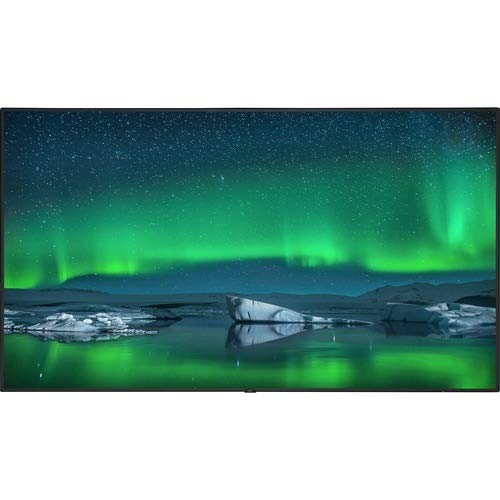
Fronte view of the NEC C861Q-AVT2 86-inch 4K UHD LED LCD Display, showcasing its slim bezel and large screen.
2. Información de seguridade
Please read all safety instructions carefully before using the display. Failure to follow these instructions may result in electric shock, fire, or damage to the product.
- Fonte de enerxía: Connect the display only to the type of power source indicated on the label. Ensure the power cord is securely plugged into a grounded outlet.
- Ventilación: Non bloquees as aberturas de ventilación. Asegúrate de que haxa espazo suficiente arredor da pantalla para unha correcta circulación do aire e evitar o sobrequecemento.
- Exposición ao líquido: Do not expose the display to rain, moisture, or spill liquids onto it. If liquid enters the display, disconnect power immediately and contact qualified service personnel.
- Limpeza: Unplug the display from the power outlet before cleaning. Use a soft, dry cloth. Do not use liquid cleaners or aerosol cleaners.
- Montaxe: Ensure the display is mounted securely to a stable surface or wall using appropriate mounting hardware. If wall-mounting, use a compatible mount such as the WMK-3255S to meet ADA compliance requirements.
- Servizo: Non intente atender este produto vostede mesmo. Remita todo o servizo a persoal de servizo cualificado.
3. Que hai na caixa
Desembala a caixa con coidado e asegúrate de que estean presentes todos os elementos:
- NEC C861Q-AVT2 86-inch 4K UHD LED LCD Display
- Stand (for table mounting)
- Cable de alimentación
- Remote Control (not explicitly listed but standard for displays)
- Manual de usuario (este documento)
4. Configuración
4.1 Montaxe da pantalla
The NEC C861Q-AVT2 can be used with the included stand for table mounting or with a compatible VESA wall mount (sold separately).
- Montaxe de mesa: Attach the provided stand to the display following the instructions in the separate stand assembly guide. Place the display on a stable, level surface.
- Montaxe na parede: If wall-mounting, ensure the wall mount is rated for the display's weight (approximately 127.4 pounds or 57.8 kg). Follow the wall mount manufacturer's instructions carefully. For ADA compliance, consider using the WMK-3255S wall mount.
4.2 Conexión de dispositivos externos
The display offers various input ports:
- HDMI: Connect up to three HDMI devices (e.g., media players, computers) to the HDMI 2.0 ports.
- DisplayPort: Connect DisplayPort devices to the DisplayPort 1.2 inputs. Daisy chain functionality is also supported.
- USB: Use the USB ports for connecting storage devices for the integrated media player or for service purposes.
- Raspberry Pi Compute Module Slot: Insert a compatible Raspberry Pi Compute Module for integrated source functionality.
4.3 Conexión de alimentación
- Ensure all external devices are connected.
- Connect the power cord to the display's power input.
- Conecte o outro extremo do cable de alimentación a unha toma eléctrica conectada a terra.
5. Instrucións de funcionamento
5.1 Acendido/Apagado
Press the power button on the display or the remote control to turn the display on or off. The power indicator light will illuminate when the display is on.
5.2 Selección de entrada
Use the 'Input' or 'Source' button on the remote control to cycle through available input sources (HDMI 1, HDMI 2, HDMI 3, DisplayPort 1, DisplayPort 2, Internal Media Player, Raspberry Pi Module).
5.3 Configuración da imaxe
Access the on-screen display (OSD) menu using the remote control to adjust picture settings such as:
- Brillo
- Contraste
- Temperatura da cor
- Relación de aspecto
- Advanced settings via SpectraView Engine for color, intensity, gamma, or uniformity control.
5.4 Integrated Media Player
The display features an integrated media player. Insert a USB drive or SD card containing audio, video, or image files into the designated slot. Select the 'Internal Media Player' input source to access and play your content.
6. Mantemento
6.1 Limpeza da pantalla
- Pantalla: Limpe a pantalla con suavidade cun pano suave e sen pelusa. Para marcas difíciles, d suavementeampen the cloth with water or a non-abrasive, display-safe cleaning solution. Do not spray liquid directly onto the screen.
- Casing: Limpe o casinLimpe cun pano suave e seco. Evite o uso de produtos químicos agresivos ou materiais abrasivos.
6.2 Ventilación
Ensure that the ventilation openings on the display are not obstructed. Proper airflow is crucial for maintaining optimal operating temperature and extending the lifespan of the display, especially during 24/7 operation.
7 Solución de problemas
If you encounter issues with your display, refer to the following common troubleshooting steps:
- Sen enerxía:
- Check if the power cord is securely connected to both the display and the electrical outlet.
- Verifica que a toma de corrente funciona conectando outro dispositivo.
- Sen sinal:
- Asegúrate de que estea seleccionada a fonte de entrada correcta na pantalla.
- Check the connection cables (HDMI, DisplayPort) between the display and the source device. Try a different cable if possible.
- Verifique que o dispositivo de orixe estea acendido e emita un sinal.
- Mala calidade de imaxe:
- Adjust picture settings (brightness, contrast, sharpness) via the OSD menu.
- Ensure the source device is outputting a resolution compatible with the display's native 4K UHD resolution.
- Check for any physical damage to the screen or cables.
- Display Overheating:
- Ensure adequate ventilation around the display. Clear any obstructions from the vents.
- Se o problema persiste, póñase en contacto co servizo de atención ao cliente.
8. Especificacións
| Característica | Especificación |
|---|---|
| Marca | NEC |
| Número de modelo | C861Q-AVT2 |
| Tamaño da pantalla | 86 polgadas |
| Tecnoloxía de visualización | LCD LED |
| Resolución | 4K UHD (3840 x 2160) |
| Brillo | 350 cd/m² |
| Características especiais | Anti-Glare Screen, Integrated ATSC Tuner, Flat Panel, Full Metal Chassis, Integrated Media Player, Raspberry Pi Compute Module Slot |
| Taxa de actualización | 60 Hz |
| Tecnoloxía de conectividade | USB, DisplayPort 1.2 (x2, daisy chain), HDMI 2.0 (x3) |
| Dimensións do produto | 2.9 x 75.9 x 43.3 polgadas (7.37 x 192.79 x 109.98 cm) |
| Peso do elemento | 127.4 libras (57.8 kg) |
| Tipo de montaxe | Soporte de mesa (compatible con VESA para montaxe na parede) |
| Horario de funcionamento | 24/7 operation capable |
9. Garantía e soporte
9.1 Información da garantía
This NEC C861Q-AVT2 display comes with a full 3-year commercial warranty. Please retain your proof of purchase for warranty claims.
9.2 Atención ao cliente
For technical assistance, troubleshooting beyond this manual, or warranty service, please contact NEC customer support. Refer to the contact information provided with your purchase documentation or visit the official NEC websitio para obter detalles de asistencia.