
1. Introdución
This manual provides essential information for setting up, operating, maintaining, and troubleshooting your HP EliteDesk 800 G2 Desktop Mini PC. Please read this guide thoroughly to ensure proper use and longevity of your device.
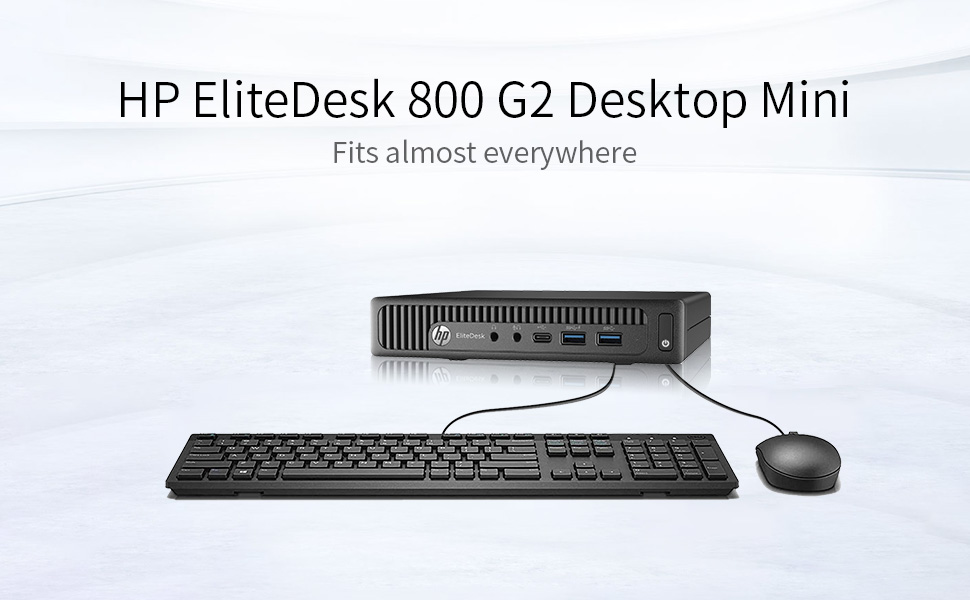
Image 1.1: HP EliteDesk 800 G2 Desktop Mini PC with included peripherals.
This image displays the compact HP EliteDesk 800 G2 Desktop Mini PC alongside a standard keyboard and mouse, illustrating its small form factor and typical desktop setup.
2. Produto rematadoview
The HP EliteDesk 800 G2 Desktop Mini PC is a compact and powerful computing solution designed for business and general use. It features a robust Intel Quad-Core i5-6500T processor, 16GB DDR4 memory, and a 240GB SSD for fast performance. The system comes pre-installed with Windows 11.
2.1 Características do panel frontal

Imaxe 2.1: Fronte view of the HP EliteDesk 800 G2 Desktop Mini PC.
This image shows the front panel of the HP EliteDesk 800 G2, highlighting the power button, audio jacks, and USB ports for easy access.
- Botón de encendido: Úsase para acender ou apagar o PC.
- Jack para auriculares: Conecte auriculares ou altofalantes externos.
- Conector de micrófono: Conecta un micrófono.
- USB 3.0 Ports (2): Para conectar dispositivos USB de alta velocidade.
- Porto USB tipo C: Para conectar dispositivos USB-C compatibles.
2.2 Características do panel traseiro

Imaxe 2.2: Traseira view of the HP EliteDesk 800 G2 Desktop Mini PC.
This image displays the rear panel of the HP EliteDesk 800 G2, detailing the various video output ports, additional USB ports, and the Ethernet connection.
- USB 3.0 Ports (4): For connecting additional USB devices.
- Porto VGA: Connect to a monitor or projector using a VGA cable.
- DisplayPort (DP): Connect to a monitor or display using a DisplayPort cable.
- RJ-45 (Ethernet) Port: Conéctate a unha rede con cable.
- Conector de alimentación: Conecte o adaptador de alimentación.
3. Instrucións de configuración
Follow these steps to set up your HP EliteDesk 800 G2 Desktop Mini PC.
3.1 Desembalaxe
- Retire con coidado o PC e todos os accesorios da embalaxe.
- Verify that all components are present: HP EliteDesk 800 G2 Mini PC, power adapter, power cord, USB keyboard, and USB mouse.
3.2 Conexión de periféricos
- Conecta o monitor: Use a VGA or DisplayPort cable to connect your monitor to the corresponding port on the rear of the PC.
- Conectar o teclado e o rato: Plug the USB keyboard and USB mouse into any available USB ports on the front or rear of the PC.
- Conectar á rede (opcional): For a wired connection, plug an Ethernet cable into the RJ-45 port on the rear of the PC. For wireless connectivity, ensure a compatible USB Wi-Fi adapter (if not integrated) is connected.
3.3 Acendido
- Connect the power adapter to the power connector on the rear of the PC, then plug the power cord into an electrical outlet.
- Press the power button on the front of the PC. The power indicator light will illuminate.
- The PC will boot up, and the Windows 11 operating system will load.
3.4 Configuración inicial de Windows
Upon first boot, you may be guided through the Windows 11 Out-of-Box Experience (OOBE) to configure basic settings such as language, region, network connection, and user accounts. Follow the on-screen prompts to complete this process.
4. Instrucións de funcionamento
Your HP EliteDesk 800 G2 Desktop Mini PC comes with Windows 11 Pro 64-bit pre-installed, offering a familiar and intuitive user experience.
4.1 Navegación básica
- Menú Inicio: Acceder a aplicacións, configuracións e opcións de enerxía.
- Barra de tarefas: Pin frequently used applications and view programas abertos.
- File Explorador: Manage your documents, pictures, and other files.
4.2 Conexión a Internet
- Conexión por cable: If an Ethernet cable is connected, the PC should automatically detect and connect to the network.
- Conexión sen fíos: If using a Wi-Fi adapter, click the network icon in the taskbar, select your Wi-Fi network, enter the password, and click Connect.
4.3 Using USB Devices
Plug any USB device (e.g., external hard drive, printer, webcam) into an available USB port. Windows 11 will typically install the necessary drivers automatically.
4.4 Saída da pantalla
The PC supports multiple displays via its VGA and DisplayPort outputs. You can configure display settings (resolution, orientation, multiple displays) through Windows Display Settings.
5. Mantemento
Regular maintenance helps ensure optimal performance and extends the lifespan of your PC.
5.1 Limpeza
- Exterior: Use un suave, damp pano para limpar as superficies exteriores. Evite produtos químicos agresivos.
- Reixas: Periodically clean dust from the ventilation grilles using compressed air to prevent overheating. Ensure the PC is powered off before cleaning.
5.2 Actualizacións de software
Keep your Windows 11 operating system and drivers updated. Go to Configuración > Actualización de Windows para comprobar e instalar as actualizacións dispoñibles.
5.3 Copia de seguranza de datos
Fai copias de seguridade dos datos importantes con regularidade nun disco duro externo ou nun almacenamento na nube para evitar a perda de datos.
6 Solución de problemas
Esta sección aborda problemas comúns cos que podes atoparte.
6.1 Sen enerxía
- Ensure the power cord is securely connected to both the PC and the electrical outlet.
- Verifica que a toma de corrente funcione conectando outro dispositivo.
- Comprobe se o adaptador de corrente está danado.
6.2 Sen visualización
- Confirm the monitor is powered on and connected correctly to the PC's VGA or DisplayPort.
- Proba cun cable de pantalla ou monitor diferente se estás dispoñible.
- Asegúrate de que estea seleccionada a fonte de entrada correcta no monitor.
6.3 Rendemento lento
- Pecha as aplicacións innecesarias que se executan en segundo plano.
- Comprobe e instale as actualizacións pendentes de Windows.
- Executa unha limpeza e desfragmentación do disco (para HDD, non é necesario para SSD).
- Analizar en busca de software malicioso ou virus.
6.4 Axuda adicional
If you encounter issues not covered here, refer to the official HP support website or contact their customer service for detailed troubleshooting guides and technical assistance.
7. Especificacións
Below are the technical specifications for the HP EliteDesk 800 G2 Desktop Mini PC:
| Característica | Especificación |
|---|---|
| Procesador | Intel Quad-Core i5-6500T (up to 3.1 GHz) |
| RAM | 16 GB DDR4 SDRAM |
| Almacenamento | SSD de 240 GB (unidade de estado sólido) |
| Gráficos | Gráficos Intel HD 4000 integrados |
| Sistema Operativo | Windows 11 Pro 64 bits |
| Saída de vídeo | 1x VGA, 1x DisplayPort |
| Portos USB (frontais) | 2x USB 3.0, 1x USB Type-C |
| Portos USB (traseiros) | 4x USB 3.0 |
| Rede | RJ-45 Ethernet, Bluetooth (Wireless Type) |
| Audio | Headphone jack, Microphone jack |
| Dimensións (LxWxH) | 7.2 x 7.2 x 1.9 polgadas |
| Peso | 4.1 libras |
8. Garantía e soporte
This HP EliteDesk 800 G2 Desktop Mini PC is a Certified Refurbished product. It is tested and certified to look and work like new. The refurbishing process includes functionality testing, basic cleaning, inspection, and repackaging. The product ships with all relevant accessories and includes a minimum 90-day warranty.
For warranty claims, technical support, or further assistance, please refer to the documentation provided with your purchase or visit the official HP support websitio.