
1. Introdución
Grazas pola compraasing the FiiO K3 Type-C USB DAC Headphone Amp. This manual provides detailed instructions for setting up, operating, and maintaining your device to ensure optimal performance and longevity. The FiiO K3 is a high-performance digital-to-analog converter and headphone amplifier designed to enhance your audio experience with various devices, including computers and other audio sources.

Figure 1: FiiO K3 Type-C USB DAC Headphone Amp
2. Configuración
Follow these steps to set up your FiiO K3 for the first time.
2.1 Contido do paquete
Antes de continuar, asegúrate de que todos os elementos estean presentes no paquete:
- Unidade FiiO K3
- Cable de datos USB tipo C
- Anti-slip Tape (4 pieces)
- Guía de inicio rápido
- Tarxeta de garantía

Figure 2: FiiO K3 and included accessories
2.2 Conectando a un ordenador
Connect the FiiO K3 to your computer using the provided USB Type-C cable. The K3 draws power directly from the USB port.
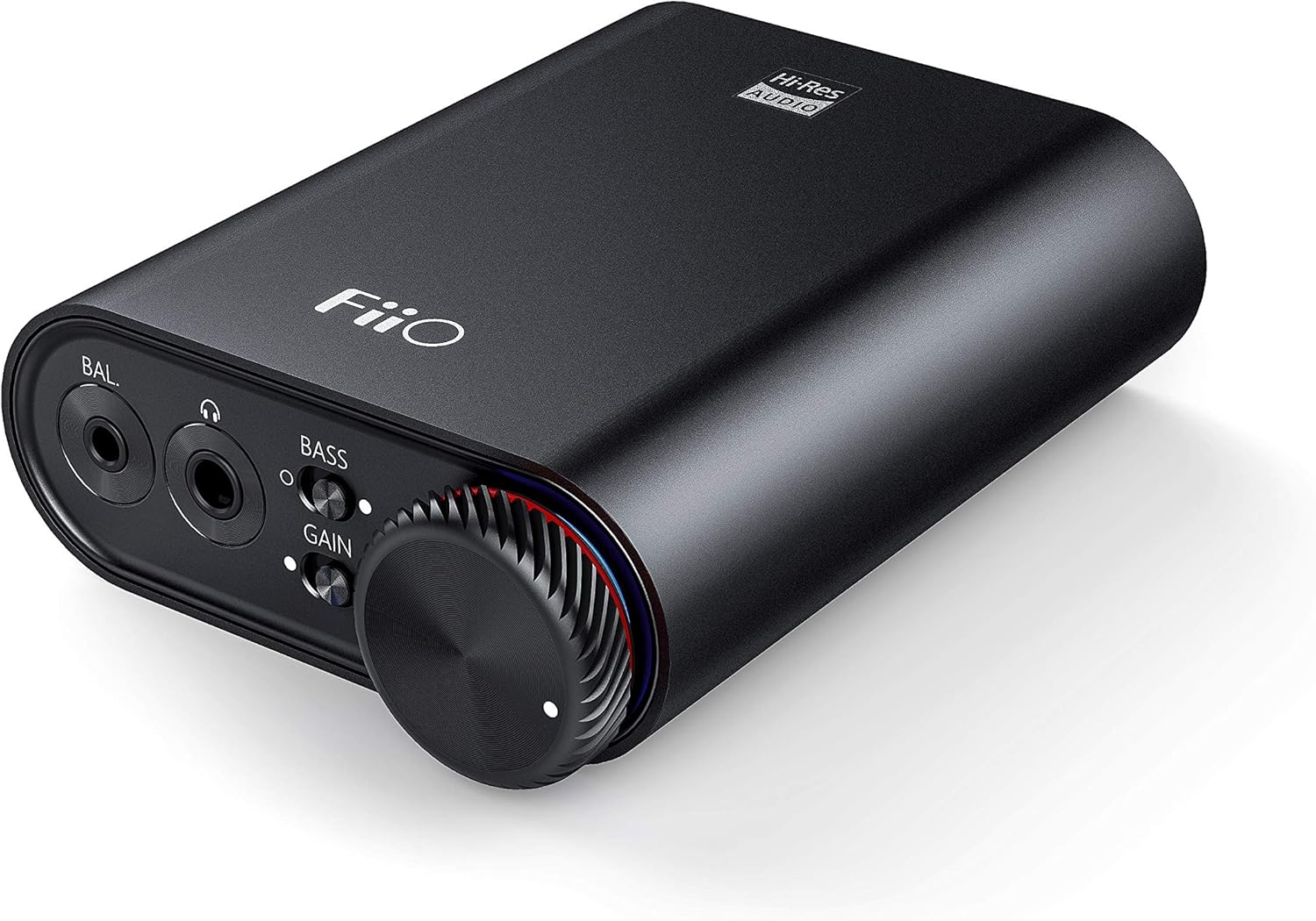
Figure 3: Front panel of FiiO K3 with headphone outputs and controls.
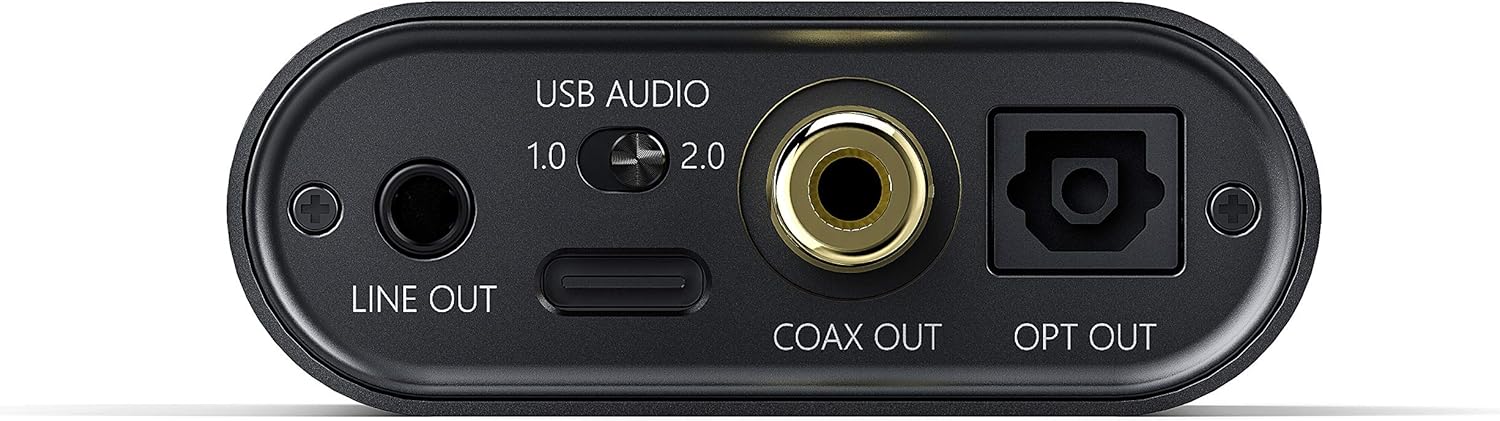
Figure 4: Rear panel of FiiO K3 with USB-C, Line Out, Coaxial Out, and Optical Out ports.
Modos de audio USB
The FiiO K3 supports two USB Audio modes, selectable via a switch on the rear panel:
- USB Audio 1.0 (Driver-Free): This mode is plug-and-play and does not require driver installation. It supports up to 96kHz/24-bit PCM audio. Compatible with Windows, macOS, and Linux.
- USB Audio 2.0 (Requires Driver): This mode offers higher performance, supporting up to 384kHz/32-bit PCM and DSD256. For Windows operating systems, a specific driver must be installed. For macOS and Linux, it is typically driver-free.
To download the Windows USB 2.0 driver, visit the official FiiO support websitio: www.fiio.com/supports.
2.3 Conectar auriculares
The FiiO K3 features two headphone output jacks on the front panel:
- Saída dun só extremo de 3.5 mm: Para auriculares estándar.
- Saída equilibrada de 2.5 mm: For headphones with a balanced connection, offering improved sound separation and power.
Plug your headphones into the appropriate jack. Ensure the connection is secure.
2.4 Connecting to External Audio Devices
The FiiO K3 provides multiple output options for connecting to external speakers, amplifiers, or other DACs:
- 3.5mm Line Out: Connects to the analog input of an amplifier or active speakers. The volume of the Line Out is controlled by the K3's volume knob.
- Coaxial Out: Provides a digital coaxial output for connecting to an external DAC or amplifier with a coaxial input.
- Saída óptica: Provides a digital optical output for connecting to an external DAC or amplifier with an optical input.
When using the Line Out, Coaxial Out, or Optical Out, ensure that the connected device is set to the correct input source.
Video 1: FiiO K3 User Guides. This video demonstrates the unboxing, connection to a computer, and various input/output options of the FiiO K3, including USB Audio modes, headphone outputs, and digital/analog line outs.
3. Instrucións de funcionamento
3.1 Acendido/apagado e control de volume
The large knob on the front panel serves as both the power switch and volume control. Rotate it clockwise to power on the device and increase the volume. Rotate counter-clockwise to decrease the volume and power off the device when turned fully to the left.
3.2 Interruptor de ganancia
The K3 features a gain switch (labeled "GAIN") on the front panel. This switch allows you to adjust the output level to match the impedance and sensitivity of your headphones:
- Baixa ganancia: Suitable for sensitive headphones or earphones.
- Ganancia alta: Provides more power for high-impedance or less sensitive headphones.
Adjust the gain setting to achieve a comfortable listening volume without distortion.
3.3 Bass Boost Switch
The bass boost switch (labeled "BASS") on the front panel allows you to enhance the low-frequency response of your audio. Toggle it on or off according to your preference.
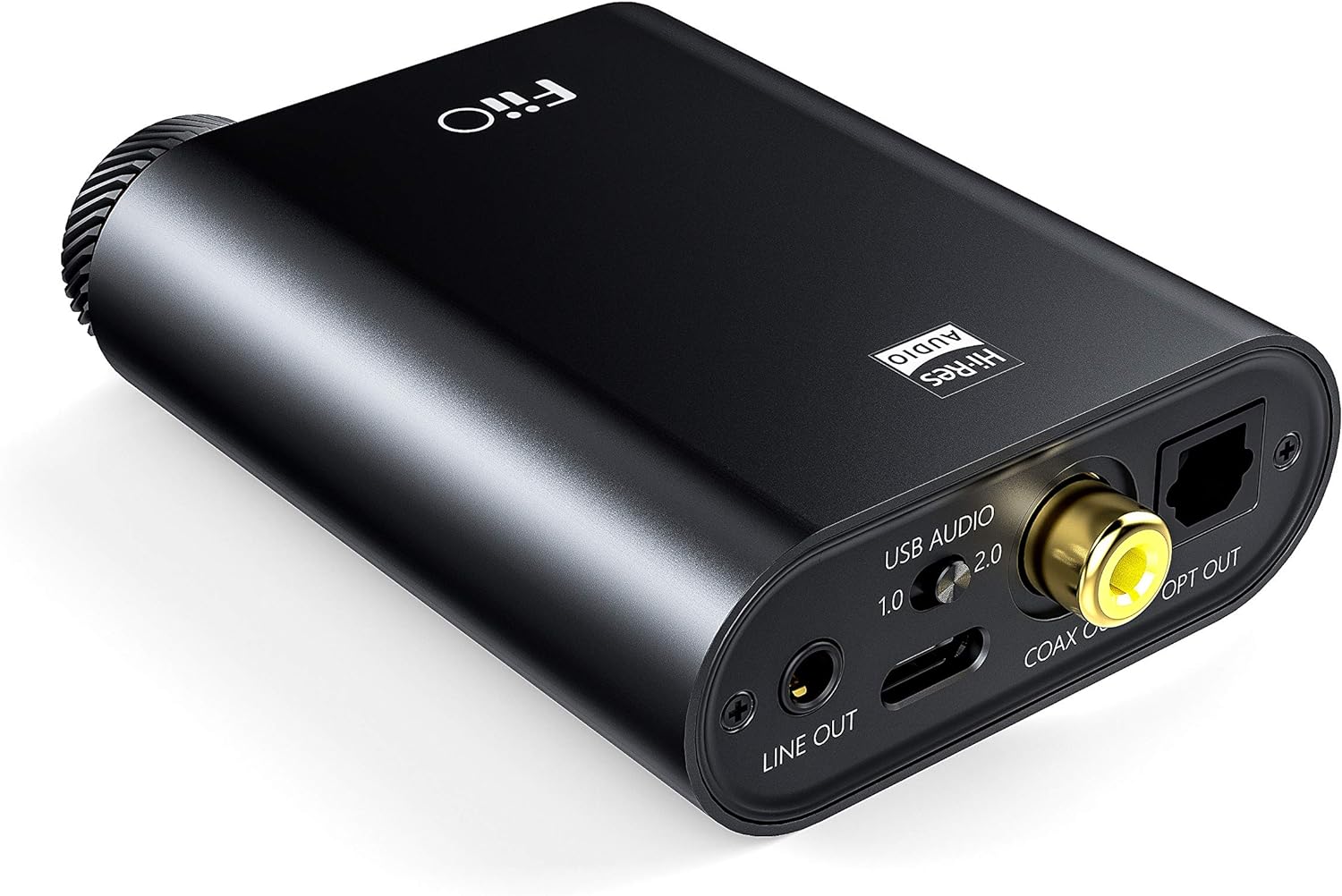
Figure 5: Close-up of the FiiO K3 front panel showing volume knob, bass switch, and gain switch.
3.4 RGB Indicator
The RGB indicator light located near the volume knob displays the current sampling rate of the audio being played:
- Azul: 44.1 kHz ou 48 kHz segundosamptaxa de ling.
- amarelo: Sampling rate greater than 48kHz.
- Verde: DSD audio.
- Vermello: Sen sinal.
4. Mantemento
Un mantemento axeitado garante a lonxevidade e o rendemento óptimo do teu FiiO K3.
- Limpeza: Usa un pano suave e seco para limpar o dispositivo. Evita o uso de produtos químicos agresivos ou materiais abrasivos.
- Manexo: Manexa o dispositivo con coidado. Evita deixalo caer ou expoñerlo a unha forza excesiva.
- Ambiente: Keep the device away from extreme temperatures, direct sunlight, moisture, and dust.
- Anti-slip Tape: Apply the provided anti-slip tape to the bottom of the unit to prevent it from sliding on surfaces.
5 Solución de problemas
Se tes problemas co teu FiiO K3, consulta os seguintes problemas e solucións comúns:
5.1 Sen saída de son
- Comproba as conexións: Ensure all cables (USB, headphones, line out) are securely connected.
- Nivel de volume: Verify that the volume knob on the K3 is turned up and not at its minimum setting. Also check the volume level on your computer or connected audio device.
- Selección de entrada/saída: Confirm that your computer's audio output is set to the FiiO K3. If using Line Out, ensure your external amplifier/speakers are set to the correct input.
- RGB Indicator: If the RGB indicator is red, there is no signal. Check your source device and connections.
5.2 Son distorsionado
- Configuración de ganancia: If the sound is distorted, try switching the GAIN to "Low" for sensitive headphones.
- Nivel de volume: Reduce the volume on both the K3 and your source device to prevent clipping.
- Calidade da fonte: Asegúrate da fonte de son file non está corrompido nin é de baixa calidade.
- Integridade do cable: Check if the cables are damaged or faulty.
5.3 USB 2.0 Driver Issues (Windows)
- Instalación de controladores: Ensure the correct FiiO USB 2.0 driver is installed from the official FiiO websitio.
- Porto USB: Proba a conectarte a un porto USB diferente do teu ordenador.
- Reiniciar: Restart your computer after driver installation.
6. Especificacións
| Característica | Valor |
|---|---|
| Marca | FiiO |
| Modelo | K3 |
| Compatibilidade con DAC USB | Up to 384kHz/32bit PCM, DSD256 |
| Fonte de alimentación | USB tipo C |
| Saídas de auriculares | 3.5 mm de extremo único, 2.5 mm equilibrado |
| Saída de liña | Saída de liña de 3.5 mm |
| Saídas dixitais | Coaxial Out, Optical Out |
| Peso do elemento | 82 gramos |
7. Garantía e soporte
The FiiO K3 comes with a standard manufacturer's warranty. Please refer to the included Warranty Card for specific terms and conditions. For technical support, driver downloads, firmware updates, and frequently asked questions, please visit the official FiiO websitio:
You may also contact FiiO customer service directly through their websitio para obter máis axuda.