
1. Introdución
Thank you for choosing the iggual QR Barcode Scanner. This device is designed for efficient and reliable scanning of both 1D and 2D barcodes, offering both manual and automatic scanning modes. It features an ergonomic design for comfortable use and broad compatibility with various operating systems. This manual provides essential information for setting up, operating, and maintaining your scanner.
Características principais:
- Ergonomic design with a comfortable trigger button.
- Detects all common 1D and 2D barcodes, including QR codes.
- Supports manual and automatic scanning modes.
- Wired USB connectivity for reliable data transmission.
- Compatible with Windows XP/7/8/10, macOS, Linux, and Android.
2. Contido do paquete
Comprobe o contido do paquete para asegurarse de que estean presentes todos os elementos:
- iggual QR Barcode Scanner (Model IGG315651)
- USB Cable (Type-A)
- Scanner Stand (Optional, depending on package)

Figura 2.1: Package contents including the scanner, stand, and USB Type-A cable.
3. Produto rematadoview
Familiarize yourself with the main components of your iggual barcode scanner:
- Xanela de dixitalización: Zona onde se len os códigos de barras.
- Botón de disparo: Activa a dixitalización en modo manual.
- Porto USB: For connecting the scanner to your computer.
- Indicador LED: Provides visual feedback on scanning status.
- Beeper: Provides audible feedback on scanning status.

Figura 3.1: The iggual barcode scanner with its optional stand, highlighting the LED indicator and beeper functionality.
4. Configuración
4.1 Conexión do escáner
- Connect the USB cable to the USB port on the scanner.
- Conecta o outro extremo do cable USB a un porto USB dispoñible no teu ordenador ou dispositivo anfitrión.
- The scanner will typically be recognized automatically by your operating system as a standard HID keyboard device. No special drivers are usually required.
4.2 Compatibilidade do sistema
The iggual QR Barcode Scanner is compatible with a wide range of operating systems:
- Windows XP/7/8/10
- macOS
- Linux
- Android

Figura 4.1: Operating system compatibility for the iggual barcode scanner.
5. Instrucións de funcionamento
5.1 Modos de dixitalización
O escáner admite dous modos de dixitalización principais:
- Modo manual: Press the trigger button to activate the scanner and read a barcode. Release the button after a successful scan.
- Modo automático: The scanner continuously emits a scanning beam, reading barcodes as they are presented within its field of view without needing to press the trigger. Refer to the full product manual (if available from iggual.com) for instructions on switching between modes, usually done by scanning specific configuration barcodes.
5.2 Tipos de código de barras compatibles
This scanner is capable of reading a wide range of 1D and 2D barcode symbologies, including:
- Códigos 2D: QR Code, Maxi Code, MicroPDF, PDF417
- Códigos 1D: Code 128, EAN-13, EAN-8, Code 39, UPC-A, UPC-E, Code 93, Interleaved 2 of 5, Codabar, MSI, RSS, etc.

Figura 5.1: Scanner capabilities including 200 scans/second, 2D scanning, and supported code types.
5.3 Scanning Procedure
- Ensure the scanner is properly connected to your host device.
- Abra unha aplicación onde desexe que aparezan os datos dixitalizados (por exemplo, un editor de texto, unha folla de cálculo ou un software de TPV).
- Point the scanning window at the barcode you wish to read.
- If in manual mode, press and hold the trigger button. If in automatic mode, simply present the barcode.
- A successful scan will be indicated by a short beep and/or a flash of the LED indicator. The scanned data will appear in your active application.
- If the barcode is not read, adjust the distance and angle of the scanner relative to the barcode.
6. Mantemento
6.1 Limpeza
- To clean the scanner's exterior, use a soft, damp pano.
- For the scanning window, use a lint-free cloth and a mild glass cleaner. Avoid abrasive materials or harsh chemicals that could scratch the surface.
- Asegúrate de que non entre líquido na carcasa do escáner.
6.2 Almacenamento
Cando non o use, garde o escáner nun lugar fresco e seco, lonxe da luz solar directa e de temperaturas extremas.
7 Solución de problemas
| Problema | Causa posible | Solución |
|---|---|---|
| Escáner non recoñecido polo ordenador. | Loose USB connection, faulty USB port, or cable issue. | Ensure USB cable is securely connected. Try a different USB port or cable. Restart the computer. |
| O escáner non le códigos de barras. | Barcode damaged, incorrect scanning angle/distance, scanner in wrong mode, or dirty scanning window. | Check barcode integrity. Adjust scanning angle and distance. Ensure scanner is in the correct mode (manual/automatic). Clean the scanning window. |
| Os datos dixitalizados aparecen incorrectamente. | Keyboard layout mismatch or corrupted data. | Ensure your computer's keyboard layout matches the scanner's default output (usually US English). If issues persist, consult the full product manual for advanced configuration. |
8. Especificacións
| Característica | Detalle |
|---|---|
| Modelo | IGG315651 |
| Dimensións (L x W x H) | 160 x 80 x 100 mm (6.3 x 3.15 x 3.94 polgadas) |
| Peso | 120 g (0.26 lb) |
| Velocidade de escaneo | 200 escaneos/segundo |
| Sensor de imaxe | 640(H) x 480(V), 256 Grayscale |
| Conectividade | Wired USB (Type-A) |
| Fonte de enerxía | Eléctrico con cable (alimentado por USB) |
| Sistemas operativos | Windows XP/7/8/10, macOS, Linux, Android |
| Códigos de barras compatibles | 1D & 2D (QR, Maxi Code, MicroPDF, Code, PDF417, RSS, etc.) |
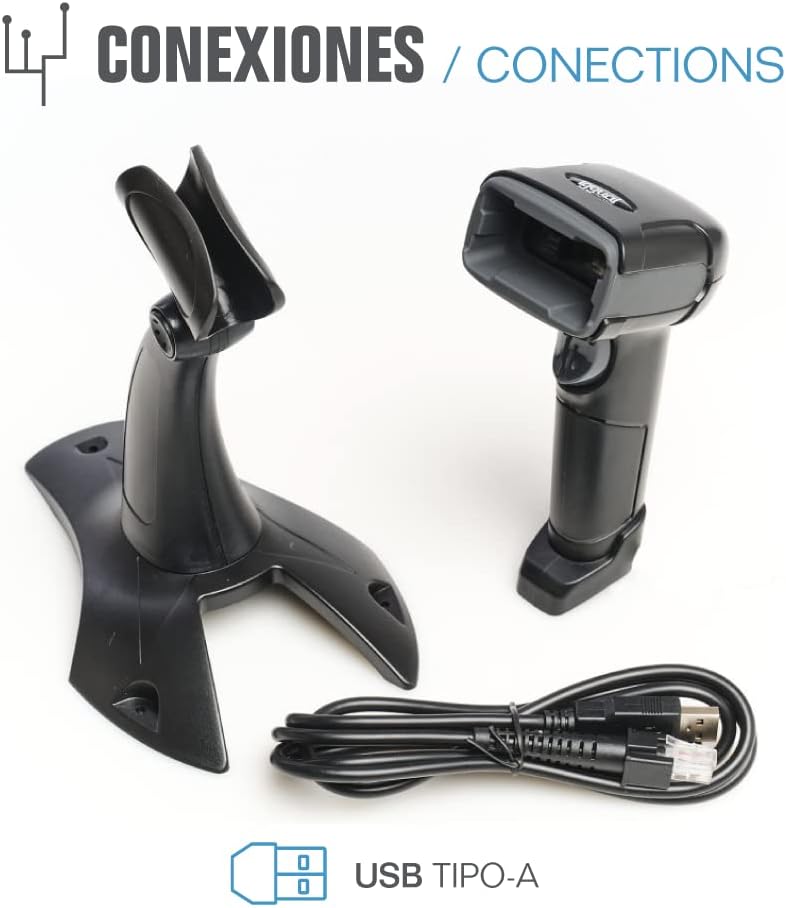
Figura 8.1: Physical dimensions of the iggual barcode scanner.
9. Garantía e soporte
For warranty information, technical support, or to download the complete product manual with advanced configuration options, please visit the official iggual websitio web ou póñase en contacto co seu distribuidor local.
Oficial Websitio: www.iggual.com