
1. Introdución
Welcome to the user manual for your RugGear RG910 Rugged 8-inch Tablet. This document provides essential information for setting up, operating, maintaining, and troubleshooting your device. The RG910 is engineered for demanding environments, offering superior durability and connectivity for outdoor work and extreme conditions.
Please read this manual carefully to ensure proper use and to maximize the lifespan of your tablet.
2. Produto rematadoview
The RugGear RG910 is a robust tablet featuring an 8-inch WUXGA touchscreen, designed to withstand harsh conditions. It incorporates advanced sealing technology for high water and dust resistance, and is built to endure drops and impacts.

Figura 2.1: Fronte view of the RugGear RG910 rugged tablet, showcasing its durable design and display.
Key features include Push-to-Talk (PTT) functionality, a long-lasting 6000 mAh battery, and an Android 8 (Oreo) operating system optimized for performance and power efficiency. The device is IP68 certified, allowing submersion in water up to 1.2 meters for 60 minutes, and is drop-resistant up to 1.5 meters.

Figure 2.2: Infographic highlighting the RG910's reliable performance, PTT capability, long battery life, Android 8 optimization, IP68 rating, and dual stereo speakers.
Connectivity options include 4G LTE, Wi-Fi 802.11b/g/n, and Bluetooth 4.0. It also features 8MP and 2MP cameras, GPS, A-GPS, GLONASS, and Beidou for navigation. The display is protected by Corning Gorilla Glass for enhanced durability and readability in sunlight.
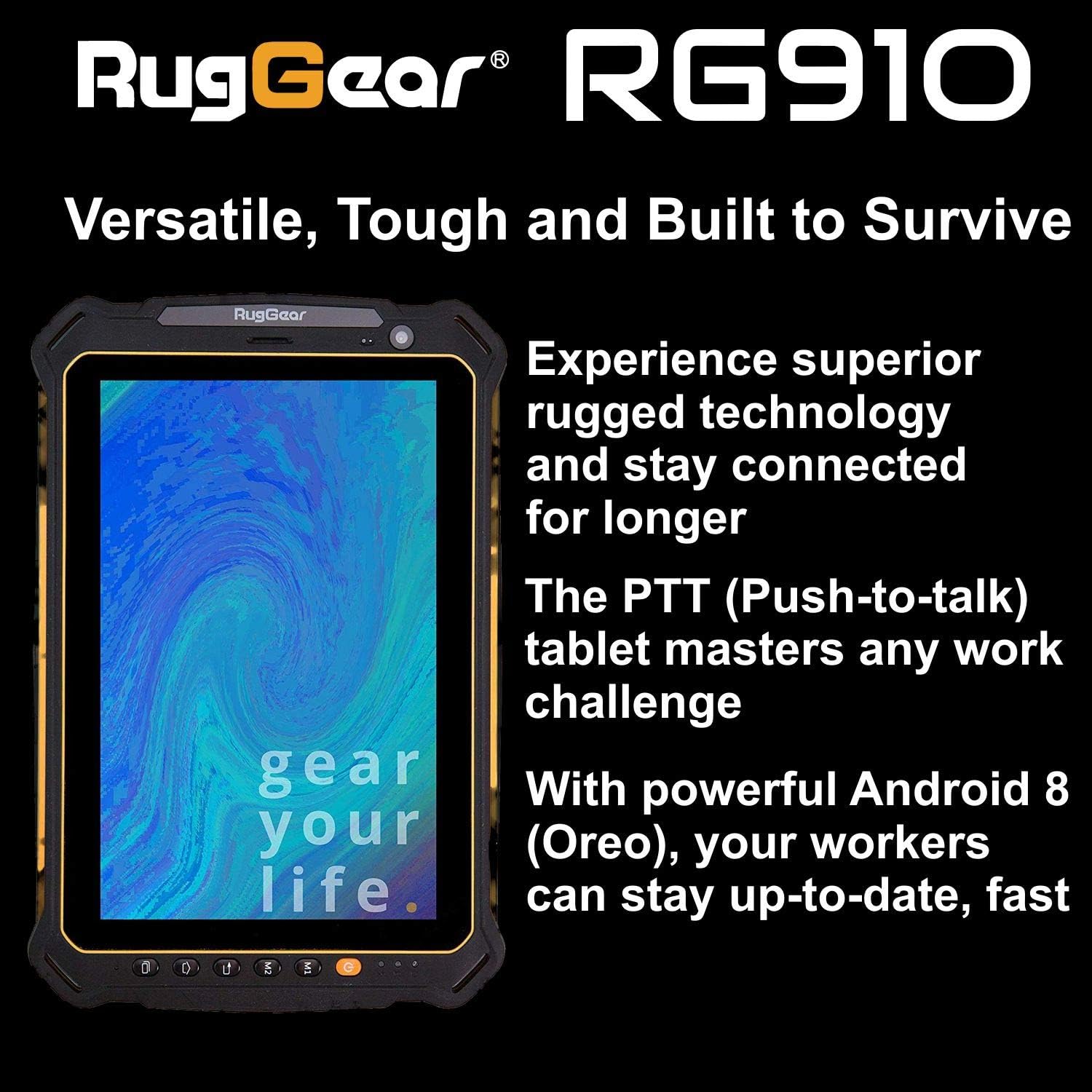
Figure 2.3: The RugGear RG910 tablet being used, illustrating its robust construction and suitability for various tasks.
3. Configuración
3.1 Carga do dispositivo
Before initial use, fully charge the tablet using the provided charger and USB cable. Connect the charger to a power outlet and the USB cable to the tablet's charging port. The charging indicator will show the charging status.
3.2 Inserción de tarxetas SIM e Micro-SD
- Locate the SIM/Micro-SD card slot cover on the side of the tablet.
- Abra a tapa con coidado.
- Insert the Nano-SIM card into the designated slot with the gold contacts facing down, ensuring it is correctly oriented.
- If using, insert a Micro-SD card (up to 64GB) into its dedicated slot.
- Close the cover securely to maintain the device's water and dust resistance.
3.3 Acendido e configuración iniciais
Press and hold the Power button until the RugGear logo appears. Follow the on-screen instructions to complete the initial setup, which includes selecting your language, connecting to a Wi-Fi network, and setting up your Google account.
4. Instrucións de funcionamento
4.1 Encendido/apagado
- Para acender: Manteña premido o botón de acendido/apagado ata que a pantalla se ilumine.
- Para apagar: Press and hold the Power button until the power options appear, then select 'Power off'.
- Para reiniciar: Mantén premido o botón de acendido/apagado ata que aparezan as opcións de acendido/apagado e, a seguir, selecciona "Reiniciar".
4.2 Navegación básica
The RG910 uses a capacitive touchscreen. Use standard Android gestures:
- Toca: Selecciona un elemento ou abre unha aplicación.
- Pasar o dedo: Desprácese polas listas ou alterne entre as pantallas de inicio.
- Beliscar: Achegar ou afastar imaxes e web páxinas.
- Prensa longa: Acceder a menús contextuais ou mover iconas.
4.3 Push-to-Talk (PTT) Functionality
The RG910 supports Push-to-Talk (PTT) communication. A dedicated PTT button may be present on the device. Consult your service provider or PTT application instructions for specific setup and usage details.
4.4 Funcionamento da cámara
To use the cameras:
- Abre a aplicación Cámara desde a pantalla de inicio ou o caixón de aplicacións.
- Toca a pantalla para enfocar.
- Toca o botón do obturador para sacar unha foto ou iniciar/deter a gravación de vídeo.
- Cambia entre as cámaras dianteira e traseira usando a icona de alternancia da cámara.
4.5 Conectividade
- Wi-Fi: Ir a Configuración > Rede e internet > Wi-Fi para conectarse ás redes dispoñibles.
- 4G LTE: Ensure your SIM card is inserted and mobile data is enabled in Configuración > Rede e Internet > Rede móbil.
- Bluetooth: Activar Bluetooth en Configuración > Dispositivos conectados > Bluetooth para emparellalo con outros dispositivos.
5. Mantemento
5.1 Limpeza do dispositivo
To clean your tablet, use a soft, damp cloth. Avoid using harsh chemicals, abrasive cleaners, or solvents, as these can damage the device's ruggedized coating and seals. Ensure all port covers are securely closed before cleaning with moisture.
5.2 Resistencia á auga e ao po (IP68)
The RG910 is IP68 certified, meaning it is protected against dust ingress and can withstand submersion in fresh water up to 1.2 meters for 60 minutes. To maintain this rating:
- Ensure all port covers (USB, SIM/Micro-SD slot) are firmly closed before exposure to water or dust.
- Do not expose the device to salt water, chlorinated water, or other liquids.
- If the device gets wet, dry it thoroughly with a clean cloth before opening any covers or charging.
5.3 Coidado coa batería
- Evita temperaturas extremas, que poden prexudicar o rendemento da batería.
- Emprega só o cargador e o cable orixinais ou compatibles certificados.
- Non fures, desmontes nin modifiques a batería.
5.4 Actualizacións de software
Comprobe e instale actualizacións de software regularmente para garantir un rendemento, unha seguridade e un acceso óptimos a novas funcións. Vaia a Configuración > Sistema > Actualización do sistema.
6 Solución de problemas
This section addresses common issues you might encounter with your RugGear RG910 tablet.
| Problema | Posible Solución |
|---|---|
| O dispositivo non se acende | Asegúrate de que a batería estea cargada. Conecta o cargador e agarda uns minutos antes de tentar acender de novo. Se non responde, realiza un reinicio forzado mantendo premido o botón de acendido durante 10-15 segundos. |
| A pantalla non responde | Restart the device. If the issue persists, ensure the screen is clean and dry. |
| Non se pode conectar a Wi-Fi/4G | Check Wi-Fi settings and ensure the network password is correct. For 4G, verify SIM card insertion, mobile data is enabled, and you have network coverage. Restart the tablet. |
| A batería esgotarase rapidamente | Reduce screen brightness, close unused applications, disable unnecessary connectivity features (Bluetooth, GPS), and check for background app activity in settings. |
| Device is slow or freezes | Close background applications. Clear cache for problematic apps. Restart the device. Consider a factory reset if the issue is persistent (back up data first). |
7. Especificacións
Detailed technical specifications for the RugGear RG910 tablet:
| Característica | Descrición |
|---|---|
| Marca | RugGear |
| Número de modelo | 98300000 |
| Sistema Operativo | Android 8 (Oreo) |
| Mostrar | 8-inch WUXGA (1920 x 1200 pixels) with Corning Gorilla Glass |
| Procesador | Qualcomm Snapdragon 625 |
| RAM | 3 GB |
| Almacenamento interno | 32 GB (expandable up to 64 GB via Micro-SD) |
| Batería | 6000 mAh de iones de litio |
| Conectividade | 4G LTE, Wi-Fi 802.11b/g/n, Bluetooth 4.0, GPRS |
| Cámaras | Traseira: 8 MP, Frontal: 2 MP |
| Navegación | GPS, A-GPS, GLONASS, Beidou |
| Durabilidade | IP68 certified (water/dust resistant), Drop-resistant up to 1.5 meters |
| Dimensións (L x W x H) | 21.3 x 14.1 x 2 cm |
| Peso | 906 gramos |
| Características especiais | Ruggedized Construction, Push-to-Talk (PTT) functionality, Adjustable back strap |
| Ano modelo | 2018 |
8. Garantía e soporte
Your RugGear RG910 tablet is covered by a manufacturer's warranty. Please refer to the warranty card included with your product packaging for specific terms and conditions, including warranty duration and coverage details. For technical support, service, or further assistance, please contact RugGear customer service or your authorized dealer.