
HP 9015
HP OfficeJet Pro 9015 All-in-One Wireless Color Printer User Manual
Modelo: 9015
Introdución
This manual provides comprehensive instructions for the HP OfficeJet Pro 9015 All-in-One Wireless Color Printer. It covers setup, operation, maintenance, and troubleshooting to ensure optimal performance and user experience. Please read this manual thoroughly before using your printer.

Imaxe: Fronte view of the HP OfficeJet Pro 9015 All-in-One Wireless Color Printer, showing its compact design and front control panel.
O que hai na caixa
Verifique que todos os compoñentes estean presentes antes de continuar coa configuración:
- Impresora todo-en-un HP OfficeJet Pro 9015
- Inkjet Cartridges (Setup cartridges)
- Cable de alimentación
- Guía de referencia
- Regulatory and Flyer and Ink Caution Flyer
- Cartel de configuración
Guía de configuración
Follow these steps to set up your HP OfficeJet Pro 9015 printer:
1. Desembalaxe e colocación
- Remove the printer from its packaging and remove all protective tapes and packing materials.
- Place the printer on a stable, flat surface with adequate space for ventilation and paper trays.
2. Conexión de alimentación
- Connect the power cord to the back of the printer and then to a grounded electrical outlet.
- Prema o botón de acendido para acender a impresora.
3. Instalación do cartucho de tinta
- Abra a porta de acceso ao cartucho de tinta.
- Insert the HP setup ink cartridges into their corresponding slots until they click into place.
- Pecha a porta de acceso ao cartucho de tinta.
4. Initial Configuration and Wireless Setup
- Follow the instructions on the printer's control panel to select your language, country/region, and date/time.
- The printer will guide you through connecting to your wireless network. Select your Wi-Fi network from the list and enter the password if prompted.
- Alternatively, for a wired connection, connect an Ethernet cable from your router to the printer's Ethernet port.

Image: The HP OfficeJet Pro 9015 printer highlighting key features such as self-healing Wi-Fi, dual-pass 2-sided copy and scan, remote print and scan with HP Smart app, 250-sheet input tray, customizable Smart Tasks, and voice-activated printing.
5. Instalación de software
- On your computer or mobile device, go to 123.hp.com to download and install the HP Smart app and printer drivers.
- Follow the on-screen instructions to complete the software installation and register your printer.
Instrucións de funcionamento
Impresión de documentos
- Load paper into the input tray. The printer supports various sizes including 3x5, 4x6, 5x7, 8x10, and up to 8.5x14 inch.
- From your computer or mobile device, open the document you wish to print.
- Select "Print" from the application menu. Choose the HP OfficeJet Pro 9015 as your printer.
- Adjust print settings such as color/monochrome, single-sided/duplex (automatic), paper type, and quality.
- Click "Print". The printer can achieve up to 22 ppm for monochrome and 18 ppm for color.
Escaneando documentos
The printer offers both flatbed and automatic document feeder (ADF) scanning.
- Usando o ADF: Place documents face up in the automatic document feeder. The ADF can handle up to 35 pages for two-sided scanning.
- Usando a plataforma plana: Lift the scanner lid and place the document face down on the glass.
- From the printer's control panel or the HP Smart app, select "Scan".
- Choose scan settings such as destination (computer, email, cloud), resolution, and file tipo.
- Iniciar a dixitalización.

Image: A user placing documents into the automatic document feeder of the HP OfficeJet Pro 9015 for two-sided copying and scanning.
Copiando documentos
- Coloque o documento orixinal no cristal do escáner ou no ADF.
- No panel de control da impresora, seleccione "Copiar".
- Adjust settings such as number of copies (up to 99), color/monochrome, and two-sided copying.
- Press "Start Copy".
Using Smart Tasks
Smart Tasks allow you to automate repetitive tasks like scanning to email or cloud services. Access and customize Smart Tasks via the HP Smart app or the printer's control panel.
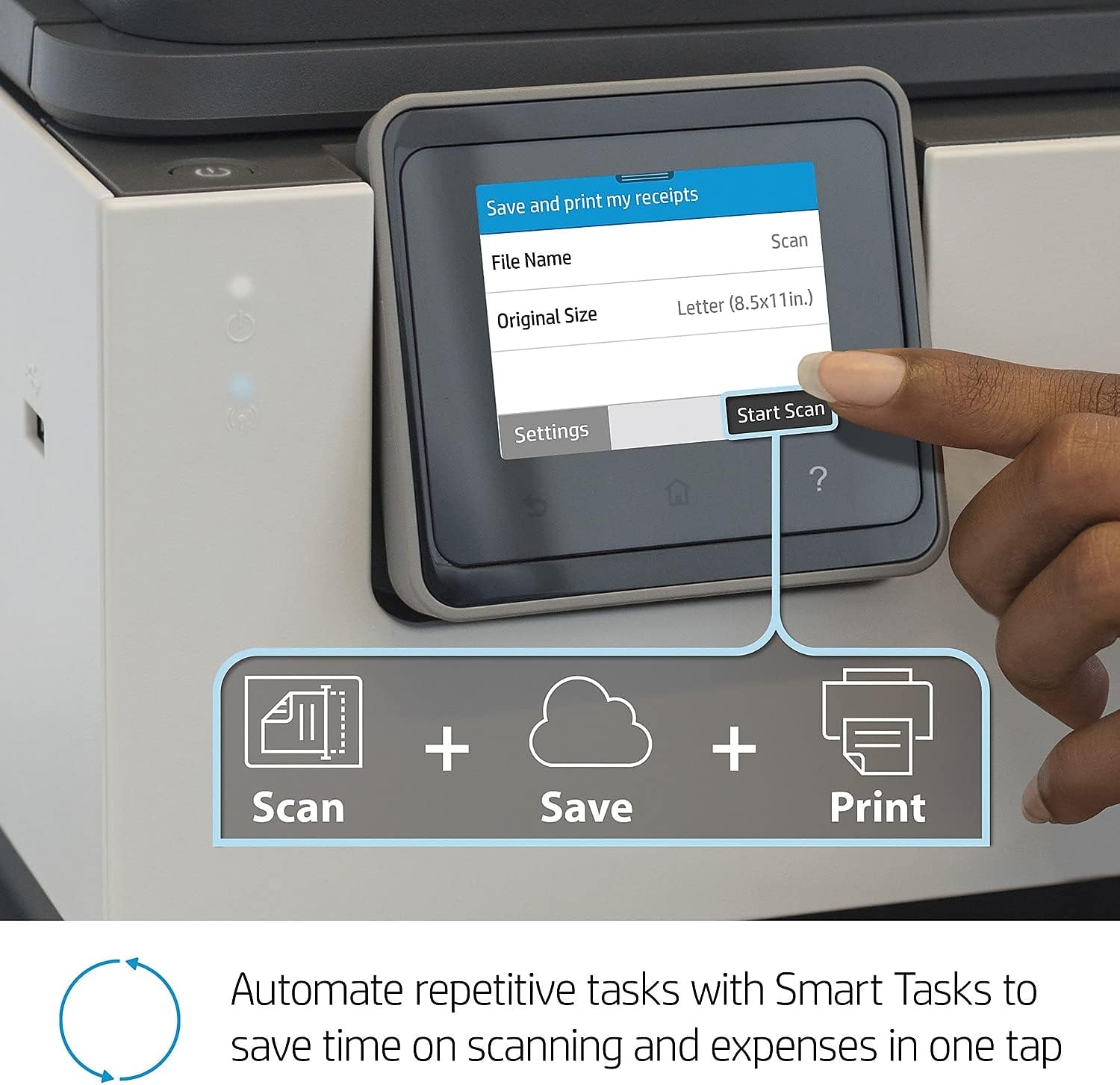
Image: A close-up of the HP OfficeJet Pro 9015's touchscreen display showing the "Smart Tasks" menu, illustrating how to automate scanning and expense tracking.
HP Smart App Features
The HP Smart app provides remote printing and scanning capabilities, monitors ink levels, and allows for easy mobile printing.

Image: A smartphone displaying the HP Smart app interface, showing options for scanning, printing photos, printing documents, and monitoring ink levels.
Voice-Activated Printing
The HP OfficeJet Pro 9015 is compatible with Amazon Alexa and Google Assistant for voice-activated printing commands. Refer to your smart assistant's documentation for specific command syntax.
Mantemento
Substitución de cartuchos de tinta
- When an ink cartridge is low or empty, a message will appear on the control panel or in the HP Smart app.
- Abra a porta de acceso ao cartucho de tinta.
- Press the tab on the old cartridge to release it and pull it out.
- Unpack the new HP original ink cartridge and insert it into the correct slot until it clicks.
- Pecha a porta de acceso ao cartucho de tinta.
Limpeza da impresora
- Regularly wipe the exterior of the printer with a soft, lint-free cloth.
- Clean the scanner glass with a soft cloth and glass cleaner (non-abrasive).
- Refer to the HP Smart app or printer settings for options to clean printheads or align cartridges if print quality issues arise.
Actualizacións de firmware
HP periodically releases firmware updates to improve printer performance and security. Ensure your printer is connected to the internet to receive automatic updates or check for them manually through the printer's control panel or HP Smart app.
Resolución de problemas
Problemas de conectividade
- A impresora non se conecta á wifi: Ensure your Wi-Fi router is on and within range. The HP OfficeJet Pro 9015 features self-healing Wi-Fi, which attempts to detect and resolve connectivity issues automatically. You can also restart your router and printer.
- Cannot print from device: Verify that your computer or mobile device is connected to the same network as the printer. Check printer status in the HP Smart app.

Image: A visual representation of the HP OfficeJet Pro 9015's self-healing Wi-Fi capability, showing it detecting and resolving connectivity problems.
Problemas de calidade de impresión
- Raias ou impresións descoloridas: Check ink levels and replace any low or empty cartridges. Run a printhead cleaning cycle from the printer's maintenance menu or HP Smart app.
- Misaligned text or images: Perform a printhead alignment from the printer's maintenance menu.
Atascos de papel
- If a paper jam occurs, the printer's control panel will display instructions.
- Carefully open access doors and remove any jammed paper, pulling gently in the direction of the paper path.
- Ensure paper is loaded correctly and not overfilled in the input tray.
Preocupacións de seguridade
The HP OfficeJet Pro 9015 includes best-in-class security features to protect against viruses and malware. Ensure your printer's firmware is up to date and use strong network passwords.

Image: A conceptual image illustrating the HP OfficeJet Pro 9015's best-in-class security features protecting the device from digital threats.
Especificacións técnicas
| Característica | Detalle |
|---|---|
| Nome do modelo | OfficeJet Pro 9015 |
| Dimensións do produto (P x A x A) | 10.94" x 17.3" x 13.48" |
| Peso do elemento | 3.1 libras |
| Tecnoloxía de conectividade | Ethernet, USB, Wi-Fi |
| Tecnoloxía de impresión | Inxección de tinta |
| Saída da impresora | Cor |
| Velocidade máxima de impresión (monocromo) | 22 ppm |
| Velocidade máxima de impresión (cor) | 18 ppm |
| Resolución máxima de impresión en branco e negro | 1200 x 1200 ppp |
| Tipo de escáner | Follado en folla |
| Capacidade máxima da folla de entrada | 250 follas |
| Impresión dúplex | Automático |
| Funcións adicionais da impresora | Copy, Fax, Scan |
| Dispositivos compatibles | Portátiles, PC, teléfonos intelixentes |
| Tipo de controlador | Amazon Alexa, Vera |
| Consumo de enerxía | 30 vatios |
Garantía e Soporte
Información da garantía
The HP OfficeJet Pro 9015 All-in-One Wireless Color Printer comes with a Limited Warranty. For specific terms and conditions, please refer to the warranty documentation included with your product or visit the official HP support websitio.
Atención ao cliente
For further assistance, technical support, or to download the latest drivers and software, please visit the official HP support website or contact HP customer service. You can find contact information and resources at support.hp.com.
Aviso legal importante
This printer uses dynamic security, which may be updated periodically by firmware updates. The printer is intended to be used solely with cartridges using an original HP chip. Cartridges using a non-HP chip may not function or may cease to function. More information is available at: www.hp.com/learn/ds
Ask a question about this manual
Ask about setup, troubleshooting, compatibility, parts, safety, or missing instructions. Manuals+ will review the question and use this page’s manual context to help answer it.