
1. Introdución
Thank you for choosing the Gembird MUS-6B-01 Optical USB Mouse. This manual provides essential information for setting up, operating, maintaining, and troubleshooting your new mouse. Please read these instructions carefully to ensure optimal performance and longevity of your device.

Image: The official Gembird brand logo, featuring the company name in a stylized font with a geometric design.
2. Produto rematadoview
The Gembird MUS-6B-01 is a reliable 6-button optical USB mouse designed for comfortable and precise navigation. Its ambidextrous design makes it suitable for both left and right-handed users.
Características principais:
- Seguimento óptico: Provides smooth and accurate cursor control.
- 6 Botóns: Includes standard left/right click, scroll wheel, DPI adjustment, and two side buttons for enhanced functionality.
- Conectividade USB: Simple plug-and-play connection to your computer.
- Deseño ambidiestro: Cómodo tanto para usuarios zurdos como destros.
Compoñentes:
- Botón de clic esquerdo
- Botón de clic dereito
- Roda de desprazamento (tamén funciona como botón central)
- Botón de axuste de DPI
- Botón Adiante (Lateral)
- Botón de retroceso (lateral)
- Optical Sensor (underside)
- USB Connector (at the end of the cable)
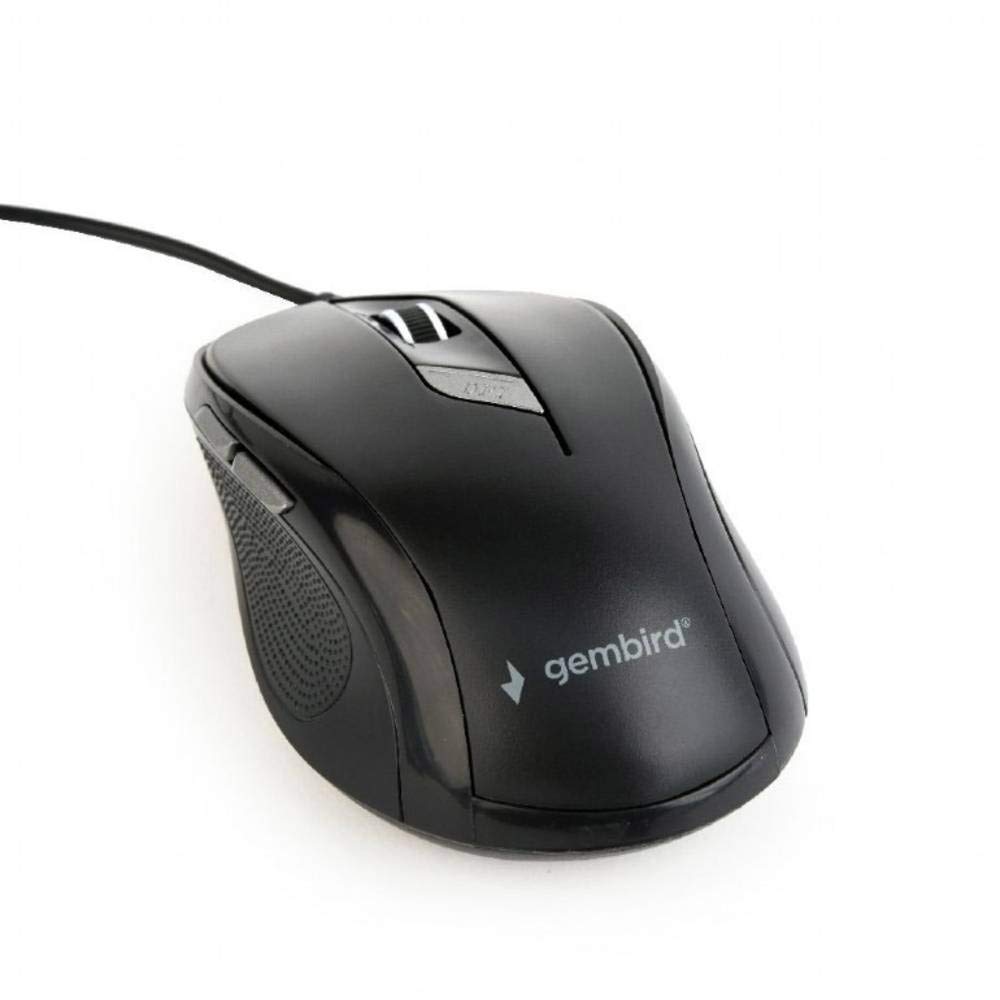
Imaxe: De arriba abaixo view of the Gembird MUS-6B-01 optical USB mouse. The mouse is black with a matte finish, featuring a scroll wheel, left and right click buttons, a DPI button, and two side buttons. A black USB cable extends from the front of the mouse.
3. Configuración
Setting up your Gembird MUS-6B-01 mouse is a simple plug-and-play process.
Pasos de instalación:
- Localiza un porto USB dispoñible no teu ordenador.
- Plug the USB connector of the Gembird MUS-6B-01 mouse firmly into the USB port.
- Your operating system (Windows, Linux) will automatically detect and install the necessary drivers. This process may take a few moments.
- Unha vez instalados os controladores, o rato estará listo para usar.
No additional software installation is typically required for basic functionality.
4. Instrucións de funcionamento
Familiarize yourself with the functions of each button on your Gembird MUS-6B-01 mouse.
Funcións básicas:
- Clic esquerdo: Primary action, selecting items, opening files.
- Clic dereito: Opens context menus, provides additional options.
- Roda de desprazamento: Desprácese cara arriba ou cara abaixo polos documentos e web páxinas.
- Clic central (premer a roda de desprazamento): Often used to open links in new tabs or for specific application functions.
Funcións avanzadas:
- Botón de axuste de DPI: Located behind the scroll wheel, this button allows you to cycle through different sensitivity (DPI) settings. Press it to change the cursor speed to suit your preference.
- Botón de avance (lateral): Typically navigates forward in web navegadores ou file exploradores.
- Botón de retroceso (lateral): Typically navigates backward in web navegadores ou file exploradores.
The functionality of the side buttons may vary depending on the application or operating system settings. Some operating systems allow customization of these buttons.
5. Mantemento
Proper care will help extend the life of your Gembird MUS-6B-01 mouse.
Limpeza:
- Desconecte o rato do ordenador antes de limpalo.
- Use un suave, lixeiramente damp, lint-free cloth to wipe the surface of the mouse.
- For stubborn dirt, a small amount of mild soap solution can be applied to the cloth (not directly to the mouse).
- Usa un hisopo de algodón ou aire comprimido para limpar arredor da roda de desprazamento e entre os botóns.
- Ensure the optical sensor on the underside is clean and free of dust or debris.
- Do not use harsh chemicals, abrasive cleaners, or immerse the mouse in water.
Almacenamento:
When not in use for extended periods, store the mouse in a clean, dry environment away from extreme temperatures and direct sunlight.
6 Solución de problemas
If you encounter issues with your Gembird MUS-6B-01 mouse, try the following troubleshooting steps:
| Problema | Posible Solución |
|---|---|
| O rato non responde |
|
| Erratic or jumpy cursor movement |
|
| Os botóns non funcionan |
|
7. Especificacións
Detailed technical specifications for the Gembird MUS-6B-01 Optical USB Mouse:
| Característica | Especificación |
|---|---|
| Marca | Gembird |
| Nome do modelo | MUS-6B-01 |
| Tecnoloxía de conectividade | Con cable (USB) |
| Tecnoloxía de detección de movemento | Óptica |
| Cantidade de botóns | 6 |
| Orientación das mans | Ambidiestro |
| Sistemas operativos compatibles | Linux, Windows 7, Windows XP (and newer versions) |
| Plataforma de hardware | Ordenador persoal |
| Lonxitude do cable | 5.0 metros |
| Peso do elemento | 74 gramos |
| Material | Plástico |
| Cor | Negro |
| Pilas necesarias | Non |
8. Información de seguridade
Observe as seguintes pautas de seguridade:
- Non expoñas o rato á auga nin a humidade excesiva.
- Evite soltar ou someter o rato a fortes impactos.
- Non intente desmontar nin reparar o rato vostede mesmo. Consulte persoal de servizo cualificado.
- Manteña o dispositivo lonxe de temperaturas extremas e da luz solar directa.
- Desfágase dos residuos electrónicos de forma responsable segundo a normativa local.
9. Garantía e soporte
Gembird products are designed for reliability and performance. For specific warranty terms and conditions, please refer to the warranty card included with your product or visit the official Gembird website. For technical support or further assistance, please contact your retailer or the Gembird customer service department.