
1. Información importante de seguridade
Please read all safety instructions carefully before using your monitor. Keep this manual for future reference.
- Non coloque o monitor nun carro, soporte, trípode, soporte ou mesa inestable.
- Asegúrate de que haxa unha ventilación axeitada arredor do monitor. Non bloquees as aberturas de ventilación.
- Empregue só o cable de alimentación e o adaptador que se inclúen co monitor.
- Avoid exposing the monitor to rain or moisture to prevent fire or electric shock.
- Non abra o monitor casing. Encomende todo o mantemento a persoal de servizo cualificado.
- Unplug the monitor from the wall outlet during lightning storms or when unused for long periods.
2. Contido do paquete
Verifica que todos os elementos estean presentes no paquete do teu produto:
- Samsung LC27F396FHNXZA 27-Inch Curved Monitor
- Base de soporte
- Pescozo de pé
- Power Adapter and Power Cable (1.5 m)
- Cable HDMI
- Guía de configuración rápida
- Tarxeta de garantía
3. Configuración
3.1 Montaxe do soporte
- Coloque con coidado o monitor boca abaixo sobre un pano suave e limpo para evitar rabuñaduras.
- Fixe o colo do soporte á parte traseira do monitor ata que encaixe no seu lugar.
- Connect the stand base to the stand neck by aligning the tabs and tightening the screw at the bottom of the base.

3.2 Cables de conexión
Ensure the monitor and your computer are powered off before connecting any cables.
- Cable de alimentación: Connect the power adapter to the monitor's power input, then plug the power cable into the adapter and a wall outlet.
- Video Cable (HDMI or VGA): Connect one end of the HDMI or VGA cable to the corresponding port on your computer's graphics card and the other end to the HDMI or VGA input on the monitor. Ensure cables are tightened securely.
- Audio Cable (Optional): If you wish to use external speakers or headphones, connect a 3.5mm audio cable from your computer's audio output to the monitor's 3.5mm audio input.
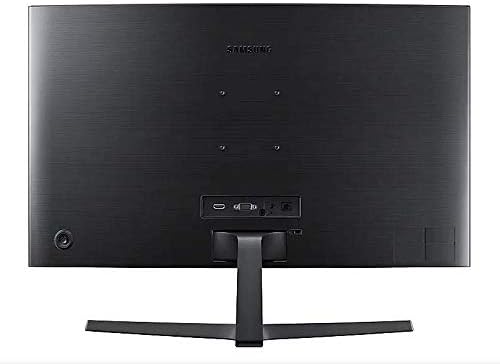
3.3 Acendido
After connecting all necessary cables, power on your computer, then press the power button on the monitor. The monitor should automatically detect the input signal.
4. Funcionamento do monitor
4.1 Basic Functions and OSD Menu
The monitor features a single joystick button located on the back for navigating the On-Screen Display (OSD) menu. Press the joystick to open the OSD menu, then move it up/down/left/right to select and adjust settings.
4.2 Configuración da imaxe
Adjust picture quality settings via the OSD menu:
- Brillo/Contraste: Adjust these to your preferred viewniveis de ing.
- Resolución: The optimal resolution for this monitor is 1920 x 1080 (FHD 1080p).
- Relación de aspecto: Set to 16:9 for widescreen content.
- MagicBright: Select from various preset modes (e.g., Standard, Cinema, Dynamic Contrast) for optimized viewing ambientes.
- Active Crystal Color: Enhances color reproduction for a more vibrant display.

4.3 AMD FreeSync and Game Mode
This monitor supports AMD FreeSync technology, which synchronizes the screen refresh rate with your graphics card's frame rate to reduce input latency and minimize image tearing and stutter during gaming. Enable FreeSync through the OSD menu for a smoother gaming experience.

4.4 Curved Display Benefits
The 1800R curvature of this monitor is designed to match the natural curve of the human eye, providing a more immersive viewing experience. This curvature helps to reduce peripheral distractions and enhances depth perception, drawing you deeper into your content.

5. Mantemento
5.1 Limpeza do monitor
- Desenchufe sempre o monitor antes de limpalo.
- Use un pano suave e sen pelusa damplavado con auga ou cun limpador de pantallas especializado.
- Non pulverices o limpador directamente sobre a pantalla.
- Evite o uso de limpadores abrasivos, ceras ou disolventes.
5.2 Almacenamento
When storing the monitor for an extended period, ensure it is kept in a cool, dry place, preferably in its original packaging to protect it from dust and physical damage.
6 Solución de problemas
Se tes problemas co monitor, consulta os seguintes pasos habituais para a resolución de problemas:
| Problema | Posible Solución |
|---|---|
| Sen Poder | Ensure the power cable is securely connected to the monitor, power adapter, and wall outlet. Check if the wall outlet is functioning. |
| Sen sinal / Pantalla en branco | Verify that the video cable (HDMI/VGA) is firmly connected to both the monitor and the computer. Try a different video input source on the monitor if available. Ensure the computer is powered on and not in sleep mode. |
| Distorted Image / Incorrect Resolution | Adjust the display resolution on your computer to 1920 x 1080. Check the video cable for damage. |
| Screen Tearing / Stuttering (during gaming) | Ensure AMD FreeSync is enabled in the monitor's OSD menu and your graphics card settings. |
| Monitor does not wake up from sleep | Try unplugging and replugging the monitor's power cable. Check your computer's power management settings. |
7. Especificacións
| Característica | Detalle |
|---|---|
| Número de modelo | LC27F396FHNXZA |
| Tamaño da pantalla | 27 polgadas |
| Resolución | 1920 x 1080 (FHD 1080p) |
| Relación de aspecto | 16:9 |
| Curvatura da pantalla | 1800R |
| Tipo de panel | VA |
| Tempo de resposta | 4 milisegundos |
| Taxa de actualización | 60 Hz |
| Conectividade | 1x HDMI, 1x VGA, 1x 3.5mm Audio Out |
| Tecnoloxía de sincronización adaptativa | AMD FreeSync |
| Consumo de enerxía | 25 Watts (Typical) |
| Dimensións (con soporte) | 62.28 x 24.26 x 46.61 cm (24.5" x 9.6" x 18.4") |
| Peso (con soporte) | 4.1 kg (9.04 libras) |
| Tipo de montaxe | Montaxe na parede |
8. Garantía e soporte
8.1 Garantía do fabricante
This Samsung monitor is covered by a 1 ano de garantía do fabricante desde a data de compra. Conserve o comprobante de compra para reclamacións de garantía. A garantía cobre defectos de materiais e fabricación en condicións de uso normal.
8.2 Atención ao cliente
For technical assistance, troubleshooting, or warranty service, please contact Samsung Customer Support. You can find contact information on the official Samsung websitio para a súa rexión.
Información de contacto do fabricante: Mississauga, ON L5M 9Z9, CA
Para máis información, visite o oficial Soporte técnico de Samsung Canadá websitio.