
Instrucións de seguridade importantes
To ensure safe operation and prolong the life of your monitor, please read and follow these instructions carefully:
- Desconecte sempre o cable de alimentación da toma de corrente antes de limpar o monitor.
- Non expoña o monitor á choiva nin á humidade para evitar descargas eléctricas.
- Ensure proper ventilation around the monitor to prevent overheating. Do not block ventilation openings.
- Empregue só o adaptador de corrente e os cables subministrados polo fabricante.
- Evite colocar obxectos pesados sobre o cable de alimentación ou o monitor.
- If the monitor is damaged or malfunctions, do not attempt to repair it yourself. Contact qualified service personnel.
Contido do paquete
Before proceeding with the setup, please check the contents of your package to ensure all items are present:
- Acer CB272U smiiprx LED Monitor
- Soporte para monitor (base e brazo)
- Cable de alimentación
- Cable HDMI
- Guía de inicio rápido / Tarxeta de garantía
Configuración
1. Montaxe do soporte do monitor
- Carefully remove the monitor from its packaging. Place the monitor face down on a soft, clean cloth or surface to prevent scratches to the screen.
- Attach the stand arm to the back of the monitor panel. Ensure it is securely fastened, typically by sliding it into place until it clicks or by tightening screws.
- Connect the stand base to the bottom of the stand arm. Secure the base by tightening the captive screw located underneath the base.

Figura 1: Traseira view of the Acer CB272U smiiprx monitor with the stand attached, illustrating the assembly points.
2. Connecting the Monitor to Your Computer
- Connect one end of the provided HDMI cable to the HDMI port on the monitor.
- Connect the other end of the HDMI cable to the HDMI output port on your computer or graphics card.
- Plug the power cord into the monitor's power input, then plug the other end into a grounded electrical outlet.

Figura 2: Parte traseira angulada view showing the input ports of the monitor, including HDMI and power connections.
Funcionamento do monitor
Acendido e apagado
Locate the power button on the monitor's bezel. Press it once to turn the monitor on. The power indicator light will illuminate. Press it again to turn the monitor off.
Adjusting Display Settings (OSD Menu)
The On-Screen Display (OSD) menu allows you to customize various monitor settings. Use the control buttons (usually located on the back or bottom right of the monitor) to navigate the OSD menu. Common adjustments include:
- Brillo/Contraste: Axusta a luminancia xeral e a diferenza entre as zonas claras e escuras.
- Configuración de cor: Modifica a temperatura da cor, a gama e os niveis RGB individuais.
- Fonte de entrada: Manually select the video input (e.g., HDMI).
- Audio: Controla o volume dos altofalantes integrados.
Axustes ergonómicos
The Acer CB272U smiiprx monitor stand offers multiple ergonomic adjustments to optimize your viewconfort:
- Axuste de altura: Subir ou baixar o monitor á altura dos ollos.
- Inclinación: Adjust the screen angle forward or backward to reduce glare.
- Xiratorio: Rotate the monitor horizontally to share your screen or adjust viewángulo de ing.
- Pivote: Rotate the screen to a portrait orientation for document viewing ou codificación.
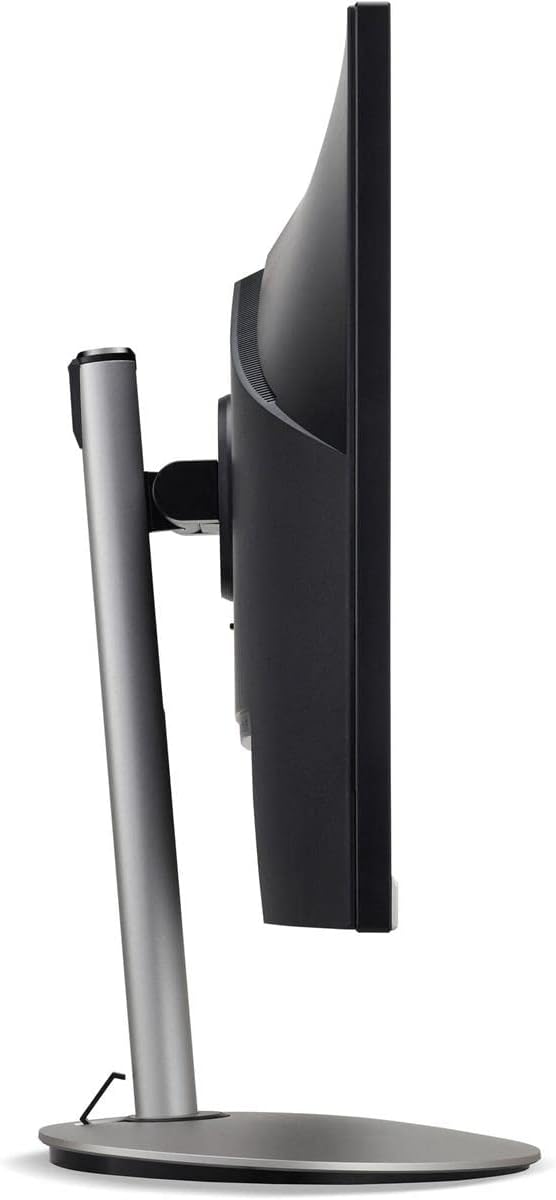
Figura 3: Pro lateralfile of the monitor, illustrating its adjustable stand for ergonomic positioning.
Mantemento
Cleaning the Monitor Screen and Casing
To clean your monitor, first ensure it is turned off and unplugged from the power outlet. Use a soft, lint-free cloth. For stubborn marks, lightly dampen the cloth with water or a specialized non-abrasive screen cleaner. Non pulverice líquido directamente sobre a pantalla ou casing. Evite o uso de produtos químicos agresivos, produtos de limpeza abrasivos ou solventes.
Directrices de almacenamento
If you need to store the monitor for an extended period, it is recommended to use its original packaging to protect it from dust, moisture, and physical damage. Store in a cool, dry environment away from direct sunlight and extreme temperatures.
Resolución de problemas
Consulta a táboa seguinte para ver os problemas comúns e as súas solucións:
| Problema | Causa posible | Solución |
|---|---|---|
| Non hai imaxe na pantalla | Cable de alimentación desconectado; cable de vídeo desconectado; fonte de entrada incorrecta seleccionada. | Comprobe as conexións dos cables de alimentación e vídeo; asegúrese de que o monitor estea acendido; seleccione a fonte de entrada correcta a través do menú OSD. |
| A imaxe está borrosa ou distorsionada | Incorrect resolution setting; Faulty video cable. | Set the display resolution to 2560 x 1440 at 75 Hz; Try a different HDMI cable. |
| Non hai son dos altofalantes | Monitor volume too low or muted; Incorrect audio output selected on computer. | Adjust monitor volume via OSD; Unmute audio; Select the monitor as the audio output device in your computer's sound settings. |
| Monitor parpadeante | Refresh rate mismatch; Interference; Faulty cable. | Ensure refresh rate is set to 75 Hz; Check for nearby electronic devices causing interference; Replace video cable. |
Especificacións
Key technical specifications for the Acer CB272U smiiprx LED Monitor:
| Característica | Detalle |
|---|---|
| Nome do modelo | CB272U smiiprx |
| Tamaño da pantalla | 24.1 polgadas |
| Resolución nativa | 2560 x 1440 (WQHD) |
| Taxa de actualización | 75 Hz |
| Tempo de resposta | 1 Millisecond (VRB) |
| Relación de aspecto | 16:9 |
| Tipo de visualización | LED-backlit LCD / TFT active matrix (IPS) |
| Brillo | 350 cd/m² |
| Relación de contraste | 1000:1 (estático) |
| Conectividade | HDMI |
| Sincronización adaptativa | FreeSync |
| Altofalantes incorporados | Si |
| Dimensions (WxDxH with stand) | 24.1 in x 9.2 in x 20.5 in |
| Peso (con soporte) | 18.1 libras |

Figure 4: Monitor dimensions with stand, indicating width, depth, and height.
Información da garantía
The Acer CB272U smiiprx LED Monitor comes with a Garantía limitada do fabricante de 3 anos. This warranty covers defects in materials and workmanship under normal use. For complete details regarding warranty coverage, limitations, and how to make a claim, please refer to the warranty documentation included with your product or visit the official Acer support websitio.
Garde o comprobante de compra (recibo ou factura) xa que será necesario para calquera servizo de garantía.
Atención ao cliente
Should you require further assistance, technical support, or wish to download the latest drivers and firmware updates for your monitor, please visit the official Acer support websitio:
You can also find contact information for Acer customer service in your region on the support websitio web para asistencia personalizada.