
1. Introdución
This manual provides detailed instructions for the setup, operation, and maintenance of your FLYDIGI Wasp 2 Elite One-Handed Mobile Gaming Controller. Designed for Android devices, this controller enhances your mobile gaming experience, particularly for First-Person Shooter (FPS) games, by offering precise control and customizable button mapping. Please read this manual thoroughly before using the product to ensure optimal performance and longevity.
2. Produto rematadoview
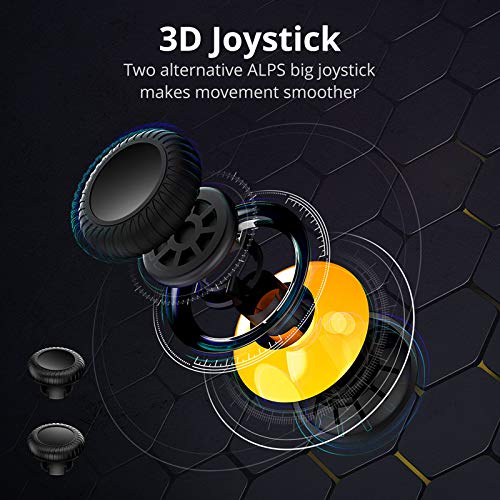
The FLYDIGI Wasp 2 Elite is a compact, ergonomic one-handed controller designed to attach to the left side of your smartphone. It features a high-precision 3D joystick, multiple action buttons, and a customizable metal back trigger for quick reactions in games.
2.1. Compoñentes clave
- Palanca de mando 3D: For precise movement control.
- Botóns de acción: Configurable buttons for in-game actions.
- Removable Metal Back Trigger (M Button): Provides an additional customizable input.
- Teléfono Clamp: Securely holds your Android smartphone.
- Porto USB-C: For charging and potential wired connections.
2.2. Imaxes do produto



3. Configuración
3.1. Carga do controlador
Before first use, fully charge the controller using the provided USB-C cable. Connect the cable to the controller's USB-C port and a compatible power source. The LED indicator will show charging status.
3.2. Installing the Flydigi Game Center App
For full functionality and customization, download the Flydigi Game Center app from the Google Play Store on your Android device. This app is essential for button mapping and firmware updates.
3.3. Bluetooth Pairing (Android)
- Asegúrate de que o Bluetooth do teu dispositivo Android estea activado.
- Power on the FLYDIGI Wasp 2 Elite controller. The LED indicator will flash, indicating it's in pairing mode.
- No teu dispositivo Android, vai á configuración de Bluetooth e busca os dispositivos dispoñibles.
- Select "Flydigi Wasp 2 Elite" (or similar name) from the list to pair. The LED will become solid once connected.
3.4. Conexión do teléfono intelixente
Estenda suavemente o cepillo do teléfonoamp on the controller and insert your Android smartphone. The controller supports devices with a width of up to 86mm. Ensure the phone is securely seated without obstructing the screen or buttons.
4. Instrucións de funcionamento
4.1. Controis básicos
- Palanca de mando 3D: Use for character movement or camera control, depending on game configuration.
- Botóns de acción: Perform in-game actions such as shooting, jumping, or interacting.
- M Button (Back Trigger): This removable metal button can be assigned to critical actions for quick access.
4.2. Custom Button Mapping with Flydigi Game Center App
The Flydigi Game Center app allows you to customize button functions for various games. This feature is crucial for optimizing your gameplay, especially in FPS titles.
- Open the Flydigi Game Center app on your paired Android device.
- Select the game you wish to configure.
- Use the app's interface to drag and drop virtual buttons onto the screen and assign them to physical buttons on your Wasp 2 Elite controller.
- Save your custom profile for the game. You can create multiple profiles for different games or play styles.
Refer to the in-app tutorials for detailed guidance on advanced mapping features, including macro creation and sensitivity adjustments.
5. Mantemento
5.1. Limpeza
Wipe the controller with a soft, dry cloth. Avoid using harsh chemicals or abrasive materials, as these can damage the surface. For stubborn dirt, a slightly damp pódese usar un pano, seguido dun secado inmediato.
5.2. Coidado da batería
- Evite descargar completamente a batería con frecuencia.
- Garde o controlador nun lugar fresco e seco cando non o use durante períodos prolongados.
- Charge the controller periodically if stored for a long time to maintain battery health.
5.3. Almacenamento
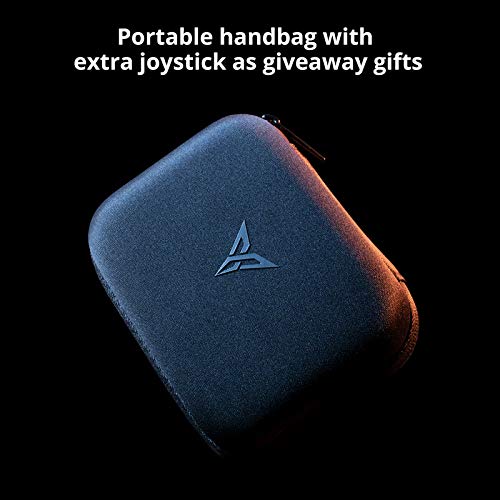
When not in use, store the controller in its portable carrying case to protect it from dust, scratches, and accidental damage.
6 Solución de problemas
6.1. Controller Not Connecting/Pairing
- Ensure the controller is charged and powered on.
- Verifica que o Bluetooth estea activado no teu dispositivo Android.
- Tenta desvincular e volver vincular o controlador desde a configuración de Bluetooth do teu dispositivo.
- Restart both your smartphone and the controller.
6.2. Buttons/Joystick Unresponsive
- Check your custom button mapping in the Flydigi Game Center app. Ensure the profile for the current game is active and correctly configured.
- Ensure the controller's firmware is up to date via the Flydigi Game Center app.
- Proba o controlador con outro xogo ou dispositivo para illar o problema.
6.3. Problemas relacionados coa aplicación
- Ensure the Flydigi Game Center app is updated to the latest version.
- Clear the app's cache or reinstall it if persistent issues occur.
7. Especificacións
| Característica | Detalle |
|---|---|
| Modelo | Wasp 2 Elite |
| ASIN | B07TGTHTHH |
| Compatibilidade | Android devices (up to 86mm width) |
| Conectividade | Bluetooth |
| Batería | 1 batería de polímero de litio (incluída) |
| Peso do elemento | 6.7 onzas |
| Dimensións do paquete | 7.3 x 5.3 x 3.7 polgadas |
| Data de primeira dispoñibilidade | 21 de xuño de 2019 |
8. Garantía e soporte
The FLYDIGI Wasp 2 Elite controller comes with a manufacturer's warranty. Please refer to the warranty card included with your product or visit the official FLYDIGI websitio web para obter información detallada sobre os termos e condicións da garantía.
For technical support, troubleshooting assistance, or inquiries regarding your product, please contact FLYDIGI customer service through their official website or the contact information provided in the product packaging. Ensure you have your product model and purchase details ready when seeking support.