
1. Introdución
This manual provides detailed instructions for setting up and operating your FLYDIGI Wasp Series Mobile Game Controller. Designed for iPad, Android tablets, and other compatible mobile devices, this controller enhances your mobile gaming experience. Please read this manual thoroughly before use to ensure optimal performance and device longevity.
2. Produto rematadoview
The FLYDIGI Wasp Series Mobile Game Controller is a one-handed gamepad featuring an ergonomic design and a 3D joystick for smooth movement. It includes interchangeable cradles to accommodate various tablet sizes.
2.1 Compoñentes
- FLYDIGI Wasp Series Mobile Game Controller
- Small Cradle for iPad/Tablet (117-138mm width)
- Large Cradle for iPad/Tablet (162-183mm width)
- Cable de carga (USB-C)
2.2 Características principais
- Ampla compatibilidade: Supports Android and iOS devices, including mobile phones and tablets/iPads (excluding 12.9-inch iPad Pro).
- Deseño ergonómico: Buttons and joysticks are positioned for comfortable and improved game operation. The back of the handle is covered with skin-friendly soft silicone, conforming to the hand's curvature.
- Palanca de mando 3D: Features alternative ALPS joysticks for smoother movement and precise control.
- Multifuncionalidade: Offers stable shooting and one-key operation for complex actions.
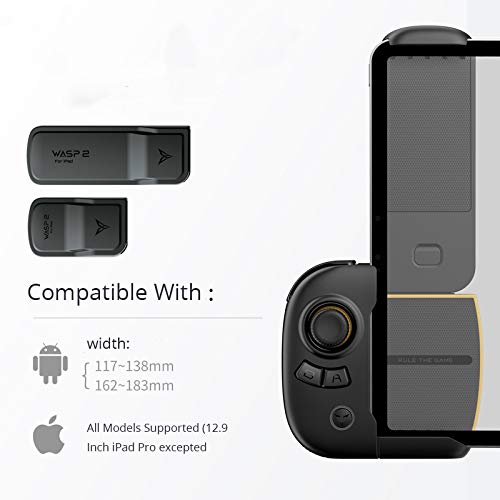
Image: FLYDIGI Wasp 2 controller with two different sized cradles, illustrating compatibility with various Android and iOS device widths.

Image: A visual representation of the controller's wide compatibility across different mobile phones and tablets.
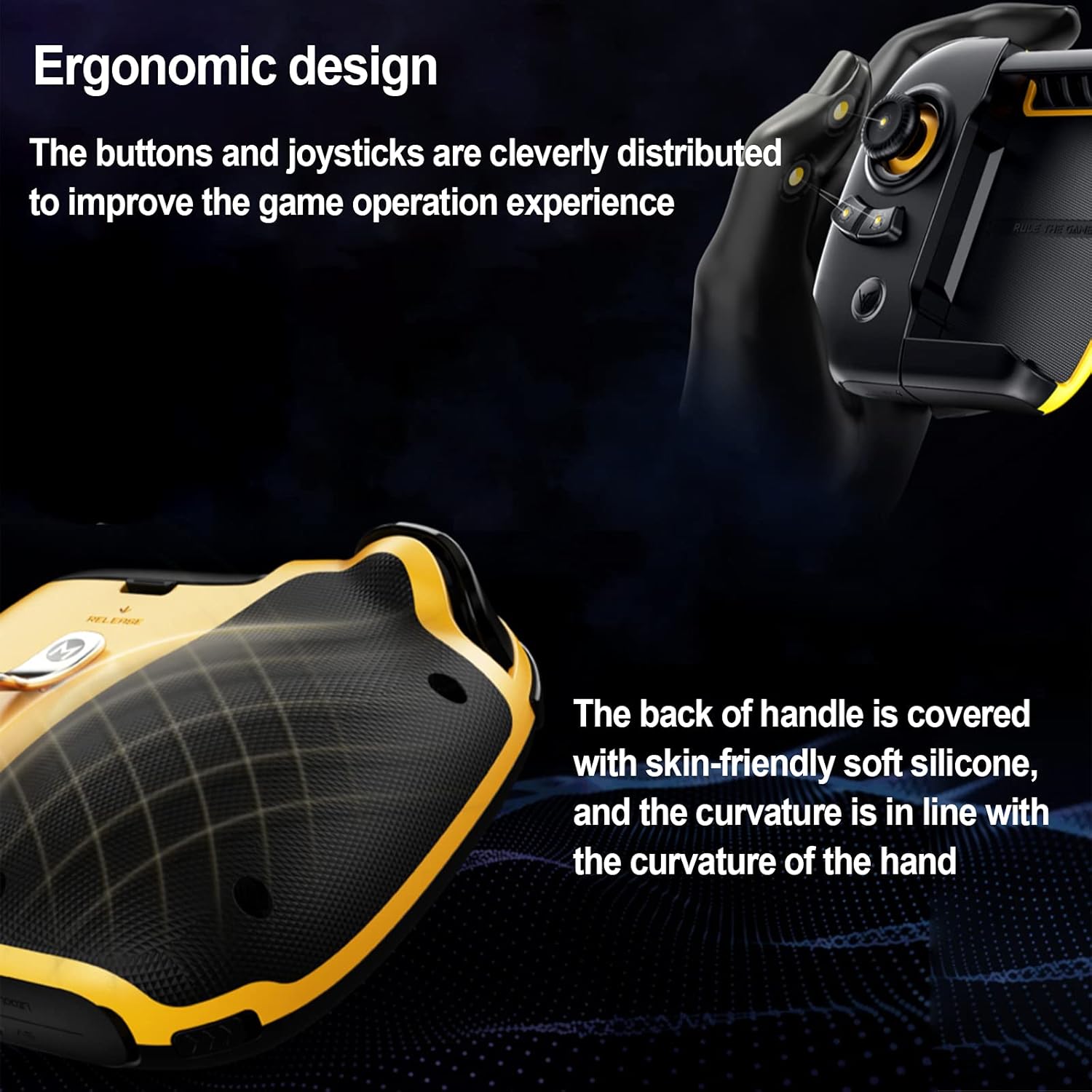
Image: The ergonomic design of the controller, showing the comfortable grip and button placement.
3. Guía de configuración
3.1 Descarga da aplicación e actualización do firmware
- Download the official Flydigi Game Center app from the App Store (for iOS) or Google Play Store (for Android). You can scan the QR codes provided on the product packaging.
- Update the Flydigi Game Center app to version 4.6.0 or above.
- Upgrade the controller's firmware to V5.9.0.0 or above. Select the Flashplay mode during the upgrade process.
3.2 iOS Device Settings (for iOS 13.4 and above)
- Vaia ao seu dispositivo System Settings > Accessibility > Touch > Assistive Touch e habilitálo.
- Turn on the screen lock function from your device's control center.
3.3 Emparejamento Bluetooth
- Turn on the controller by pressing the power button located at the bottom. The blue indicator light will illuminate.
- Open the Flydigi Game Center app. The app will detect the controller and prompt for Bluetooth pairing. Confirm the pairing request.
- If a firmware upgrade is available, follow the on-screen instructions to upgrade.
Video: Tutorial for setting up the Flydigi Wasp 2 One-handed Gamepad with iOS 13.4 and above, covering app updates, firmware upgrades, and device settings.
4. Instrucións de funcionamento
4.1 Conexión do dispositivo
Select the appropriate cradle for your iPad or tablet size. Slide the cradle onto the controller. The controller is designed to securely hold your device, allowing for one-handed operation.
4.2 Key Mapping and Customization
The Flydigi Game Center app allows you to customize button mappings for any game. After launching a game through the app:
- Take a screenshot of your game's HUD (Heads-Up Display) layout.
- In the Flydigi Game Center app, enter the key mapping interface.
- Drag and drop the virtual buttons from the controller onto the corresponding touch controls on your game's HUD screenshot.
- Importante: For games like PUBG Mobile, the firing button must be positioned at the upper left of the screen, and its scale adjusted to 150% or larger for optimal functionality.
- You can test the mapping by pressing the physical buttons on the controller and observing the corresponding virtual button presses on the screen.
- Save your custom configuration.
4.3 Advanced Settings (Macros)
The app also supports macro programming. This feature allows you to assign a sequence of multiple key presses to a single button on the controller. To set up a macro:
- In the key mapping interface, select the button you wish to assign a macro to.
- Choose the 'Macro' option from the settings.
- Edit the macro to define the sequence and timing of virtual button presses.

Image: Illustrates the controller's multifunctionality, including stable shooting and one-key operation for complex in-game actions.

Imaxe: Unha detallada view of the 3D joystick, highlighting its internal components for smooth and precise control.
5 Solución de problemas
- O controlador non se conecta: Ensure Bluetooth is enabled on your device and the controller is powered on. Try restarting both the controller and your device. Re-pair the controller via the Flydigi Game Center app.
- Botóns que non responden: Verify that the key mappings in the Flydigi Game Center app are correctly aligned with your game's HUD. Ensure the app and controller firmware are up to date.
- Retardo ou atraso de entrada: Check for any background apps consuming resources on your device. Ensure your device meets the minimum system requirements for the game and controller.
- Incompatible with iOS 13.4+: Ensure you have followed all steps in Section 3.2 regarding Assistive Touch and screen lock.
6. Especificacións
| Característica | Detalle |
|---|---|
| Número de modelo | Flydigi Wasp iPad/Tablet Version |
| Dimensións do produto | 6.69 x 4.84 x 3.35 polgadas |
| Peso do elemento | 12 onzas |
| Conectividade | Bluetooth |
| Compatibilidade | iPad, Android Tablets, Mobile Phones (Supports iOS 13.4 and above) |
7. Garantía e soporte
For warranty information and technical support, please refer to the official FLYDIGI websitio web ou póñase en contacto directamente co servizo de atención ao cliente. Garde o recibo de compra para reclamacións de garantía.