
1. Introdución
Thank you for choosing the iClever BK10 Bluetooth Keyboard. This manual provides essential information for setting up, operating, maintaining, and troubleshooting your new wireless keyboard. Please read it carefully to ensure optimal performance and longevity of your device.
O que hai na caixa
- Teclado Bluetooth iClever BK10
- Cable de carga USB-C
- Manual de usuario
- Protective Silicone Cover (for key protection)

Figure 1: Included items with the iClever BK10 Bluetooth Keyboard.
2. Características clave
- Sleek & Wireless Design: Constructed with stainless steel and ABS, featuring a 10-degree tilt for comfortable desktop use.
- Multi-Device & Multi-OS Compatibility: Seamlessly switch between up to 3 devices using Bluetooth 5.1 technology. Automatically recognizes and adapts to Windows, macOS, iPadOS, Android, iPhone, and Chromebooks.
- Responsive & Low-Profile Teclas: Scissor-key mechanism provides enhanced feedback, stability, and quiet typing (below 50 dB). Optimized key-travel and anti-slip tapes ensure comfort and precision.
- Compact & Efficient: Full-size layout with a standard numeric keypad. Includes hotkeys for Calculator, Fn lock, Mute, Volume up/down, and more to boost productivity.
- USB-C Rechargeable & Energy Saving: Built-in rechargeable battery offers up to 45 days of use after a 2-hour charge. Features an automatic power-saving sleep mode after 30 minutes of inactivity.
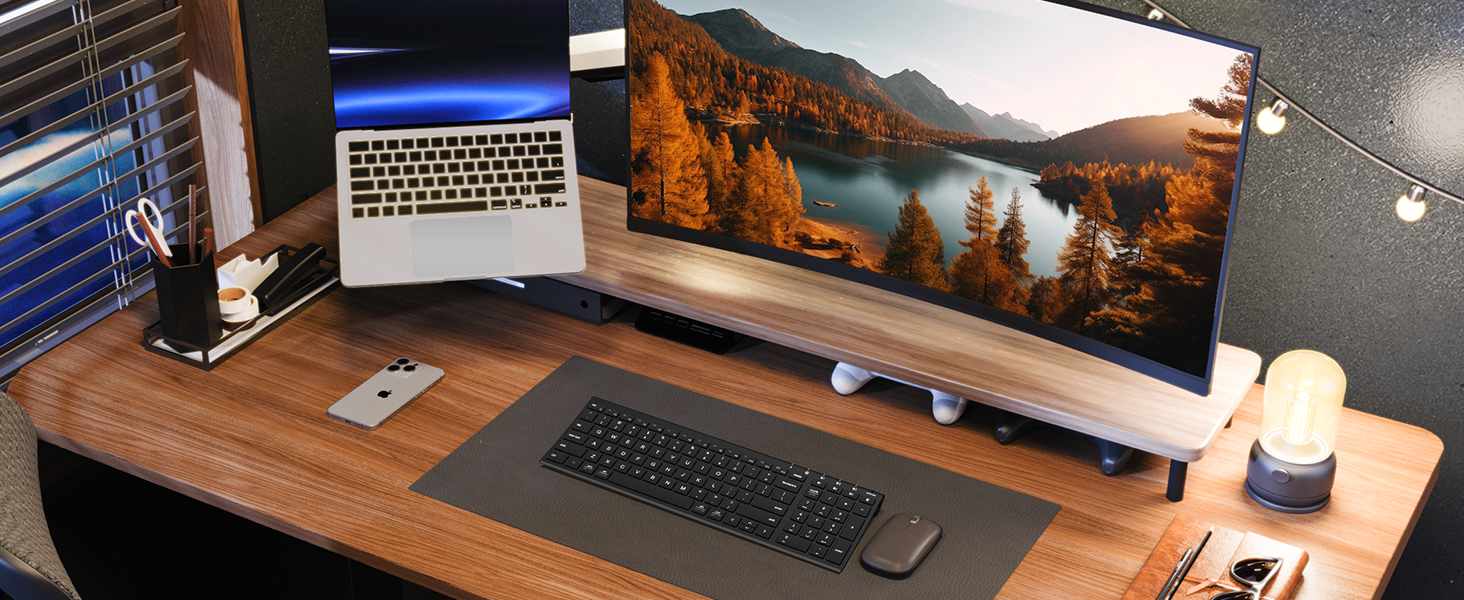
Figure 2: The sleek and wireless design of the iClever BK10 keyboard.
3. Configuración
3.1 Carga do teclado
Before initial use, fully charge the keyboard using the provided USB-C cable. Connect the USB-C end to the keyboard's charging port (located on the right side) and the USB-A end to a power source (e.g., computer USB port, USB wall adapter). The charging indicator light will illuminate during charging and turn off when fully charged.

Figure 3: USB-C charging port on the iClever BK10 keyboard.
3.2 Acendido/Apagado
Locate the ON/OFF switch on the top right side of the keyboard. Slide the switch to the 'ON' position to power on the keyboard. Slide it to 'OFF' when not in use to conserve battery life.
3.3 Emparejamento Bluetooth
The iClever BK10 keyboard supports pairing with up to three devices simultaneously. Follow these steps to pair your devices:
- Acende o teclado usando o interruptor ON/OFF.
- Press and hold one of the Bluetooth channel keys (B1, B2, or B3) for 3-5 seconds until its indicator light starts flashing rapidly. This indicates the keyboard is in pairing mode.
- On your device (computer, tablet, smartphone), go to Bluetooth settings and search for available devices.
- Select "iClever BK10" from the list of found devices.
- Siga as instrucións que aparecen na pantalla para completar o proceso de emparellamento. A luz indicadora do teclado deixará de parpadear e permanecerá fixa durante uns segundos e logo apagarase, o que indica que o emparellamento se realizou correctamente.
- Repeat these steps for up to two additional devices using the other Bluetooth channel keys (B2 and B3).

Figure 4: Multi-device connectivity of the iClever BK10 keyboard.
4. Instrucións de funcionamento
4.1 Cambio entre dispositivos
To switch between paired devices, simply press the corresponding Bluetooth channel key (B1, B2, or B3) once. The keyboard will connect to the selected device automatically.
4.2 Teclas de función e teclas de atallo
The iClever BK10 keyboard features a row of function keys (F1-F12) that also serve as hotkeys for various media and system controls. To use the hotkey functions, press the 'Fn' key simultaneously with the desired function key. Some common hotkeys include:
- Fn+F1: Casa
- Fn+F2: busca
- Fn+F3: Seleccione Todo
- Fn+F4: Copiar
- Fn+F5: Pegar
- Fn+F6: Corte
- Fn+F7: Pista anterior
- Fn+F8: Reproducir/Pausa
- Fn+F9: Próxima pista
- Fn+F10: Silenciar
- Fn+F11: Baixar o volume
- Fn+F12: Subir volume
The keyboard also includes dedicated keys for Calculator, Fn lock, and a standard numeric keypad for efficient data entry.

Figura 5: Máisview of keyboard layout and multi-OS features.
4.3 Operating System Layout Recognition
The keyboard automatically recognizes different operating systems (Windows, macOS, iPadOS, Android) and adjusts its key layout accordingly. For example, the 'Win' key functions as 'Alt' on Mac, and 'Alt' functions as 'Cmd'.
5. Mantemento
5.1 Limpeza
To clean your keyboard, power it off and disconnect any cables. Use a soft, lint-free cloth slightly dampened with water or a mild cleaning solution. Avoid excessive moisture and harsh chemicals. The included silicone cover can be removed and washed with mild soap and water.
5.2 Coidado coa batería
Para maximizar a duración da batería:
- Evite descargar completamente a batería con frecuencia.
- Cargue o teclado cando o indicador de batería estea baixo.
- Garde o teclado nun lugar fresco e seco se non o vai usar durante períodos prolongados.
- The keyboard enters a power-saving sleep mode after 30 minutes of inactivity. Press any key to wake it up.
6 Solución de problemas
6.1 O teclado non se conecta/emparella
- Asegúrate de que o teclado estea acendido e completamente cargado.
- Asegúrate de que o Bluetooth estea activado no teu dispositivo.
- Place the keyboard within the effective range (typically 10 meters) of your device.
- If already paired, try unpairing the keyboard from your device's Bluetooth settings and then re-pairing it.
- Tenta reiniciar tanto o teclado como o dispositivo.
6.2 As teclas non responden
- Check if the keyboard is connected to the correct device (verify the active Bluetooth channel).
- Asegúrate de que a batería non estea criticamente baixa.
- Clean any debris from around the affected keys.
6.3 Connectivity Issues/Lag
- Reduce interference by moving away from other wireless devices (e.g., Wi-Fi routers, cordless phones).
- Asegúrate de que os controladores Bluetooth do teu dispositivo estean actualizados.
- Try connecting to a different Bluetooth channel on the keyboard.
7. Especificacións
| Característica | Detalle |
|---|---|
| Número de modelo | BK10 |
| Tecnoloxía de conectividade | Bluetooth 5.1 |
| Dispositivos compatibles | Windows laptops/desktops, MacBook/iMac, iPad/iPhone, Android tablets/phones, Chromebooks |
| Número de chaves | 104 |
| Tipo de interruptor de chave | Interruptor de tesoira |
| Nivel de ruído | <50 dB |
| Fonte de enerxía | Batería recargable (USB-C) |
| Duración da batería | Up to 45 days (after 2 hours charging) |
| Dimensións do produto (L x W x H) | 14.41" x 4.92" x 0.63" |
| Material | Acrilonitrilo butadieno estireno, aluminio |
8. Garantía e soporte
8.1 Información da garantía
The iClever BK10 Bluetooth Keyboard comes with a 12 meses de garantía desde a data de compra. Esta garantía cobre os defectos de fabricación e garante que o seu produto estea libre de defectos de materiais e de fabricación en condicións de uso normal.
8.2 Atención ao cliente
If you encounter any issues or have questions regarding your iClever BK10 Bluetooth Keyboard, please refer to the contact information provided in your product packaging or visit the official iClever support websitio de asistencia.