
Apple AirPods Pro
Apple AirPods Pro Wireless Earbuds User Manual
Introdución
Welcome to your Apple AirPods Pro. These advanced wireless earbuds offer Active Noise Cancellation, Transparency Mode, and adaptive equalization for an immersive audio experience. This manual provides essential information for setting up, operating, maintaining, and troubleshooting your device.
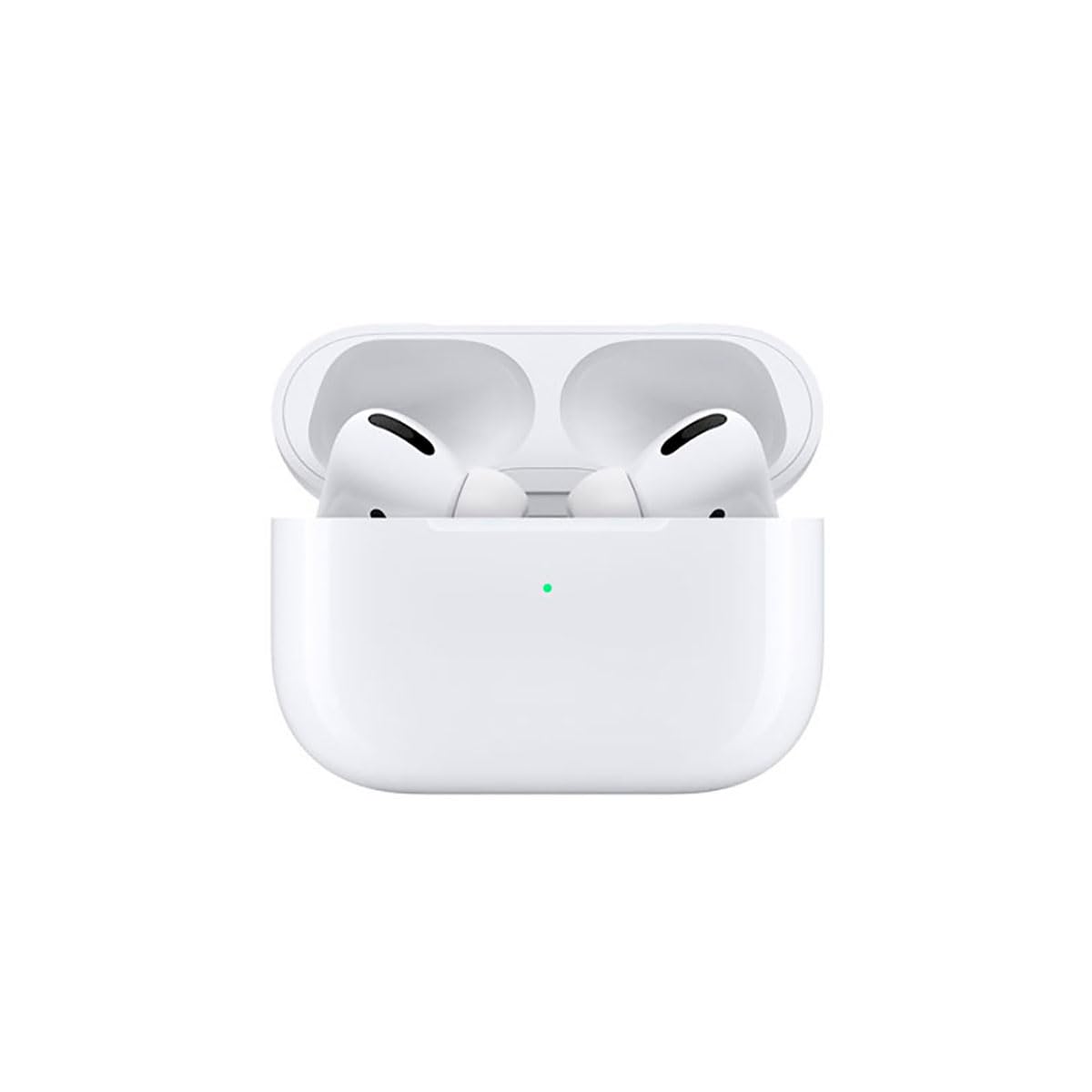
Image: A person wearing Apple AirPods Pro earbuds, demonstrating their use in a daily setting.
1. Iniciación
1.1 Desembalaxe e carga
Your AirPods Pro come with a Wireless Charging Case, silicone ear tips in three sizes, and a Lightning to USB-C cable.
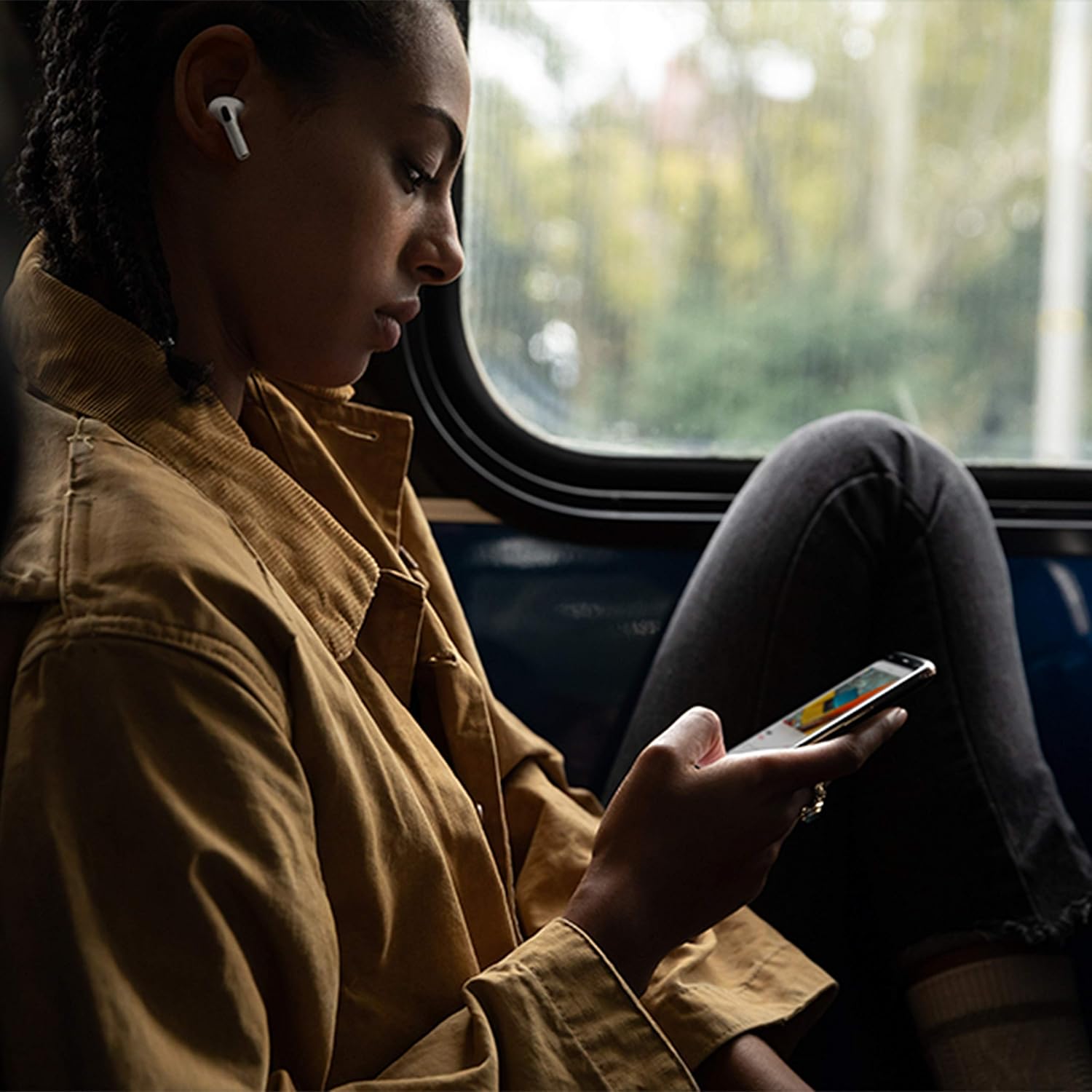
Image: Apple AirPods Pro earbuds inside their wireless charging case, with the status indicator light visible.
Before first use, ensure your AirPods Pro and their charging case are fully charged. Connect the Lightning to USB-C cable to the charging case and a power adapter, or place the case on a Qi-certified wireless charging mat.
1.2 Emparellamento co teu dispositivo
To pair your AirPods Pro with an Apple device:
- Ensure your Apple device (iPhone, iPad, or iPod touch) is running the latest iOS version.
- Unlock your device and go to the Home screen.
- Open the charging case lid with your AirPods Pro inside, and hold it near your device.
- Aparecerá unha animación de configuración na pantalla do teu dispositivo. Segue as instrucións que aparecen na pantalla.
- Once connected, your AirPods Pro will automatically pair with all supported devices signed in to your iCloud account.
To pair with a non-Apple device (e.g., Android phone):
- Cos AirPods Pro na caixa de carga, abre a tapa.
- Manteña premido o botón de configuración da parte traseira da funda ata que a luz de estado brille branca.
- On your device, go to Bluetooth settings and select "AirPods Pro" from the list of available devices.
1.3 Finding Your Best Fit
Achieving the right fit is crucial for optimal sound quality and Active Noise Cancellation. Your AirPods Pro come with small, medium, and large silicone ear tips.

Imaxe: Primeiro plano view of two individual Apple AirPods Pro earbuds, highlighting the silicone ear tips.
- Try each size of ear tip to find the ones that provide the best seal and comfort.
- No teu iPhone, vai a Configuración > Bluetooth, tap the "i" icon next to your AirPods Pro, then tap "Ear Tip Fit Test." Follow the on-screen instructions to check the seal.
2. Using Your AirPods Pro
2.1 Controis
The force sensor on the stem of each AirPod Pro allows you to control audio playback and calls.
- Preme unha vez: Play, pause, or answer a phone call.
- Preme dúas veces: Saltar cara adiante.
- Preme tres veces: Saltar atrás.
- Mantén premido: Cambia entre o modo de cancelación activa de ruído e o de transparencia.
2.2 Active Noise Cancellation and Transparency Mode
Your AirPods Pro offer two primary listening modes:
- Cancelación activa de ruído (ANC): Blocks out external sounds, allowing you to focus on your audio.
- Modo de transparencia: Allows you to hear your surroundings while listening to audio, useful for awareness in busy environments.
Switch between these modes by pressing and holding the force sensor on an AirPod stem, or via Control Center on your Apple device.
2.3 Siri Activation
Activate Siri by saying "Hey Siri" or by pressing and holding the force sensor on an AirPod stem (if configured in settings).
2.4 Resistencia á auga e á suor
AirPods Pro are sweat and water resistant for non-water sports and exercise. They are not waterproof and should not be submerged in water. Resistance may decrease as a result of normal wear.
3. Coidados e mantemento
3.1 Limpeza dos AirPods Pro e da funda
Regularly clean your AirPods Pro and their charging case to maintain performance and hygiene.
- Wipe the AirPods and case with a soft, dry, lint-free cloth.
- Do not use abrasive materials, sprays, or solvents.
- Para as almofadas dos oídos, retíraas dos AirPods e enxáguaas con auga. Sécaas ben antes de volvelas colocar.
3.2 Información da batería
The AirPods Pro and charging case contain rechargeable batteries. Battery life is dependent on usage and settings. Over time, the capacity of all rechargeable batteries diminishes. To maximize battery lifespan:
- Evita temperaturas extremas.
- Almacenar nun lugar fresco e seco cando non estea en uso.
- Charge regularly, but avoid leaving them fully charged or fully depleted for extended periods.
4. Solución de problemas comúns
4.1 Problemas de conexión
If your AirPods Pro are not connecting:
- Asegúrate de que o Bluetooth estea activado no teu dispositivo.
- Place AirPods Pro in the charging case, close the lid, wait 15 seconds, then open the lid.
- If issues persist, try resetting your AirPods Pro: With the lid open, press and hold the setup button on the back of the case for about 15 seconds until the status light flashes amber, then white. Re-pair them with your device.
4.2 Problemas de calidade do son
If you experience poor sound quality or ineffective noise cancellation:
- Ensure ear tips are clean and properly fitted. Perform the Ear Tip Fit Test.
- Check for debris in the speaker mesh.
- Ensure your device's volume is adjusted correctly.
4.3 Problemas de carga
If your AirPods Pro or case are not charging:
- Verify the Lightning cable is securely connected to both the case and the power adapter.
- If using wireless charging, ensure the case is correctly positioned on the charging mat.
- Limpa o porto de carga da carcasa.
5. Especificacións do produto
| Característica | Detalle |
|---|---|
| Marca | Apple |
| Nome do modelo | Apple AirPods Pro |
| Factor de forma | In-Ear |
| Control de ruído | Cancelación activa de ruído |
| Tecnoloxía de conectividade | Bluetooth |
| Tecnoloxía de comunicación sen fíos | Bluetooth |
| Cor | Branco |
| Franxa de idade (descrición) | Adulto |
5.1 Que hai na caixa
- AirPods Pro
- Estuche de carga sen fíos
- Silicone Ear Tips (three sizes)
- Cable Lightning a USB-C
- Documentación
6. Garantía e soporte
6.1 Información da garantía
Apple AirPods Pro come with a standard limited warranty. For detailed warranty terms and conditions, please refer to the documentation included with your product or visit the official Apple support websitio.
6.2 Atención ao cliente
For further assistance, technical support, or service, please visit the official Apple Support websitio web ou póñase en contacto directamente co servizo de atención ao cliente de Apple.
Ask a question about this manual
Ask about setup, troubleshooting, compatibility, parts, safety, or missing instructions. Manuals+ will review the question and use this page’s manual context to help answer it.