
Introdución
The MAIWO K35272C is a high-performance 2-bay enclosure designed for 3.5-inch SATA hard drives, offering versatile RAID configurations and high-speed USB 3.1 (10Gbps) connectivity. This manual provides detailed instructions for setting up, operating, and maintaining your enclosure to ensure optimal data storage and protection.
O que hai na caixa
- 1x MAIWO K35272C 3.5" Type-C RAID Hard Drive Enclosure
- 1x USB-C to USB-C Cable (80cm)
- 1x USB-A to USB-C Cable (80cm)
- 1 x Destornillador
- 1 x conxunto de parafusos
- 1x Product Manual (this document)
- 1 x adaptador de alimentación
Características do produto
- RAID Mode Support: Supports RAID 0, RAID 1, LARGE (JBOD), and Normal (PM) storage modes.
- USB 3.1 Transfer Speed: USB 3.1 to SATA dual high-speed transmission, with speeds up to 10Gb/s, supporting UASP acceleration protocol.
- Aluminum-Alloy Shell: Features an unibody aluminum-alloy shell with an integrated low-noise fan to maintain optimal hard drive operating temperature.
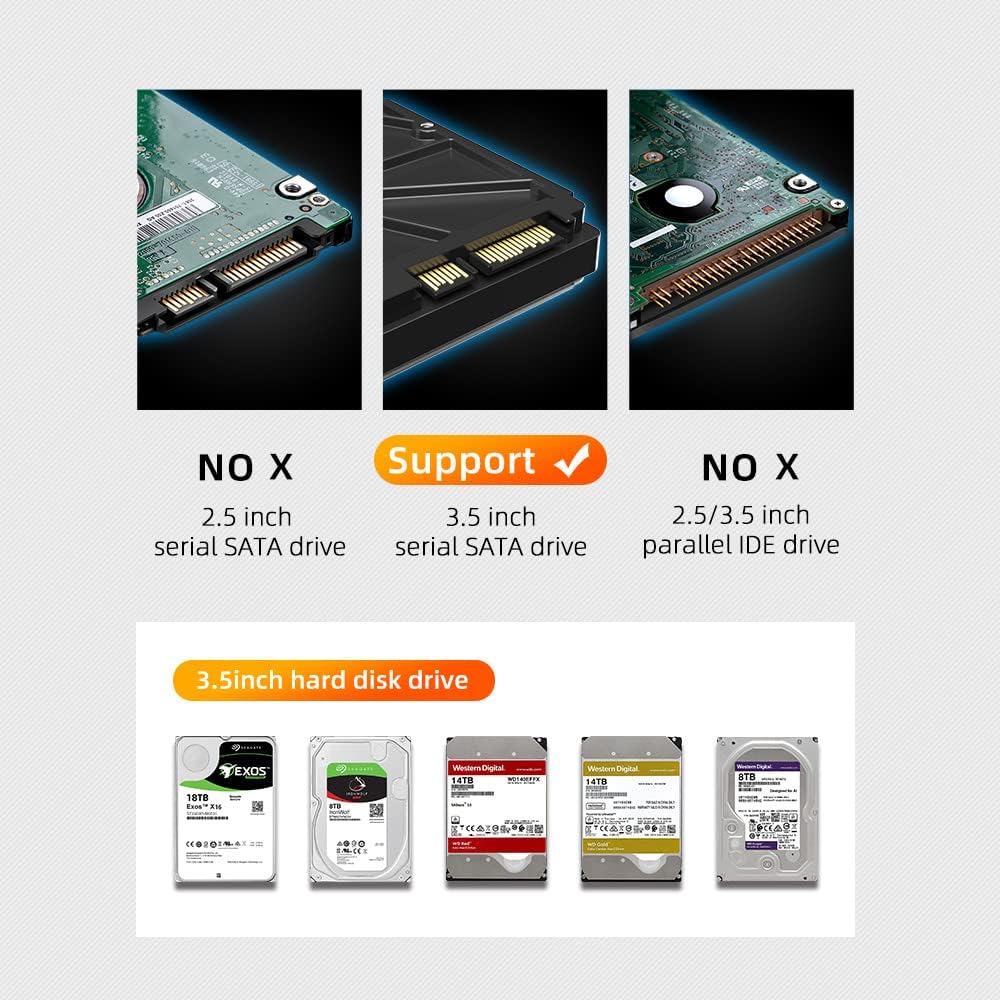
- Compatibilidade: Compatible with Windows, Linux, and Mac OS. Supports 3.5-inch SATA hard disks.
- Seguridade e estabilidade: Independent bracket for each hard drive with screw fixation. Up to 48W power supply ensures safe and stable operation.
Guía de configuración
1. Instalación de discos duros
- Carefully slide out the internal drive tray from the aluminum enclosure.
- Insert your 3.5-inch SATA hard drives into the designated slots on the tray. Ensure the SATA connectors align properly.
- Secure each hard drive to the tray using the provided screws and screwdriver. This ensures stability and proper connection.
- Slide the loaded drive tray back into the aluminum enclosure until it clicks into place.
2. Connecting the Enclosure
- Connect one end of the provided USB-C cable to the Type-C port on the enclosure's rear panel.
- Connect the other end of the USB-C cable to a compatible USB-C port on your computer. If your computer only has USB-A ports, use the provided USB-A to USB-C cable.
- Connect the power adapter to the DC 12V port on the enclosure and plug it into a power outlet.
- Flip the ON/OFF switch on the rear panel to the 'ON' position. The LED indicators on the top of the enclosure will illuminate.
3. Setting RAID Modes
The MAIWO K35272C supports four RAID modes configured via DIP switches on the rear panel. Refer to the diagram below for switch positions:


- Ensure the enclosure is powered OFF.
- Use a small tool (like the provided tiny flathead screwdriver) to set the DIP switches to your desired RAID mode according to Figure 2.
- Press and hold the 'RESET' button on the rear panel.
- While holding 'RESET', turn the power switch to 'ON'.
- Continue holding the 'RESET' button for approximately 5-10 seconds until the corresponding RAID mode LED illuminates, then release.
- Nota importante: Changing RAID modes will reformat all hard drives in the enclosure, resulting in data loss. Always back up your data before changing RAID configurations. If setting other RAID modes for the second time, you must switch to Normal mode first before reconfiguring.
4. Disk Initialization (for new or reconfigured drives)
After setting a RAID mode or installing new drives, you may need to initialize and format the disk in your operating system:
- Windows: Right-click 'This PC' (or 'My Computer') > 'Manage' > 'Disk Management'. Locate the unallocated disk, right-click, and select 'Initialize Disk'. Choose MBR or GPT (GPT is recommended for drives larger than 2TB). Then, right-click the unallocated space and select 'New Simple Volume' to format it.
- macOS: Open 'Disk Utility' (Applications > Utilities). Select the enclosure's disk, click 'Erase', choose a format (e.g., APFS or Mac OS Extended), and click 'Erase' again.
- Linux: Use disk management tools like GParted or `fdisk`/`mkfs` commands to partition and format the disk.
Explicación dos modos de funcionamento
- Normal Mode (PM - Port Multiplier): Each hard drive operates independently and appears as a separate drive to the system. No RAID functionality is applied.
- LARGE Mode (JBOD - Just a Bunch Of Disks): Merges the capacity of all hard drives into a single large volume. Data is written sequentially across drives. If one drive fails, data on that drive is lost, but data on other drives may be recoverable.
- RAID 0 (Striping Mode): Combines the capacity of both hard drives into a single volume and stripes data across them. This significantly increases read/write speeds but offers no data redundancy. If one drive fails, all data in the array is lost.
- RAID 1 (Mirroring Mode): Creates an exact copy (mirror) of data on both hard drives. This provides excellent data redundancy; if one drive fails, the data is still accessible on the other drive. The usable capacity is limited to the size of the smallest drive.
For optimal performance and data integrity, choose the RAID mode that best suits your needs. RAID 1 is recommended for critical data backup due to its redundancy.
Mantemento
Control do ventilador
The enclosure features an adjustable cooling fan to ensure your hard drives remain at optimal operating temperatures. The fan has a 3-gear speed control switch on the rear panel (OFF/Low/High). Adjust the fan speed as needed based on drive activity and ambient temperature to prevent overheating.

Atención Xeral
- Keep the enclosure in a well-ventilated area to facilitate airflow.
- Evite expoñer a carcasa a temperaturas extremas, humidade ou luz solar directa.
- Limpar o exterior cun pano suave e seco. Non usar produtos de limpeza líquidos.
- Ensure proper shutdown of the enclosure before disconnecting it from your computer or power source to prevent data corruption.
Resolución de problemas
- Enclosure not recognized by computer:
- Asegúrate de que todos os cables (USB e de alimentación) estean conectados correctamente.
- Verifique que o interruptor de alimentación estea na posición "ON".
- Try a different USB port on your computer or a different USB cable.
- Check 'Disk Management' (Windows) or 'Disk Utility' (macOS) to see if the drive appears as uninitialized or unformatted.
- RAID mode not setting correctly:
- Ensure the enclosure is powered OFF before setting DIP switches.
- Confirm DIP switch positions match the desired RAID mode exactly as per the diagram (Figure 2).
- Make sure to press and hold the 'RESET' button while powering on until the RAID LED illuminates.
- Remember that changing RAID modes will erase all data. If you are reconfiguring, ensure you switch to Normal mode first.
- Drives not spinning up or making unusual noises:
- Verify the power adapter is correctly connected and providing power.
- Ensure hard drives are properly seated and screwed into the internal tray.
- If a drive makes clicking or grinding noises, it may be failing. Back up any accessible data immediately and replace the drive.
- Velocidades de transferencia lentas:
- Ensure you are using a USB 3.0/3.1 compatible port on your computer.
- Check the condition of your hard drives; older or fragmented drives may perform slower.
- Performance will vary based on the type of hard drives used (e.g., SSDs are faster than HDDs).
Especificacións
| Característica | Especificación |
|---|---|
| Número de modelo | K35272C |
| Material | Metal |
| Peso do elemento | 1.04 libras (470 gramos) |
| Capacidade de almacenamento da memoria | Ata 36 TB |
| Dispositivos compatibles | Laptop (and other devices supporting USB storage) |
| Factor de forma do disco duro | 3.5 Inches SATA |
| Número máximo de dispositivos compatibles | 2 |
| Taxa de transferencia de datos | 10 Gigabits Per Second (USB 3.1) |
| Dimensións do produto (LxWxH) | 7.24 x 4.45 x 2.56 polgadas |
| Interface de hardware | USB tipo C |
| Cor | Negro |
Vídeo oficial do produto
Video: MAIWO K35272C SATA RAID Enclosure Overview. This video demonstrates the features, installation process, and various RAID modes of the MAIWO K35272C enclosure.
Garantía e Soporte
MAIWO products are designed for reliability and performance. For specific warranty details, please refer to the warranty card included with your product or visit the official MAIWO website. For technical support, troubleshooting assistance, or product inquiries, please contact MAIWO customer service through their official channels or visit the MAIWO Store on Amazon.