
1. Introdución
The V7 KW550ESBT Bluetooth Keyboard is designed to enhance your productivity with versatile connectivity options. This compact, ultra-slim keyboard offers a comfortable and quiet typing experience, featuring laser-etched keys for long-lasting durability. It supports connection to multiple devices via Bluetooth or a 2.4 GHz USB dongle.
As características principais inclúen:
- Seamless switching between up to 2 Bluetooth devices or connection via the included 2.4 GHz USB dongle.
- Scissor-switch keys for comfortable and quiet typing.
- Laser-etched keys for enhanced durability.
- Ultra-slim and compact design.
- Includes two AAA batteries for immediate use.
2. Contido do paquete
Comprobe se o paquete contén os seguintes elementos:
- V7 KW550ESBT Bluetooth Keyboard
- 2.4 GHz USB Receiver (dongle)
- 2 x pilas AAA
- Manual de usuario (este documento)

Image: The V7 KW550ESBT keyboard shown with its accompanying 2.4 GHz USB receiver, ready for connection.
3. Configuración
3.1. Instalación da batería
- Localiza o compartimento da batería na parte inferior do teclado.
- Abra a tapa do compartimento da batería.
- Introduza as dúas pilas AAA, asegurándose de manter a polaridade correcta (+/-).
- Pecha a tapa do compartimento da batería de forma segura.
3.2. Connecting via 2.4 GHz USB Dongle
- Remove the 2.4 GHz USB receiver from its storage slot (usually within the battery compartment or a dedicated slot).
- Conecta o receptor USB a un porto USB dispoñible no teu ordenador ou dispositivo.
- The keyboard should automatically connect. If not, ensure the keyboard is powered on and the connection indicator light (if present) is active.
3.3. Conectando a través de Bluetooth
The V7 KW550ESBT keyboard supports connecting to up to two Bluetooth devices.
- Asegúrate de que o teclado estea acendido.
- Press and hold the Bluetooth pairing key (refer to keyboard layout for specific key, often indicated by a Bluetooth symbol or 'BT1'/'BT2') for a few seconds until the Bluetooth indicator light starts blinking, indicating it's in pairing mode.
- No teu dispositivo (ordenador, tableta, teléfono intelixente), vai á configuración de Bluetooth.
- Busca available devices and select "V7 KW550ESBT" (or similar name) from the list.
- Siga as instrucións que aparecen na pantalla para completar o proceso de emparellamento. É posible que se lle solicite que introduza un código que se mostra na pantalla mediante o teclado.
- Repeat for a second Bluetooth device if desired, using the other Bluetooth pairing key.
3.4. Cambio entre dispositivos conectados
To switch between connected devices (Bluetooth 1, Bluetooth 2, or 2.4 GHz USB), press the corresponding function key (e.g., Fn + BT1, Fn + BT2, or Fn + 2.4G if available). Refer to your keyboard's specific layout for these keys.
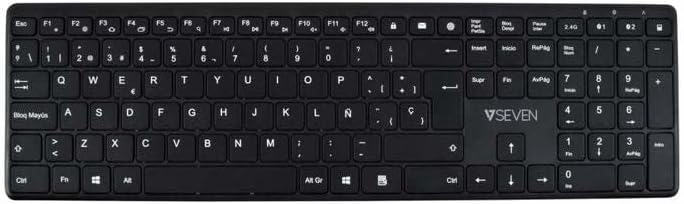
Imaxe: De arriba abaixo view of the V7 KW550ESBT keyboard, showing the full QWERTY layout and function keys.
4. Uso do teclado
4.1. Standard Key Functions
The keyboard features a standard QWERTY layout with all essential alphanumeric keys, punctuation, and modifier keys (Shift, Ctrl, Alt, Windows/Command).
4.2. Teclas multimedia e de función
The top row of keys (F1-F12) often doubles as multimedia or special function keys. These functions are typically accessed by pressing the Fn key simultaneously with the desired F-key. Common functions include:
- Volume control (mute, decrease, increase)
- Reprodución multimedia (reproducir/pausar, anterior, seguinte)
- Axuste de brillo da pantalla
- Función de busca
- Pantalla de bloqueo
Refer to the icons printed on your specific keyboard's F-keys for exact functionality.
4.3. Quiet Typing Experience
The scissor-switch key design minimizes typing noise, making it suitable for quiet environments.

Imaxe: Side profile of the V7 KW550ESBT keyboard, highlighting its ultra-slim design.
5. Mantemento
5.1. Limpeza
Para limpar o teclado:
- Apaga o teclado e desconéctao do dispositivo.
- Use un pano suave e sen pelusa lixeiramente dampmantelo con auga ou unha solución de limpeza suave.
- Wipe the keycaps and surface gently. Avoid excessive moisture.
- Para o po e os residuos entre as teclas, use aire comprimido.
5.2. Substitución da batería
When the keyboard's performance degrades or the battery indicator (if present) signals low power, replace the AAA batteries as described in Section 3.1.
6 Solución de problemas
If you encounter issues with your V7 KW550ESBT keyboard, try the following solutions:
| Problema | Posible Solución |
|---|---|
| O teclado non responde |
|
| As teclas están pegañentas ou non responden |
|
| O emparejamento por Bluetooth falla |
|
7. Especificacións
| Característica | Detalle |
|---|---|
| Marca | V7 |
| Número de modelo | KW550ESBT |
| Tecnoloxía de conectividade | Bluetooth, 2.4 GHz Wireless (USB Dongle) |
| Descrición do teclado | Multimedia |
| Uso recomendado | Oficina |
| Característica especial | Bluetooth |
| Cor | Negro |
| Estilo | Clásico |
| Dimensións do produto | 16.1 L x 4.7 W x 0.8 H centímetros |
| Material | Plástico |
| Fonte de enerxía | 2 pilas AAA (incluídas) |
8. Garantía e soporte
For warranty information and technical support, please refer to the documentation provided with your purchase or visit the official V7 websitio. Garda o comprobante de compra para reclamacións de garantía.