
1. Introdución
This manual provides detailed instructions for the setup, operation, maintenance, and troubleshooting of your HP Color LaserJet Pro M255dw Wireless Laser Printer. Please read this manual thoroughly to ensure proper use and optimal performance of your device.
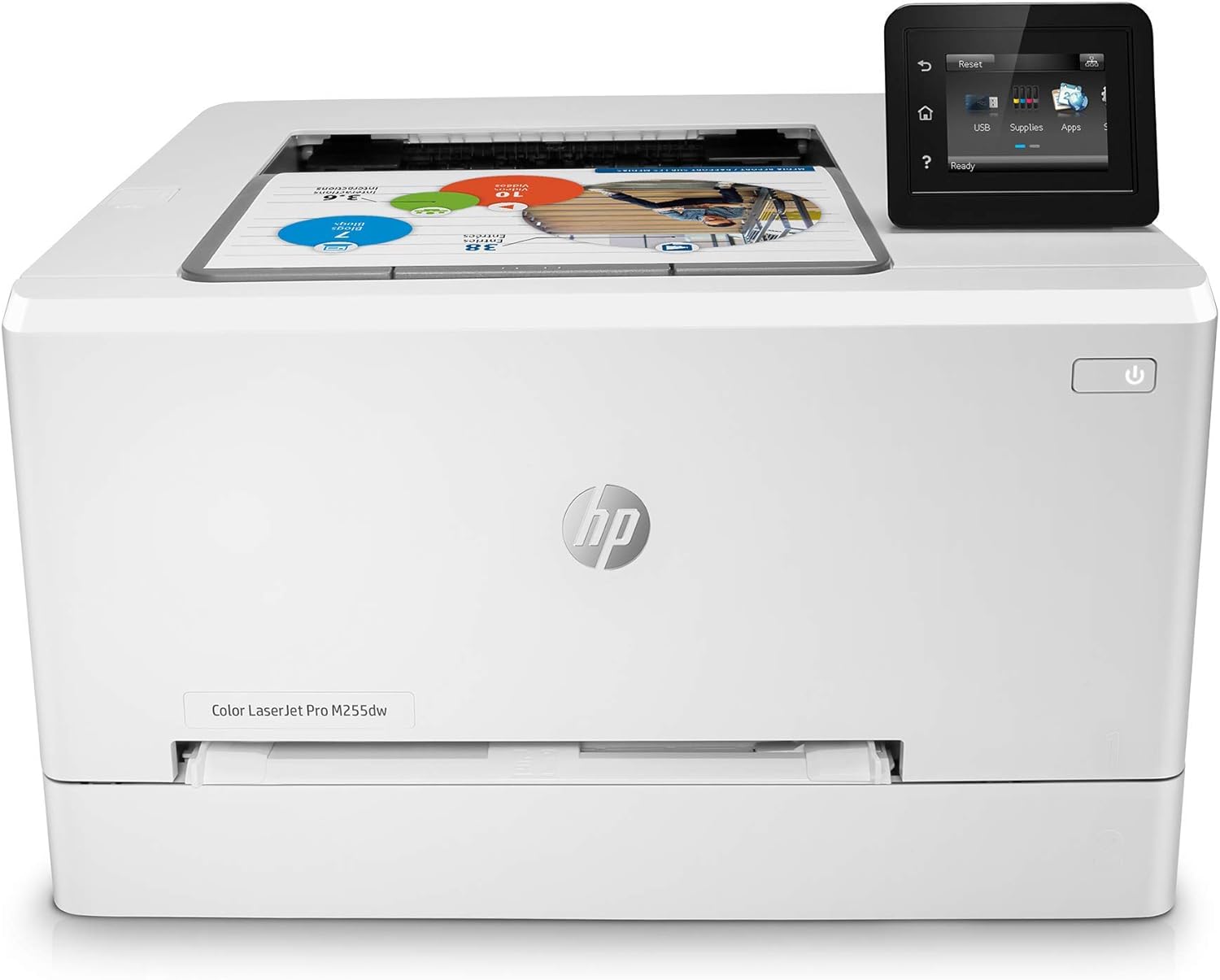
Imaxe 1.1: Fronte view of the HP Color LaserJet Pro M255dw Wireless Laser Printer, showing its compact design and control panel.
2. Produto rematadoview
2.1 Características principais
- Color Laser Printing: Produces professional-quality color documents.
- Wireless Connectivity: Supports dual-band Wi-Fi for flexible placement and mobile printing.
- Fast Print Speeds: Up to 22 pages per minute (ppm) for both black and white and color.
- Automatic Two-Sided Printing (Duplex): Saves paper by printing on both sides automatically.
- 2.7" Color Touchscreen: Intuitive control panel for easy navigation and printer management.
- HP Smart App Compatibility: Enables remote printing, scanning, and printer management from mobile devices.
- Strong Security: Built-in security features to help protect data and the printer.
- Versatile Paper Handling: Supports various paper sizes from 4x6 inches to 8.5x14 inches.
- Ethernet Connectivity: For wired network connections.
- Front USB Port: For direct printing from USB drives.

Image 2.1: Diagram highlighting key features of the HP Color LaserJet Pro M255dw, including dual-band Wi-Fi, Ethernet, front USB port, automatic two-sided printing, 2.7" color touchscreen, strong security, HP Smart app integration, and a 250-sheet input tray.
2.2 Que hai na caixa
Ao desembalar, comprobe que estean presentes todos os compoñentes:
- Impresora HP Color LaserJet Pro M255dw
- HP 206A LaserJet Toner Cartridges (Black, Cyan, Magenta, Yellow)
- Guía de instalación
- Cable de alimentación
- Cable USB

Image 2.2: Contents of the printer box, showing the HP Color LaserJet Pro M255dw printer, toner cartridges, installation guide, power cord, and USB cable.
3. Configuración
- Desembalar a impresora: Remove all packaging materials, tapes, and protective films from the printer.
- Instalar cartuchos de tóner: Open the toner access door and insert the four HP 206A LaserJet toner cartridges (Black, Cyan, Magenta, Yellow) into their corresponding slots. Ensure they click into place.
- Cargar papel: Open the input tray and load the desired paper size and type. Adjust the paper guides to fit the paper stack.
- Conectar enerxía: Conecte o cable de alimentación á impresora e despois a unha toma de corrente con conexión a terra.
- Encendido: Prema o botón de acendido para acender a impresora.
- Initial Setup on Touchscreen: Follow the on-screen instructions on the 2.7" color touchscreen to select language, country/region, and date/time settings.
- Conectarse á rede:
- Conexión sen fíos: On the touchscreen, navigate to the wireless setup menu. Select your Wi-Fi network from the list and enter the password.
- Wired (Ethernet) Connection: Connect an Ethernet cable from your router or network switch to the Ethernet port on the back of the printer.
- Conexión USB: Connect a USB cable from the printer to your computer.
- Instalar software/controladores:
- For Windows/macOS: Visit the HP support website for your printer model to download and install the latest drivers and software (e.g., HP Smart app).
- For Mobile Devices: Download the HP Smart app from your device's app store (Apple App Store or Google Play Store).
- Imprimir unha páxina de proba: After driver installation, print a test page to confirm successful setup.
4. Instrucións de funcionamento
4.1 Impresión básica
- Asegúrate de que a impresora estea acendida e conectada ao teu ordenador ou á rede.
- Abre o documento ou a imaxe que queres imprimir no teu ordenador.
- Seleccione "Imprimir" na aplicación File menú.
- Choose "HP Color LaserJet Pro M255dw" from the list of available printers.
- Adjust print settings such as number of copies, paper size, and print quality as needed.
- Fai clic en "Imprimir".

Image 4.1: The HP Color LaserJet Pro M255dw actively printing documents, demonstrating its speed in handling tasks.
4.2 Mobile Printing with HP Smart App
The HP Smart app allows you to print, scan, and manage your printer from your smartphone or tablet.
- Download and install the HP Smart app on your mobile device.
- Open the app and follow the on-screen instructions to add your HP Color LaserJet Pro M255dw printer.
- Desde a aplicación, podes:
- Print Documents/Photos: Seleccione files from your device or cloud storage to print.
- Escanear: Use your printer's scanner or your phone's camera to scan documents.
- Monitorizar os niveis de tóner: Check the status of your toner cartridges.
- Tarefas intelixentes: Create customizable shortcuts for repetitive tasks like scanning to email or cloud.
- Order Supplies: Easily reorder toner cartridges.

Image 4.2: Screenshot of the HP Smart app interface on a mobile device, illustrating options for monitoring toner levels, scanning, smart tasks, and mobile printing.
4.3 Automatic Two-Sided (Duplex) Printing
The printer supports automatic duplex printing to save paper.
- When sending a print job from your computer, open the print dialog box.
- Look for an option like "Print on Both Sides," "Duplex Printing," or "Two-Sided Printing."
- Select the desired binding option (e.g., Long-edge binding for portrait, Short-edge binding for landscape).
- Confirma a túa configuración e fai clic en "Imprimir".

Image 4.3: A stack of documents being printed, highlighting the efficiency of fast, two-sided printing.
5. Mantemento
5.1 Substitución do cartucho de tóner
When a toner cartridge is low or empty, the printer's touchscreen will display a message. Replace cartridges as follows:
- Open the toner access door on the front of the printer.
- Grasp the handle of the empty toner cartridge and pull it straight out.
- Unpack the new HP 206A LaserJet toner cartridge. Gently shake it to distribute the toner.
- Insira o novo cartucho na ranura correspondente ata que encaixe no seu lugar.
- Close the toner access door.
5.2 Manexo do papel
Proper paper loading is essential for print quality and to prevent jams.
- Tipos de papel admitidos: Envelopes, plain paper, photo paper, labels, cardstock, transparencies.
- Tamaños de papel admitidos: Letter, Legal, Executive, Oficio, 4x6 in, 5x8 in, A4, A5, A5-R, A6, B5, B6, 16K, Postcard, Double Postcard, Envelopes (No. 10, B5, C5, DL, Monarch).
- Capacidade da bandexa de entrada: The main input tray holds up to 250 sheets.
- Cargando papel: Fan the paper stack before loading. Do not overfill the tray. Adjust the paper guides to lightly touch the edges of the paper stack.
6 Solución de problemas
This section addresses common issues you might encounter with your printer. For more detailed troubleshooting, refer to the HP support websitio.
6.1 A impresora non responde
- Check power connections: Ensure the printer is plugged in and powered on.
- Verify network connection: For wireless, check Wi-Fi signal and ensure the printer is connected to the correct network. For wired, check Ethernet cable connection.
- Restart printer and computer/router: Sometimes a simple restart can resolve connectivity issues.
- Check print queue: Clear any stuck print jobs from your computer's print queue.
6.2 Problemas de calidade de impresión
- Check toner levels: Replace any low or empty toner cartridges.
- Use genuine HP toner: Non-HP cartridges may cause print quality problems.
- Verify paper type: Ensure you are using the correct paper type for your print settings.
- Clean the printer: Refer to the HP support website for instructions on cleaning specific printer components if print quality degrades.

Imaxe 6.1: Ex.ample of professional-quality color prints produced by the HP Color LaserJet Pro M255dw, demonstrating clear text and vibrant images.
6.3 Atascos de papel
- Follow on-screen instructions: The printer's touchscreen will often guide you through clearing a jam.
- Open all access doors: Carefully open the front door, output tray, and any other access points to locate and gently remove jammed paper.
- Do not tear paper: Remove jammed paper slowly and carefully to avoid leaving torn pieces inside the printer.
- Ensure paper is loaded correctly: Make sure paper guides are adjusted properly and the tray is not overfilled.
7. Especificacións
| Característica | Especificación |
|---|---|
| Marca | HP |
| Nome do modelo | M255dw |
| Tecnoloxía de impresión | Láser |
| Saída da impresora | Cor |
| Tecnoloxía de conectividade | Ethernet, USB, Wi-Fi |
| Velocidade de impresión máxima (cor) | 22 ppm |
| Velocidade de impresión máxima en monocromo | 22 ppm |
| Resolución máxima de impresión en cor | 600 ppp |
| Resolución máxima de impresión en branco e negro | 600 ppp |
| Impresión dúplex | Automático |
| Capacidade máxima da folla de entrada | 250 follas |
| Capacidade de follas de saída | 250 follas |
| Tamaños de soportes compatibles | 4 x 6 to 8.5 x 14 inches (Letter, Legal, Executive, Oficio, A4, A5, A5-R, A6, B5, B6, 16K, Postcard, Double Postcard, Envelopes) |
| Tipo de tinta da impresora | Toner (HP 206A) |
| Dimensións do produto | 15" de profundidade x 17" de ancho x 10" de alto (38.1 cm de profundidade x 43.2 cm de ancho x 25.4 cm de alto) |
| Peso do elemento | 35 libras (15.88 kg) |
| Método de control | Remote, Touchscreen |
| Tipo de escáner | Cama plana |
| Funcións adicionais da impresora | Escanear |
8. Garantía e soporte
8.1 Información da garantía
This product typically comes with a one-year limited hardware warranty. For renewed products, a 90-day limited warranty is often provided. Please refer to your purchase documentation for specific warranty terms applicable to your device.
8.2 Atención ao cliente
For technical assistance, driver downloads, and further troubleshooting, please visit the official HP support website for your printer model. HP also offers 24-hour, 7 days a week web apoio.
Soporte HP Websitio: support.hp.com