
1. Introdución
This manual provides comprehensive instructions for the setup, operation, maintenance, and troubleshooting of your ASUS XA04 ROG Strix Scope Deluxe RGB Mechanical Gaming Keyboard. Please read this manual thoroughly before using the product to ensure proper functionality and to maximize your user experience.
2. Produto rematadoview
The ASUS ROG Strix Scope Deluxe is a mechanical gaming keyboard designed for performance and durability, featuring Cherry MX switches and customizable RGB lighting.
2.1 Características principais
- Xccurate Ctrl Key: An extra-wide Ctrl key designed for improved precision in FPS gaming.
- Cherry MX RGB Switches: German-made mechanical switches providing tactile feedback and precise actuation.
- Quick-Toggle Switch: Instantly shifts between function (F1-F12) and media key input.
- Stealth Key: Hides all applications and mutes audio for instant privacy.
- Aura Sync RGB LED Technology: Customizable per-key backlighting with dynamic lighting effects.
- Construción duradeira: Aluminum top plate for resilience.
- Repouso ergonómico para o pulso: Detachable magnetic wrist rest crafted from memory foam for comfort.
- Memoria integrada: For storing profiles e axustes.
- 100 % antighosting e rollover N-Key: Garante que cada pulsación de tecla se rexistre con precisión.
- Tecla de bloqueo de Windows: Evita que se preman accidentalmente a tecla Windows durante o xogo.
- On-the-Fly Macro Recordings: Allows for macro creation without software.
- Enrutamento de cables: Integrated cable management options.
2.2 Contido do paquete
- ASUS XA04 ROG Strix Scope Deluxe RGB Mechanical Gaming Keyboard
- Reposapulsos magnético extraíble
- Ferramenta de extracción de teclas
- Additional Silver-hued WASD Keycaps
- Manual de usuario (este documento)
2.3 Disposición e compoñentes do teclado

Figura 1: Arriba view of the ASUS ROG Strix Scope Deluxe keyboard. This image displays the full keyboard layout with its RGB backlighting active, showcasing the standard QWERTY layout, function keys, and numeric keypad.
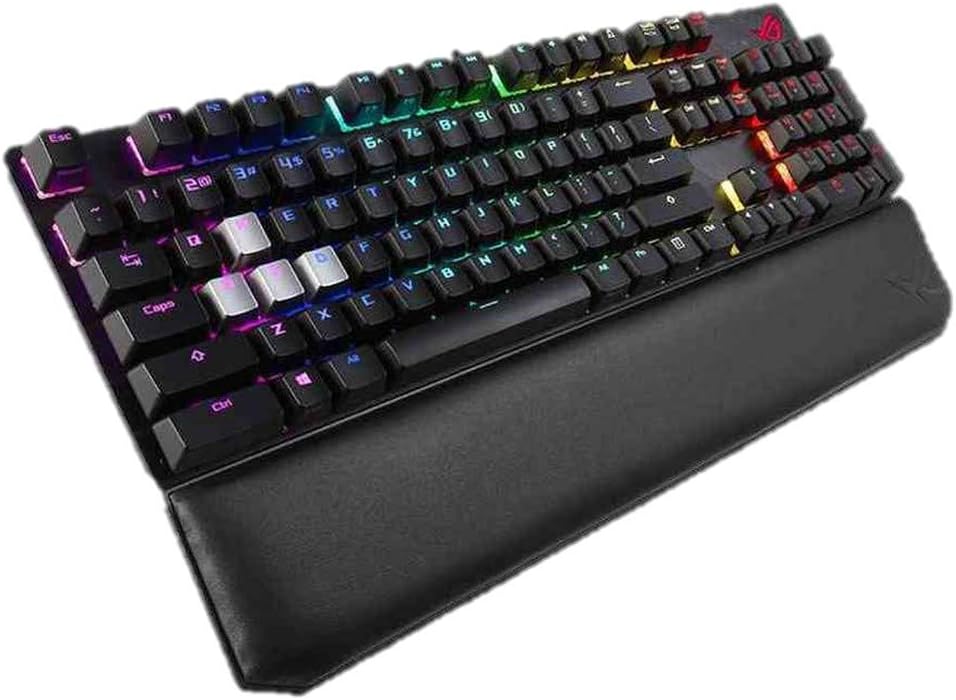
Figura 2: En ángulo view of the keyboard with the detachable magnetic wrist rest attached. This perspective highlights the ergonomic design and the integrated wrist support.

Figura 3: Close-up of the magnetic wrist rest. The image shows the comfortable, memory foam wrist rest with a leatherette finish, designed to attach seamlessly to the keyboard.

Figura 4: Detail of the Xccurate Ctrl key. This image highlights the enlarged Ctrl key, designed to be more than twice the width of a standard Ctrl key for enhanced FPS gaming precision.

Figura 5: Illustration of the Stealth Key function. The image shows the F12 key, which acts as the Stealth Key, along with icons depicting its actions: hiding all apps and muting audio for instant privacy.

Figura 6: Explanation of the Quick-Toggle Switch. This image illustrates how pressing the Fn key + Ins (Fn Lock) toggles between standard function keys (F1-F12) and media control keys.

Figura 7: Close-up of Cherry MX mechanical switches. The image displays various types of Cherry MX switches (e.g., Blue, Red, Brown, Speed Silver) and their internal mechanisms, highlighting the precision components.

Figura 8: Acabadoview of additional keyboard features. This graphic illustrates key functionalities such as onboard memory, 100% anti-ghosting with N-key rollover, Windows lock key, on-the-fly macro recording, dual-textured case design, and integrated cable routing.

Figura 9: Abaixo view of the keyboard. This image shows the underside of the keyboard, highlighting the durable aluminum top plate and the cable routing channels.
3. Configuración
3.1 Conexión do teclado
- Unpack the keyboard and its components.
- Attach the magnetic wrist rest to the front edge of the keyboard if desired.
- Conecte o conector USB do teclado a un porto USB dispoñible no seu ordenador.
- O teu sistema operativo debería detectar e instalar automaticamente os controladores necesarios.
3.2 Instalación do software (opcional)
For full customization of RGB lighting, macros, and other advanced features, it is recommended to install the ASUS Armoury Crate software. This software can be downloaded from the official ASUS support websitio.
- Visita o soporte oficial de ASUS websitio.
- Navigate to the support page for the ROG Strix Scope Deluxe keyboard (Model XA04).
- Download and install the latest version of Armoury Crate.
- Siga as instrucións en pantalla para completar a instalación.
4. Instrucións de funcionamento
4.1 Funcións básicas das teclas
- Chaves estándar: Function as a typical QWERTY keyboard.
- Teclas de función (F1-F12): By default, these keys perform their standard F-key functions.
- Teclado numérico: Located on the right side for numerical input.
4.2 Special Key Functions
- Xccurate Ctrl Key: The enlarged Ctrl key on the left side provides a larger target for improved accuracy, particularly useful in fast-paced gaming scenarios.
- Stealth Key (F12): Premendo o Chave furtiva (F12) instantly hides all open applications and mutes all audio, providing immediate privacy. Press it again to restore applications and audio.
- Quick-Toggle Switch (Fn + Ins): This combination allows you to switch the functionality of the F1-F12 keys between standard function keys and multimedia controls.
- Cando dentro Modo de función, F1-F12 perform their standard operating system or application-specific functions.
- Cando dentro Modo multimedia, F1-F12 perform multimedia actions such as play/pause, stop, previous/next track, and volume control.
- Tecla de bloqueo de Windows: This key (often located near the right Ctrl key or as an Fn combination) disables the Windows key to prevent accidental presses that could interrupt gameplay.
4.3 RGB Lighting Control (Aura Sync)
The keyboard features per-key RGB backlighting customizable via ASUS Aura Sync.

Figura 10: Keyboard displaying Aura Sync RGB lighting. This image shows the vibrant, customizable lighting effects across the keyboard, often synchronized with other Aura Sync compatible devices.
- Default Effects: The keyboard comes with pre-programmed lighting effects that can be cycled through using specific key combinations (refer to the Armoury Crate software for exact combinations or customization).
- Personalización de software: Use the ASUS Armoury Crate software to:
- Select from a wide range of static colors.
- Apply dynamic lighting effects (e.g., breathing, wave, reactive).
- Synchronize lighting with other Aura Sync compatible devices.
- Crea un profesional da iluminación personalizadofiles.
4.4 Macro Recording
The keyboard supports on-the-fly macro recording without requiring software.
- Preme Fn + Left Alt to start recording. The indicator light will blink.
- Escribe a secuencia de teclas que queres gravar.
- Preme Fn + Left Alt again to stop recording. The indicator light will stop blinking.
- Press the desired key to assign the macro to.
- To execute the macro, press the assigned key.
Note: For advanced macro management and editing, use the ASUS Armoury Crate software.
5. Mantemento
5.1 Limpeza do teclado
Unha limpeza regular axuda a manter o rendemento e a aparencia do teclado.
- Eliminación de po: Usa aire comprimido para eliminar o po e os residuos que hai entre as tapas das teclas.
- Limpeza de superficies: Limpe suavemente as teclas e a superficie do teclado cun pano suave e sen fiapos lixeiramenteamplimpa con auga ou cunha solución de limpeza suave e non abrasiva. Evite a humidade excesiva.
- Repouso para o pulso: Limpar o repousa-pulsos de coiro sintético con publicidadeamp pano.
- Eliminación da tapa das teclas: Use the included keycap puller tool to carefully remove keycaps for deeper cleaning. Ensure the keyboard is unplugged before removing keycaps.
Atención: Do not immerse the keyboard in water or use harsh chemicals, as this may damage the product.
6 Solución de problemas
Se tes problemas co teclado, consulta as seguintes solucións habituais:
| Problema | Posible Solución |
|---|---|
| O teclado non responde. |
|
| A iluminación RGB non funciona ou é incorrecta. |
|
| Macros are not executing correctly. |
|
| As teclas están pegañentas ou non responden. |
|
If the problem persists after attempting these solutions, please contact ASUS customer support for further assistance.
7. Especificacións
| Característica | Detalle |
|---|---|
| Marca | ASUS |
| Número de modelo | XA04 (192876327791) |
| Tipo de teclado | Teclado mecánico para xogos |
| Tipo de cambio | Cherry MX RGB Switches |
| Cor | Black (with Blue Cherry MX switches) |
| Material | Aluminum (top plate) |
| Conectividade | USB con cable |
| Retroiluminación | Per-key RGB, Aura Sync compatible |
| Anti-Ghosting | 100% Anti-Ghosting with N-Key Rollover |
| memoria onboard | Si |
| Compatibilidade do sistema operativo | Windows 10, Windows 7 |
| Dimensións do produto (L x W x H) | 43.94 x 13.46 x 3.89 cm (17.3 x 5.3 x 1.53 polgadas) |
| Peso do elemento | 1.92 kg (4.23 lb) |
| Compoñentes incluídos | Keycap Puller, Detachable Wrist Rest |
8. Garantía e soporte
For warranty information, please refer to the warranty card included with your product or visit the official ASUS website. ASUS provides customer support for product inquiries, technical assistance, and warranty claims.
Soporte ASUS Websitio: www.asus.com/support/
Please have your product model number (XA04) and serial number ready when contacting support.