
Introdución
The Linksys MR7350 Dual-Band Mesh WiFi 6 Router is designed to provide robust and reliable wireless connectivity throughout your home. Featuring Intelligent Mesh Technology and WiFi 6 (802.11ax) standard, this router delivers high speeds and extended coverage for multiple devices simultaneously. It is ideal for streaming, gaming, and managing a connected smart home environment.

Figure 1: Linksys MR7350 Dual-Band Mesh WiFi 6 Router
O que hai na caixa
Verifica que todos os elementos estean presentes no paquete:
- Linksys Dual-Band Mesh WiFi 6 Router (MR7350)
- Guía de inicio rápido
- Cable Ethernet
- Adaptador de alimentación
- Warranty and Regulatory Documentation
Configuración
Setting up your Linksys MR7350 router is designed to be quick and straightforward using the Linksys App. Follow these steps for initial installation:
- Conecta o router: Plug the power adapter into the router and an electrical outlet. Connect one end of the provided Ethernet cable to the yellow 'Internet' port on the back of the MR7350 router and the other end to your modem.
- Encendido: Turn on your modem and then the Linksys MR7350 router. Wait for the router's LED indicator to show a solid blue light, indicating it's ready for setup.
- Descarga a aplicación Linksys: Download and install the free Linksys App on your iOS or Android smartphone.
- Configuración de lanzamento: Open the Linksys App and follow the on-screen instructions to begin the setup process. The app will guide you through creating your Wi-Fi network name (SSID) and password.
- Add to Mesh Network (Optional): If you are expanding an existing Linksys Intelligent Mesh network, log in to the Linksys App, find "Set Up a New Product" from the menu, and select "Add Another Node."

Figure 2: Easy Setup via the Linksys App
Instrucións de funcionamento
Once your Linksys MR7350 router is set up, you can manage and optimize your network using the Linksys App or through a web interface do navegador.
Network Management via Linksys App
- View Dispositivos conectados: See all devices connected to your network.
- Priorización do dispositivo: Prioritize specific devices for optimal performance during high-bandwidth activities like gaming or streaming.
- Acceso para invitados: Create a separate, password-protected Wi-Fi network for guests.
- Controis parentais: Manage internet access for specific devices, set schedules, and block websitios.
- Actualizacións automáticas de firmware: Ensure your network is always secure and up-to-date with automatic updates.
Conexións físicas
The back of the router features several ports for wired connections:
- Porto de Internet (amarelo): Conéctase ao teu módem para acceder a internet.
- Portos Ethernet (1-4): Four Gigabit Ethernet ports for wired devices such as computers, gaming consoles, or smart TVs.
- Porto USB 3.0: Connect a storage device to share files na súa rede.
- Botón WPS: For easy, secure connection of WPS-compatible devices.
- Botón de reinicio: Úsase para restaurar o router á configuración predeterminada de fábrica.
- Interruptor de encendido/apagado: To manually turn the router on or off.
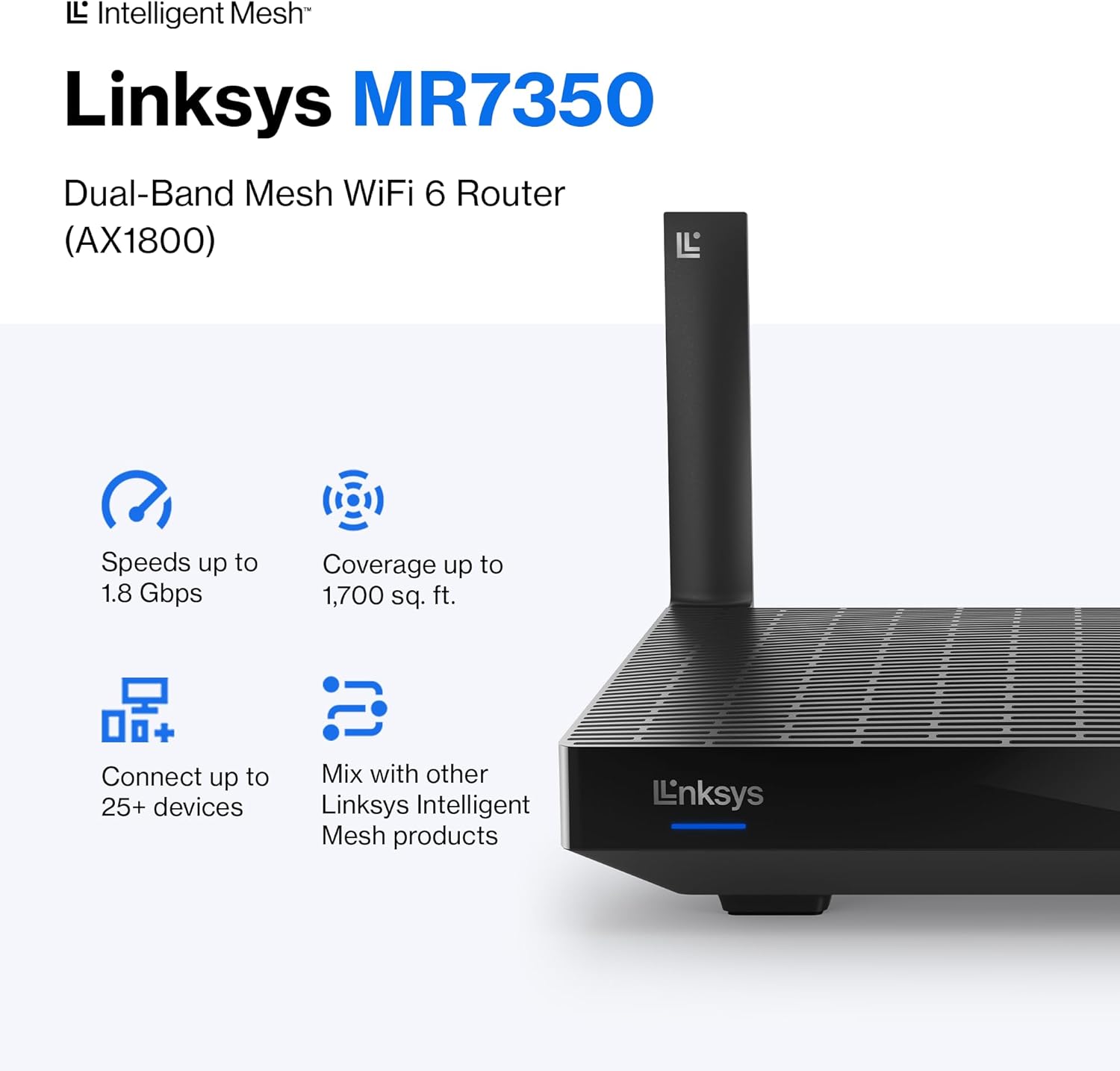
Figura 3: Traseira view of the Linksys MR7350 with ports
Características
The Linksys MR7350 is packed with features to enhance your home network experience:
- Tecnoloxía de malla intelixente: Dynamically maximizes speed and eliminates dead zones, adapting to your Wi-Fi needs for full-strength signal throughout your entire home.
- Estándar WiFi 6 (802.11ax): Delivers faster speeds (up to 1.8 Gbps AX1800), increased capacity (25+ devices), and improved efficiency for a seamless experience.
- Conectividade de banda dual: Operates on both 2.4 GHz and 5 GHz bands for optimal performance and device compatibility.
- Quad-Core CPU: A powerful processor for extremely fast data transfer and multiple simultaneous data streams.
- Tecnoloxía de Beamforming: Optimizes performance and reduces interference by focusing wireless signals directly to connected devices.
- Seguridade avanzada: Safeguards your network with wireless WPA3 encryption and an SPI firewall.
- Sistema ampliable: Easily expand your Wi-Fi coverage by adding any Linksys Mesh compatible products.

Figure 4: Full House Coverage with Intelligent Mesh Technology

Figure 5: WiFi Standards Evolution
Especificacións
| Atributo | Valor |
|---|---|
| Marca | Linksys |
| Número de modelo | MR7350 |
| Xeración Wi-Fi | WiFi 6 (802.11ax) |
| Clase de banda de frecuencia | Dobre banda (2.4 GHz, 5 GHz) |
| Taxa de transferencia de datos | Ata 1.8 gigabits por segundo (AX1800) |
| Cobertura | Ata 1700 metros cadrados |
| Número de dispositivos compatibles | 25+ Devices |
| Número de portos Ethernet | 5 (1 Internet, 4 LAN) |
| Ancho de banda do porto LAN | 1 Gbps |
| Porto USB | USB 3.0 |
| Protocolo de seguridade | WPA3-PSK |
| Método de control | Aplicación Linksys |
| Tipo de antena | Retractable (2 Antennas) |
| Dimensións do artigo (L x W x H) | 5.9 cm de longo x 5.4 cm de ancho x 8.07 cm de alto |
| Peso do elemento | 2 libras |
| Cor | Branco |
Mantemento
To ensure optimal performance and longevity of your Linksys MR7350 router, consider the following maintenance tips:
- Colocación óptima: Place the router in a central location in your home, away from obstructions and devices that may cause interference (e.g., microwaves, cordless phones).
- Actualizacións de firmware: Enable automatic firmware updates via the Linksys App to ensure your router has the latest security patches and performance enhancements.
- Reinicios regulares: Periodically reboot your router (unplug from power for 10 seconds, then plug back in) to clear its memory and refresh the network connection.
- Limpeza: Keep the router clean and free of dust to prevent overheating. Use a soft, dry cloth to wipe the exterior.
- Monitorización da rede: Use the Linksys App to monitor network activity and identify any unusual behavior or connected devices.
Resolución de problemas
If you encounter issues with your Linksys MR7350 router, try the following troubleshooting steps:
- Sen conexión a Internet: Check the cable connections between your modem and router. Ensure the 'Internet' port LED on the router is solid blue. Reboot both your modem and router.
- Velocidades lentas: Ensure your devices are connected to the appropriate Wi-Fi band (5 GHz for faster speeds, 2.4 GHz for longer range). Check for interference from other electronic devices. Use the Linksys App to prioritize devices.
- Conexións perdidas: Update device drivers for your wireless adapters. Ensure your router's firmware is up-to-date. Adjust antenna orientation for better signal.
- Non se pode acceder á configuración do enrutador: Ensure your device is connected to the router's Wi-Fi network. Try accessing the Linksys App or the web interface (usually 192.168.1.1) after a router reboot.
- Restablecemento de fábrica: If all else fails, press and hold the 'Reset' button on the back of the router for 10-15 seconds until the LED blinks. This will restore factory default settings, and you will need to re-run the setup process.
Garantía e Soporte
The Linksys MR7350 Dual-Band Mesh WiFi 6 Router comes with an 18-Month Warranty. For technical assistance, product information, or warranty claims, please refer to the Warranty and Regulatory Documentation included in your package.
Linksys also offers 24/7 customer support. You can find contact information and additional resources on the official Linksys websitio web ou a través da aplicación Linksys.
Para obter máis asistencia, visite o Linksys Store.