
XIAOMI MDZ-24-AA
Manual de usuario do Xiaomi Mi TV Stick
Modelo: MDZ-24-AA
Produto rematadoview
The Xiaomi Mi TV Stick is a compact and portable streaming media player that transforms any TV with an HDMI port into a smart TV. Powered by Android TV 9.0, it provides access to a vast library of content from streaming services and apps via the Google Play Store. Its integrated Google Assistant allows for voice control, and built-in Chromecast enables seamless casting from mobile devices. The device supports 1080P HD playback with HDR, and offers immersive audio with DTS and Dolby support.

Image: The Xiaomi Mi TV Stick and its accompanying Bluetooth remote control.
Que está incluído
- Mi TV Stick Body
- Bluetooth Remote Control with Google Assistant
- Adaptador de alimentación
- HDMI Extension Cable (may vary by region)
Configuración inicial
Setting up your Mi TV Stick is a straightforward process. Follow these steps to get started:
- Conectar ao televisor: Insert the Mi TV Stick directly into an available HDMI port on your television. If space is limited, use the provided HDMI extension cable.
- Conectar á enerxía: Connect the power adapter to the Mi TV Stick's micro USB port and then plug the adapter into a power outlet.
- Seleccione entrada HDMI: Turn on your TV and use your TV remote to select the correct HDMI input source where the Mi TV Stick is connected.
- Par de control remoto: Follow the on-screen instructions to pair the Bluetooth remote control. Typically, this involves holding down specific buttons (e.g., Home and Back buttons) until the pairing indicator appears.
- Conectar a wifi: Once the remote is paired, select your Wi-Fi network from the list and enter the password to connect the Mi TV Stick to the internet.
- Sign in with Google Account: Inicia sesión coa túa conta de Google para acceder a Google Play Store e personalizar a túa experiencia con Android TV.
- Comeza a explorar: After setup is complete, you can begin downloading your favorite streaming apps and exploring content.
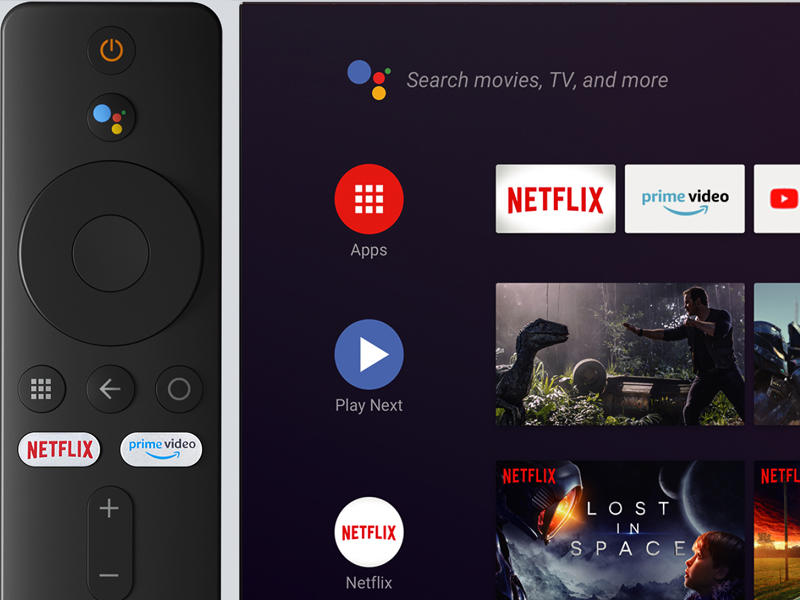
Image: The Mi TV Stick remote control positioned beside a television screen showing the Android TV home interface, ready for user interaction.
Instrucións de funcionamento
Funcións de control remoto
The Mi TV Stick comes with a Bluetooth remote control designed for ease of use. It features dedicated buttons for quick access to popular streaming services and Google Assistant.
- Botón de encendido: Turns the Mi TV Stick on or off.
- Google Assistant Button (Mic): Press and hold to activate voice search and commands.
- Anel de navegación: Use to navigate through menus and select items.
- Botón Atrás: Volve á pantalla anterior.
- Botón de inicio: Volve á pantalla de inicio de Android TV.
- Botón de Netflix: Acceso directo á aplicación de Netflix.
- Botón Prime Video: Acceso directo á aplicación Amazon Prime Video.
- Botóns de volume (+/-): Axusta o volume.

Imaxe: Unha detallada view of the Mi TV Stick's Bluetooth remote control, highlighting the Google Assistant button and dedicated Netflix and Prime Video buttons.
Funcións e contido intelixentes
The Mi TV Stick provides a comprehensive smart TV experience:
- Android TV 9.0: Enjoy a user-friendly interface with access to thousands of apps and games from the Google Play Store.
- Asistente de Google: Usa comandos de voz para buscar contido, controlar dispositivos domésticos intelixentes, obter respostas e moito máis.
- Chromecast integrado: Easily cast movies, TV shows, music, and other content from your smartphone, tablet, or laptop directly to your TV screen.
- Aplicacións preinstaladas: Quick access to popular services like Netflix and Prime Video.
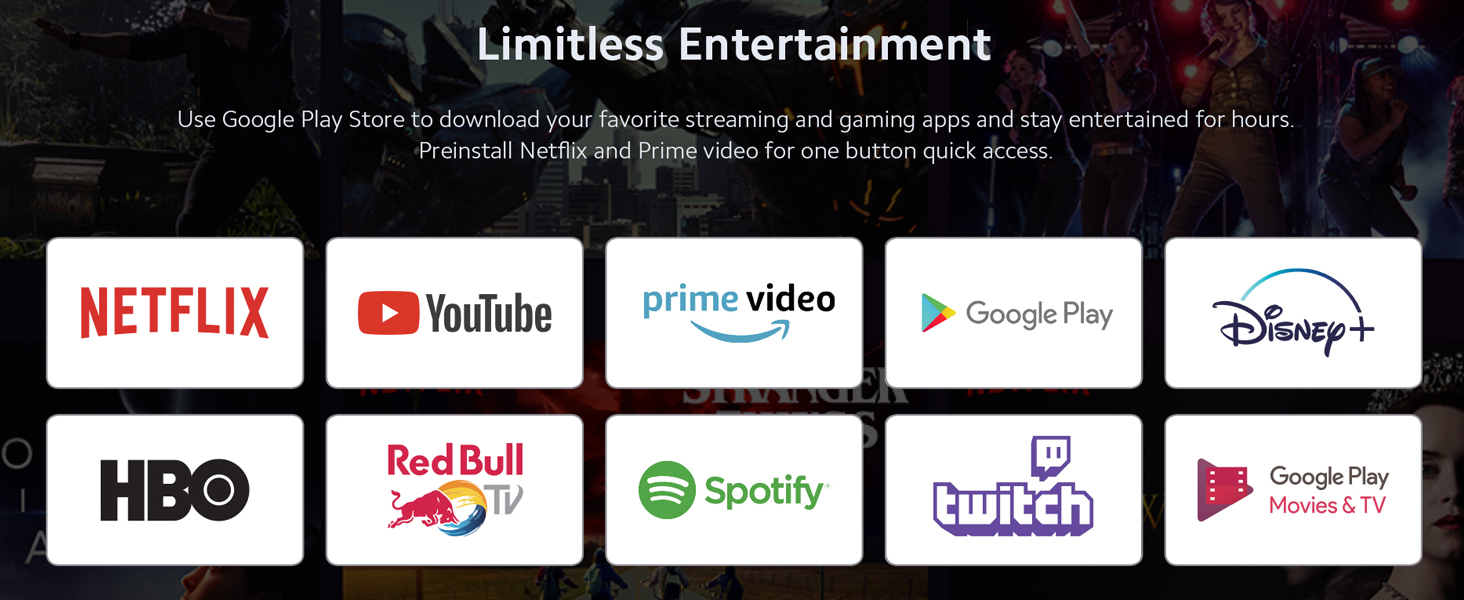
Imaxe: Unha proxección nunha pantalla de televisiónasing a wide array of streaming application logos, illustrating the limitless entertainment options available on the Mi TV Stick.
Calidade de audio e vídeo
The Mi TV Stick is designed to deliver a high-quality viewexperiencia de escoita e de atención:
- Full HD 1080P Playback: Supports video resolution up to 1920x1080 pixels for clear and detailed images.
- Soporte HDR: Provides enhanced contrast and color for a more vibrant picture (requires HDR-compatible TV and content).
- DTS and Dolby Audio: Supports multichannel HD audio encoding for smoother, dynamic, immersive, and realistic stereo surround sound.

Image: The Dolby Audio and DTS logos displayed above a graphic representing sound waves, indicating the premium surround sound capabilities of the device.
Especificacións técnicas
| Característica | Especificación |
|---|---|
| Nome do modelo | Mi TV Stick |
| Número de modelo do artigo | MDZ-24-AA |
| Dimensións do produto | 0.46 x 0.31 x 1.39 polgadas (11.7 x 7.9 x 35.3 mm) |
| Peso do elemento | 1 onzas (28.35 gramos) |
| Sistema Operativo | Android TV 9.0 |
| Resolución | 1080p (Full HD) |
| Tecnoloxía de conectividade | Bluetooth, HDMI, Wi-Fi |
| Tipo de controlador | Control remoto, control por voz |
| Servizos de Internet compatibles | Netflix, YouTube, Prime Video, Google Play Store apps |
| Baterías | 1 CR2 battery required (for remote) |
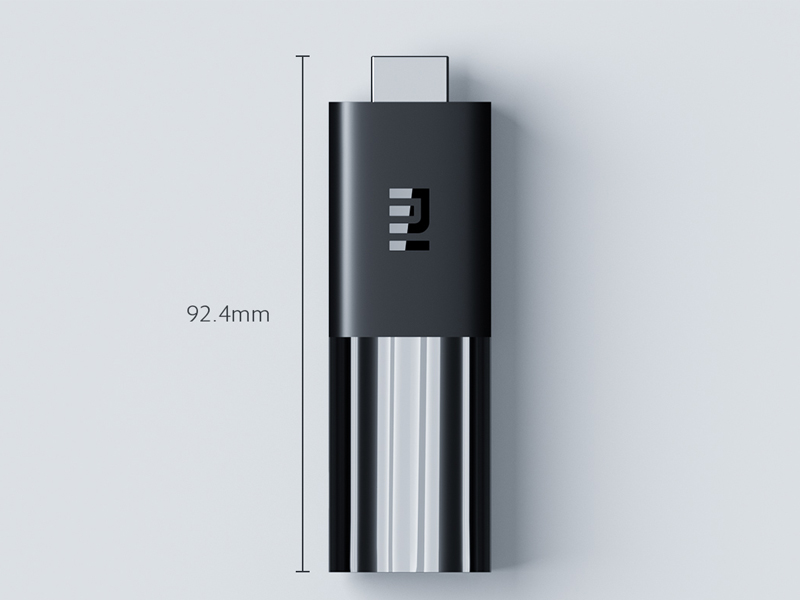
Image: A diagram illustrating the compact dimensions of the Mi TV Stick, showing its length of 92.4mm.
Resolución de problemas
If you encounter issues with your Mi TV Stick, try the following solutions:
- Sen alimentación/Sen pantalla:
- Ensure the power adapter is securely connected to the Mi TV Stick and a working power outlet.
- Verify that the Mi TV Stick is fully inserted into the TV's HDMI port.
- Comprobe que o televisor estea configurado na fonte de entrada HDMI correcta.
- Proba cun porto HDMI diferente no teu televisor.
- O control remoto non responde:
- Substitúe a pila CR2 no control remoto.
- Re-pair the remote control by following the initial setup instructions (hold Home and Back buttons).
- Asegúrate de que non haxa obstrucións entre o mando a distancia e o Mi TV Stick.
- Problemas de conexión wifi:
- Restart your Wi-Fi router and the Mi TV Stick.
- Asegúrate de introducir o contrasinal wifi correcto.
- Move the Mi TV Stick closer to your Wi-Fi router or use an HDMI extension cable to position it away from the TV's metal casing, which can interfere with Wi-Fi signals.
- App Crashing/Lagging:
- Pecha e volve abrir a aplicación problemática.
- Clear the cache and data for the app in the Mi TV Stick's settings (Settings > Apps > [App Name] > Clear cache/Clear data).
- Ensure the Mi TV Stick's software is up to date (Settings > Device Preferences > About > System update).
- If performance issues persist, consider performing a factory reset (Settings > Device Preferences > About > Factory reset). Note: This will erase all data and settings.
Mantemento
To ensure the longevity and optimal performance of your Mi TV Stick:
- Manteña o dispositivo nunha zona ben ventilada para evitar o sobreenriquecido.
- Clean the device and remote with a soft, dry cloth. Avoid using liquid cleaners.
- Comprobe e instale regularmente actualizacións do sistema para garantir que teña as últimas funcións e parches de seguridade.
- Evite expoñer o dispositivo a temperaturas extremas, humidade ou luz solar directa.
Garantía e Soporte
The Xiaomi Mi TV Stick is covered by a limited manufacturer's warranty. Please refer to the warranty card included in your product packaging for specific terms and conditions, including the warranty period and coverage details.
For technical support, troubleshooting assistance, or warranty claims, please visit the official Xiaomi support websitio web ou póñase en contacto co seu servizo de atención ao cliente. Pode atopar máis información e recursos no Tenda XIAOMI en Amazon.
Ask a question about this manual
Ask about setup, troubleshooting, compatibility, parts, safety, or missing instructions. Manuals+ will review the question and use this page’s manual context to help answer it.