
WisFox RH204RH
Manual do usuario do rato sen fíos WisFox 2.4G
Model: RH204RH
Introdución
Thank you for choosing the WisFox 2.4G Wireless Mouse. This manual provides detailed instructions for the setup, operation, and maintenance of your new device to ensure optimal performance and a comfortable user experience. Please read this manual thoroughly before using the mouse.

Image: The WisFox 2.4G Wireless Mouse, shown with its USB-A and USB-C receivers.
Contido do paquete
- 1 x WisFox 2.4G Wireless Mouse
- 1 x USB-A Receiver (stored in the mouse battery compartment)
- 1 x Adaptador USB-C
- 1 x Manual de usuario
Produto rematadoview
Familiarize yourself with the various components and buttons of your WisFox wireless mouse:
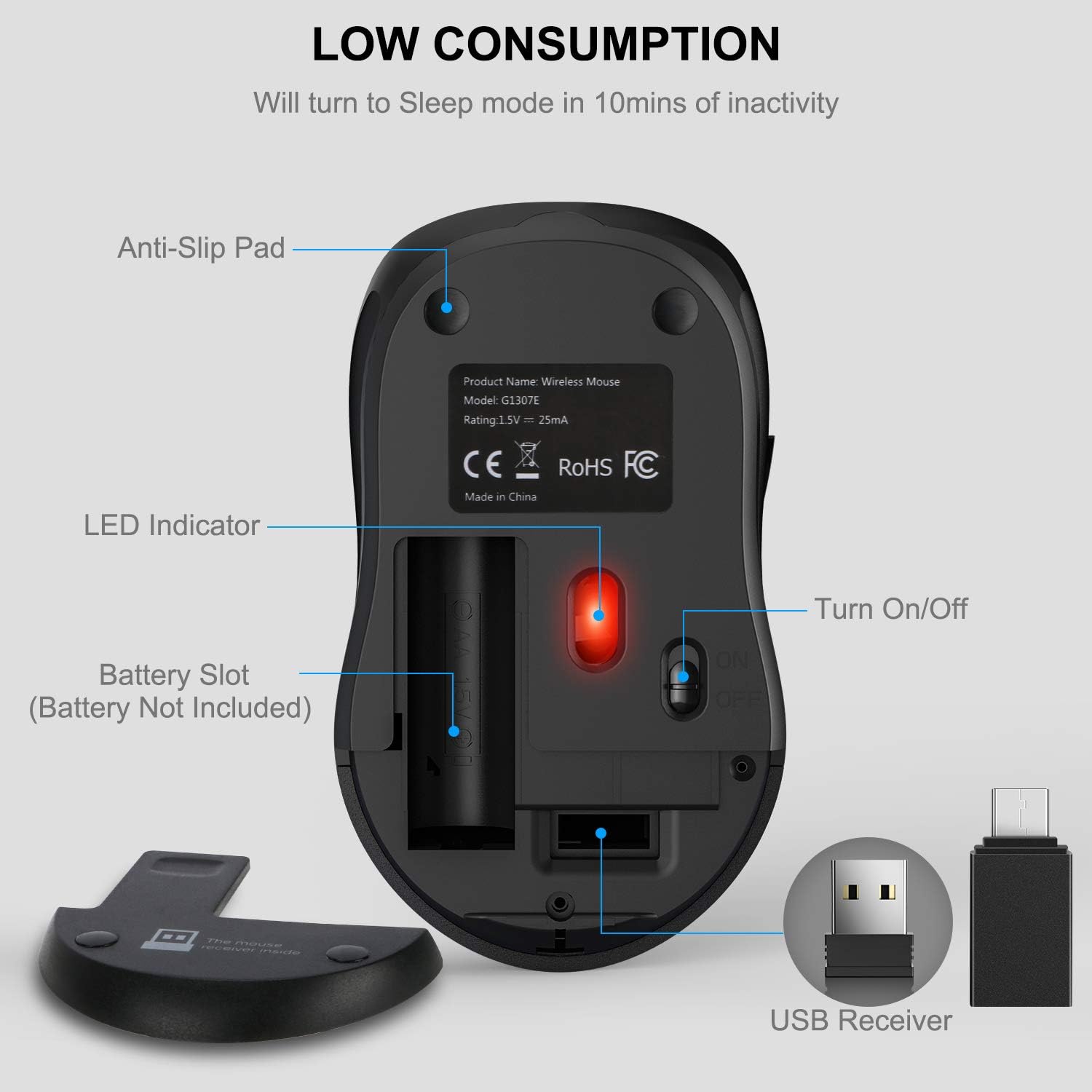
Image: A diagram illustrating the six buttons on the WisFox wireless mouse: Left Button, Right Button, Scroll Wheel, DPI Switch Button, Page Up Button, and Page Down Button.
- Botón esquerdo: Función de clic estándar.
- Botón dereito: Función estándar do clic dereito.
- Roda de desprazamento: Para desprazamento vertical e función de clic co botón central.
- Botón de cambio de DPI: Axusta a sensibilidade do cursor (niveis de DPI).
- Botón de avance de páxina: Navigates to the previous page in web browsers or documents.
- Botón de avance de páxina: Navigates to the next page in web browsers or documents.

Image: The underside of the WisFox wireless mouse, highlighting the battery slot (for 1 AA battery, not included), the storage compartment for the USB receiver, the LED indicator, and the On/Off switch.
Instrucións de configuración
- Instalar batería: Open the battery compartment cover on the bottom of the mouse. Insert one AA battery (not included), ensuring correct polarity (+/-). Close the cover.
- Retrieve Receiver: The USB-A receiver is stored inside the battery compartment for convenience. Remove it carefully.
- Conectar o receptor:
- For devices with a standard USB-A port: Plug the USB-A receiver directly into an available USB-A port on your computer.
- For devices with a USB-C port: Attach the provided USB-C adapter to the USB-A receiver, then plug the combined unit into an available USB-C port on your computer.
- Encendido: Slide the On/Off switch located on the bottom of the mouse to the "ON" position.
- Conexión automática: The mouse will automatically connect to your computer. No additional drivers are required for installation.

Image: The WisFox wireless mouse connected to a laptop via its 2.4G receiver, illustrating its wireless capability and effective range of 33 feet.
Instrucións de funcionamento
Axuste de DPI (velocidade do cursor)
The WisFox wireless mouse features three adjustable DPI levels, allowing you to customize the cursor sensitivity to your preference. Press the DPI Switch Button (located behind the scroll wheel) to cycle through the settings:
- 800 DPI: Movemento do cursor máis lento, ideal para tarefas precisas.
- 1200 DPI: Standard cursor movement (default setting).
- 1600 DPI: Faster cursor movement, suitable for quick navigation.

Image: A visual representation of the three adjustable DPI settings (800, 1200, 1600) available on the mouse, with 1200 DPI indicated as the default.
Modo de suspensión automática
To conserve battery life, the mouse is designed with an automatic power-saving feature:
- The mouse will enter auto power-saving mode after 1 minute of inactivity.
- It will enter deep sleep mode after 8 minutes of inactivity.
- To wake the mouse, simply double-click any button.
Compatibilidade
The WisFox 2.4G Wireless Mouse offers broad compatibility with various operating systems and devices:

Image: The WisFox mouse in an office environment, with logos indicating compatibility with Windows, Mac OS, and Linux operating systems.
- Sistemas operativos: Windows 7/8/10/XP, Vista 7/8, Linux, Mac OS (V10.4 or higher).
- Dispositivos: Laptops, Desktop PCs, MacBooks, and other devices with a compatible USB-A or USB-C port.
Mantemento
- Limpeza: Usa un pano suave e seco para limpar o rato. Para a sucidade persistente, dórao lixeiramenteampEnxágüe o pano con auga ou unha solución de limpeza suave. Evite produtos químicos agresivos.
- Substitución da batería: When the mouse performance degrades or it stops responding, replace the AA battery. Ensure the On/Off switch is in the "OFF" position before replacing the battery.
- Almacenamento: When not in use for extended periods, turn off the mouse and store the USB receiver in its designated slot within the battery compartment to prevent loss.
Resolución de problemas
| Problema | Solución |
|---|---|
| O rato non responde |
|
| Cursor atrasado ou movemento errático |
|
| Side buttons (Page Up/Down) not working |
|
Especificacións
- Modelo: RH204RH
- Conectividade: Sen fíos de 2.4 GHz (radiofrecuencia)
- Rango de funcionamento: Ata 33 pés (10 metros)
- Niveis de DPI: 800 / 1200 (Default) / 1600
- Botóns: 6 (Left, Right, Scroll Wheel, DPI Switch, Page Up, Page Down)
- Detección de movemento: Óptica
- Fonte de enerxía: 1 x pilas AA (non incluídas)
- Suspensión automática: After 1 minute (power-saving), after 8 minutes (deep sleep)
- Durabilidade: Proba de 5 millóns de teclas
- Dimensións do produto: 4.09 x 2.4 x 1.57 polgadas (10.39 x 6.1 x 3.99 cm)
- Peso do artigo: 2.4 onzas (68 gramos)
Garantía e Soporte
WisFox provides a Garantía de 24 meses for this product, along with a 90-day no-questions-asked return policy. Our customer service team is available 24/7 to assist you with any questions or concerns.
For support, please contact WisFox customer service through the platform where you purchased the product or visit the official WisFox websitio para información de contacto.
Ask a question about this manual
Ask about setup, troubleshooting, compatibility, parts, safety, or missing instructions. Manuals+ will review the question and use this page’s manual context to help answer it.